
The best gaming monitors right now are the ASUS TUF Gaming VG27AQ3A for 1440p value, the Acer Nitro 27 inch 4K for sharp detail, and the Samsung Odyssey OLED G6 or LG UltraGear 27GX704A for fast OLED motion. For a budget 1080p screen, the Sceptre 27 inch 180Hz is a simple pick.
Choosing a gaming monitor is mostly about matching three things: the resolution your graphics card can drive, the refresh rate you can reach, and the panel type that suits your games. This guide sorts eight monitors by resolution and panel, then explains response time, adaptive sync and OLED care in plain terms.
Our Top Picks
 ASUS TUF Gaming VG27AQ3A 27 Inch 1440p 180Hz14.4" x 24.2" x 2.1"24.2 x 8.4 x 17.9 inches10.1 poundsCheck on Amazon

Top 3 picks at a glance
Our Picks at a Glance
- Best budget 1080p: Sceptre 27 inch FHD, up to 180Hz
- Best budget 1440p: Acer Nitro 27 inch QHD IPS 180Hz (KG271U)
- Best 1440p with G-SYNC: ASUS TUF Gaming VG27AQ3A, 180Hz
- Best high-refresh IPS: AOC Q27G41ZE, 240Hz native and 260Hz overclocked
- Best QD-OLED: Samsung 27 inch Odyssey OLED G6 (G61SH), 240Hz
- Best OLED with HDMI 2.1: LG UltraGear 27GX704A-B, 240Hz
- Best 4K: Acer Nitro 27 inch 4K VG270K V4, 160Hz
- Best ultrawide: Alienware 34 AW3425DWM, WQHD 180Hz
Comparison Table: Eight Gaming Monitors
| Monitor | Size | Resolution | Refresh rate | Panel | Adaptive sync |
|---|---|---|---|---|---|
| Sceptre 27 inch (E275B-FPT165) | 27″ | 1080p | Up to 180Hz | Not listed | FreeSync |
| Acer Nitro KG271U | 27″ | 1440p | 180Hz | IPS | AMD FreeSync |
| ASUS TUF VG27AQ3A | 27″ | 1440p | 180Hz | Fast IPS | G-SYNC, FreeSync Premium |
| AOC Q27G41ZE | 27″ | 1440p | 240Hz, 260Hz OC | IPS | G-SYNC Compatible |
| Samsung Odyssey OLED G6 (G61SH) | 27″ | 1440p | 240Hz | QD-OLED | Not listed |
| LG UltraGear 27GX704A-B | 27″ | 1440p | 240Hz | OLED | G-Sync Compatible, FreeSync Premium Pro |
| Acer Nitro VG270K V4 | 27″ | 4K | 160Hz | IPS | AMD FreeSync Premium |
| Alienware AW3425DWM | 34″ curved | 3440×1440 | 180Hz | Not listed | FreeSync Premium, VESA AdaptiveSync |
The table uses only what each listing states. Check the maker page for panel type, brightness and connection details that the listing leaves out.
Start With Resolution and Your Graphics Card
The right resolution depends on your graphics card more than your budget. A monitor that asks too much of the card forces you to lower settings, which defeats the point.
| Resolution | Pixels | Graphics card class | Good refresh target |
|---|---|---|---|
| 1080p | 1920×1080 | Entry cards such as RTX 5060 or RX 7600 class | 144 to 240 Hz |
| 1440p | 2560×1440 | Mid-range cards such as RTX 5060 Ti or RTX 5070 class | 144 to 240 Hz |
| Ultrawide 1440p | 3440×1440 | Mid to high-range cards | 100 to 180 Hz |
| 4K | 3840×2160 | High-end cards, or upscaling on mid-range | 60 to 160 Hz |
For most gaming PCs, 1440p at 144 Hz or higher is the best balance. It is sharper than 1080p, and mid-range graphics cards can drive it.
1080p Monitors
1. Sceptre 27 inch FHD Gaming Monitor: Best Budget 1080p
As an Amazon Associate we earn from qualifying purchases at no extra cost to you.

This Sceptre monitor is a 27 inch Full HD screen with a refresh rate up to 180Hz, 1 ms response, FreeSync, DisplayPort, three HDMI inputs, 100% sRGB and built-in speakers. The listing mentions FPS and RTS modes. At 27 inches, 1080p is less sharp than 1440p, but it is easy for an entry graphics card to drive at high frame rates, which suits competitive games.
- 27 inch FHD, up to 180Hz, 1 ms
- DisplayPort and three HDMI inputs
- 100% sRGB, built-in speakers
Best for: budget builds and competitive shooters. Skip if: you sit close and want a sharper picture.
Pros: low cost; many inputs; high refresh; speakers included. Cons: lower pixel density at 27 inches; panel type not listed; basic stand details not stated.
1440p Monitors
2. Acer Nitro 27 inch QHD IPS 180Hz (KG271U): Best Budget 1440p
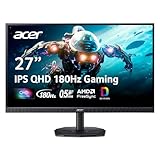
The Acer Nitro KG271U is a 27 inch 2560×1440 IPS monitor at 180Hz. The listing mentions 0.5 ms response, AMD FreeSync, 95% DCI-P3 color, two HDMI inputs, DisplayPort, built-in speakers, VESA mounting, a blue light filter and flicker-free technology. It is an easy way into 1440p high refresh on a mid-range card.
- 27 inch QHD IPS, 180Hz
- 95% DCI-P3, 0.5 ms response (listing)
- 2x HDMI, DisplayPort, speakers, VESA
Best for: first 1440p upgrade on a budget. Skip if: you need G-SYNC certification or OLED motion.
Pros: wide color for the class; VESA mount; flicker-free. Cons: 180Hz is lower than the faster models here; speakers are basic.
3. ASUS TUF Gaming VG27AQ3A: Best 1440p with G-SYNC

The TUF Gaming VG27AQ3A is a 27 inch 1440p 180Hz Fast IPS monitor with G-SYNC compatibility, ELMB Sync motion blur reduction, 1 ms response, 130% sRGB, built-in speakers, FreeSync Premium and HDR10. The listing mentions PS5 and Xbox use and a three-year warranty. ELMB Sync is a backlight strobing feature that can reduce motion blur at a cost in brightness.
- 27 inch QHD Fast IPS, 180Hz, 1 ms
- ELMB Sync, FreeSync Premium, HDR10
- 130% sRGB, three-year warranty
Best for: PC gamers who want G-SYNC and a solid warranty. Skip if: you want a faster panel than 180Hz.
Pros: motion blur reduction; wide sRGB; long warranty; console support. Cons: HDR10 on an IPS panel is basic; ELMB Sync may not work together with adaptive sync.
4. AOC Q27G41ZE: Best High-Refresh IPS

The AOC Q27G41ZE is a 27 inch 2560×1440 overclocked IPS monitor, rated at 240Hz native and 260Hz overclocked, with G-SYNC Compatible support, 0.3 ms response, HDR, VESA mounting, an audio out jack and a three-year warranty. It brings a very high refresh rate to a monitor in the mid-price range.
- 27 inch QHD IPS, 240Hz native, 260Hz OC
- 0.3 ms response (listing), G-SYNC Compatible
- HDR, VESA, audio out, three-year warranty
Best for: competitive players with a strong graphics card. Skip if: your card cannot reach 200 frames per second in your games.
Pros: very high refresh; G-SYNC Compatible; long warranty. Cons: overclock mode may need a specific cable; HDR is basic on IPS.
OLED Monitors
5. Samsung 27 inch Odyssey OLED G6 (G61SH): Best QD-OLED

The Odyssey OLED G6 (G61SH) is a 27 inch QD-OLED monitor at 2560×1440 and 240Hz. The listing mentions 0.03 ms response, a glare-free finish, Pantone validation, HDR10, a height-adjustable stand, OLED Safeguard and a three-year warranty. OLED panels turn off individual pixels for deep blacks, and response times are far faster than IPS.
- 27 inch QD-OLED, QHD, 240Hz
- 0.03 ms response, glare-free finish
- Height-adjustable stand, OLED Safeguard
Best for: motion clarity and contrast in dim rooms. Skip if: you leave static windows on screen for many hours daily.
Pros: excellent motion; deep black levels; adjustable stand; warranty. Cons: costs more than IPS; static content can cause image retention over time; brightness limits in large bright areas.
6. LG UltraGear 27GX704A-B: Best OLED with HDMI 2.1
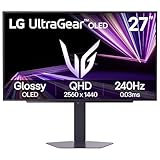
LG’s 27GX704A-B is a 27 inch QHD OLED gaming monitor at 240Hz with 0.03 ms response, G-Sync Compatible and FreeSync Premium Pro, VESA DisplayHDR TrueBlack 400 and HDMI 2.1 with DisplayPort. HDMI 2.1 matters if you also connect a modern console. This is the other main choice in the 27 inch OLED class.
- 27 inch QHD OLED, 240Hz, 0.03 ms
- G-Sync Compatible, FreeSync Premium Pro
- DisplayHDR TrueBlack 400, HDMI 2.1
Best for: PC and console gaming with deep blacks. Skip if: you need a tall stand or heavy daytime use in a bright room.
Pros: HDMI 2.1; wide adaptive sync support; TrueBlack HDR. Cons: OLED care required; price above IPS; warranty terms are not in the listing.
4K Monitors
7. Acer Nitro 27 inch 4K VG270K V4: Best 4K

The Nitro VG270K V4 is a 27 inch 3840×2160 IPS monitor with 160Hz, and a dual-frame-rate mode listed as DFR 320Hz that appears to drop to a lower resolution for higher refresh. The listing also mentions 0.5 ms response, AMD FreeSync Premium, two HDMI 2.1 ports, DisplayPort, speakers, VESA mounting and flicker-free technology. A 4K screen at this size is sharp for both games and desktop work.
- 27 inch 4K IPS, 160Hz
- DFR 320Hz mode (listing), 0.5 ms
- 2x HDMI 2.1, DisplayPort, VESA
Best for: players with a high-end graphics card. Skip if: your card cannot drive 4K at the frame rates you want.
Pros: sharp 4K picture; HDMI 2.1 ports; high refresh at 4K. Cons: needs a powerful card; the extra refresh mode requires a lower resolution; check how it works on the maker page.
Ultrawide Monitors
8. Alienware 34 AW3425DWM: Best Ultrawide

The Alienware 34 AW3425DWM is a 34 inch curved ultrawide with a 3440×1440 (WQHD) resolution, 180Hz, 1 ms response, a 1500R curve, AMD FreeSync Premium and VESA AdaptiveSync. A 21:9 screen shows more of the game world to the sides in supported titles and gives room for several windows when you work. Check whether your games support ultrawide.
- 34 inch curved, 3440×1440, 180Hz
- 1500R curve, 1 ms response (listing)
- FreeSync Premium, VESA AdaptiveSync
Best for: immersive racing, simulation and open-world games. Skip if: you mostly play competitive shooters.
Pros: wider view; curved for immersion; high refresh. Cons: not every game supports 21:9; needs more GPU power than 16:9 1440p; panel type not listed.
Also Consider
ASUS TUF Gaming VG27UQ1A 4K 160Hz

A 27 inch 4K monitor with 160Hz, G-SYNC compatibility, ELMB Sync, 1 ms response, 95% DCI-P3 and FreeSync Premium. A good alternative to the Acer 4K if you prefer ASUS tools.
Dell 27 240Hz Gaming Monitor SE2726HG

A 27 inch FHD IPS monitor at 240Hz with AMD FreeSync Premium, two HDMI inputs and DisplayPort 1.4. It suits esports players on a budget who want a high refresh rate at 1080p.
Samsung 27 inch Odyssey G5 (G51F)

A 27 inch QHD monitor at 180Hz with 1 ms response, AMD FreeSync, HDR10, a height-adjustable stand and features such as Black Equalizer and Virtual Aim Point. A strong choice if you want a height-adjustable 1440p stand without paying for OLED.
Panel Types Explained: IPS, VA, QD-OLED and OLED
- IPS: wide viewing angles, good color, and fast modern versions. Blacks look gray in a dark room.
- VA: higher contrast than IPS and often curved, but slower pixel response can cause smearing in fast scenes.
- QD-OLED and OLED: each pixel makes its own light, so blacks are deep and motion is very clear. Care is needed to avoid image retention.
How to Read Response Time and Refresh Rate Claims
Response times in listings, such as 0.5 ms or 1 ms, are often quoted for the best-case mode. In everyday use the real figure is usually higher. Do not compare numbers across panel types: OLED panels switch pixels far faster than IPS, so 0.03 ms on an OLED is not the same experience as 0.5 ms on an IPS.
Refresh rate tells you how many times per second the screen updates. Going from 60 Hz to 144 Hz is a large improvement, 144 Hz to 240 Hz is smaller, and above 240 Hz the gains are hard to notice unless you play fast competitive games and your system can reach those frame rates.
Adaptive Sync: G-SYNC, FreeSync and VESA AdaptiveSync
Adaptive sync matches the monitor’s refresh to your graphics card’s frame rate, which removes tearing without adding much delay. Most monitors here support FreeSync. Many are also labeled G-SYNC Compatible, which means NVIDIA cards can use the feature. Newer NVIDIA and AMD cards work with either on most monitors, though listings and the maker’s page confirm the exact support.
OLED Care Tips
- Use a dark theme and hide the taskbar when you can.
- Let the monitor run its built-in refresh routines, such as OLED Safeguard or OLED Care, and do not interrupt them.
- Set the screen to turn off after a few minutes of inactivity.
- Avoid leaving static HUDs or windows at full brightness for many hours every day.
- Check the warranty to see whether image retention is covered.
Matching a Monitor to a Graphics Card: Practical Pairings
| Graphics card class | Monitor that fits | What to expect |
|---|---|---|
| RTX 5060 or RTX 4060 class | Sceptre 27 inch FHD, Dell SE2726HG | High frame rates at 1080p in most games |
| RTX 5060 Ti class | Acer Nitro KG271U, ASUS TUF VG27AQ3A, Samsung G5 | Smooth 1440p at high settings, with upscaling in demanding games |
| RTX 5070 class | AOC Q27G41ZE, Samsung OLED G6, LG 27GX704A | High-refresh 1440p; frame generation helps in heavy titles |
| RTX 5080 class | Acer Nitro 4K, ASUS TUF VG27UQ1A, Alienware ultrawide | 4K or ultrawide with upscaling for the heaviest games |
These pairings are starting points. Game choice matters as much as hardware: a light esports title may reach 400 frames per second at 1440p, while a demanding single-player game may struggle at 60. Think about the games you play most and set your target frame rate before you choose.
Cables and Ports: Getting the Refresh Rate You Paid For
Many buyers plug a high-refresh monitor into the wrong port or use an old cable and end up stuck at 60 Hz. Check these points.
- Use DisplayPort for PC gaming: it supports high refresh at 1440p and 4K on most monitors and graphics cards.
- Use HDMI 2.1 for consoles: HDMI 2.1 supports 4K at 120 Hz. Older HDMI 2.0 ports limit you to lower refresh at 4K.
- Use the cable in the box: if the monitor includes a DisplayPort cable, start with that one.
- Turn on the refresh rate in Windows: open display settings, advanced display, and choose the highest refresh rate. Monitors often default to 60 Hz.
- Check the overclock setting: overclocked modes, such as the 260Hz setting on the AOC Q27G41ZE, may need to be enabled in the monitor menu.
Setting Up a New Gaming Monitor
- Connect the monitor with DisplayPort and set the refresh rate in Windows to the highest available.
- Turn on adaptive sync in the monitor menu and in your graphics card control panel.
- Choose a picture mode. Most monitors ship in a bright, oversaturated preset. A standard or sRGB mode looks more natural for everyday use.
- Turn off extra processing such as dynamic contrast if you notice flickering brightness.
- Cap your frame rate slightly under the monitor’s maximum refresh to stay inside the adaptive sync range on some setups.
- Check the manufacturer’s site for firmware updates, especially on OLED models.
Common Mistakes When Buying a Gaming Monitor
- Chasing refresh rate over resolution: 240 Hz on a 1080p screen is not always better than 144 Hz on a sharp 1440p one.
- Ignoring the stand: a fixed-height stand can force poor posture. Check height adjustment or VESA mounting.
- Trusting HDR labels: HDR10 on its own does not mean strong HDR. Peak brightness and local dimming decide the result.
- Buying 4K without the graphics card for it: you may end up lowering settings or relying heavily on upscaling.
- Forgetting the room: OLED panels with glossy finishes can reflect lights. The Samsung G61SH lists a glare-free finish, which helps.
Console Gaming on These Monitors
Several monitors here mention PS5 and Xbox support or HDMI 2.1, including the ASUS TUF models, LG UltraGear and Acer Nitro 4K. Consoles output at up to 4K 120 Hz on supported games, so HDMI 2.1 matters if you want that mode. A 1440p monitor works with consoles too, but some consoles do not output at 1440p, so they will scale from 1080p or 4K. Check how your console handles the resolution before choosing a 1440p panel for console use.
Desk Distance and Ergonomics
Screen size and viewing distance decide how sharp a monitor feels. At a normal desk distance of around 60 to 80 centimeters, a 27 inch 1440p screen looks crisp, while a 27 inch 1080p screen shows visible pixels to many people. A 4K 27 inch screen looks sharper still, though you may need to scale Windows text to keep it readable.
- Place the top of the screen at or slightly below eye level.
- Keep the screen about an arm’s length away, and move back a little for ultrawide monitors.
- Use a VESA monitor arm if the stand does not adjust high enough.
- Reduce brightness in dark rooms to limit eye strain. Flicker-free and blue light filter modes, which several of these monitors list, can help during long sessions.
How Long Will a Gaming Monitor Last?
A good monitor usually outlasts several graphics cards. That is a reason to buy for the next few years rather than only for your current hardware: a 1440p high-refresh screen can serve a mid-range card today and a stronger one later. Warranty length varies, with several listed monitors carrying three years, so confirm the term and what it covers, especially for OLED panels where image retention policies differ.
How We Chose
This is a research-based guide. We did not use these monitors. We compared product listings, maker specification pages and published reviews, and favored monitors with clear resolution, refresh rate and adaptive sync details from established brands. We limited each brand to two monitors and left out renewed or used stock.
Gaming Monitor Buying Guide
Pick the resolution your graphics card can drive
Use 1080p with entry cards, 1440p with mid-range cards and 4K with high-end cards. An RTX 5070 class card is a strong match for 1440p at high refresh.
Choose a size that fits your desk
27 inches suits 1440p at a normal desk distance. 24 inches suits 1080p. 32 inches and larger suit 4K. Ultrawide 34 inch screens need more desk width.
Check the ports
Use DisplayPort for PC gaming at high refresh. HDMI 2.1 matters for consoles and some PC cards. Check that your cable supports the monitor’s full refresh rate.
Look at the stand
Height adjustment improves comfort. If the stand is limited, make sure the monitor is VESA compatible so you can add an arm.
Consider HDR realistically
HDR10 on a standard IPS monitor offers a small improvement. For strong HDR, OLED or monitors with local dimming do much better.
Frequently Asked Questions
What is the best gaming monitor for most people?
A 27 inch 1440p monitor at 165 to 180 Hz, such as the ASUS TUF VG27AQ3A or Acer Nitro KG271U, balances sharpness, speed and cost.
Is 1440p better than 1080p for gaming?
1440p is sharper and looks better at 27 inches. It needs a stronger graphics card than 1080p to hit the same frame rates.
Is 240 Hz worth it?
It helps in fast competitive games if your system can reach those frame rates. For single-player games, 144 to 180 Hz is plenty.
Is an OLED gaming monitor worth the price?
If you value motion clarity and contrast, yes. If you leave static content on screen for many hours, an IPS monitor is a safer choice.
Do I need G-SYNC for an NVIDIA card?
No. Most FreeSync monitors also work with NVIDIA cards as G-SYNC Compatible. Confirm the monitor’s listing or maker page.
Is 4K gaming worth it?
It looks sharp, but it needs a high-end graphics card or upscaling. Many players prefer 1440p at high refresh instead.
Are ultrawide monitors good for gaming?
Yes, in games that support 21:9. They work well for racing, simulation and open-world titles, but some games stretch or crop.
Which One Should You Buy?
- Tight budget, competitive play: Sceptre 27 inch FHD or the Dell 240Hz.
- Best balance: ASUS TUF VG27AQ3A or Acer Nitro KG271U.
- Fastest IPS: AOC Q27G41ZE.
- Best motion and contrast: Samsung Odyssey OLED G6 or LG 27GX704A.
- Sharp picture: Acer Nitro 4K VG270K V4.
- Immersive view: Alienware 34 AW3425DWM.
Sources
- Acer, ASUS, AOC, Samsung, LG and Alienware monitor specification pages
- Sceptre and Dell product pages
- RTINGS monitor reviews
- TFT Central panel database
Last updated: November 2026
Related guides
More from Amazon
Programs that pair well with the guide above. Offers and eligibility are set by Amazon and may change.
Free shipping on eligible items, Prime Video and more. Eligible new members can start with a free trial.
Start a Prime free trialAd-free music streaming. Eligible new subscribers can start with a free trial.
Try Music Unlimited freeA Prime membership for ages 18-24 with a trial period. Eligibility is set by Amazon.
See Prime for Young AdultsAudiobooks and podcasts to listen to on the go. Eligible new members can start with a free trial.
Try Audible freeAs an Amazon Associate we earn from qualifying purchases.


