For modern content creators, digital files are more than just data—they are the lifeblood of a career. Whether you are editing 4K video footage, archiving high-resolution RAW photography, or managing massive audio libraries, your storage setup is just as critical as your camera or your monitor. Yet, as home office design trends lean toward clean, minimalist aesthetics, creators often make the mistake of treating their storage as an afterthought. They hide a chaotic web of cheap, plastic, vibrating external drives behind beautiful solid walnut desks, or worse, risk their entire portfolio on a single unbacked-up drive.
When researching what to look for in creator storage backup systems, it is easy to get lost in a sea of technical jargon. Many buyers fall into common traps: purchasing drives based solely on the lowest price per gigabyte, ignoring the difference between active working drives and cold archives, or neglecting the physical footprint and noise levels of the hardware in their workspace. To build a reliable, elegant, and future-proof home studio, you must understand how these systems balance technical performance with physical integration into your home.
As an Amazon Associate we earn from qualifying purchases at no extra cost to you.


Our Top Picks
 Kingston XS2000 2TB High Performance Portable SSD with2TB2.74 x 1.28 x 0.53 inches0.12 poundsCheck on Amazon
 Kingston XS2000 500G High Performance Portable SSD with500GB2.74 x 1.28 x 0.53 inches0.12 poundsCheck on Amazon

Top 3 picks at a glance
Decide These 3 Things First
Before diving into transfer speeds and interface specs, you must establish three fundamental pillars of your creative workflow. Answering these questions upfront will instantly filter out the drives that do not fit your daily routine.
- Active Working Storage vs. Cold Archiving: Are you looking for a lightning-fast drive to edit files directly off of in real time, or a high-capacity vault to store completed projects that you rarely need to access? Working drives require solid-state speed (SSDs), while archiving systems can rely on slower, high-capacity mechanical hard drives (HDDs).
- Portability vs. Desktop Permanence: Do you create content on-the-go at coffee shops, studios, and travel destinations, or is your editing workflow strictly anchored to a dual-monitor home desk setup? Portable drives must be lightweight and bus-powered, whereas desktop systems can be heavier, require dedicated AC wall power, and offer massive multi-terabyte capacities.
- The 3-2-1 Backup Strategy Commitment: A single external drive is not a backup system; it is simply external storage. A true backup strategy requires three copies of your data, stored on two different types of media, with one copy kept offsite (such as cloud storage or a physical drive kept at another location). You must decide how your physical hardware will fit into this safety loop.
1. Size, Weight, and Workspace Footprint
From a home design perspective, the physical presence of your storage gear matters. A cluttered desk leads to a cluttered mind. Storage systems generally fall into two physical categories: desktop workhorses and pocket-sized portables.
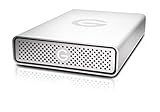
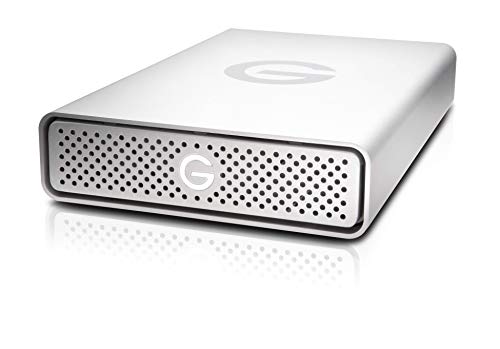
Desktop external hard drives, like the premium G-Technology 4TB G-DRIVE USB-C, are designed to stay put. These units typically measure around 7.7 x 5.0 x 1.4 inches and weigh approximately 2.3 to 2.5 pounds. Their heavy, solid construction ensures they do not slide around your desk when cables are nudged, but they require a dedicated footprint on your workspace and an external power outlet. Under load, mechanical desktop drives can vibrate; a well-built drive should feature rubber dampening feet on the bottom to prevent those vibrations from resonating through a hollow wooden desk.
Conversely, pocket-sized external SSDs offer ultimate space-saving efficiency. High-performance models like the Kingston XS2000 (available in 500GB and 2TB capacities) measure an incredibly compact 2.7 x 1.3 x 0.5 inches and weigh a mere 1.0 ounce (28.9 grams). These ultra-lightweight drives can easily hang from a laptop screen, tuck into a shallow desk drawer, or slip into a tech pouch, keeping your desktop completely clear of visual clutter.
2. Materials, Durability, and Noise Levels
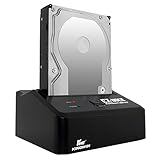
The materials used in a storage enclosure dictate both its lifespan and how well it fits into a premium home office environment. Cheaper, budget-tier storage options often rely on thin plastic housings. Plastic is a poor conductor of heat, meaning these drives run hotter and are highly susceptible to cracking if dropped. Furthermore, open-frame utility options like the Kingwin USB 3.0 Hard Drive Docking Station (around $24) are made of lightweight plastic and expose raw internal drives. While highly functional for quick hot-swapping at your desk, they offer no physical protection or dust resistance, making them best suited for occasional utility rather than permanent, exposed display.
For a permanent desktop setup, look for anodized aluminum enclosures. Aluminum acts as a giant passive heatsink, pulling heat away from the internal drive mechanics without the need for a noisy internal fan. In a quiet home studio where you are recording voiceovers or mixing audio, fan noise and drive hum can ruin a take. A high-quality aluminum desktop drive keeps noise levels to a whisper (typically under 25 decibels).
For portable drives, look for ruggedized outer shells. The best portable SSDs feature a combination of an internal metal chassis for heat dissipation and a removable, shock-resistant silicone or rubber sleeve. Look for certified ingress protection (IP) ratings. An IP55 rating means the drive can withstand dust and water splashes, while an IP68 rating indicates it can survive complete submersion in water and drops from heights of up to 6.5 feet (2 meters) onto concrete floors.
3. Performance, Speed, and Interface Types
Transfer speed is where the daily frustration or joy of a creator workflow lies. If you are transferring 100GB of camera footage at the end of a shoot, the difference between a slow drive and a fast drive can mean hours of wasted time.
Mechanical Hard Disk Drives (HDDs) utilize spinning platters. Standard consumer desktop drives spin at either 5,400 RPM or 7,200 RPM, delivering read/write speeds between 130 MB/s and 250 MB/s. These are perfectly adequate for scheduled background backups or archiving cold files, but they will stutter and drop frames if you try to edit multi-stream 4K video directly from them.
Solid-State Drives (SSDs) have no moving parts and offer massive speed advantages. However, to achieve their rated speeds, the drive’s interface must match your computer’s ports. For example, the Kingston XS2000 utilizes the USB 3.2 Gen 2×2 interface, which is capable of blazing-fast transfer speeds of up to 2,000 MB/s. To hit that 2,000 MB/s mark, your host computer must support USB 3.2 Gen 2×2. If plugged into a standard USB 3.0 port, the drive will automatically throttle down to around 500 MB/s. Ensure your workspace computer features Thunderbolt 3, Thunderbolt 4, or USB4 ports to maximize the potential of modern high-speed SSDs.
4. Price Tiers and Cost per Terabyte
When planning your storage budget, you must balance upfront costs with the long-term value of your data. Storage pricing is generally categorized into three distinct tiers:
- Budget Tier ($20 to $100): This tier consists of bare docking stations (such as the Kingwin Docking Station at around $24) and entry-level 1TB to 2TB external mechanical hard drives. Cost per terabyte is incredibly low (often $20 to $35 per TB), making this tier ideal for creators on a tight budget who need raw capacity for cold archiving but do not require fast active working speeds.
- Mid-Range Tier ($100 to $250): Here you will find high-capacity desktop HDDs (4TB to 8TB) and entry-level portable SSDs (such as the Kingston XS2000 500GB at approximately $170). The cost per terabyte for SSDs in this tier ranges from $150 to $300 per TB. This tier is the sweet spot for creators who need a mix of reliable backup capacity and decent transfer speeds.
- Premium Tier ($250 to $600+): This tier includes enterprise-grade desktop drives (such as the G-Technology 4TB G-DRIVE at around $360) and ultra-fast, high-capacity portable SSDs (like the Kingston XS2000 2TB at around $400). You are paying a premium for enterprise-class drive reliability, superior thermal management, robust aluminum construction, and maximum read/write speeds.
5. Warranty, Lifespan, and Drive Reliability
All storage drives will eventually fail; it is a matter of when, not if. Mechanical hard drives generally have a physical lifespan of 3 to 5 years, as their moving parts eventually wear down. SSDs do not have moving parts, but their lifespan is determined by their Terabytes Written (TBW) rating, which measures how many times data can be written and erased before the drive’s flash memory degrades.
When purchasing backup hardware, always check the manufacturer’s warranty. Budget-tier drives usually offer a limited 1-year or 2-year warranty. Premium-tier and enterprise-grade drives, however, typically come with a 3-year to 5-year limited warranty. A longer warranty period is a strong indicator of the manufacturer’s confidence in the drive’s internal components, such as the use of helium-sealed drives or high-grade NAND flash memory.
Spec Checklist
Use this quick-reference checklist to compare different storage tiers as you plan your purchase heading into 2026:
| Specification | Budget Tier | Mid-Range Tier | Premium Tier |
|---|---|---|---|
| Bare HDD/SSD Dock or Basic HDD | SATA SSD or High-Capacity HDD | NVMe SSD or Enterprise-Class HDD | |
| 100 MB/s to 150 MB/s | 450 MB/s to 1,000 MB/s | 1,050 MB/s to 2,800 MB/s | |
| Thin ABS Plastic | Thick Plastic / Partial Aluminum | Anodized Aluminum / Rugged Silicone | |
| Bus-powered or basic AC adapter | Bus-powered (SSDs) or AC adapter | Bus-powered (SSDs) or Premium 12V/18W AC adapter | |
| 1 to 2 Years | 2 to 3 Years | 3 to 5 Years |
Red Flags to Avoid
When shopping for creator storage backup systems, watch out for these critical warning signs that could signal a drive is unfit for professional work:
- Unbranded, Ultra-High Capacity SSDs for Cheap: If you see a generic, unbranded 16TB portable SSD online for $40, it is a scam. These fraudulent drives contain cheap micro-SD cards programmed to display a false capacity on your computer, which will overwrite and corrupt your data as soon as you start transferring files. Stick to trusted brands.
- SMR (Shingled Magnetic Recording) Desktop Drives: SMR drives overlap data tracks to squeeze more capacity onto a platter, which drastically slows down write speeds during large, continuous file transfers. For creator backups, always look for CMR (Conventional Magnetic Recording) drives, which maintain fast, consistent write speeds.
- No Mention of Thermal Throttling Protection: High-speed NVMe SSDs generate immense heat. If an SSD lacks a metal heatsink, thermal pads, or a well-ventilated enclosure, it will quickly overheat during long transfers and throttle its speed down to a crawl to prevent melting.
- Lack of Modern USB-C / Thunderbolt Compatibility: Avoid buying older-generation drives that still rely on outdated micro-B USB ports. These older connectors are fragile, prone to disconnecting if bumped, and limit your overall transfer speeds.
FAQ
Is an SSD or an HDD better for long-term creator backups?
Both have their place in a proper backup system. HDDs are far more cost-effective for high-capacity, long-term cold archiving where speed is not a priority. However, SSDs are vastly superior for active working drives because they lack moving parts, making them immune to physical shock and drops, while offering the blazing-fast transfer speeds required for modern video and photo editing.
What is the 3-2-1 backup rule, and how do I implement it?
The 3-2-1 rule states that you should keep three copies of your data: one primary working copy and two backups. These backups should be stored on two different types of media (such as one local external SSD and one desktop HDD array). Finally, one of those copies must be kept offsite, which can be accomplished by using a secure cloud backup service or physically keeping a duplicate drive at a separate location.
Can I edit 4K video directly off an external backup drive?
Yes, but only if the drive is a high-speed SSD connected via a fast interface like USB 3.2 Gen 2 or Thunderbolt. Drives like the Kingston XS2000, which can reach speeds up to 2,000 MB/s, are perfect for editing multi-stream 4K footage directly. Attempting to edit 4K video off a standard spinning mechanical hard drive (HDD) will result in lag, dropped frames, and slow render times.
Do I need a dedicated docking station or a plug-and-play portable drive?
A docking station (like the Kingwin USB 3.0 Docking Station) is a highly versatile utility tool for your desk if you have a collection of raw, bare internal hard drives that you need to swap out quickly. However, for daily backups, portable use, or a permanent clean desk aesthetic, a sealed, plug-and-play external SSD or a dedicated aluminum desktop drive is far more secure, dust-resistant, and aesthetically pleasing.
Related guides
- Best Tablets for Artists: Drawing & Design Picks: 6 Compared (2026)
- How Many Gigabytes of Backup Storage do Creators Need? Size Guide With Measurements
- Best Battery Powered Lights for Outdoor Creators: Compared and Ranked: 8 Compared (2026)
- Best Raid Enclosures for Creator Backups: Compared and Ranked: 8 Compared (2026)