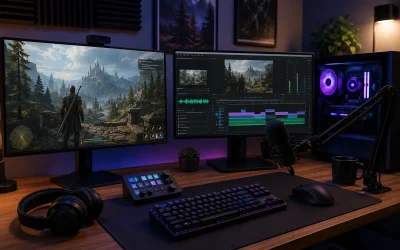
If your monitors, headphones, or recorded tracks develop a whine, hiss, or static buzz the instant a game, render, or benchmark puts load on your graphics card, you are hearing electrical interference or a ground-related problem, not a software effect. This GPU-correlated buzz often changes pitch when you move the mouse, scroll, or when frame rates fluctuate, and it disappears as soon as GPU load drops. In 2026, with high-power GPUs and USB-powered interfaces sharing compact desks and power strips, this interaction is more common than ever. This guide walks you through why it happens, how to confirm the exact cause, and how to fix it without damaging your gear.
Most Common Causes
Not all buzzing has the same origin. Use this table to match what you hear to the most probable culprit before you start changing cables or settings.
| Cause | Symptom | Likelihood |
|---|---|---|
| Ground Loop Between PC, Interface, and Powered Monitors | Constant 50/60 Hz hum that gets louder or adds a high-pitched whine when GPU loads; persists even at low interface gain | Very High |
| USB Power Noise / Poor USB Ground | Broadband hiss, whine, or chirping that tracks frame rate and mouse movement; mainly in headphones connected to the interface | High |
| Electromagnetic Interference (EMI) From GPU to Unbalanced Cables | Buzz that changes with GPU coil whine; stronger with unbalanced TS or RCA cables and when cables run near the PC case | High |
| Shared Power Strip / PSU Ripple Under Load | Buzz appears only when GPU is under heavy load and PSU fan ramps up; may affect both speakers and interface | Medium |
| Driver / Sample Rate Mismatch and DPC Latency | Crackling, stuttering, or buzzing that correlates with GPU driver activity, not just power draw; buffer errors in DAW | Medium |
| Front Panel / Internal Case Wiring Pickup | Buzz is much louder on front-panel headphone jack or case USB ports than rear motherboard ports | Low to Medium |
Diagnose Step by Step
Follow these checks in order. Each step isolates one variable, so do not skip ahead and change multiple things at once.
-
1. Confirm the Buzz Is Tied to GPU Load
Open Task Manager with Ctrl + Shift + Esc, go to the Performance tab, and select GPU. Then launch a GPU load such as a game or FurMark. Listen through the audio interface at a fixed gain. If the buzz pitch or volume tracks GPU utilization percentage and stops within 1-2 seconds of closing the load, the GPU is the trigger. Also test with the interface gain knob at zero; if the buzz remains, the noise is entering after the gain stage.
-
2. Isolate Headphones Versus Monitors
Unplug your studio monitors completely from the interface and power outlet. Listen only on headphones plugged directly into the interface. If the buzz disappears on headphones but was present on monitors, the problem is likely a ground loop involving the monitor power path. If it persists on headphones, focus on USB power and EMI.
-
3. Test Balanced Versus Unbalanced Paths
Check what cables feed your monitors. Balanced cables are TRS to TRS/XLR or XLR to XLR. Unbalanced are TS to TS or RCA. Swap to balanced cables if you are on TS/RCA, and route cables at least 6-8 inches away from the PC case, PSU cable, and power strip. If moving the cables away changes the buzz volume, EMI pickup is involved.
-
4. Compare Rear Motherboard USB to Front Panel and USB Hubs
Move your interface from a case front-panel USB port or hub to a rear USB port directly on the motherboard I/O. In Device Manager, navigate to Universal Serial Bus controllers, right-click each USB Root Hub, select Properties, then the Power tab to see power draw. If the buzz is louder on the front panel or hub and quieter on the rear port, you have Power noise or poor chassis grounding.
-
5. Check for Ground Loop With a Simple Power Test
With the PC and monitors on, keep audio cables connected but unplug the monitor power plugs from the wall for 5 seconds while listening on headphones. Then, power the PC and monitors from the same wall outlet using a single power strip versus separate wall outlets. If the buzz level changes dramatically between shared and separate outlets, a ground loop is confirmed. Do not remove ground pins or use cheater plugs for this test.
-
6. Rule Out Software Latency and Driver Conflicts
Set your interface to its native ASIO driver in your DAW under Edit then Preferences then Audio then Driver Type, and set Sample Rate to 44100 Hz or 48000 Hz and Buffer Size to 256 or 512 samples. In Windows, go to Settings then System then Sound then More sound settings, open the Playback tab, double-click your interface, go to the Advanced tab, and uncheck Allow applications to take exclusive control of this device for testing. Run LatencyMon for 5 minutes during GPU load and review the Highest reported DPC routine execution time. Consistent spikes over 1000 microseconds alongside audio crackles point to a driver issue rather than pure electrical noise.
Fixes by Cause
Ground Loop Between PC, Interface, and Monitors
What causes it: Your PC, USB interface, and powered monitors each connect to ground through their power supplies. When they are on different outlets or power strips, a small voltage difference circulates as current through the audio cable shield, creating hum that GPU load makes worse as PSU current draw increases.
How to check: As in Diagnose Step 5, compare buzz level when monitors and PC share a single grounded power strip on one wall outlet versus when they are on separate outlets across the room. Listen for a drop in 60 Hz hum and GPU whine.
What to do: Connect the PC, interface power supply if it has one, and both monitors to one high-quality grounded power strip fed from a single wall outlet. Use balanced TRS or XLR cables from interface to monitors. If hum remains, insert a dedicated ground loop isolator with balanced I/O or a passive DI box with ground lift between the interface outputs and monitor inputs.
How to undo: Remove the isolator or DI box and return monitors to their original outlet and cables. No system settings are changed, so reversal is immediate.
USB Power Noise and Poor USB Ground
What causes it: Bus-powered interfaces draw 5V directly from USB. Under GPU load, motherboard ground becomes noisy and ripple passes straight into the interface analog stage, heard as a whining buzz that follows frame rate.
How to check: As in Diagnose Step 4, move the interface to a rear motherboard USB 2.0 port if available, and disconnect other high-draw USB devices. If the whine lowers, USB power noise is the source.
What to do: Connect the interface to a rear USB port on the motherboard, preferably a USB 2.0 port that is on a separate controller from other peripherals. If your interface supports external DC power, connect its official power adapter and set its power source switch to DC instead of USB if present. Alternative: add a powered USB hub with its own 5V adapter that isolates power, or a USB isolator rated for Full Speed or High Speed depending on your interface, placed inline between PC and interface. In Windows, go to Device Manager then Universal Serial Bus controllers, right-click each USB Root Hub and Generic USB Hub, choose Properties then Power Management, and uncheck Allow the computer to turn off this device to save power.
How to undo: Unplug the isolator or hub and reconnect the interface directly to its original port. Re-check Allow the computer to turn off this device to save power if you want default power management back. Remove the DC adapter if you added one.
Electromagnetic Interference From GPU to Cables
What causes it: The GPU and its power cables radiate electromagnetic fields when switching large currents quickly. Unbalanced cables and poorly shielded audio lines act as antennas, especially when they touch the case or run parallel to power cables.
How to check: Play GPU load while slowly moving the audio cables away from the PC case and PSU cable. If the buzz rises when cables are near the rear of the case or PSU and falls when pulled away, EMI is contributing.
What to do: Replace TS or RCA cables with balanced TRS to TRS or TRS to XLR cables. Route audio cables perpendicular to power cables, not parallel. Keep at least 6 inches of separation from the PC case, display cables, and power bricks. If your interface has balanced outputs but monitors only have RCA inputs, use a passive DI or re-amp box that converts balanced to unbalanced near the monitor end instead of running long unbalanced cable across the desk.
How to undo: Swap the original cables back and return routing to its previous position. No software change is required.
Shared Power Strip and PSU Ripple
What causes it: When the GPU pulls high current, a low-quality or overloaded power strip and an aging PSU let voltage ripple increase, which couples into audio ground through the shared AC line.
How to check: Note if buzz only appears above roughly 70 percent GPU load and if the PSU is more than five years old or close to its wattage limit. Plug the interface and monitors into a different wall circuit temporarily using an extension to another room. If the buzz drops on a separate circuit, the shared AC path is at fault.
What to do: Connect the PC to its own wall outlet or a separate power strip from audio gear if your home provides two circuits at the desk, ensuring both are grounded. Avoid daisy-chaining power strips. Ensure your PSU has sufficient headroom for your GPU; check the PSU label inside the case for rated wattage and 12V rail amperage. Use a surge protector with EMI filtering rated for audio or computer use instead of a generic light-duty strip.
How to undo: Return all devices to the single power strip and original outlets. Replace the filtered strip with the old one if needed.
Driver, Sample Rate, and DPC Latency Issues
What causes it: A mismatched sample rate between Windows, the DAW, and the interface, or a GPU driver that causes deferred procedure call latency spikes, creates stutters and buzzing that is often mistaken for electrical noise but is actually buffer underruns.
How to check: Observe whether the buzz is accompanied by audio dropouts, clicks, or DAW error messages about buffer size. Run LatencyMon as described in Diagnose Step 6 during GPU load.
What to do: Install the latest driver from your interface manufacturer, selecting the ASIO driver package for Windows. In your DAW, set the driver to ASIO and lock Sample Rate to 48000 Hz everywhere: in the DAW settings, in the interface control panel found in System Tray or C:\Program Files\[Manufacturer]\Control Panel, and in Windows Settings then System then Sound then More sound settings then Advanced for the interface device. Set Clock Source to Internal in the interface control panel and set Buffer Size to 512 samples for testing, then lower to 256 or 128 if stable. In NVIDIA or AMD software, set Power Management Mode to Prefer Maximum Performance instead of Optimal Power to reduce rapid clock switching during audio work, found in NVIDIA Control Panel under Manage 3D settings then Power management mode.
How to undo: In the DAW, revert Driver Type to previous setting and set Buffer Size and Sample Rate back to original values. In Windows Sound settings, re-check Allow applications to take exclusive control of this device. In NVIDIA Control Panel, set Power management mode back to Optimal Power.
When to Replace or Reinstall
Consider replacement or a full reinstall if buzz persists after all isolated fixes above. Replace unbalanced cables with balanced ones before replacing any hardware, since this alone resolves a large share of cases. Reinstall the interface driver cleanly by going to Device Manager then Sound, video and game controllers, right-click the interface, select Uninstall device, check Attempt to remove the driver for this device, restart, then install the fresh driver downloaded from the manufacturer Support then Downloads page for your exact model. Replace the USB cable with a short, ferrite-choked cable under 6 feet. If your interface is bus-powered and more than six years old, moving to an interface with an external linear power supply or dedicated DC adapter often eliminates GPU-linked buzz entirely. Finally, if the PSU is undersized, shows bulging capacitors, or emits its own coil whine that matches the audio buzz, have a qualified technician test voltage ripple and replace the PSU with one rated at least 20 percent above your measured system peak.
FAQ
Why does the buzz change pitch when I move my mouse or change frame rate?
The whine you hear is interference modulated by GPU switching frequency. Mouse movement, scrolling, and uncapped frame rates cause rapid changes in GPU load and rendered frames per second, which shifts the switching frequency and therefore the pitch of the interference that couples into USB ground or unbalanced cables. Capping frame rate with V-Sync or setting Max Frame Rate to 60 FPS in your GPU control panel can stabilize the tone while you apply the grounding fixes above.
Will a USB ground loop isolator degrade audio quality?
A quality USB isolator designed for audio that supports the correct USB speed and provides isolated 5V power will not degrade digital audio data, because the audio remains digital until it reaches your interface converters. Avoid generic audio-frequency hum eliminators placed on the digital USB line that are not rated for data. If you use an analog isolator, place it on the balanced analog outputs between interface and monitors, not on the microphone input path.
Are balanced cables enough if I still hear buzz on headphones?
No. Balanced cables only protect the path from interface to monitors. Headphone buzz that stays when monitors are disconnected points to noise already inside the interface, usually from USB power or from the front-panel audio wiring. Fix the USB port assignment, add isolated USB power, and avoid front-panel jacks. Test headphones directly on the rear interface jack at the lowest gain where you can still hear the buzz.
Can undervolting or changing GPU power settings stop the buzz?
Lowering GPU power draw can reduce interference by reducing current spikes, but it is a workaround, not a true fix. Use it for diagnosis. In MSI Afterburner, lower Power Limit by small increments and test, or in Windows go to Settings then System then Display then Graphics, select your DAW, click Options, and set it to Power saving to force integrated graphics for audio work. If this helps, you still need to address grounding, cable balance, and USB isolation so you do not have to sacrifice GPU performance permanently.