
The Steam Deck is a genuinely capable handheld, and plenty of creators want to stream Deck gameplay to a bigger audience without babysitting a laptop screen. Because the Deck outputs over USB-C, capturing it cleanly is different from grabbing a console’s HDMI, and a few small choices decide whether you get a crisp 1080p60 feed or a stutter-filled mess.
As an Amazon Associate we earn from qualifying purchases at no extra cost to you.



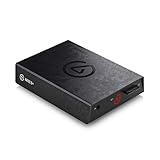
Top 3 picks at a glance
How Steam Deck video output works
The Deck’s USB-C port supports DisplayPort Alt Mode, so through a dock or a compatible USB-C-to-HDMI adapter it produces a standard HDMI signal, typically up to 1080p or higher at 60Hz depending on the dock. From there you feed a normal HDMI capture card. In other words, you rarely need a special “Steam Deck capture card”; you need a reliable dock plus a solid HDMI capture device.
The dock is half the battle
Use a powered dock that supplies charge to the Deck while it outputs video. If the dock cannot pass power and display at once, your Deck drains while you stream. A dock rated for at least 1080p60 output and 45W+ passthrough charging keeps the handheld alive through a long session.
Capture card tiers for the Deck
| Class | Max capture | Interface | Price range | Best for |
|---|---|---|---|---|
| Budget USB 2.0 | 1080p30 | USB 2.0 | $15-30 | Casual, low-motion games |
| Mainstream USB 3.0 | 1080p60 | USB 3.0 | $60-120 | Most Deck streaming |
| 4K passthrough | 1080p60 capture, 4K passthrough | USB 3.0 | $120-180 | Future-proofing |
Because the Deck’s native resolution and the games you play rarely exceed 1080p60 in practice, the mainstream USB 3.0 tier is the sweet spot. Spending up for a 4K card mostly buys passthrough headroom you will not use with a handheld.
Avoid the USB 2.0 trap for fast games
A $15 card that maxes at 1080p30 looks fine for a turn-based RPG but smears in a fast shooter. If your library leans action, spend the extra for genuine 1080p60 capture.
Two ways to route audio
Game audio travels over HDMI with the video, so the capture card carries it automatically. Your own commentary comes from a separate mic into your streaming PC or phone. If you stream directly from the Deck in desktop mode, you can add OBS, but a second device (PC or even a phone with an encoder) usually gives smoother results because the Deck is busy running the game.
Single-device vs two-device
The cleanest setup is Deck to dock to capture card to a streaming PC running OBS. That offloads all encoding from the Deck. Streaming from the Deck itself is possible but taxes the same APU that is rendering your game, which can cost frames.
Latency and monitoring
Play off the Deck’s own screen or a passthrough monitor, not the capture preview, because USB capture adds roughly 60 to 150ms of delay. That is invisible to viewers but enough to throw off your own timing if you stare at the captured feed.
FAQ
Do I need a capture card at all to stream the Steam Deck?
No. In desktop mode the Deck can run OBS and stream directly. But a capture card plus a second PC produces a more stable, higher-quality stream and frees the Deck to focus on the game.
Will any USB-C dock work?
Not always. Some third-party docks have flaky DisplayPort Alt Mode or cannot charge and output video simultaneously. Choose a dock explicitly tested for Deck video-out with power passthrough to avoid black screens.
Bottom line
For Steam Deck streaming, pair a powered dock that outputs 1080p60 with charge passthrough and a mainstream USB 3.0 capture card that does true 1080p60. Route it into a second PC running OBS for the smoothest result, and skip the pricey 4K cards, the handheld will never fill them.


