
Turning a three-hour broadcast into shareable highlights is where most streamers lose momentum. The editor you pick decides how fast that happens. DaVinci Resolve and CapCut sit at opposite ends of the spectrum: one is a full color-grading and audio suite, the other is a fast, template-driven clipper built for social video. Both have capable free tiers, so the real question is which one matches the clips you actually make.
As an Amazon Associate we earn from qualifying purchases at no extra cost to you.


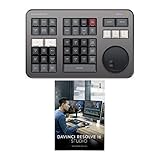

Top 3 picks at a glance
What each tool is built for
DaVinci Resolve is a professional non-linear editor with a node-based color page, the Fairlight audio engine, and Fusion for motion graphics. The free version is genuinely usable and only drops niche features like some noise reduction and above-4K/60 export. CapCut is a lightweight editor aimed at TikTok, Reels, and Shorts, with auto-captions, one-tap effects, and beat-synced templates.
Learning curve and system load
Resolve expects a real GPU and 16–32GB of RAM; timelines with 4K source and color nodes will stutter on integrated graphics. CapCut runs happily on a modest laptop and even phones. If your editing machine doubles as your streaming PC, remember that heavy Resolve renders will fight your encoder for GPU time, so edit between broadcasts, not during them.
Feature comparison
| Factor | DaVinci Resolve | CapCut (desktop) |
|---|---|---|
| Best for | Long-form YouTube VODs, color grading | Vertical clips, fast turnaround |
| Free tier | Very complete, up to 4K/60 export | Free with optional paid effects |
| Auto-captions | Yes (Studio smoother) | Yes, fast and accurate |
| Color grading | Industry-grade node graph | Basic filters/LUTs |
| Recommended RAM | 16–32GB | 8GB is fine |
| Learning time | Days to weeks | Under an hour |
Which one fits your workflow
If you publish full VOD recaps, montages, or want your webcam footage to look cinematic, Resolve pays off. Its proxy workflow, keyboard-driven trimming, and Fairlight sweetening turn a raw capture into a polished 10–20 minute piece. If your goal is five vertical clips a day pushed to three platforms, CapCut gets you there in a fraction of the time, and its caption engine alone saves 15–20 minutes per clip.
A practical hybrid
Many creators use both: Resolve for the anchor long-form video and CapCut for the derivative shorts. Export a clean master from Resolve, then drop segments into CapCut for captions and hooks. That split keeps quality high on the flagship upload while feeding the algorithm-friendly short-form pipeline.
Audio and captions in practice
Audio is where the two tools diverge most for streamers. Resolve’s Fairlight page gives you a full mixer, per-clip EQ, dynamics, and voice isolation that can rescue a noisy stream recording, useful when your VOD audio was not perfect live. CapCut offers simpler noise reduction and volume tools that are fine for quick clips but not for sweetening a 20-minute upload.
Captions and speed
Both auto-generate captions, but the workflow differs. CapCut’s captions are styled with one tap and burned in fast, ideal for the mute-by-default world of short-form. Resolve’s captions are more controllable and export as proper subtitle tracks (SRT), which YouTube prefers for accessibility and SEO. If discoverability matters, generate real subtitle files from Resolve rather than only burning text into the frame.
Export presets that save time
Build a reusable export preset in whichever tool you choose. For YouTube VODs, a 1080p or 1440p H.264/HEVC file at 12–20 Mbps is plenty. For vertical clips, export 1080×1920 at similar quality. Saving these presets means you never re-enter settings and never accidentally upload a soft or oversized file.
FAQ
Is DaVinci Resolve really free with no watermark?
Yes. The free version exports without a watermark and handles most streamer needs. The one-time paid Studio license (around $295, no subscription) adds advanced noise reduction, higher-than-4K rendering, and extra Fusion/AI tools.
Does CapCut add a watermark to exports?
The default template ending clip includes branding you can delete, and manually built projects export clean. Always preview the final render and remove any auto-added outro before publishing.
Can I edit stream clips on a laptop with either tool?
CapCut runs comfortably on a modest laptop and even phones, making it the safer pick for editing on the go. DaVinci Resolve is far more demanding: it wants a discrete GPU and 16GB or more of RAM to handle 4K timelines smoothly, and it will crawl on integrated graphics. If your only editing machine is a light laptop, lean on CapCut or use Resolve’s proxy workflow to keep playback responsive while you cut.
Bottom line
Choose Resolve when the deliverable is a real edited video and you care about color and audio. Choose CapCut when speed and social captions matter more than grading. For most growing streamers, running the flagship VOD in Resolve and the clips in CapCut is the most efficient setup.


