
Walk into any modern creator’s studio or scroll through streaming setups on social media, and you will inevitably spot a familiar sight: a main widescreen monitor flanked by a tall, slender vertical screen. It has become the visual shorthand for a “professional” broadcast setup. But is this orientation actually a functional upgrade, or is it just an aesthetic trend that looks cool in b-roll footage?
As a home office and ergonomics editor, I have spent years testing how workspace layouts impact both productivity and physical comfort. When it comes to broadcasting, your monitor configuration is your control center. Let us look past the visual hype and analyze whether flipping your secondary display 90 degrees actually improves your streaming workflow, or if it is just a recipe for neck strain.
As an Amazon Associate we earn from qualifying purchases at no extra cost to you.

The Short Answer
Yes, a vertical second monitor is worth it for streaming, but only under one specific condition: you must rely heavily on real-time, vertically flowing text feeds (like Twitch chat, YouTube Live chat, or Discord) while having less than 48 inches of horizontal desk space.
If you have a wide desk and primarily need to monitor wide-aspect video previews, OBS source feeds, or game capture windows, a standard horizontal second monitor is a far superior choice. Vertical monitors excel at displaying long lists of text, but they are incredibly inefficient for video playback and multi-window multitasking.
What You Actually Get
When you rotate a standard 16:9 monitor into a 9:16 vertical (portrait) orientation, the entire digital environment shifts. A standard 1080p monitor (1920×1080 pixels) becomes a 1080×1920 canvas. This completely changes how software windows sit on your screen.
For a streamer, this orientation changes how you interact with your software tools:
- The Chat Waterfall: In a standard horizontal view, a chat room only shows about 15 to 20 lines of text before you have to scroll. When flipped vertically, that same window can easily display 50 to 70 lines of chat history at once. This makes it significantly easier to track fast-moving conversations without losing your place.
- OBS Layout Reshaping: Open Broadcaster Software (OBS) is highly customizable. In portrait mode, you can stack your modules vertically. You can place your audio mixer at the bottom, your stream chat in the middle, and your activity feed (subs, donations, follows) at the top. However, your actual video preview program window will shrink to a tiny fraction of the screen because a 16:9 video feed does not scale well inside a narrow 9:16 boundary.
- Desk Footprint Reduction: A typical 24-inch widescreen monitor takes up roughly 21 to 22 inches of horizontal desk space. When rotated vertically, that footprint shrinks to just 12 to 13 inches of width. This frees up massive amounts of desk space for studio monitors, audio interfaces, microphones, or camera mounts.
Pros
- Massive Chat Visibility: You can read long-form messages, moderate spam, and track audience engagement far more fluidly without constantly scrolling or losing the thread of the conversation.
- Saves Horizontal Real Estate: If you are working on a compact 40-inch or 48-inch desk, dual horizontal monitors will spill over the edges. A vertical monitor fits neatly into tight corners, keeping your setup compact.
- Better Ergonomics for Text Reading: Humans read vertically down a page. Portrait mode mimics a physical sheet of paper, reducing the eye fatigue associated with scanning wide lines of text across a horizontal screen.
- Keeps Discord Organized: If you use Discord to coordinate with mods, co-hosts, or community members during a live stream, a vertical screen lets you see your entire server list, channel list, and active chat simultaneously without collapsing menus.
Cons
- Terrible for Video Monitoring: If you need to monitor your own outgoing video feed (such as checking your camera framing or gameplay quality), a vertical screen is highly inefficient. A 16:9 video stream on a vertical monitor will be letterboxed, leaving massive black bars at the top and bottom while displaying a tiny, hard-to-read video preview.
- Increased Vertical Neck Strain: While horizontal monitors require you to scan your eyes left to right, vertical monitors force you to look up and down. If a 24-inch or 27-inch screen is positioned too high on a vertical mount, you will constantly tilt your chin upward to read notifications at the top of the screen, which can lead to severe neck tension over long streaming sessions.
- Viewing Angle Issues (TN Panels): If you use an older or cheaper TN (Twisted Nematic) panel as your secondary monitor, rotating it vertically will ruin the image quality. TN panels have terrible vertical viewing angles, meaning the colors will distort and wash out when viewed from the side. You must use an IPS (In-Plane Switching) panel for a vertical setup to look clear.
- Friction with UI Scaling: Some widgets, alert overlays, and older streaming tools are hardcoded for widescreen resolutions. Running them on a 1080-pixel wide screen can cause text to clip, buttons to overlap, or UI elements to become completely unusable.
Who Should Buy It
A vertical second monitor is the ideal choice for Just Chatting, VTuber, or highly interactive variety streamers. If your stream’s success hinges on your ability to banter with chat, read call-outs instantly, and manage community moderation on the fly, the vertical layout is an unmatched productivity tool. It is also a lifesaver for creators working out of small bedrooms or studio apartments where desk space is limited to standard 40-to-47-inch tabletops.
Additionally, if you are a multi-disciplinary creator who also programs, codes, writes scripts, or edits long-form articles when you are not streaming, a vertical monitor is a massive asset for your day-to-day work outside of broadcasting.
Who Should Skip It
You should stick to a traditional horizontal second monitor if you are a competitive esports streamer, a console streamer, or a high-production broadcaster. These workflows require you to closely monitor high-resolution video feeds, check capture card latency, manage complex multi-camera scenes in OBS, or keep an eye on a secondary gameplay capture window. For these tasks, you need every horizontal pixel you can get.
Furthermore, if you suffer from existing cervical spine issues, neck pain, or repetitive strain injuries, the constant up-and-down head motion required by a tall vertical screen can exacerbate your physical discomfort. A side-by-side horizontal setup kept at eye level is much safer for long-term ergonomics.
Cheaper Alternatives
You do not need to spend hundreds of dollars on a premium, heavy-duty monitor and an expensive articulating arm to test if a vertical layout works for your style. As we look at the hardware landscape in 2026, highly portable, lightweight, and incredibly affordable secondary screens have made it easier than ever to experiment with your layout.
Here are some of the most cost-effective ways to add a vertical screen to your streaming workspace:
| Option | Cost Range | Trade-off |
|---|---|---|
| Rotating Your Existing Monitor (Requires a VESA desk mount or a rotating factory stand) | $20 to $45 (for a basic single-monitor arm) | Requires physical desk space for an arm; you lose your horizontal secondary screen entirely if you only own two monitors. |
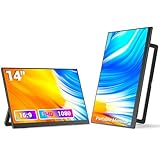
| 14-inch Portable IPS Monitor (e.g., Veout Portable Monitor with Built-In Stand) | $45 to $65 | Smaller screen size (14 inches) means smaller text, but it draws only 5W to 10W of power via USB-C and sits perfectly next to your keyboard without mounting. |
| Laptop Screen Extenders (e.g., SMISEACOW 14″ Clamp-On Vertical Dual Screen) | $120 to $150 | Excellent for mobile or laptop-based streaming setups, but adds physical weight (approx. 1.5 to 2.5 lbs) to your laptop hinge or desk clamp. |
| Using an Old Tablet (via software like Spacedesk or Duet Display) | $0 (if you already own an iPad or Android tablet) | Slight input lag over Wi-Fi/USB connection; smaller screen real estate (typically 10 to 11 inches). |
FAQ
Does a vertical monitor affect PC performance or GPU load while streaming?
No, simply rotating a monitor 90 degrees does not put any measurable extra strain on your graphics card. Your GPU processes the exact same number of pixels whether the screen is oriented horizontally (1920×1080) or vertically (1080×1920). The only performance impact comes from what you choose to run on that screen (e.g., hardware-accelerated browsers or complex animated overlays).
What panel type is best for a vertical secondary screen?
You should always choose an IPS (In-Plane Switching) panel. IPS panels offer wide 178-degree viewing angles, meaning the colors and brightness remain consistent even when you look at the screen from an angle. Avoid TN panels, as their vertical viewing angles are incredibly narrow, causing the top or bottom of your vertical screen to look dark, inverted, or completely unreadable.
How do I physically rotate my current monitor to a vertical orientation?
First, check if your monitor’s factory stand supports rotation (many ergonomic stands allow you to simply pivot the screen 90 degrees). If it does not, you will need to purchase a VESA-compatible monitor arm or desk stand. Once mounted vertically, go to your computer’s display settings (Windows: Settings > System > Display) and change the “Display Orientation” dropdown menu from “Landscape” to “Portrait.”
Can I use a vertical monitor for console streaming (PS5/Xbox)?
You can use a vertical monitor as your *secondary* screen to read chat while streaming console games, but you cannot use it as your primary gameplay screen. Modern gaming consoles do not natively support 9:16 portrait resolutions. If you try to output a console feed to a vertical monitor, the image will either be squashed, heavily stretched, or bordered by massive black bars, making your games unplayable.


