
When designing a professional streaming studio, creators obsess over camera angles, acoustic paneling, and the lightning-fast refresh rate of their main gaming monitor. Yet, the secondary display—the screen that holds your Twitch chat, OBS dashboard, Discord, and donation alerts—is too often an afterthought. Many streamers simply throw a dusty, decade-old office monitor onto their desk and call it a day.
This is a major design and ergonomic mistake. A poorly chosen chat monitor leads to cluttered desk aesthetics, neck strain from awkward viewing angles, and severe eye fatigue from harsh backlight flicker. Furthermore, choosing the wrong refresh rate can cause distracting stuttering when fast-scrolling text clashes with your high-refresh-rate gameplay. As streaming setups in 2026 shift toward clean, integrated, and ergonomically sound workspaces, understanding how to choose the right refresh rate and screen style for your secondary display is essential for both your health and your broadcast’s production value.
As an Amazon Associate we earn from qualifying purchases at no extra cost to you.



Top 3 picks at a glance
Decide These 3 Things First
Before diving into pixel counts and mounting brackets, you must establish the structural framework of your streaming workspace. Ask yourself these three foundational questions:
- What is your physical layout strategy? Are you placing your chat monitor side-by-side with your main display, or are you stacking it overhead? Side-by-side setups favor smaller, traditional monitors (24 to 27 inches). Stacked layouts benefit immensely from larger, high-resolution screens or small-format smart TVs that can be partitioned into a multi-window dashboard.
- How fast does your chat actually move? If you are hosting a cozy stream with 20 concurrent viewers, your chat moves at a leisurely pace. A standard 60Hz refresh rate is perfectly adequate. However, if your chat is an incredibly fast-moving waterfall of text, emojis, and alerts, a higher refresh rate (120Hz or 144Hz) prevents the text from turning into a blurry, unreadable smear as it scrolls.
- How will the monitor be supported? A standard desk stand occupies valuable desktop real estate. You must decide if your desk frame can support a heavy-duty dual-monitor arm, or if your room layout requires wall-mounting your secondary display into wall studs behind your desk.
1. Size and Spatial Footprint
The physical size of your chat monitor dictates your entire desk layout. If your monitor is too small (under 24 inches), you will squint to read chat messages from a standard viewing distance of 24 to 30 inches. If it is too large and sits directly on your desk, it will overwhelm your field of view and cause physical neck strain as you constantly swing your head left and right.
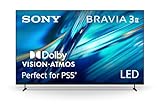
For traditional desks measuring 48 to 60 inches wide, a 24-inch or 27-inch secondary monitor is the sweet spot. However, a growing trend among professional broadcasters is the use of a large-format display mounted directly above the main gaming screen. A 43-inch screen, such as the Sony BRAVIA 3 II (K-43XR30M2, priced at $598), offers a massive canvas. With a physical width of roughly 38.2 inches, it can easily be split into four distinct 1080p zones: one for chat, one for OBS, one for a preview feed, and one for community Discord servers.
If you are building a massive command center or a multi-camera studio backdrop, you might even scale up to a 55-inch display (like the Sony K-55XR30M2 at $798) or a massive 75-inch screen (such as the Sony K-75XR30M2 at $1198). Keep in mind that as size increases, your viewing distance must also increase. A 43-inch display should sit at least 3 to 4 feet away from your eyes, while a 75-inch or 85-inch display (like the Sony K-85XR30M2 at $1598) is best suited as a wall-mounted studio backdrop situated 6 to 8 feet behind your desk.
2. Panel Material and Backlight Technology
The panel technology determines the viewing angles, color consistency, and readability of your chat text. Because a chat monitor is rarely positioned directly in front of your face, wide viewing angles are non-negotiable.
Avoid TN (Twisted Nematic) panels at all costs. TN panels suffer from severe color shifting and contrast degradation when viewed from an angle, making text at the edges of the screen virtually unreadable. Instead, opt for IPS (In-Plane Switching) or high-quality Direct LED panels. These technologies maintain consistent brightness and color accuracy up to 178-degree viewing angles.
Contrast ratio is equally critical. Streamers almost exclusively run their chat clients and OBS dashboards in “Dark Mode” to reduce eye strain. On a cheap display with a poor contrast ratio (under 800:1), dark mode looks like a muddy, glowing grey. High-quality Direct LED backlights, found in premium displays, provide contrast ratios of 4000:1 or greater. This ensures that blacks are deep and ink-like, making white or colored chat text pop with crisp, razor-sharp legibility.
3. Construction, Bezel Width, and Desk Integration
Aesthetically, your chat monitor should blend seamlessly into your home office or studio. Look for displays featuring “three-sided borderless” or ultra-thin bezel designs. Bezels thicker than 0.5 inches create a harsh visual disruption between your main monitor and your secondary screen, breaking the illusion of a unified workspace.
Consider the heat output and power consumption of your secondary display. If you are streaming in a small, enclosed room with studio lights, a camera, and a high-end gaming PC, your room will heat up quickly. A standard 27-inch monitor draws about 25 to 40 watts of power. A 43-inch smart display like the Sony BRAVIA 3 II draws around 90 to 110 watts, while a massive 85-inch screen (K-85XR30M2) can draw over 350 watts. Managing your room’s thermal profile means choosing the smallest display that comfortably serves your layout needs and turning off unused screens when you aren’t broadcasting.
4. Refresh Rate, Motion Clarity, and Eye Health
This is the core of your decision: how to choose the refresh rate for your streaming chat monitor. The refresh rate, measured in Hertz (Hz), dictates how many times per second the screen redraws its image. Let’s break down the three primary tiers:
- 60Hz (Standard): Ideal for slow to moderate chats. If your stream has a steady, readable pace, 60Hz is perfectly fine. It is highly energy-efficient and cost-effective. However, if text scrolls rapidly, 60Hz displays suffer from visible ghosting and motion blur, making it difficult to read usernames on the fly.
- 120Hz (Premium/TV Standard): The sweet spot for high-speed dashboards. At 120Hz, scrolling text moves with incredible fluidity. If you are using a modern console or a dual-PC setup, a 120Hz display matches up beautifully without causing window-dragging lag or GPU stuttering. Displays in this class offer incredibly clean text rendering.
- 144Hz to 240Hz (Extreme Esports): Generally overkill for a chat monitor. While text will look incredibly smooth, running a secondary monitor at 240Hz wastes system resources. Your graphics card must work harder to render those extra frames for static text, which can slightly lower your in-game frame rates on your primary gaming monitor.
Equally important for eye health is the dimming mechanism of the backlight. Many budget monitors use Pulse-Width Modulation (PWM) to control brightness, rapidly cycling the backlight on and off. While invisible to the naked eye, this high-frequency flickering causes severe eye strain, dry eyes, and headaches over a 4-to-6-hour streaming session. Look for displays that specify “Flicker-Free” or use Direct Current (DC) dimming.
5. Price Tiers and Value Propositions
Your budget determines the size, resolution, and processing power of your secondary display. Here is what you can expect at various price points:
- Budget ($100 – $250): Standard 24-inch to 27-inch PC monitors. These typically offer 1080p resolution, a 60Hz to 75Hz refresh rate, and basic stand adjustments. They are functional but offer limited screen real estate for multitasking.
- Mid-Range ($300 – $600): This tier includes premium 32-inch monitors and advanced 43-inch smart displays, such as the Sony 43-inch BRAVIA 3 II ($598). At this level, you get pristine 4K resolution, excellent color processing, smart integration (allowing you to run streaming apps directly on the screen without using GPU resources), and robust build quality.
- Premium ($700 – $1600+): Large-format smart displays ranging from 55 inches ($798) up to 85 inches ($1598). These are designed for ultimate multi-window monitoring, studio backdrops, and professional control rooms. They offer advanced HDR processing, superior contrast, and integrated smart home controls.
6. Warranty and Long-Term Reliability
A chat monitor is subjected to a unique torture test: displaying highly static images for hours on end. Chat boxes, OBS borders, and stream overlays remain in the exact same position on your screen for the entire duration of your broadcast.
This makes the screen highly susceptible to image retention or permanent burn-in. When shopping, look for manufacturers that offer a robust warranty (at least 1 to 2 years) that covers screen defects. Furthermore, look for built-in software features like pixel shifting or panel refresh cycles, which automatically mitigate static image retention over time.
7. Delivery, Unboxing, and Assembly Setup
Setting up a secondary monitor requires careful physical handling. Standard 24-to-27-inch monitors can easily be unboxed and mounted by a single person. They typically use a standard VESA 75x75mm or 100x100mm mounting pattern, which is compatible with almost all desktop monitor arms.
However, if you choose a larger display like a 43-inch or 55-inch screen to act as your dashboard, the physical requirements change significantly. A 43-inch display weighs around 20 pounds and usually requires a VESA 200x200mm mount. A massive 75-inch or 85-inch display can weigh between 70 and 100 pounds. Unboxing these larger screens requires two people. They must be lifted carefully to avoid flexing the LCD panel, which can cause permanent backlight bleeding or physical cracking of the internal glass layers.
Spec Checklist
Use this quick-reference table to match your streaming needs with the appropriate monitor specifications:
| Specification | Budget Tier | Mid-Range Tier | Premium Tier |
|---|---|---|---|
| Screen Size | 24″ – 27″ | 32″ – 43″ | 55″ – 85″ |
| Refresh Rate | 60Hz | 60Hz – 120Hz | 120Hz+ |
| Resolution | 1080p (FHD) | 1440p or 4K (UHD) | 4K (UHD) |
| Panel Type | Standard IPS | Premium IPS / Direct LED | Direct LED with Local Dimming |
| VESA Compatibility | 75×75 / 100×100 mm | 100×100 / 200×200 mm | 300×300 / 400×400 mm |
| Estimated Price Range | $100 – $250 | $300 – $600 | $700 – $1600+ |
Red Flags to Avoid
When searching for your ideal chat monitor, steer clear of these warning signs:
- Aggressive PWM Dimming: If a monitor review mentions visible flicker or low-frequency PWM dimming, do not buy it. It will cause intense eye strain during long broadcasts.
- Lack of VESA Mounting Holes: Some budget monitors feature beautiful, ultra-thin designs but omit VESA mounting holes entirely. This forces you to use the cheap, non-adjustable plastic stand that comes in the box, severely limiting your ergonomic layout options.
- OLED Panels without Burn-In Protection: While OLEDs offer beautiful contrast, using them to display highly static chat windows and OBS borders for 40 hours a week is a recipe for permanent screen burn-in within a year. Stick to IPS or Direct LED for secondary static displays.
- No HDMI 2.1 or DP Ports: Ensure the display has modern inputs. If you are trying to run a 4K display at 120Hz, an older HDMI 1.4 port will restrict you to 4K at 30Hz, resulting in an incredibly choppy, laggy cursor and scrolling experience.
FAQ
Why does refresh rate matter for a monitor that only displays text?
While text itself is static, the act of scrolling is highly dynamic. On a standard 60Hz screen, fast-scrolling chat text suffers from heavy motion blur, making it difficult to read usernames and messages quickly. A 120Hz refresh rate doubles the frame updates, keeping the text sharp and legible even when your chat is moving at lightning speed.
Can I use a smart TV like the Sony BRAVIA 3 II as a streaming chat monitor?
Yes, absolutely. Small-format smart TVs (around 43 inches) are exceptional for stacked monitor setups. Their 4K resolution provides immense screen real estate, allowing you to split the display into multiple windows. Furthermore, because they have built-in smart processors, you can run certain background applications directly on the TV, saving precious CPU and GPU cycles on your gaming computer.
Will a 120Hz refresh rate overload my graphics card if my main monitor is 240Hz?
No. Modern graphics cards are incredibly powerful and can easily drive multiple monitors at mismatched refresh rates. However, to ensure smooth performance, connect your main gaming monitor via DisplayPort and your secondary 120Hz chat monitor via HDMI 2.1 or DisplayPort. Avoid using cheap USB-to-HDMI adapters, as these rely on CPU rendering and can cause system lag.
How do I prevent eye strain when looking at my chat monitor for 8 hours?
To prevent eye strain, position your chat monitor so that the top of the screen is at or slightly below eye level (if side-by-side) or tilted downward at a 15-degree angle (if stacked). Enable a “Flicker-Free” backlight setting, reduce the monitor’s brightness to match your ambient room lighting, and turn on warm-color filters (such as Night Light in Windows) to reduce blue light exposure during late-night broadcasts.


