Video editing punishes weak desktops in a very specific way: the timeline stutters, previews drop frames, and exports crawl while the fans roar. The fix is rarely a single magic part. A smooth editing machine balances a processor with enough cores, memory that does not run out when several clips and effects stack up, fast solid-state storage for footage, and ideally a graphics card that helps with playback and encoding. A desktop that excels at spreadsheets can still struggle badly once a 4K clip lands on the timeline.
The seven desktops below range from a palm-sized mini PC to a full tower and an all-in-one, and the listings are a mixed bag of gaming towers, business machines and workstation-style systems. Because the titles supply limited detail, the reviews stick to what each one states, flag what is missing, and show which kind of editor each is realistic for, from school projects and social clips to longer, heavier timelines.
Our Top Picks
Top 3 picks at a glance
Quick Picks
As an Amazon Associate we earn from qualifying purchases at no extra cost to you.


| Product | Best for | Key spec from the title |
|---|---|---|
| STGAubron Gaming PC (Core i7, RX 580) | Budget editing with a dedicated graphics card | Core i7, RX 580 8G, 16G RAM, 1T SSD |
| HP ProDesk 600 | Light editing and everyday business use | Core i5, 16GB RAM, 512GB SSD |
| Dell OptiPlex 3040 (editing and CAD listing) | Entry-level projects with big storage | Core i5-6500, 16GB RAM, 240GB SSD plus 2TB HDD |
| Lenovo IdeaCentre 24 all-in-one | Students who want a tidy desk | 4-core Intel, 16GB, 1TB PCIe SSD, FHD IPS screen |
| HP Mini Desktop (i7-12700T) | Space-saving editing setup | Core i7-12700T, 16GB, 512GB SSD, 3X 4K output |
| Dell Workstation (Core i7, K1200) | Memory-heavy projects on a budget | K1200 4GB GPU, Core i7, 32GB DDR4, 500GB NVMe + 1TB SSD |
| Dell Pro Tower Plus | Modern platform with more memory | Ultra 7, 32GB DDR5, 1TB SSD, triple 4K DisplayPorts |
The 7 Best Options
Two near-duplicate listings are left out: a lower-spec Dell Workstation (Core i5, 16GB) that is a weaker configuration of the Dell Workstation reviewed here, and an STGAubron tower with a Core i5 and RX 550 that is a weaker configuration of the STGAubron reviewed below.
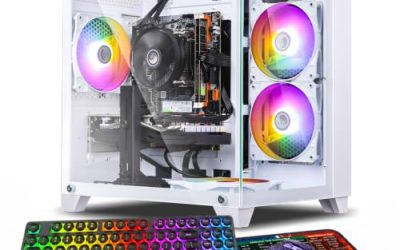
STGAubron Gaming PC (Core i7, RX 580)
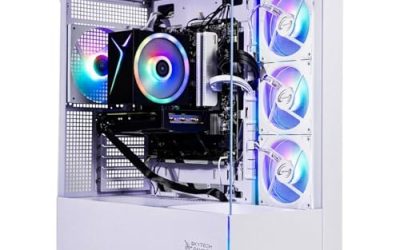
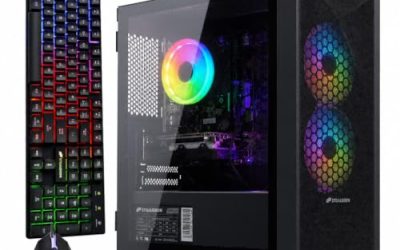
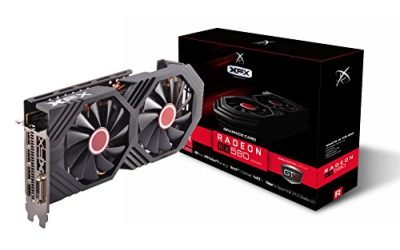
This tower is the only one in the group that pairs a dedicated gaming graphics card with a mainstream processor in a conventional tower case. The title lists a Core i7 up to 3.9GHz, an RX 580 with 8G of video memory, 16G RAM and a 1T SSD, and it names video editing and streaming among its intended uses. That makes it the most direct answer for an editor who wants a graphics card without paying workstation prices.
- A dedicated graphics card with 8G of video memory is named.
- 1T of SSD storage is enough for a project drive and an OS together.
- A full tower leaves room to add memory or storage later.
- The title does not say which Core i7 generation it uses, and generation changes editing speed a lot.
- 16G of RAM is the minimum comfortable amount for 1080p work and tight for 4K.
Skip it if you cut long 4K timelines with many effects, or if your editing software relies on specific graphics-card features you cannot confirm from a title. Compared with the HP ProDesk next, it trades business polish for a dedicated card and a more flexible case.
The ARGB fan mentioned in the title is a styling touch, not a performance feature. For the money, the more important lines are the RX 580 8G and the 1T SSD, because those two decide how smoothly previews play and how many projects fit on the drive.
If you are weighing it against the business desktops, remember what the card changes in practice. Playback of layered timelines, scrubbing through clips and some effects can lean on the graphics hardware instead of the processor alone, which keeps the interface responsive. The caveat is software support: confirm that your editor can use an RX-series card for acceleration before treating it as an advantage.
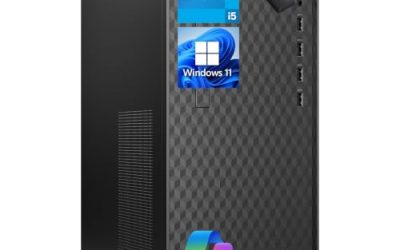
HP ProDesk 600
The ProDesk is a business desktop, and the title is honest about it: Core i5, 16GB RAM, 512GB SSD, and a pitch that covers coding, video and photo editing, remote work and everyday multitasking. It is a competent all-purpose box, but it lists no dedicated graphics card, so editing will lean on the processor and its built-in graphics.
- 16GB RAM and a 512GB SSD give a responsive base for light projects.
- Business-line desktops are generally built for steady daily use and straightforward servicing.
- It covers non-editing work such as spreadsheets and coding on the same machine.
- No dedicated graphics card is named, which limits effects and 4K playback.
- 512GB fills fast once footage is stored locally.
Skip it if your footage is 4K or your edits are effects-heavy. Against the Dell OptiPlex that follows, it offers a leaner storage setup in a plainer business machine, although the title does not give the Core i5 generation.
It suits someone who edits a few short clips a week and wants one computer for everything else. If that describes you, treat any external drive as the home for old projects and keep the internal SSD for the current one.
One practical angle is total cost of ownership. A business desktop with 16GB and an SSD asks you to add nothing before you can begin, and you can later add an external drive for footage. If editing grows from a hobby into a habit, this is the type of machine you outgrow gracefully, because the same box still handles office work afterward.
Dell OptiPlex 3040 (Video Editing CAD Listing)
This listing leads with editing and CAD in its name, then gives the specifics: a Core i5-6500 at 3.2 GHz, 16GB RAM, a 240GB SSD for fast boot and a 2TB hard drive. The i5-6500 model number points to an older processor generation, so expect modest performance on modern high-resolution footage. The graphics line is cut off in the title.
- A 240GB SSD for the system plus a 2TB drive gives a clear two-tier storage plan.
- 16GB RAM is a workable amount for 1080p editing.
- The listing names editing and CAD as intended uses.
- The processor model number indicates an older platform, which limits 4K editing.
- The 2TB drive is a traditional hard disk and will feel slow for active footage.
Skip it if you plan to edit 4K or use heavy effects. It is the lowest-cost, lowest-power option in the group, sitting below the HP ProDesk on processing but above it on raw storage. It makes sense mainly for learning, school work or simple 1080p cuts.
A sensible workflow is to keep the project on the 240GB SSD while editing, then move finished work to the 2TB drive. That small habit avoids the biggest weakness of this configuration.
The title is unusual in naming editing and CAD directly, but those words are seller wording, not a performance guarantee. Treat the listed Core i5-6500, the 16GB of memory and the SSD plus hard drive as the real information. They describe a machine that is dependable for modest work and that costs far less than anything newer in this roundup.
Lenovo IdeaCentre 24 All-in-One
The IdeaCentre combines the computer and an FHD IPS display, which the 24 in the name suggests is roughly 24 inches, in one unit. The title lists a 4-core Intel processor, 16GB of memory, a 1TB PCIe SSD, Wi-Fi 6, Bluetooth 5.2, Windows 11 and a bundled keyboard and mouse. It is the tidiest option here and removes the need to buy a separate screen.
- A 1TB PCIe SSD is a generous amount of fast storage.
- The IPS display and bundled peripherals reduce extra purchases.
- Wi-Fi 6 and Bluetooth 5.2 cover wireless needs.
- A 4-core processor is the minimum for editing and will feel slow with complex timelines.
- All-in-one designs are hard to upgrade, and the screen cannot be replaced separately.
Skip it if you need accurate color work or plan to expand the machine over time. Compared with the HP Mini next, it is more convenient on day one and less flexible afterward. It suits family and school editing at modest resolutions.
The Office 365 mention in the title is a convenience for study and work, not a factor for editing. Decide based on the 4-core processor and the screen you will be working on for hours.
The value here is the package. You get a display, a fast SSD, wireless connectivity, a keyboard and a mouse in one box, which matters for a first computer or a dorm desk. The limitation is that the processor and the screen are tied together, so if either becomes a bottleneck, the whole unit needs replacing.
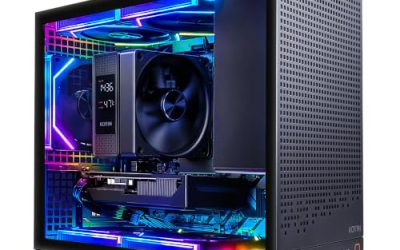
HP Mini Desktop (Core i7-12700T)
This compact HP lists a Core i7-12700T, 16GB RAM, a 512GB SSD and three 4K outputs, and it names video editing among its uses along with office work, data processing and accounting. The 12700T is a power-limited desktop part, so it runs cooler in a small body but may not sustain the same speeds as a full-power chip during long exports.
- A twelfth-generation Core i7 offers a strong core count for the size.
- Three 4K outputs make a multi-display timeline setup possible.
- The mini format saves desk space and is easy to move.
- No dedicated graphics card is named, so effects and color grading lean on built-in graphics.
- 512GB of storage is tight for large footage libraries.
Skip it if you need a dedicated graphics card or want to add parts later. It is the strongest processor in the group on a modern platform, and it pairs naturally with fast external storage. Compared with the Dell Workstation that follows, it favors size and processing over memory and GPU.
For editors who work on two screens, the triple-output claim is the most practical detail. One display for the timeline, one for the preview and a third for reference is a useful layout.
The T in the processor name marks a lower-power variant, and that is a deliberate trade for small chassis. It also means fan noise is usually gentler during light work. Editors who mostly cut short clips and do not export for hours will rarely notice the difference, while those who render long projects should plan for slower sustained speeds.
Dell Workstation (Core i7, K1200)
The workstation-style Dell lists a Core i7, 32GB of DDR4, a GeForce K1200 4GB graphics card and two drives: a 500GB NVMe and a 1TB SSD. The title frames it for editing and design. Thirty-two gigabytes of RAM is the most generous in the group among DDR4 systems, and the extra memory helps with large timelines.
- 32GB of DDR4 supports multi-clip timelines and heavy projects.
- A dedicated 4GB graphics card is named.
- Two SSDs allow one for the system and one for projects.
- The K1200 is an older professional card, so it lags newer cards in raw speed.
- The Core i7 generation is not stated, making processor speed hard to judge.
Skip it if you want the newest platform or a strong gaming-class card. It is a pragmatic memory-first choice that stands above the HP ProDesk and the OptiPlex on RAM and storage. The Dell Pro Tower Plus after it goes further on platform age but leaves out a dedicated card.
The split storage is the quiet strength here. Keep the operating system and editing software on the NVMe drive, put active footage on the second SSD, and exports will not compete with the system for the same drive.
Workstation branding generally signals a steady, professional-minded design, but the title gives few details beyond the memory, drives and card. Treat it as a memory-forward machine for people who open many clips at once, and check the exact Core i7 model number on the full page before judging how it handles heavy exports.
Dell Pro Tower Plus
The newest platform in the roundup, this Dell lists an Ultra 7 processor, 32GB of DDR5, a 1TB SSD, an optical drive, Windows 11 and three 4K DisplayPorts, with an AI Boost label and Office 365. It is positioned as a premium business desktop, and the combination of fast memory and a modern processor suits editors who rely on the central processor.
- 32GB of DDR5 is a strong amount of fast memory.
- An Ultra 7 processor is the most modern platform in the group.
- Three 4K DisplayPorts support a multi-monitor layout.
- No dedicated graphics card is named, so GPU-accelerated effects depend on built-in graphics.
- A 1TB SSD fills quickly with footage and may need an add-on drive.
Skip it if you want a discrete graphics card straight from the box. It is the most future-ready option, and a good graphics card can be added to a tower later if the power supply and slots allow. That upgrade path is what separates it from the Mini and the all-in-one.
Because it is a tower, the upgrade story is better than the mini or the all-in-one. If a graphics card becomes necessary later, check the power supply rating and free slot count first. The optical drive in the title is a small bonus for anyone who still delivers or archives projects on disc, and it is easy to ignore otherwise.
Who Needs a Dedicated Editing Desktop
Laptops can edit, but a desktop gives more performance for the same outlay and far better cooling for long exports. These are the buyers it fits best, and each has a different priority.
The common thread is sustained work: editing is not a short burst of activity, and the machine has to stay responsive for hours at a time.
Creators who export often
Long renders heat up a machine, and a desktop sustains its speed where a thin laptop slows down. If you publish weekly videos, the time saved on exports adds up quickly. A desktop also lets you add a second monitor, a card reader and fast external drives without hunting for adapters, which suits a regular workflow.
Students and beginners
A modest desktop with 16GB of RAM and an SSD is enough for coursework and short edits. The key is choosing a machine that can accept more memory or storage later rather than locking you in. Many learners outgrow a first machine within a year, so upgrade room has real value.
Small teams and shops
Businesses editing promotional clips, product demos and social content benefit from compact, quiet machines. The mini and business-class towers here suit shared offices where space and noise matter. Consistent hardware across several desks also makes software setup and support simpler. Teams that hand projects between editors benefit most from matching machines with the same amount of memory.
How to Choose
Processor cores and threads
For 1080p editing, six cores and twelve threads is a sensible floor; for 4K or heavy effects, aim for eight cores or more. A 4-core chip, as in the all-in-one, works for simple cuts but slows down quickly. Check the processor generation, because a newer six-core chip can outperform an older eight-core one. Also look at how many cores the chip keeps busy during exports, since software that uses all threads rewards a higher core count. Ignore marketing terms like AI Boost for editing speed. The quickest sanity check is the model number: for desktop Intel chips, the digits after the Core i7 label tell you the generation, and a twelfth-generation or newer chip is a safer bet than a sixth-generation one.
Memory capacity and speed
Memory is where editing machines most often disappoint on paper. 16GB is the minimum for 1080p work, and 32GB is the comfortable level for 4K or multi-track timelines. Dual-channel memory, meaning two sticks, gives noticeably better bandwidth than one. DDR5 is faster than DDR4, but capacity matters more than speed once you cross 32GB. Budget builds often cut corners by using a single stick. Also check whether the memory is soldered or removable, because removable memory is the cheapest performance upgrade you can make later.
Graphics card
A dedicated card with 4GB to 8GB of video memory speeds up previews, effects and hardware encoding in many editors. Built-in graphics can handle basic work but struggle with color grading and heavy effects. Verify that your editing software supports the card; older professional cards may lack newer encoding features. Video memory matters most for high-resolution timelines, so a 4GB card is a floor rather than a target. Ignore gaming scores when judging an editing card, since games and editors stress the hardware differently.
Storage layout
Use an NVMe or fast SATA SSD for the system and active projects, at least 500GB, and ideally a second 1TB drive for footage. A traditional hard drive is fine for archives but not for active editing. Where budget models cut corners: a single small SSD with no second drive, which forces footage onto the system disk. Plan for external backup, because video fills disks quickly and a single drive failure can erase a project. Drives that are nearly full also slow down, so leave about a fifth of the space free.
Ports and displays
Look for at least two to three display outputs, a USB-C port for fast cameras and drives, and enough USB ports for a card reader and external drive. Three 4K outputs, as on two machines here, support a multi-monitor workflow. Cheaper desktops sometimes offer only two outputs or older USB standards. An SD card reader saves a dongle if you shoot on a camera, and a front-panel USB-C port is convenient for offloading footage.
Cooling, power and upgrade room
Editing keeps the processor busy for long stretches, so a roomy case with decent airflow matters. Check the power supply wattage if you plan to add a graphics card, and confirm there is a free PCIe slot. Mini PCs and all-in-ones trade upgrade room for size, so decide early which matters more. A power supply of 450W or more is a reasonable minimum if you may add a mid-range graphics card, while small-form-factor boxes often cannot take a full-size card at all. Warranty length and service options are the last checks, and business-line towers often include onsite service options that gaming towers lack. Budget models usually cut the power supply and cooler first, so look for a stated wattage.
Tower, Mini or All-in-One for Editing?
The seven desktops come in three body styles, and the right one depends on space, upgrade plans and how demanding your timelines are.
| Factor | Tower | Mini PC | All-in-one |
|---|---|---|---|
| Examples here | STGAubron, Dell Pro Tower Plus (the Dell Workstation title does not state its body style) | HP Mini (the ProDesk 600 and OptiPlex 3040 titles do not state their body style) | Lenovo IdeaCentre 24 |
| Upgrade room | Best | Limited | Poor |
| Cooling for long exports | Best | Fair | Fair |
| Desk footprint | Largest | Smallest | One unit with screen |
Body style affects more than size. It decides how much heat the machine can shed during a long export and whether a graphics card can ever be added. Among the listings, two are towers by name, one is a mini, one is an all-in-one and three do not state a body style, so the group covers every format a buyer is likely to consider.
When a tower is the right call
If you edit often, want to add a graphics card, or plan to expand memory and storage, a tower is the sensible choice. It handles heat better and gives you room to replace parts as your projects grow. Towers also tend to stay quieter under load, because larger fans move air at lower speeds.
The table shows the trade in one glance: the more compact the box, the less you can change later. That is acceptable only if the machine already meets your needs.
When a mini or all-in-one is enough
For short clips, school work or a shared office, a compact system saves space and cost. Accept the limits on upgrades and sustained speed, and use fast external storage to extend capacity. If you choose a mini, pick one with a modern processor, since there is little else you can change later, and favor models with several display outputs for a two-screen timeline.
Setup, Compatibility and Upgrade Tips
What to check before buying
Confirm your editing software supports the graphics card or built-in graphics, check the number of display outputs against your monitors, and verify how much memory the machine can hold. For mini PCs and business towers, find out whether the power supply can handle a graphics card at all. Look at the operating system license and the drivers as well, since business machines often ship with a clean Windows 11 install that lacks the graphics driver you want.
Before ordering, read the full listing for condition, warranty and return terms. Titles that list a processor generation, memory type and drive layout are easier to trust than those that list only a Core i5 or Core i7 label.
What to upgrade first
Memory and storage come first. Going from 16GB to 32GB of RAM and adding a second SSD usually delivers a bigger gain than any other change. Next, add a dedicated graphics card where the case and power supply allow it. Calibrate the monitor if color matters, and set the editing cache to the fastest drive in the machine. Those two quick steps improve the experience without spending anything. Keep the operating system and drivers current, and turn off background apps while exporting so the processor devotes its time to the render.
Common compatibility traps
Mixing memory types fails, since DDR4 and DDR5 are not interchangeable. Small cases may not fit a full-size graphics card, and low-wattage power supplies cannot power one. Always check the free slots and cable connectors before ordering a new card. Also watch for proprietary power supplies in some business towers, which cannot be swapped for a standard unit and may cap what you can add.
Which One Fits Your Situation
You want a graphics card at a low entry cost
The STGAubron Gaming PC pairs a Core i7 with an RX 580 8G and a 1T SSD in a standard tower, which keeps the entry cost down while still offering an upgrade path.
You work on two or three monitors in a small space
The HP Mini Desktop with the Core i7-12700T and three 4K outputs fits tight desks, and pairs well with a fast external drive for footage.
Your projects use lots of memory
The Dell Workstation with 32GB of DDR4 and two SSDs handles larger timelines, and the second SSD keeps project files away from the system drive.
You want the most modern platform
The Dell Pro Tower Plus with an Ultra 7 and 32GB of DDR5 offers the newest foundation, with room to add a graphics card, as long as the power supply and slots allow it.
Common Mistakes
- Buying 8GB or 16GB of RAM and expecting a smooth 4K timeline with several effects.
- Editing directly from a slow hard drive instead of an SSD.
- Assuming business desktops include a discrete graphics card.
- Ignoring the processor generation and judging only by the Core i5 or i7 label.
- Forgetting to budget for external backup storage, then losing a project to one failed drive.
- Choosing an all-in-one and then wanting to upgrade it.
Related guides
- When I Turn On Record Game In Background On Gamebar. Gamebar Crashes, What Do I Do?
- How To Reduce Background Noise On A Streaming Microphone
- Poly Computer Accessories Company Streaming Evaluation
Frequently Asked Questions
How much RAM do I need for video editing?
16GB is the minimum for 1080p work. For 4K or multi-track timelines, 32GB is more comfortable. Two memory sticks give better performance than one, so check how the listed memory is configured.
Do I need a dedicated graphics card?
It helps with previews, effects and hardware encoding, though basic cuts can run on built-in graphics. Check that your editing software uses the card you choose, and keep graphics drivers updated.
Is a Core i5 enough?
For 1080p, a recent Core i5 is fine. Older models, such as the one in the OptiPlex, struggle with 4K. The generation matters more than the label, so look up the exact model number before buying.
Can a mini PC handle editing?
Yes, for light to moderate projects. Power-limited chips may slow down on long exports, and mini PCs offer little upgrade room.
How much storage should I get?
Plan on at least 500GB for the system and projects, and add a second 1TB drive for footage. Keep an external backup of finished work, since footage fills drives faster than most people expect.
Is an all-in-one a good editing machine?
It suits simple edits and tidy desks. Limited upgrade options and a fixed screen make it a poor long-term choice for demanding work.
Final Words
A good editing desktop balances cores, memory, storage and graphics, and the listings here each stress different parts of that balance. In 2026 the Dell Pro Tower Plus has the freshest platform, the Dell Workstation leans on memory, the STGAubron brings a graphics card, and the HP Mini fits small desks. Pick the weakness you can live with, plan to add memory or storage, and keep a backup for every project. If the listing leaves out a detail you need, such as the processor generation or the graphics card, read the full page before ordering and treat the missing fact as a warning rather than a blank to fill with hope.