Video editors who also game end up asking one mouse to do two very different jobs. Editing rewards a wheel that can fly through a long timeline and then stop on a single frame, buttons that can carry play, cut and marker commands, and a sensor that moves the playhead smoothly at low speeds. Gaming rewards fast tracking, reliable switches and a shape that stays comfortable through long sessions of either kind. The best gaming mouse for video editing is the model that covers both lists without forcing a compromise on the scroll wheel, because that is where ordinary gaming mice fall short for timeline work.
This guide compares four gaming mice whose published hardware genuinely suits editing: two with dual-mode free-spin wheels from Logitech and Razer, one wireless flagship with a tilting free-spin wheel, and one button-heavy MMO mouse whose wheel and thumb grid can absorb an editor’s shortcut layout. All specifications come from the manufacturers’ product information and the Amazon US listings, so wheel modes, button counts and battery figures can be verified before you buy.
Disclosure: As an Amazon Associate, we earn from qualifying purchases. Product details and availability can change; check the Amazon listing before you buy.
Our Top Picks
 Razer Basilisk V3 Customizable RGB Wired Ergonomic GamingMouse2.96 x 5.12 x 1.67 inches0.2 poundsCheck on Amazon

Top 3 picks at a glance

Quick picks at a glance
| Product | ASIN | Best for |
|---|---|---|
| Logitech G502 HERO | B07GBZ4Q68 | Editors who want a free-spin wheel and tunable weight |
| Razer Basilisk V3 | B09C13PZX7 | Timeline scrubbing with a tilting free-spin wheel |
| Razer Naga V2 Pro | B0BGJTLFN5 | Shortcut-heavy editing with up to 19+1 buttons |
| Razer Basilisk V3 Pro | B0B6Y3XYFG | Wireless editing and gaming with the same HyperScroll wheel |
What matters most for video editing
The scroll wheel is the headline feature. A dual-mode wheel that switches between stepped scrolling and a free-spin mode lets you flick through minutes of footage, then click back into ratcheted steps for frame-level nudging. A tilting wheel adds side-to-side inputs, which editors commonly map to horizontal timeline movement.
Programmable buttons replace keyboard shortcuts. Eleven buttons is a useful minimum for an editing mouse; the MMO pick here reaches nineteen plus one with its twelve-button side plate. Play and pause, ripple delete, add marker and zoom commands are the usual assignments, and every button you move to the mouse is one less trip across the keyboard.
Sensor precision at low speed matters more than maximum DPI. Timeline work is slow, small movement. All four sensors here are flagship optical parts rated between 25,600 and 30,000 DPI, but what an editor actually uses is their smooth low-speed tracking, which is a property of the sensor tier rather than the headline number.
Shape decides whether long timelines hurt. Editing sessions run for hours, and a sculpted right-handed shell with a thumb rest supports a relaxed palm grip better than a flat esports shape. All four picks are ergonomic right-handed designs; left-handed editors should note that none of them is ambidextrous.
Weight is a preference, not a flaw. Heavier mice feel planted during fine playhead moves, and the G502 HERO even includes tuning weights. Lighter mice reduce fatigue over a full day. The range here runs from about 101 to 134 grams, so pick by the feel you already know you like.
Wired stability or wireless freedom. Two picks are wired and never need power. The two wireless models run for a stated 90 to 300 hours depending on connection mode, and both can be used over a cable while charging, which removes the usual wireless objection at an editing desk.
Logitech G502 HERO

ASIN: B07GBZ4Q68 — View on Amazon US
| Spec | Detail |
|---|---|
| Dimensions | 132 × 75 × 40 mm |
| Weight | 121 g, plus five 3.6 g tuning weights |
| Sensor | HERO 25K optical, 100 to 25,600 DPI |
| Buttons | 11 programmable buttons |
| Scroll wheel | Dual-mode hyper-fast wheel with tilt inputs |
| Connection | Wired USB, onboard memory for profiles |
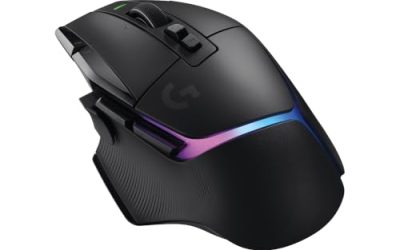
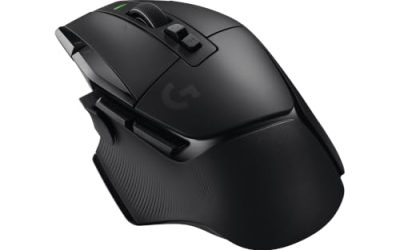
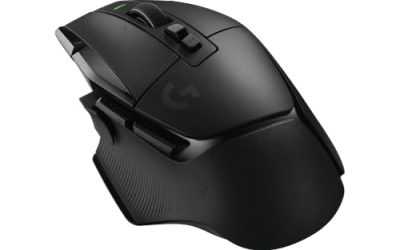
The G502 HERO is the mouse that made the dual-mode wheel famous, and it remains the most direct answer for an editor. A button behind the wheel unlocks it into a free spin that keeps turning for seconds — long enough to cross a full timeline or a lengthy transcript — and one click returns it to firm, stepped scrolling for precise work. The wheel also tilts left and right, giving two more inputs that map naturally to timeline zoom or horizontal scroll.
Why it fits editing. Eleven programmable buttons cover the core editing commands, and onboard memory stores profiles on the mouse, so an editing layout and a gaming layout can both live on the device and travel between computers. The HERO 25K sensor tracks smoothly across its full range, and the tunable weight system — five 3.6 g weights that can be arranged in the base — lets you add up to 18 g and shift the balance until fine movements feel settled.
Trade-offs. At 121 g before weights, this is a heavy mouse, and the 132 mm shell is too large for small hands. It is wired only, and the right-handed shape with its pronounced thumb wing excludes left-handed editors entirely.
Best for / Skip if. Best for editors who scrub long timelines daily and like a substantial mouse. Skip it if you want wireless or have small hands.
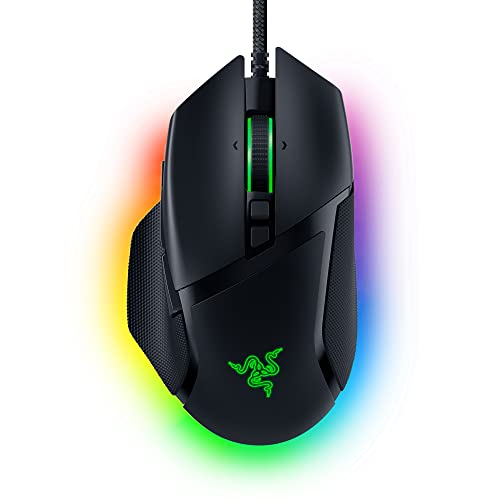
Razer Basilisk V3
ASIN: B09C13PZX7 — View on Amazon US
| Spec | Detail |
|---|---|
| Dimensions | 130 × 75 × 42.5 mm |
| Weight | 101 g |
| Sensor | Razer Focus+ optical, up to 26,000 DPI |
| Buttons | 11 programmable buttons |
| Scroll wheel | HyperScroll tilt wheel: free-spin, tactile and Smart-Reel modes |
| Connection | Wired, Razer Speedflex cable |
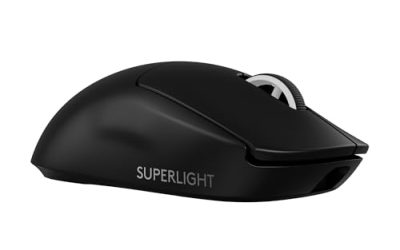
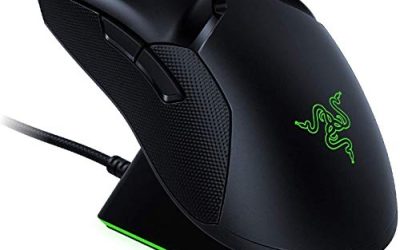
The Basilisk V3 takes the same dual-mode idea and adds two refinements editors notice. Its HyperScroll wheel tilts for side inputs, and alongside free-spin and tactile modes it offers Smart-Reel, which shifts into free spin automatically when you scroll fast and returns to tactile steps when you slow down — behaviour that matches how editors actually move through footage, fast across a sequence and careful at the cut point.
Why it fits editing. Eleven programmable buttons include a multi-function paddle on the thumb side that works well as a hold-to-modify key, effectively doubling what the other buttons can do. The Focus+ 26K sensor is Razer’s flagship wired tracking, the optical switches are rated for fast, consistent actuation, and at 101 grams the mouse is noticeably easier to move for a full editing day than the heavier picks here while keeping the same large ergonomic shape and thumb rest.
Trade-offs. Smart-Reel and the deeper wheel settings are configured in Razer Synapse, so the automatic mode needs the software installed. The mouse is wired only, and like the G502 it is a large right-handed shell.
Best for / Skip if. Best for editors who want the smartest wheel behaviour and a slightly lighter mouse than the G502. Skip it if you dislike configuration software or need a wireless connection.
Razer Naga V2 Pro
ASIN: B0BGJTLFN5 — View on Amazon US
| Spec | Detail |
|---|---|
| Dimensions | 119.5 × 75.5 × 43.3 mm |
| Weight | 134 g with the 12-button side plate |
| Sensor | Razer Focus Pro 30K optical |
| Buttons | 19+1 programmable with swappable 2, 6 and 12-button side plates |
| Scroll wheel | HyperScroll Pro wheel with adjustable tactility and free-spin mode |
| Battery | Up to 150 hours on HyperSpeed wireless, up to 300 hours on Bluetooth |
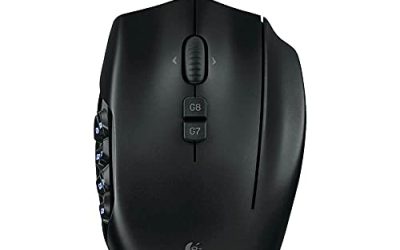
The Naga V2 Pro is an MMO mouse, and that is precisely why it earns a place in an editing guide. Its magnetic side plates swap between two, six and twelve thumb buttons, so the same mouse can carry a full editing control panel — transport controls, edit commands, markers, zoom — and then switch plates for a game. Nineteen plus one programmable buttons is more than any other pick here by a wide margin.
Why it fits editing. The HyperScroll Pro wheel is the most adjustable wheel in this guide: its tactility and step definition can be tuned, and it includes a smooth free-spin style mode for long timeline travel. The Focus Pro 30K sensor is Razer’s top specification, the mouse connects by HyperSpeed wireless, Bluetooth or cable, and the battery figures — up to 150 hours on the gaming connection and up to 300 hours on Bluetooth — mean an editor can go weeks between charges.
Trade-offs. At 134 g with the twelve-button plate it is the heaviest pick, the thumb grid takes practice before it is faster than a keyboard, and the deep customisation lives in Razer Synapse. Editors who only need a handful of extra buttons are paying in weight for capacity they will not use.
Best for / Skip if. Best for editors who build their workflow around mouse shortcuts and want one device for editing and MMO gaming. Skip it if you prefer a simple layout — the Basilisk models cover that with less to learn.
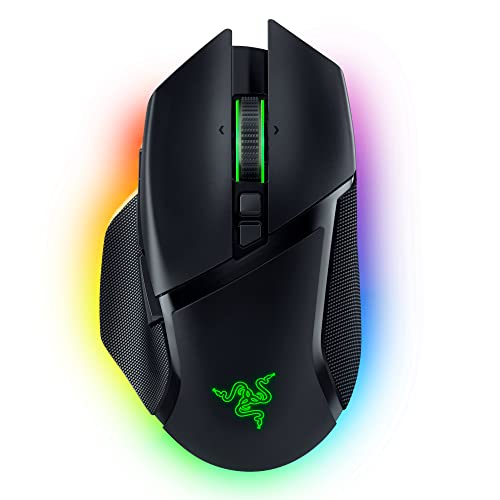
Razer Basilisk V3 Pro
ASIN: B0B6Y3XYFG — View on Amazon US
| Spec | Detail |
|---|---|
| Dimensions | 130 × 75.4 × 42.5 mm |
| Weight | 112 g |
| Sensor | Razer Focus Pro 30K optical |
| Buttons | 11 programmable buttons |
| Scroll wheel | HyperScroll tilt wheel with free-spin and tactile modes |
| Battery | Up to 90 hours on HyperSpeed wireless |
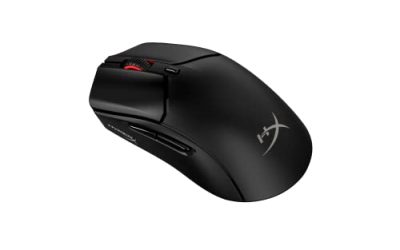
The Basilisk V3 Pro takes the wired Basilisk’s wheel and shape and removes the cable. The HyperScroll tilt wheel keeps its free-spin and tactile modes and its side inputs, the sensor steps up to the Focus Pro 30K, and the connection options — HyperSpeed wireless, Bluetooth and wired — let one mouse serve an editing workstation and a laptop without re-pairing rituals.
Why it fits editing. Everything that makes the wired Basilisk good for timelines is here, with wireless freedom for a clean desk and a stated 90 hours of battery on the performance connection, which is several working weeks of editing days. At 112 grams it sits between its wired sibling and the Naga, heavy enough to feel planted for fine playhead work and light enough for gaming afterwards.
Trade-offs. The battery figure drops when the lighting is run brightly, the full wheel configuration needs Synapse, and editors who sit at one desk permanently may simply not need the wireless hardware — the wired Basilisk V3 covers the same wheel for that setup.
Best for / Skip if. Best for editors who split time between a desk setup and a laptop, or who want the free-spin wheel without a cable. Skip it if the mouse will never leave one workstation.
How to choose between these picks
Decide by wheel first, buttons second. If your editing style is long timelines and constant scrubbing, the free-spin wheel is non-negotiable, and all four picks have one — so the choice moves to the other factors. The G502 HERO is the pick when you want that wheel with onboard profiles and a weight you can tune by hand. The Basilisk V3 adds Smart-Reel automation and a lighter body for the same job.
If your editing style is shortcut-driven — you already keep one hand on a macro pad or a keyboard cluster — the Naga V2 Pro’s swappable side plates put up to nineteen commands under your thumb and make it the most capable editing controller here. If the desk is shared with a laptop or you simply dislike cables, the Basilisk V3 Pro is the wireless version of the safest all-round choice.
Hand size is the last filter: all four are large right-handed shells, so smaller hands should expect a palm grip to feel stretched, and left-handed editors will need to look outside this group entirely.
An editing workflow setup that works
Whichever mouse you choose, spend the first setup session on assignments rather than sensitivity. Map the thumb buttons to your editor’s transport and edit commands — play or pause, previous and next edit point, ripple delete and add marker are the four that repay learning first. Put timeline zoom on the wheel tilt inputs if your software accepts them, and set the wheel’s free-spin mode as your default for navigation, switching to tactile steps when you are trimming.
Create two profiles where the mouse supports them: one for the editing application and one for games, so gaming binds never overwrite editing binds. Keep the sensitivity moderate and consistent between the two; timeline precision comes from a sensitivity you have practised with, not the lowest number available. For the wireless models, charge during a render or export — the battery figures are long enough that a single habit like that makes a flat battery a non-event.
FAQ
Why does the scroll wheel matter so much for video editing?
Timelines are long and cuts are precise. A dual-mode wheel free-spins through minutes of footage in one flick, then clicks back into stepped mode for frame-level adjustments. It is the single feature that most separates an editing-friendly gaming mouse from a standard one.
How many programmable buttons does an editor actually use?
Most editors settle on six to ten: transport controls, two or three edit commands, a marker key and zoom. The eleven-button picks cover that comfortably. The Naga V2 Pro’s nineteen plus one suits editors who deliberately move whole shortcut groups onto the mouse.
Is a heavier mouse better for precise timeline work?
It is a preference with a real basis: extra mass steadies small movements, which is why the G502 HERO’s tuning weights exist. But a lighter mouse moved at a lower sensitivity can be just as precise, so choose the weight that matches how you already work.
Can a wireless mouse keep up with editing and gaming?
Yes. The wireless picks here state up to 90 hours on the Basilisk V3 Pro’s performance connection and up to 150 hours for the Naga V2 Pro, both work over a cable while charging, and their sensors match the wired models’ tier.
Will these mice work with my editing software?
The buttons send standard inputs that editing applications can assign in their keyboard shortcut settings, and the deeper per-button programming on the Razer models is handled in Razer Synapse, while the G502 stores profiles in onboard memory. Check the listing for current operating system support before ordering.
Conclusion
For most people editing video and gaming on the same desk, the Logitech G502 HERO is the safest recommendation: a proven dual-mode wheel, eleven buttons, onboard profiles and a weight system you can tune to your hand. Pick the Razer Basilisk V3 if you want the wheel to switch modes by itself and a lighter shell, the Naga V2 Pro if your workflow runs on shortcuts and you want the largest button layout available, and the Basilisk V3 Pro if the same wheel and shape need to work wirelessly across two machines. Compare the wheel modes, button counts and dimensions in the tables above with the listing before you buy, and the mouse will serve both halves of the desk.
Related guides
More from Amazon
Programs that pair well with the guide above. Offers and eligibility are set by Amazon and may change.
Free shipping on eligible items, Prime Video and more. Eligible new members can start with a free trial.
Start a Prime free trialAd-free music streaming. Eligible new subscribers can start with a free trial.
Try Music Unlimited freeA Prime membership for ages 18-24 with a trial period. Eligibility is set by Amazon.
See Prime for Young AdultsAudiobooks and podcasts to listen to on the go. Eligible new members can start with a free trial.
Try Audible freeAs an Amazon Associate we earn from qualifying purchases.