Best Laptops for Revit in 2026
The best laptop for Revit is a workstation-class or performance laptop with a fast modern CPU, 32 GB of RAM, an NVIDIA GPU with at least 8 GB of VRAM for demanding 3D work, and cooling capable of sustaining performance under load. For most users, prioritize CPU speed and memory before paying extra for a top-tier graphics chip: Revit’s modeling and many everyday operations depend more on responsive CPU performance than on maximum GPU throughput.
Choose by the size of your Revit workload
There isn’t one best laptop for every Revit project. A compact architectural model, a large multidisciplinary building model, and a workflow that includes GPU rendering place very different demands on hardware. Use this matrix to narrow the choice before comparing individual laptop configurations.
As an Amazon Associate we earn from qualifying purchases at no extra cost to you.


| Workload | Recommended CPU class | RAM | GPU and VRAM | Practical laptop target |
|---|---|---|---|---|
| Learning, 2D sheets, small models | Recent 6–8-core processor with strong single-core speed | 16 GB minimum; 32 GB preferred | Integrated graphics or dedicated GPU with 6–8 GB VRAM | Portable 14–16-inch laptop, upgradeable memory if possible |
| Regular architectural modeling and documentation | Recent 8–14-core processor, prioritizing sustained performance | 32 GB | Dedicated GPU with 8 GB VRAM | 15–16-inch performance laptop or mobile workstation |
| Large projects, linked models, multitasking | High-performance 10–16-core processor | 64 GB | Dedicated GPU with 8–12 GB VRAM | 16–17-inch workstation with two accessible memory slots |
| GPU rendering and visualization | High-performance processor with effective cooling | 32 GB minimum; 64 GB for complex scenes | NVIDIA RTX-class GPU with 12 GB or more VRAM when the renderer supports it | Thicker performance chassis with high-wattage graphics and strong cooling |
These are selection targets, not guarantees of compatibility with every Revit release or rendering plugin. Check Autodesk’s requirements for your exact version and confirm that the GPU and driver are supported by any visualization software in your workflow.
What matters most in a Revit laptop
CPU: prioritize responsive modeling, not just core count
Many interactive Revit tasks—such as editing elements, navigating a model, and updating views—benefit from fast individual CPU cores. A processor advertised with many cores is not automatically the better modeling choice, especially if it runs at lower sustained speeds in a thin laptop. A higher-core-count CPU helps more with workloads that can use parallel processing, such as certain rendering, exporting, and multitasking tasks.
Compare performance-class processors from the same generation, then check how much power the laptop lets the CPU sustain. Chassis cooling, fan profiles, and power limits can make two laptops with the same processor behave quite differently during a long session.
RAM: buy for the project you expect to open
For a new Revit laptop, 32 GB is the sensible starting point for regular project work. Choose 64 GB if you routinely work with large central models, several linked files, point clouds, visualization tools, or many applications open at once. 16 GB can work for learning and light projects, but it leaves less room for Revit, Windows, browser tabs, and other design software to share memory.
Check whether RAM is soldered or installed in replaceable modules. A laptop with 16 GB of soldered memory may be a poor long-term choice even if its CPU and GPU look appealing. If memory is upgradeable, confirm the maximum supported capacity and whether both slots are occupied.
GPU: separate view navigation from rendering
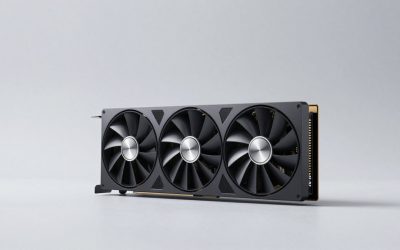
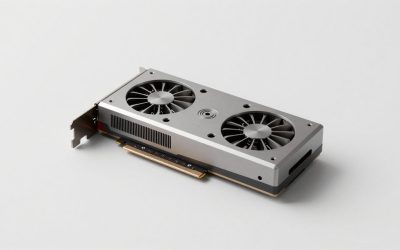
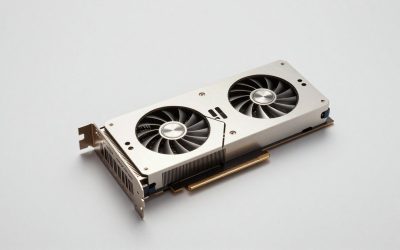
A dedicated GPU can make 3D navigation and visual display smoother, and it matters substantially for GPU-based renderers. But Revit’s core modeling performance does not scale in the same way as a GPU-heavy game or renderer. Don’t sacrifice RAM or CPU quality just to move up one graphics tier unless your workflow actually uses the extra GPU performance.
VRAM is particularly important for large or detailed visualization scenes and high-resolution output. As a rough example, a 3840 × 2160 image contains four times as many pixels as a 1920 × 1080 image. If a renderer stores several large image buffers, textures, geometry, and scene data on the GPU, memory demand can rise quickly. A 12 GB GPU offers more headroom for complex 4K scenes than an otherwise similar 8 GB model; it does not make every Revit operation faster.
Display: value workspace and legibility
A 16-inch 16:10 display is a useful balance for many users: it provides more vertical workspace than a typical 16:9 panel, which helps when arranging properties, project browser panels, and drawings. A resolution of 2560 × 1600 gives a sharp desktop without the scaling and battery trade-offs of a 4K panel on every laptop.
For indoor design work, look for good viewing angles, a matte or low-reflection finish, and brightness around 400 nits if you often work in bright rooms. Color accuracy matters more when preparing presentation imagery than when building models. An external monitor can provide a more useful large workspace at a desk than paying a premium for a very high-resolution laptop screen.
Thermals and portability: check sustained performance
Thin laptops are easier to carry but may reduce CPU and GPU power when both are under load. That can affect long exports, rendering, and extended work sessions. A larger performance laptop is usually heavier and louder, but it has more room for cooling. If possible, compare independent sustained-load results for the exact chassis and GPU power configuration—not just the processor name printed on the product page.
For travel, consider the power adapter as part of the laptop’s weight. A powerful system may run at reduced performance on battery, so don’t assume that a large battery eliminates the need to plug in for demanding work.
Shortlist by laptop type
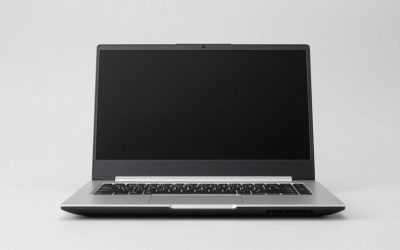
- Mobile workstation: Choose this for long-term professional use, large models, business support, and workstation-focused graphics options. Families such as Lenovo ThinkPad P, Dell Precision, and HP ZBook include mobile workstation models, but configurations differ widely. Confirm the specific GPU, memory layout, display, and warranty.
- Performance laptop: A gaming-oriented laptop can offer strong CPU and NVIDIA RTX graphics for less than a workstation, making it a practical choice for students and visualization-heavy work. The trade-offs may include more fan noise, a gaming-focused design, or fewer professional support options.
- Portable productivity laptop: Best for smaller models, documentation, and frequent travel. Choose a configuration with 32 GB of RAM if available and verify that the integrated or entry-level graphics meet your project and software requirements. It is not the right fit for sustained GPU rendering or very large linked models.
Product names alone are not enough to pick a configuration. A laptop family may include low-power and high-power variants with substantially different graphics performance, memory limits, and cooling.
Check the upgrade path before buying
Storage is often easier to upgrade than memory. A 1 TB NVMe SSD is a practical starting point for Revit, project files, local caches, and applications; choose more capacity if you keep multiple projects or large visualization assets locally. Two SSD slots can be useful, but verify that the exact configuration supports them and that adding a drive won’t interfere with warranty terms in your region.
Before purchase, confirm whether RAM and storage are replaceable, how many memory slots are available, the maximum supported RAM, and whether the laptop uses a standard M.2 SSD. If you’re choosing between 16 GB soldered RAM and 32 GB replaceable RAM, the latter is usually the safer investment for a machine intended to last several years.
A quick buying decision
- Mostly learning or small models: Choose a recent CPU with strong single-core performance and 32 GB RAM if your budget allows. A dedicated GPU is useful but need not be top-tier.
- Typical professional modeling: Aim for a strong sustained CPU, 32 GB RAM, a dedicated GPU with 8 GB VRAM, and a 16-inch 16:10 display.
- Large models or heavy multitasking: Put 64 GB RAM and effective cooling ahead of a premium screen or the fastest available GPU.
- GPU rendering: Prioritize the renderer-compatible GPU and its VRAM, then ensure the laptop can cool it under sustained load. Budget for a larger, heavier system.
- Frequent travel: Select the lightest configuration that meets your project’s RAM and graphics needs, and check real-world battery behavior for office tasks as well as the weight of its charger.
For most Revit users in 2026, the balanced choice is a well-cooled 16-inch laptop with a recent high-performance CPU, 32 GB of upgradeable RAM, an NVIDIA RTX-class GPU with 8 GB VRAM, and a 1 TB SSD. Move to 64 GB for large projects, or to a GPU with more VRAM when rendering is a regular part of the job.
Frequently asked questions
Is a gaming laptop suitable for Revit?
Yes, a gaming-oriented performance laptop can be suitable for Revit, especially for students and visualization-heavy work. It may provide a strong CPU and NVIDIA RTX graphics for less than a workstation. However, it can have more fan noise, a gaming-focused design, and fewer professional support options. Check the exact CPU, GPU, memory layout, cooling, and upgrade options rather than relying on the product family.
Do I need a workstation laptop for professional Revit work?
No, you do not necessarily need a mobile workstation for professional Revit work. A well-cooled performance laptop can be practical for regular architectural modeling and visualization-heavy workflows. Choose a workstation when long-term professional use, large models, business support, or workstation-focused graphics options are priorities. In every case, confirm the specific configuration, warranty, memory layout, GPU, display, and cooling.
Can Revit run on integrated graphics?
Yes, integrated graphics can be suitable for learning, documentation, and small models, provided they meet the requirements of your Revit version and other software. A dedicated GPU is more useful for smoother 3D navigation and GPU-based rendering. For regular modeling, prioritize a responsive CPU and sufficient RAM before paying extra for a higher graphics tier that your workflow may not use.
Is a 4K laptop display necessary for Revit?
No, a 4K laptop display is not necessary for Revit. A 16-inch 16:10 display with 2560 × 1600 resolution can provide a sharp desktop and useful vertical workspace for properties, project browser panels, and drawings. An external monitor may offer a more useful large workspace at a desk than paying a premium for a very high-resolution laptop screen.
How much storage should a Revit laptop have?
A 1 TB NVMe SSD is a practical starting point for Revit, project files, local caches, and applications. Choose more capacity if you keep multiple projects or large visualization assets locally. Storage is often easier to upgrade than memory, but verify whether the exact laptop supports additional drives, uses a standard M.2 SSD, and permits upgrades without affecting warranty terms in your region.