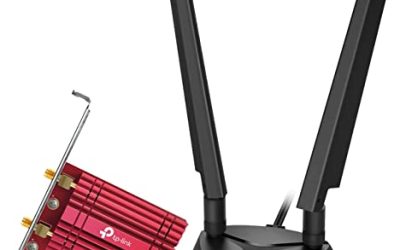
A desktop that never moves asks something different from its wireless card than a laptop does. Once the tower is under the desk, the choice becomes permanent: the antennas will sit in one place, behind one metal case, for years. So the real decision is not which card prints the largest number, but which one puts its antennas where the signal actually travels, matches the router already in the house, and fits the slot and case you already own without a rebuild.
This shortlist is for owners of fixed towers with no onboard Wi-Fi, builders finishing a desk PC who would rather not run a cable across the room, and anyone replacing an ageing internal card. Every model was selected from its Amazon title and listing details — Wi-Fi standard, band speeds, antenna arrangement, Bluetooth version and stated system support — so the comparison rests on what each listing actually names.
Our Top Picks
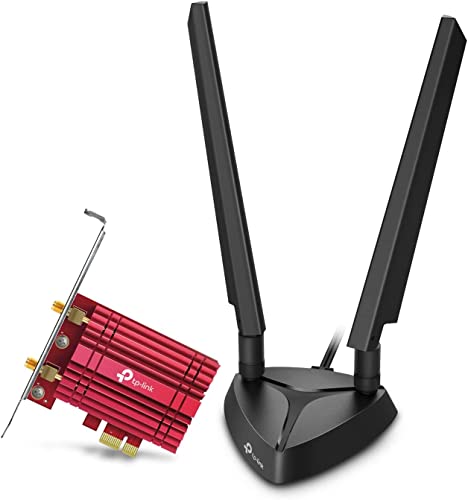 TP-Link WiFi 6E Intel AX210 AXE5400 PCIe WiFi1 Count (Pack of 1)3.75 x 4.76 x 0.85 inches0.59 poundsCheck on Amazon

Top 3 picks at a glance
Quick Picks
As an Amazon Associate we earn from qualifying purchases.
| Product | Best for | Key spec from title |
|---|---|---|
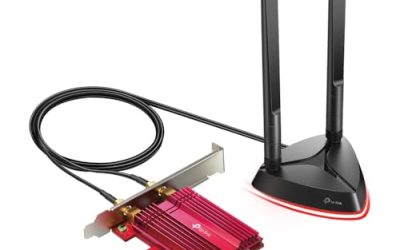
| TP-Link Archer TXE75E | A desktop paired with a Wi-Fi 6E router | AXE5400 tri-band, Intel AX210, magnetic antenna base, Bluetooth 5.3 |
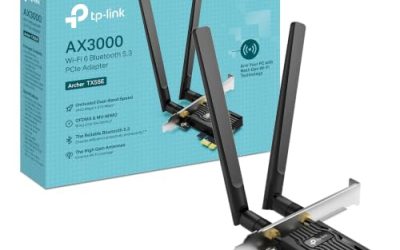
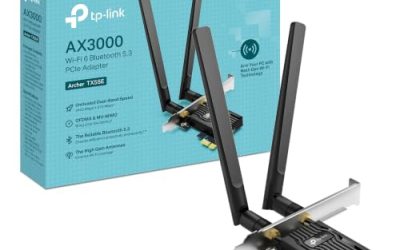
| TP-Link Archer TX55E | A Wi-Fi 6 desk that also needs Bluetooth 5.2 | AX3000 dual band, MU-MIMO, WPA3, Windows 11 and 10 |
| ASUS PCE-AX58BT | A compact case using the included low-profile path | AX3000, 2 external antennas, 160MHz, Bluetooth 5.0 |
How to Choose
Decide whether your router earns a tri-band card
Count the bands your router broadcasts before you count the bands on a card. A Wi-Fi 6E router offers a 6GHz network that only a tri-band card such as the Archer TXE75E can join; fitted to a Wi-Fi 6 router, that card simply works as a dual-band adapter, which is fine but buys you nothing extra today. A Wi-Fi 6 router, by contrast, pairs honestly with an AX3000 card. Write down the router model first, then shop. Buying the card for a router you plan to replace next year is the one exception worth making deliberately.
Put the antennas on a base, not behind the tower
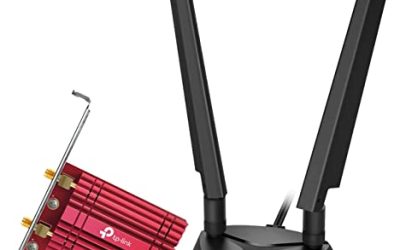
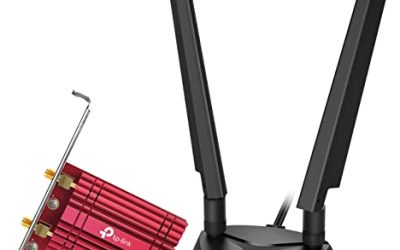
On a fixed desktop, antenna placement is decided once and then forgotten, so decide it well. Antennas screwed directly to the back plate sit inches from a steel case, power cables and a wall — about the worst seat in the room. A magnetic base, supplied with the TXE75E, lifts the antennas onto the top or side of the case where the path to the router is open. Direct-fit antennas on the TX55E and ASUS card can still work when the tower side faces the router, but measure that line before assuming it does.
Check the slot, the bracket and the Bluetooth cable
Three physical checks prevent most returns. First, the slot: these are PCIe cards, and while a short card usually fits longer slots, confirm a free slot is not hidden beneath a wide graphics card. Second, the bracket: slim cases need the low-profile bracket several of these listings include, so check the box contents against your case height. Third, Bluetooth: on PCIe cards it normally travels over an internal USB header cable, and the TXE75E listing says its Bluetooth cable must reach a motherboard F_USB connector. No spare header means Wi-Fi works and Bluetooth does not.
Read the operating system line literally
The support lists on these listings are short and specific, and a desktop card is a poor place to improvise around them. The TX55E names Windows 11 and Windows 10 in 64-bit form only; the ASUS card says the same; the TXE75E adds that its 6GHz band requires Windows 11. If your desktop still runs an older system, or anything other than Windows, none of these listings promises you a driver. Treat that line as a gate, not a suggestion, and choose a card whose stated support already covers the machine on your desk.
The 3 Best Options
TP-Link Archer TXE75E
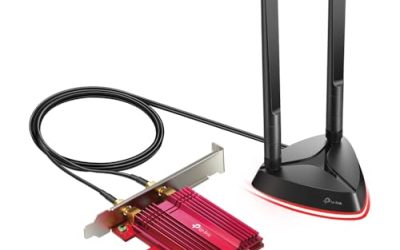
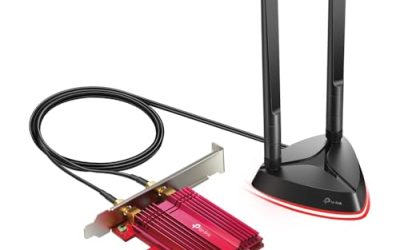
For a desktop that will stay beside the same Wi-Fi 6E router for years, this card makes the strongest permanent installation. Its magnetic base carries the two antennas up onto the case instead of leaving them in the tangle behind it, and the Intel AX210 chipset named in the listing underpins the tri-band radio. Bluetooth 5.3 arrives on the same card, so a keyboard, mouse and headset stop competing for USB ports. It suits a main home PC whose owner wants the wireless question answered once, properly, and then ignored.
Specs
- Wi-Fi standard: Wi-Fi 6E, AXE5400 class, 802.11ax
- Band speeds listed: 2402 Mbps on 6GHz, 2402 Mbps on 5GHz, 574 Mbps on 2.4GHz
- Chipset listed: Intel Wi-Fi 6E AX210
- Antennas: Dual antennas on a magnetic base
- Bluetooth: 5.3, via USB port connection named in the listing
- Features listed: WPA3, MU-MIMO, OFDMA
- Operating system listed: Windows 10 and Windows 11, with 6GHz requiring Windows 11
Best for: A fixed desktop on a Wi-Fi 6E router, installed once and left alone.
Watch out for: Bluetooth needs the supplied cable connected to a motherboard F_USB header, so confirm a header is free before counting on it.
ASIN: B09VCVTJV2
TP-Link Archer TX55E
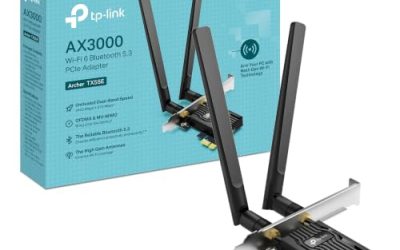
Plenty of desktops live on Wi-Fi 6 routers, and for those this is the proportionate card. The AX3000 dual-band radio covers 5GHz for daily work and 2.4GHz for reach, MU-MIMO is named in the title, and Bluetooth 5.2 handles the desk peripherals that a tower without onboard wireless usually lacks. TP-Link frames it around ultra-low latency, which suits a home PC that games in the evening after working all day. It is the sensible fit when there is no 6GHz network in the house and no plan to add one soon.
Specs
- Wi-Fi standard: Wi-Fi 6, AX3000 class, 802.11ax dual band
- Band speeds listed: 2402 Mbps on 5GHz and 574 Mbps on 2.4GHz
- Bluetooth: 5.2
- Security listed: WPA3
- Features listed: MU-MIMO and ultra-low latency positioning
- Interface: PCIe card for desktop PC
- Operating system listed: Windows 11 and Windows 10, 64-bit only
Best for: A Wi-Fi 6 desktop that needs internal wireless and Bluetooth in one installation.
Watch out for: Support is Windows 10 and 11 in 64-bit form only, so a 32-bit or non-Windows desktop is outside what the listing promises.
ASIN: B0B1NRGDQ4
ASUS PCE-AX58BT
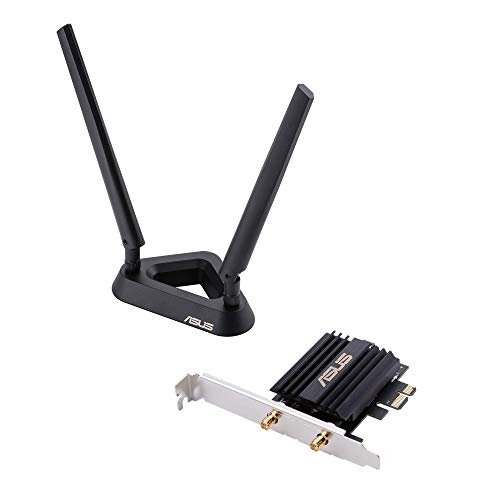
Small cases change the calculation, and this ASUS card answers with two external antennas and a 160MHz channel width on a dual-band Wi-Fi 6 radio. The listing names OFDMA and 2×2 MU-MIMO, which describe how it shares a busy home network with the other machines in the house, and Bluetooth 5.0 covers ordinary desk peripherals. ASUS labels it TAA compliant in the title, a detail some buyers specifically look for. Pick it for a compact or older tower on a Wi-Fi 6 router where a recognised brand and a tidy two-antenna layout matter more than a third band.
Specs
- Wi-Fi standard: Wi-Fi 6, AX3000 class, 802.11ax dual band
- Band speeds listed: 2402 Mbps on 5GHz and 574 Mbps on 2.4GHz
- Antennas: 2 external antennas
- Channel width listed: 160MHz support
- Bluetooth: 5.0
- Features listed: OFDMA, 2×2 MU-MIMO, WPA3 security, ultra-low latency positioning
- Operating system listed: Windows 11 and Windows 10, 64-bit only, TAA compliant
Best for: A compact Wi-Fi 6 desktop that needs external antennas and a mainstream brand.
Watch out for: Bluetooth here is version 5.0, the oldest in this group, so check any demanding wireless audio plans against that before buying.
ASIN: B07XLP199J
Which One Fits Your Situation
Your tower sits under a desk, far from the router
Start with the Archer TXE75E, because it moves its antennas onto a base you can position on top of the case. That single change usually matters more than any difference in speed class. Run the base cable before you close the case, settle the antennas in open air, and only then judge whether the room itself needs a network change.
You are finishing a new build on a Wi-Fi 6 router
Take the Archer TX55E. It matches the router you own, adds Bluetooth 5.2 for the peripherals a fresh build always accumulates, and leaves the second-guessing about 6GHz for a future router change. If that router upgrade is already scheduled this year, step up to a tri-band card now instead of opening the case twice in twelve months for the same job.
The case is slim and the slot space is tight
Choose the ASUS PCE-AX58BT and confirm the low-profile arrangement against your case before ordering. Compact towers punish assumptions: check that the card clears the graphics card, that the antenna cables are not pinched by the side panel, and that the back of the machine still leaves room to angle two external antennas away from the wall and power strip behind it.
The desktop doubles as the family machine in the evening
Pick the TXE75E if a 6E router is present, or the TX55E on Wi-Fi 6. A shared family PC spends its evenings juggling homework uploads, calls and a game at once, and the MU-MIMO and OFDMA features named across these listings speak to exactly that crowding. Put the machine on 5GHz or 6GHz and leave 2.4GHz to the household gadgets.
Common Mistakes
- Buying a tri-band 6E card for a router that only broadcasts Wi-Fi 6, then wondering where the 6GHz network went.
- Leaving the antennas tucked behind a steel tower under a desk and blaming the card for a weak signal.
- Forgetting the internal USB header cable, so Bluetooth never appears even though Wi-Fi works perfectly.
- Ordering before checking that a free PCIe slot is actually reachable beneath a wide graphics card.
- Installing the card in a slim case without confirming the low-profile bracket is included for that model.
Frequently Asked Questions
Does a PCIe card beat a USB adapter for a fixed desktop?
For a machine that never moves, usually yes. The card lives inside the case, draws no desk port, and its external antennas can sit on a base above the tower rather than in a rear socket. A USB adapter remains easier to move between machines, but a permanent desk rewards the permanent installation, provided you have a free slot and a spare internal USB header for Bluetooth.
Will a Wi-Fi 6E card work with my Wi-Fi 6 router?
Yes, within the limits the listings describe. A tri-band card such as the TXE75E joins the 5GHz and 2.4GHz networks a Wi-Fi 6 router offers and simply has no 6GHz network to use. You lose nothing compared with a dual-band card today, and the third band becomes available the day the router is replaced, without opening the PC again.
Why does Bluetooth need a cable inside the PC?
On these PCIe cards the Wi-Fi radio uses the PCIe connection while Bluetooth travels over USB, which is why the TXE75E listing mentions connecting its cable to a motherboard F_USB connector. The cable is normally included, but the motherboard needs a free internal header. Without that connection the wireless networking still works; only the Bluetooth side stays silent, which surprises many first-time installers.
Which band should a desktop use day to day?
Use 5GHz for a typical desk in the same part of the home, or 6GHz where a Wi-Fi 6E router and a supported system allow it, because both offer more room than the crowded 2.4GHz band. Keep 2.4GHz for a desktop separated from the router by several walls, where its reach outweighs its congestion. Decide from the actual chair and case position, not from another room.
Related guides
More from Amazon
Programs that pair well with the guide above. Offers and eligibility are set by Amazon and may change.
Free shipping on eligible items, Prime Video and more. Eligible new members can start with a free trial.
Start a Prime free trialAd-free music streaming. Eligible new subscribers can start with a free trial.
Try Music Unlimited freeA Prime membership for ages 18-24 with a trial period. Eligibility is set by Amazon.
See Prime for Young AdultsAudiobooks and podcasts to listen to on the go. Eligible new members can start with a free trial.
Try Audible freeAs an Amazon Associate we earn from qualifying purchases.