Sample rate is one of the few streaming audio settings that affects every stage of the signal chain: your microphone interface, operating system, OBS, plugins, virtual mixers, and the streaming platform’s encoder. The priority is not choosing the highest number your interface supports. It is choosing one stable rate that matches the rest of your setup, avoids real-time resampling, and leaves enough CPU and USB bandwidth for clean audio.
For most PC streamers in 2026, 48 kHz is the best default because it matches OBS, game audio, video production, capture devices, and most live-streaming pipelines. Use 24-bit recording where available, set a practical buffer size, and make sure Windows and every audio application use the same sample rate. A mismatch will usually still produce sound, but it can add resampling, sync drift, crackling, or device conflicts that are difficult to diagnose during a live broadcast.
As an Amazon Associate we earn from qualifying purchases at no extra cost to you.


Our Top Picks
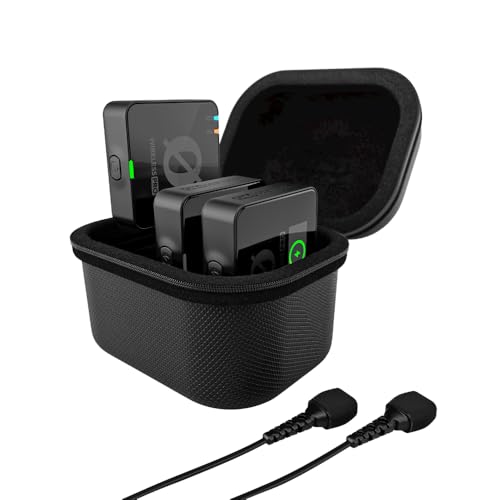

Top 3 picks at a glance
Quick Recommended Settings
| Setting | Recommended value | Why |
|---|---|---|
| Audio interface sample rate | 48,000 Hz (48 kHz) | Matches standard video, OBS workflows, game capture, and streaming audio pipelines. |
| Bit depth | 24-bit | Provides ample headroom for gain staging without requiring unusually high input levels. |
| Interface buffer size | 256 samples | Balanced starting point for stable monitoring and low enough latency for most streamers. |
| Windows default format | 24-bit, 48,000 Hz | Prevents Windows shared-mode audio from resampling desktop and game audio unnecessarily. |
| OBS sample rate | 48 kHz | Keeps microphone, desktop audio, recordings, and stream output on one clock rate. |
| OBS audio bitrate | 160–192 Kbps stereo AAC | A practical quality range for stream output; sample rate does not replace encoder bitrate. |
| Microphone monitoring | Direct monitoring when possible | Avoids software-monitoring delay and reduces dependence on very small buffers. |
| Exclusive mode in Windows | Usually enabled | Allows properly configured production apps to access the device directly when needed. |
Setting-by-Setting
Sample Rate: 48,000 Hz
Exact value: Set the audio interface to 48,000 Hz.
Trade-off: Compared with 44.1 kHz, 48 kHz uses slightly more processing and storage, but the difference is minor on a modern streaming PC. Moving to 96 kHz doubles the sample-processing workload versus 48 kHz and rarely improves a live stream.
What causes problems: Sample-rate mismatches occur when the interface runs at 44.1 kHz while OBS, Windows, a capture card, or virtual mixer runs at 48 kHz. Software then resamples audio in real time. That can introduce extra latency, intermittent pops, or audio that gradually loses sync in more complicated routing setups.
How to check: Open your interface control software and find its Sample Rate, Clock Source, or Device Settings page. In OBS, open Settings > Audio > General > Sample Rate. In Windows, press Win + R, type mmsys.cpl, press Enter, select your interface under Playback or Recording, then choose Properties > Advanced.
What to do: Set all relevant devices and software to 48 kHz. Restart OBS after changing an interface rate, then verify its audio meters respond normally.
How to undo: If a specific older device only works reliably at 44.1 kHz, set the interface, Windows device format, and OBS to 44.1 kHz together. Do not leave one major component at a different rate.
Bit Depth: 24-bit
Exact value: Use 24-bit in the interface driver and Windows default format when that option is available.
Trade-off: 24-bit audio uses more data than 16-bit, but it does not meaningfully strain a USB interface or a streaming PC. It does not make a noisy microphone quieter or fix bad room acoustics; its real benefit is safer recording and processing headroom.
What causes problems: At 16-bit, users often push preamp gain too high in an attempt to maximize the meter. That raises room noise, keyboard noise, and preamp hiss. Digital clipping remains bad at every bit depth.
How to check: In mmsys.cpl, go to your interface’s Properties > Advanced tab and inspect the Default Format drop-down. In the interface app, look for a bit-depth or USB-stream format setting.
What to do: Choose 24 bit, 48000 Hz where Windows provides that format. Set microphone gain so normal speech peaks roughly around -12 dB to -6 dB on your interface or OBS meter, without touching 0 dB.
How to undo: If a legacy application cannot open the interface at 24-bit, use 16-bit temporarily for that application, but retain 48 kHz throughout the rest of the chain.
Buffer Size: 256 Samples
Exact value: Start at 256 samples.
Trade-off: Smaller buffers reduce software-monitoring delay but make dropouts more likely. Larger buffers are more stable but add delay to effects processed in software, such as EQ, noise suppression, compressors, and VST monitoring.
What causes problems: A 32- or 64-sample buffer can cause clicks, robotic distortion, or brief silence when the CPU cannot process audio quickly enough. This is especially common while gaming, encoding video, compiling shaders, or using browser-based alerts.
How to check: Locate Buffer Size, ASIO Buffer Size, or Latency in the interface driver panel. Test while running the actual game, OBS, alert tools, voice chat, and any virtual mixer—not while the PC is idle.
What to do: Use 256 samples first. If monitoring through OBS feels delayed, try 128 samples. If you hear glitches, move to 512 samples. If your interface has direct monitoring, use it for your own voice and prioritize stability over ultra-low latency.
How to undo: Return to 256 samples after troubleshooting. Avoid changing sample rate and buffer size simultaneously, because that makes the source of an improvement or problem unclear.
OBS Audio Sample Rate: 48 kHz
Exact value: In OBS, select 48 kHz.
Trade-off: There is no meaningful quality advantage to choosing a higher OBS sample rate for a normal livestream. Higher rates can complicate compatibility with other sources and output devices.
What causes problems: OBS can receive audio from an interface, Windows desktop device, capture card, browser source, or virtual cable. If these sources operate at different rates, OBS must reconcile them, increasing the chance of timing and routing trouble.
How to check: In OBS, open Settings > Audio and confirm Sample Rate is 48 kHz. Then inspect Settings > Audio > Global Audio Devices and the individual sources in the Audio Mixer.
What to do: Set OBS to 48 kHz, disable unused global devices, and add only necessary audio sources. For a dedicated interface microphone source, use Sources > + > Audio Input Capture and select the interface directly.
How to undo: If you use a fixed 44.1 kHz music-production workflow, change OBS to 44.1 kHz only after changing Windows and the interface to match.
Windows Default Format: 24-bit, 48 kHz
Exact value: Set both playback and recording endpoints used in the stream to 24-bit, 48000 Hz.
Trade-off: Windows shared mode is convenient because multiple applications can use one device, but Windows may mix and resample audio. Keeping its default format aligned minimizes that work.
What causes problems: Streamers often configure only the microphone recording device and forget the interface headphone playback device, HDMI capture device, or virtual audio cable. Desktop audio can then run at a different rate than the microphone.
How to check: Press Win + R, enter mmsys.cpl, and inspect every active device under both Playback and Recording. Use the Advanced tab for each device.
What to do: Set active devices to 48 kHz. For USB capture devices that offer only 16-bit, 48 kHz, leave them at that supported format rather than forcing a virtual workaround.
How to undo: Restore the previous selection from the same Advanced drop-down if a device stops outputting audio after a change.
By Hardware Tier
Low-End or Older PC: 48 kHz, 24-bit, 512 Samples
For an older CPU, integrated graphics system, budget laptop, or PC already close to its limits while gaming, use 48 kHz and 24-bit but start with a 512-sample buffer. Use direct monitoring on the interface, avoid stacking multiple real-time noise-removal plugins, and keep routing simple. In OBS, disable unused audio devices under Settings > Audio. If crackles occur only during demanding scenes, the cause is usually system load rather than an insufficient sample rate.
Midrange Streaming PC: 48 kHz, 24-bit, 256 Samples
This is the best all-around configuration for most USB interfaces. It supports OBS filters, voice chat, game audio, a browser alert source, and moderate virtual routing without pushing the audio driver too hard. Use 128 samples only if you need to hear processed microphone effects live and testing confirms that the system remains clean during actual gameplay.
High-End Streaming or Dual-PC Setup: 48 kHz, 24-bit, 128–256 Samples
A powerful gaming PC or dedicated streaming machine can often run 128 samples reliably, particularly with a quality ASIO driver and direct USB connection. Still, 48 kHz remains the recommended rate. Do not select 96 kHz merely because the interface supports it. In a dual-PC setup, confirm that the gaming PC, capture card, streaming PC, and interface all use 48 kHz before investigating sync offsets.
Common Mistakes
Using 96 kHz for a Livestream
What causes it: Higher numbers are often assumed to mean automatically better audio. How to check: Look in the interface control panel for 88.2, 96, or 192 kHz. What to do: Change to 48 kHz for streaming unless you have a specific production requirement that needs a higher rate. How to undo: Switch back to the prior rate in the driver panel after closing OBS and other audio applications.
Changing Only OBS and Not Windows
What causes it: OBS settings are easy to find, while Windows endpoint settings are hidden. How to check: Use mmsys.cpl and inspect both Playback and Recording devices. What to do: Match active devices to 48 kHz. How to undo: Re-select each device’s old Default Format if compatibility issues appear.
Using an Extremely Small Buffer to Fix Voice Delay
What causes it: Software monitoring delay is mistaken for stream delay. How to check: Mute OBS monitoring and listen through the interface’s direct-monitor control. What to do: Use direct monitoring and return the driver buffer to 256 samples. How to undo: Re-enable OBS monitoring through Advanced Audio Properties if you specifically need to hear stream-only effects.
Monitoring the Same Microphone Twice
What causes it: Direct monitoring, Windows “Listen to this device,” and OBS monitoring can all be enabled at once. How to check: Speak and listen for a doubled or delayed voice. What to do: Keep one monitoring path only; normally, use direct monitoring. Disable Windows monitoring in Recording > Properties > Listen. How to undo: Re-enable the desired single monitoring path if you need it for a special routing setup.
FAQ
Is 44.1 kHz or 48 kHz better for streaming?
48 kHz is generally better for streaming because video, OBS, capture hardware, and game-focused audio workflows commonly use it. 44.1 kHz is still valid if every device and application in your chain uses 44.1 kHz, but mixing the two rates is less desirable than choosing either one consistently.
Does 96 kHz make my microphone sound better on Twitch or YouTube?
Not in a way viewers will reliably hear from a normal livestream. Stream audio is encoded and delivered under platform constraints, while 96 kHz increases processing demands and makes mismatched-device problems more likely. Improve microphone placement, room treatment, gain staging, and compression before considering higher sample rates.
Should I use 16-bit or 24-bit for my streaming interface?
Use 24-bit when supported. It gives more practical headroom while setting microphone gain and recording local backups. Use 16-bit only when a device or application requires it. Keep the sample rate at 48 kHz in either case.
Why do I hear crackling after changing my sample rate?
The usual causes are an interface buffer that is too small, an application still holding the device at the previous rate, or a Windows endpoint that does not match the interface. Close OBS, voice chat apps, browsers, DAWs, and virtual mixers; set all active devices to 48 kHz; restart the interface or PC; then begin again at a 256-sample buffer.