Recording 4K gameplay to an external SSD is less about chasing the highest bitrate and more about building a stable capture chain. Your priority order should be: sustained drive space and write stability, the correct encoder for your GPU, a recording format that survives crashes, and a bitrate or quality setting that preserves motion without creating unmanageable files. In 2026, modern external NVMe SSDs connected over USB 3.2 Gen 2 or better are generally suitable for 4K capture, but the cable, port, enclosure, encoder, and recording application still matter as much as the drive itself.
This guide uses OBS Studio because its settings are widely supported and give you direct control over encoder, container, keyframes, color, and audio. The same principles apply to NVIDIA App, AMD Software: Adrenalin Edition, Intel Arc Control, and capture-card software.
As an Amazon Associate we earn from qualifying purchases at no extra cost to you.




Our Top Picks


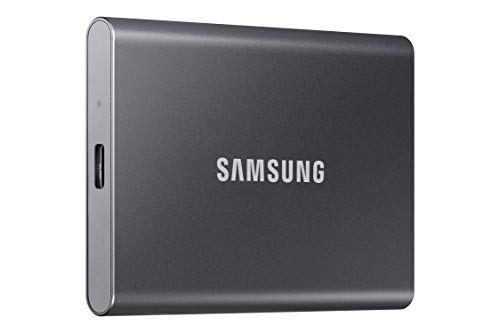

Top 3 picks at a glance
Quick Recommended Settings
| Setting | Recommended value | Why |
|---|---|---|
| External SSD connection | Direct USB-C/USB-A 10Gbps or faster port; no hub | Reduces disconnects and shared-bandwidth problems. |
| Free SSD capacity | Keep at least 20% free | Helps preserve sustained write behavior and leaves room for long sessions. |
| OBS recording format | MKV | Protects completed footage if OBS, Windows, or a game crashes. |
| Output resolution | 3840×2160 | Matches standard 4K UHD footage. |
| Frame rate | 60 FPS for gameplay; 30 FPS for slower content | 60 FPS preserves fast camera movement and action clarity. |
| NVIDIA encoder | NVENC HEVC, CQP 18–22 | Delivers strong 4K quality without loading the CPU heavily. |
| AMD encoder | AMD HW H.264/AVC or HEVC, CQP/CQ 18–22 where available | Uses the GPU’s hardware encoder and avoids CPU-based recording strain. |
| Intel encoder | Quick Sync HEVC, ICQ 18–22 | Provides efficient hardware encoding on supported Intel systems. |
| Keyframe interval | 2 seconds | Provides practical seeking and editing compatibility. |
| Color format | NV12, Rec. 709, Limited | Offers broad editor and player compatibility for SDR gameplay. |
| Audio | 48 kHz, AAC, 320 Kbps, separate tracks | Matches video-editing standards and keeps game and mic audio editable. |
Setting-by-Setting
Record to a Dedicated External SSD Folder: E:\Recordings\4K
Exact value: In OBS, go to File > Settings > Output > Recording and set Recording Path to a simple folder such as E:\Recordings\4K. Create the folder first in File Explorer. Avoid recording to a cloud-synced Desktop, Downloads folder, or a drive used for game installation updates.
Trade-off: A dedicated folder is less convenient than saving everything to a default Windows library, but it prevents background sync tools and clutter from interfering with sessions.
What causes it: Dropped frames during recording can occur when the destination drive is nearly full, intermittently disconnected, being indexed, or simultaneously used by downloads and game file updates.
How to check: Open Settings > System > Storage in Windows and confirm free capacity. In OBS, select View > Stats while recording and watch Skipped Frames Due to Encoding Lag and Frames Missed Due to Rendering Lag.
What to do: Keep at least 20% of the external SSD empty, use a short certified cable, and connect directly to a rear motherboard I/O port or a laptop port known to support high-speed USB data.
How to undo: Change the OBS Recording Path back to its prior folder, then restart OBS before the next recording session.
Use MKV Recording Format, Then Remux to MP4
Exact value: Go to File > Settings > Output > Recording. Set Recording Format to MKV. After recording, use File > Remux Recordings, add the MKV file, select an MP4 output location, and click Remux.
Trade-off: MKV needs a short remux step for software that only accepts MP4. In return, it is much safer than directly recording to MP4.
What causes it: An MP4 file may be unusable if the PC loses power, OBS closes unexpectedly, or the USB drive disconnects before the file is finalized.
How to check: If a test crash or forced OBS close leaves an MP4 that will not open, the container was not finalized. Do not test this with important footage.
What to do: Record in MKV and remux only finished clips. Enable automatic remuxing in File > Settings > Advanced > Recording if your OBS build provides the Automatically remux to MP4 option.
How to undo: Set Recording Format back to MP4. Only do this if immediate MP4 availability matters more than recovery protection.
Set 3840×2160 Output at 60 FPS
Exact value: Open File > Settings > Video. Set Base (Canvas) Resolution to 3840×2160, Output (Scaled) Resolution to 3840×2160, and Common FPS Values to 60. Use 30 for strategy games, cinematic footage, or systems that cannot maintain stable 60 FPS capture.
Trade-off: 4K60 produces substantially larger files and requires more encoder throughput than 4K30. Lowering output resolution to 2560×1440 is often preferable to recording unstable 4K60.
What causes it: Recording at 4K while the game or desktop is actually rendering at a lower resolution can create unnecessary scaling, softer text, and extra GPU work.
How to check: In Windows, go to Settings > System > Display > Display resolution. In the game, verify the resolution and refresh rate in its display or video menu.
What to do: Match OBS canvas resolution to the game’s actual output. If you play at 1440p, either record a clean 1440p master or use GPU scaling intentionally and accept that it is not native 4K detail.
How to undo: Restore your previous canvas, output resolution, and FPS values in the Video settings page.
Use Hardware HEVC Quality Mode: CQP 20
Exact value: Set Output Mode to Advanced under File > Settings > Output. In the Recording tab, select your hardware encoder. For NVIDIA, choose NVIDIA NVENC HEVC and set Rate Control to CQP with CQ Level 20. Set Keyframe Interval to 2 s. Use P5: Slow (Good Quality) or the closest available quality preset. On AMD or Intel, select HEVC hardware encoding and use a quality/constant-quality value around 20.
Trade-off: HEVC files are smaller at comparable quality than H.264, but some older editors, browsers, and devices are less convenient with HEVC. CQP file sizes vary by scene complexity, so storage use is less predictable than a fixed bitrate.
What causes it: Fixed-bitrate settings can either waste space in static scenes or visibly break down in grass, smoke, particle effects, foliage, and fast motion.
How to check: Record a two-minute test containing a menu scene, fast combat, a dark area, and a high-detail outdoor scene. Review the file frame by frame in your editor for blockiness, banding, or smeared motion.
What to do: Start at CQP/CQ 20. Lower the value toward 18 if fine detail is not surviving; raise it toward 22 if files are unnecessarily large. Change one step at a time.
How to undo: Return to your previous encoder and rate-control mode. If HEVC creates compatibility issues, select NVIDIA NVENC H.264, AMD HW H.264/AVC, or Intel Quick Sync H.264 instead.
Use NV12, Rec. 709, Limited for SDR
Exact value: In File > Settings > Advanced, set Color Format to NV12, Color Space to Rec. 709, and Color Range to Limited for standard SDR 4K gameplay.
Trade-off: NV12 is 8-bit 4:2:0, so it is not ideal for aggressive color grading. It is, however, the dependable option for standard game footage and broad playback compatibility.
What causes it: A mismatch between OBS color range and the editor or player can make footage look washed out, crushed, too dark, or overly contrasty.
How to check: Record a short scene with dark shadows, white UI elements, and saturated colors. Compare OBS preview, the exported recording, and your editing timeline without applying color effects.
What to do: Keep the recording and project interpretation consistent: Rec. 709 SDR with limited/video range unless your entire workflow is deliberately configured for full-range capture or HDR.
How to undo: Restore the former Color Format, Color Space, and Color Range values, then make a new test recording.
By Hardware Tier
Low Tier: SATA External SSD or Entry-Level GPU
Use 3840×2160 at 30 FPS, MKV, NV12/Rec. 709/Limited, and H.264 hardware encoding if HEVC causes playback or editing trouble. Start with CQP 22 or an equivalent quality value. Disable OBS preview by right-clicking the preview area and selecting Enable Preview to toggle it off during capture. Avoid CPU x264 recording at 4K unless the PC is dedicated to capture rather than gaming.
What causes it: Entry-level GPUs can run out of rendering or encoding headroom when a demanding game, 4K output, and OBS run together.
How to check: Use View > Stats in OBS for a full match or repeatable benchmark scene.
What to do: Cap in-game FPS, reduce ray tracing or GPU-heavy effects, and prioritize stable 4K30 over inconsistent 4K60.
How to undo: Re-enable preview and restore the game’s original frame cap and graphics options.
Mid Tier: USB NVMe SSD and Modern Hardware Encoder
Use 4K60, MKV, HEVC hardware encoding, CQP 20, a 2-second keyframe interval, and separate audio tracks. In OBS Settings > Output > Recording, assign game audio to Track 1 and microphone audio to Track 2 where your audio-routing setup supports it. This tier is the practical sweet spot for most PC gameplay recording.
What causes it: Combined game and microphone audio makes later editing difficult because you cannot rebalance voice, remove noise, or mute a hot-mic segment independently.
How to check: Open a test recording in your editor and confirm that separate audio tracks appear.
What to do: In Edit > Advanced Audio Properties, select the desired track boxes for Desktop Audio and Mic/Aux, then verify under Settings > Output > Recording.
How to undo: Assign both sources back to Track 1 only.
High Tier: Fast External NVMe SSD, High-End GPU, HDR Workflow
Use 4K60 HEVC at CQP 18–20 for SDR. For HDR, only enable 10-bit/HDR recording if your game, Windows HDR setting, OBS configuration, and editing software are all part of an HDR-capable workflow. Keep a separate SDR profile in OBS: Profile > New, then name profiles clearly, such as 4K SDR Record and 4K HDR Record.
What causes it: HDR footage recorded into an SDR project can look gray, oversaturated, or incorrectly toned.
How to check: Confirm HDR is enabled in Settings > System > Display > HDR, then inspect the recorded file in the intended editor rather than relying only on a media player preview.
What to do: Use HDR only when delivery requires it; otherwise, record SDR Rec. 709 for simpler editing and sharing.
How to undo: Switch to the SDR OBS profile and turn off Windows HDR before launching the game.
Common Mistakes
Recording through a USB hub: The cause is shared bandwidth or unstable hub power. Check by moving the SSD directly to the PC and repeating the same test. Do this by using a direct rear I/O or laptop port with a known-good cable. Undo by reconnecting the hub only for low-priority peripherals.
Using a nearly full SSD: The cause is reduced working space and poor long-session behavior. Check free space in File Explorer by right-clicking the drive and selecting Properties. Do this by moving completed recordings to internal storage or archive media until at least 20% is free. Undo by copying files back only after recording is complete.
Recording directly to MP4: The cause is container corruption risk after interruption. Check whether a deliberately interrupted test clip remains playable. Do this by selecting MKV and remuxing after capture. Undo by returning to MP4 if your workflow requires it.
Changing five settings at once: The cause is an impossible troubleshooting process because you cannot identify the setting responsible for quality loss or lag. Check your OBS log and settings history after a bad recording. Do this by changing one variable per test: FPS, encoder, CQ value, or resolution. Undo by restoring the prior known-good profile.
FAQ
Is an external SSD fast enough for 4K recording?
Yes, provided it is a genuine SSD with adequate free space, a stable enclosure, and a direct high-speed USB connection. The encoder settings determine much of the actual data rate, so use a short test recording before an important session.
Should I use H.264 or HEVC for 4K gameplay?
Use HEVC when your editor and playback devices support it, because it is generally more storage-efficient for 4K footage. Use H.264 when compatibility matters more than file size or when an older editing workflow struggles with HEVC.
Why does OBS say encoding lag while recording to an external SSD?
Encoding lag usually points to encoder or GPU workload rather than the SSD itself. Check View > Stats: encoding lag calls for a lower-quality preset, higher CQ number, reduced FPS, or an in-game FPS cap. If OBS reports drive or write-related errors, then inspect the cable, port, free capacity, and SSD health instead.
What is the best CQ value for 4K recording?
Start at CQ/CQP 20. Use 18 for higher quality and larger files, or 22 for smaller files with more compression. Test the settings in the games you actually play, especially titles with foliage, rapid movement, darkness, and heavy particle effects.