The best workstation keyboard for most people in 2026 is a hot-swappable, QMK/VIA-programmable mechanical board — the Keychron Q6 Max is the strongest all-round pick — because its remapping lives in the keyboard’s own firmware, so it works even on a locked-down work laptop where you can’t install drivers. If you work in an open office or want the lowest-effort typing, the Logitech MX Keys S is the better fit at roughly half the price. If shoulder and wrist comfort is the deciding factor, go split with the ZSA Moonlander Mark I.
As an Amazon Associate we earn from qualifying purchases at no extra cost to you.



Our Top Picks

Top 3 picks at a glance
Quick comparison: best workstation keyboards at a glance
| Pick | Best for | Key specs | Typical price |
|---|---|---|---|
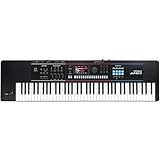
| Keychron Q6 Max | Best overall for mixed office and home use | Full-size (100%) gasket-mounted aluminum, hot-swap, QMK/VIA, 2.4 GHz + Bluetooth + USB-C, Gateron Jupiter switches (~45–55 gf) | Usually $200–$240 |
| Logitech MX Keys S | Quiet offices, Mac/Windows fleets, no setup time | Low-profile scissor, 1.8 mm travel, Logi Bolt 2.4 GHz + Bluetooth, 3-device switching, backlit | Usually $100–$130 |
| ZSA Moonlander Mark I | Wrist and shoulder comfort on long sessions | 72-key columnar split, hot-swap, QMK, Oryx web configurator, USB-C, tenting legs | Usually $365–$430 depending on switches |
| HHKB Professional Hybrid Type-S | No-software, no-driver environments | 60-key Topre electro-capacitive, 45 g, silenced, DIP-switch remap, USB-C + Bluetooth, two AA batteries | Usually $300–$370 |
| Keychron V6 | Budget programmable full-size | 100% wired, hot-swap, QMK/VIA, rotary knob, PBT keycaps | Usually $80–$110 |
| NuPhy Air75 V2 | Low-profile mechanical, small desks, travel | 75% low-profile hot-swap (~3.0 mm travel), QMK/VIA, 2.4 GHz + Bluetooth + wired | Usually $120–$150 |
Best overall: Keychron Q6 Max
The Q6 Max is the pick that covers the most situations at once. You get a full-size layout with a number pad for spreadsheets, a gasket-mounted aluminum case that keeps the sound low and even rather than hollow, and hot-swap sockets so you can change switch weight without buying a new board. Per the manufacturer’s spec sheet it connects over 2.4 GHz, Bluetooth (multiple devices) and USB-C, so you can move between a work laptop, a personal machine and a tablet without re-pairing.
Who it suits: anyone who wants one keyboard to do everything and doesn’t mind a heavier, denser board. Main trade-off: it is expensive and heavy, and the tall mechanical profile pushes your hands higher than a scissor board, which matters if your desk is shallow or your chair height is fixed.
Best for quiet offices and mixed Mac/Windows fleets
The Logitech MX Keys S is the pragmatic choice. Scissor switches with roughly 1.8 mm of travel are noticeably quieter than most mechanical switches, the backlight and proximity sensor cut down on hunting for keys in a dim room, and three-device switching plus proper Mac and Windows legends means you don’t think about layout. Logitech’s own battery figures are up to 10 days with backlighting on and up to 5 months with it off.
Who it suits: hot-desking, shared rooms, and anyone who wants zero setup. Main trade-off: no hot-swap, limited remapping unless you install Logi Options+ (which needs admin rights on managed machines), and scissor switches have a shorter, less defined bottom-out that some heavy typists find tiring.
Best for wrist and shoulder comfort: ZSA Moonlander Mark I
A split columnar board changes the geometry of typing rather than the switch feel. The Moonlander separates the halves to roughly shoulder width, staggers columns vertically so fingers travel up and down instead of diagonally, and lets you tent each half. Its Oryx configurator runs in a browser and flashes the layout to the board, so the configuration travels with the hardware.
Who it suits: people doing six or more hours of typing a day who feel tension between the shoulder blades or across the forearms. Main trade-off: a genuine two-to-four-week relearning curve, and touch-typing is effectively mandatory. If you want a similar concept with a curved key well instead of flat columns, the Kinesis Advantage360 is the alternative, usually in the $400–$500 range.
Best when you cannot install any software
The HHKB Professional Hybrid Type-S stores its layout on the board and is configured with DIP switches on the back — no driver, no admin prompt, no background service. It uses Topre electro-capacitive domes at 45 g, which feel like a refined, damped rubber dome with a soft tactile bump, and the Type-S variant adds silencing rings that make it one of the quietest premium boards you can buy.
Who it suits: regulated or locked-down IT environments, and anyone who wants a keyboard that will still work identically in five years. Main trade-off: a 60-key layout with no dedicated arrow cluster or function row — you reach them through layers — and a premium price for a small board.
Best budget: Keychron V6
The V6 gives you the same QMK/VIA programmability as boards costing twice as much: multiple layers, per-key remapping, macros, and a rotary knob you can assign to volume, zoom or scroll. It’s wired only, which is fine on a fixed desk and removes battery management entirely.
Who it suits: first-time mechanical buyers and anyone who wants layers and macros without spending $200. Main trade-off: plastic case, no wireless, and a hollow sound signature that’s noticeably louder than the Q series.
Best low-profile mechanical: NuPhy Air75 V2
Low-profile mechanical switches sit between a laptop keyboard and a full-height mechanical: roughly 3.0 mm of total travel with actuation around the midpoint, so you get a defined bump without the finger lift of a standard 4.0 mm switch. The Air75 V2 is hot-swap, runs QMK/VIA, and offers 2.4 GHz, Bluetooth and wired in a 75% footprint.
Who it suits: laptop-first users who want mechanical feel without raising their wrists, and anyone with limited desk depth. Main trade-off: fewer low-profile switch options than standard MX-compatible boards, and the compact layout drops the number pad.
How to choose: the numbers that actually matter
Key feel: match travel and force to your hands
- Standard mechanical: 4.0 mm total travel, actuation around 2.0 mm. Linear switches sit near 45 gf, tactile near 55 gf, clicky near 60 gf. For all-day typing, 45–55 gf is the usual comfort band.
- Low-profile mechanical: about 3.0 mm travel with a shorter, snappier stroke. Less finger travel per keystroke, less feedback per keystroke.
- Scissor: about 1.8 mm travel with a light, linear feel. Fastest to adjust to, least tactile information.
The practical test: if you bottom out hard on every keystroke, a heavier tactile switch will slow you down less than a light linear one. If your fingers feel bruised after a long session, go lighter, not heavier.
Layout and desk footprint
Full-size boards are roughly 440 mm wide; tenkeyless about 360 mm; 75% about 320 mm; 65% about 300 mm; 60% about 290 mm. Depth is usually 130–150 mm, plus another 70–80 mm if you add a palm rest. Before buying, measure the distance from your monitor to the front edge of the desk — if you can’t fit roughly 300 mm of keyboard-plus-rest depth while keeping the monitor at arm’s length, a 75% or 65% board will serve you better than full-size.
Programmable controls: do the macro maths first
Macros pay off when a sequence is long and repeated. A four-second multi-step action run 30 times a day costs two minutes daily; over 250 working days that’s about 500 minutes, or a little over eight hours a year, recovered by a single keypress. Shorter sequences rarely justify the setup time — so prioritise macros for genuinely multi-step tasks like date-stamped report headers, ticket templates, or repeated find-replace chains, and use layers for everything else.
Two layers is enough for most knowledge workers: layer 0 for normal typing, layer 1 for navigation (arrows on home row, Home/End/PgUp/PgDn under the right hand), plus a macro layer if you need one. More than three layers usually means you’ll forget what’s on them.
Connectivity: 2.4 GHz, Bluetooth, or cable
- 2.4 GHz dongle: lowest latency and most resistant to interference in dense offices. Uses a USB-A or USB-C port.
- Bluetooth: no dongle, multi-device switching, but more susceptible to stutter when many devices share the 2.4 GHz band. For typing, the latency difference is imperceptible; for rhythm games it isn’t.
- USB-C wired: the only option guaranteed to work in BIOS/UEFI, at a pre-boot PIN prompt, and in a virtual machine that grabs the USB bus. Keep one cable on the desk even if you work wirelessly.
Worked battery calculation. Manufacturer runtime figures such as “up to 5 months with backlighting off” are normally quoted at about two hours of use per day. That claim equals roughly 5 × 30 × 2 = 300 hours of active use. If you actually type eight hours a day, expect 300 ÷ 8 ≈ 37 days — about five weeks, not five months. Before trusting any “months” figure, multiply the quoted hours by your own daily duty cycle; heavy users should treat wireless runtimes as roughly a quarter of the marketing number.
Software support: prefer firmware, then web configurators
Configuration tools fall into three tiers, and the tier matters more than the brand:
- On-board firmware (QMK/VIA, DIP switches): the layout lives in the keyboard. It survives OS reinstalls, works on locked-down laptops, and needs no background process. This is the best option for managed work machines.
- Browser configurators (Keychron Launcher, Oryx, Wootility-style WebHID tools): no installer, but they need a Chromium-based browser and a USB connection. Excellent compromise when you can’t install anything.
- Desktop drivers (Logi Options+, vendor suites): the most polished per-key control, media integration and app-specific profiles, but they require admin rights and often a login.
Wrist comfort: fix the height before buying a rest
Wrist rests are palm rests — they support the heel of the hand between bursts of typing, not the wrist during typing. A hard rest placed under the wrist while you type increases pressure on the carpal tunnel area. The order of operations that actually helps: lower the keyboard so your forearms sit roughly level with the desk, keep elbows near 90 degrees, then add a soft rest only for pauses. If a standard mechanical board puts your hands too high, a low-profile board solves the problem more directly than a rest does.
Decision matrix: match your situation to a keyboard
| Your situation | Pick | Why |
|---|---|---|
| Shared or open-plan office | Logitech MX Keys S, or HHKB Type-S if budget allows | Scissor and silenced Topre switches cut the noise floor; no one three desks away hears you type |
| Locked-down corporate laptop, no admin rights | Keychron Q6 Max or Keychron V6 (VIA/WebHID) — HHKB if you want zero software | Remapping is stored in the keyboard, so nothing needs to be installed on the machine |
| Mac and Windows on the same desk | MX Keys S, or Keychron Q Max series | Three-device switching plus correct modifier legends on both platforms |
| Shoulder or forearm tension after 6+ hours typing | ZSA Moonlander Mark I (or Kinesis Advantage360) | Split halves at shoulder width reduce the outward hand angle; expect a 2–4 week adjustment |
| Repetitive multi-step data entry | Any QMK/VIA board with 2–3 layers | A 4-second sequence run 30×/day saves roughly 8 hours a year when mapped to one key |
| You need BIOS access and pre-boot logins | Any board with USB-C wired mode | Bluetooth and 2.4 GHz generally don’t initialise before the OS loads |
| Small desk, laptop-first workflow | NuPhy Air75 V2 | 75% layout is about 320 mm wide with ~3.0 mm travel, so wrists stay low |
Frequently Asked Questions
Is a mechanical keyboard actually better than a low-profile scissor keyboard for productivity?
Neither is faster in any meaningful way — typing speed is limited by familiarity, not switch type. The real differences are noise, durability and repairability. Mechanical boards let you replace individual switches, change spring weight, and run fully custom layouts through QMK/VIA; scissor boards are quieter and thinner but essentially sealed units. Pick mechanical if you want to tune the feel and keep the board for years, and scissor if you want quiet and zero maintenance.
Do split keyboards genuinely reduce wrist strain?
They change the angles rather than eliminating the problem. Separating the halves lets your hands sit at roughly shoulder width, which reduces the outward rotation of the forearms, and columnar stagger shortens finger travel on the outer columns. Most people who stick with it report less fatigue after two to four weeks, but the first week is usually slower and more error-prone, and posture and chair height still matter more than the keyboard itself.
Can I use a programmable keyboard on a work laptop that blocks software installs?
Yes, if you choose the right board. Keyboards running QMK/VIA store their layout in the keyboard’s own memory, so once configured they behave the same on any machine, including managed ones. For configuration itself, browser-based WebHID tools work without an installer as long as you’re on a Chromium-based browser and plug in over USB-C. Boards that depend on a desktop driver, such as most Logitech and Razer productivity models, will be limited to their default layout on a locked-down machine.
Should I use Bluetooth or a 2.4 GHz dongle for a work keyboard?
Use 2.4 GHz if the keyboard supports it and you have a free port — it’s less prone to stutter in offices crowded with wireless devices, and it doesn’t compete with your headset’s Bluetooth bandwidth. Bluetooth is better when you need to switch between three machines without moving a dongle. Keep a USB-C cable connected or nearby regardless, because neither wireless mode reliably works in BIOS, at a pre-boot PIN prompt, or inside a VM that captures USB devices.
How much desk space do I really need for a full-size keyboard?
A full-size board is roughly 440 mm wide and 140 mm deep, and a palm rest adds another 70–80 mm of depth. That means budgeting around 220 mm of depth for the keyboard plus rest, and ideally 300 mm of clear space so your monitor can still sit at arm’s length. If that doesn’t fit, a 75% board at about 320 mm wide frees up real space without losing the function row.
What is the quietest option for an open-plan office?
Silenced Topre boards such as the HHKB Professional Hybrid Type-S and low-profile scissor keyboards like the MX Keys S are the two quietest categories, because both damp the bottom-out rather than just the upstroke. If you want to keep a standard mechanical board, fit silenced linear switches or add dampening to the case — but note that clicky switches cannot be made office-quiet, since the noise comes from the mechanism itself, not the keycap or the case.