If you’ve got a boom arm microphone humming whenever you touch your desk, you’re dealing with one of the most common (and most annoying) audio gremlins in PC gaming setups. The symptom usually looks like this: your mic sounds perfectly clean while you’re streaming or recording in silence, but the moment you type, nudge your mouse, bump the desk, or simply rest your hand on the surface, a low-frequency rumble or buzz bleeds into your audio. Sometimes it’s a dull “whoomp” that follows every keystroke; sometimes it’s a persistent 50/60 Hz electrical hum that rises and falls with everything you touch. In worse cases, your viewers hear it as a constant drone that makes your voice sound like it’s coming through a cardboard tube.
How urgent is it? If you stream, record podcasts, or jump on voice calls for work, treat it as high priority — that noise floor is the first thing listeners notice, and no amount of noise gating in OBS or your audio software will fully mask it without also chopping off parts of your voice. The good news: this is almost never a broken microphone. It’s a mechanical or electrical grounding issue somewhere in the chain from your desk to your PC, and in most cases it’s fixable in under 30 minutes with items you may already own. Work through the fixes below in order, from easiest to most involved.
Likely Causes
| Cause | How to confirm | Fix difficulty |
|---|---|---|
| Structure-borne vibration traveling from desk to mic through the boom arm | Hum/rumble follows keystrokes and desk touches exactly; stops if you lightly lift the arm’s base off the desk with one finger | Easy |
| Ground loop between PC USB ports and other powered gear | Steady 60 Hz hum (or 120 Hz with harmonics) that changes when you touch a metal part of the PC case or unplug powered speakers/monitors | Easy to Moderate |
| Gain set too high, amplifying tiny vibrations | Open your mic software (e.g., OBS Settings → Audio → Mic/Aux Properties, or your interface’s control panel) and check gain — anything above roughly 60–70% on a budget USB mic invites noise pickup | Easy |
| Missing or ineffective shock mount | Hang the mic from the arm without the shock mount and compare — if the rumble is identical, the mount is doing nothing or isn’t fitted | Easy to Moderate |
| Unbalanced cable picking up interference (3.5mm/XLR-to-3.5mm runs) | Hum gets worse when the cable crosses power strips, monitor cables, or RGB hubs; moves when you reposition the cable | Moderate |
| PC case or outlet not properly grounded | Hum disappears when a laptop runs on battery but returns on charger; or a $10–20 outlet tester shows “open ground” on the wall receptacle | Moderate to Hard |
Fix 1: Lower Your Gain and Raise the Mic Closer
What causes it
Excessive gain amplifies the tiny mechanical vibrations and electrical noise that ride along on your mic signal. Every mic preamp adds noise as gain rises, and desk vibrations get boosted right along with your voice.
How to check
In Windows, right-click the speaker icon → Sound settings → Sound Control Panel → Recording tab → double-click your mic → Levels tab. If the level is at 90–100%, that’s the problem. Also check the gain slider in your mic’s own software (e.g., Blue Voice, Razer Synapse, Logitech G HUB) — many users unknowingly stack Windows boost on top of software gain.
What to do
Set Windows mic level to 75–85%, disable any “Microphone Boost” (set to 0 dB or +10 dB maximum), and move the mic to 4–6 inches (10–15 cm) from your mouth, slightly off-axis. Then reduce software gain until your voice peaks around −12 dB on OBS’s meter while speaking normally. Closer miking lets you run less gain for the same loudness.
How to undo it
Note your original level percentages before changing them and type them back in — there’s nothing to uninstall or physically revert.
Fix 2: Decouple the Boom Arm from the Desk
What causes it
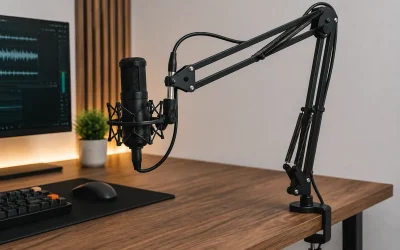
Your desk is a giant soundboard. Mechanical energy from typing, clicking, and bumping travels through the desktop straight into the clamp, up the arm, and into the mic capsule. Cheap boom arms transmit vibration almost unfiltered.
How to check
While recording or monitoring live, place your hand flat on the desk and tap it. Now lift the arm clamp slightly off the desk (or slide a folded towel under it) and tap again. If the rumble vanishes, vibration conduction is confirmed.
What to do
Place a dense isolation pad under the clamp: a folded microfiber towel, a mousepad cut to size, a 1–2 inch slab of acoustic foam, or a purpose-made isolation pad. Better yet, relocate the clamp to the desk edge on the side you touch least, or clamp the arm to a nearby shelf or wall bracket so it shares no surface with your keyboard. Tighten the clamp just enough to hold — overtightening presses the pad flat and re-couples it.
How to undo it
Remove the pad and reclamp directly to the desk. No permanent changes are made.
Fix 3: Fit or Re-Seat the Shock Mount
What causes it
A shock mount suspends the mic in elastic bands so the body of the arm doesn’t transmit vibration to the capsule. Missing, stretched, or wrongly fitted bands transfer everything straight through.
How to check
Gently nudge the boom arm with one finger while recording. If the mic body is rigidly bolted to the arm with no elastic suspension, or if the rubber bands look cracked, sagging, or are doubled up because they lost tension, the mount isn’t isolating. Replacement bands typically cost $5–10.
What to do
Install the mic in a shock mount rated for its weight (most condenser mics are 300–500 g — check the spec sheet) and seat it with the elastic bands in all their attachment points, tensioned evenly. If your mount is a “spider” type, verify the mic’s threaded insert is centered and not touching the mount frame anywhere. Replace sagging bands with fresh ones sized to your mount model.
How to undo it
Unscrew the mic from the mount and reattach it directly to the arm’s 5/8-inch thread (use the 5/8″-to-3/8″ adapter if needed). Keep the old bands if you might want them back.
Fix 4: Kill the Ground Loop
What causes it
When your mic, PC, speakers, and monitor each plug into different outlets or power strips, tiny potential differences between their grounds drive a current through your audio cables — the classic 60 Hz hum. Touching a grounded metal desk or PC case changes the hum, which is exactly the symptom you’re describing.
How to check
Unplug powered devices one at a time (speakers, second monitor, monitor’s USB hub) while listening. If the hum drops when you unplug one specific device, or when you touch the PC case, you have a ground loop. Also try unplugging any laptop chargers or phone chargers on the same circuit.
What to do
Plug the PC, monitors, and speakers into a single power strip so they share one ground reference. If a USB mic still hums, move it to a different USB port — rear motherboard ports are usually better grounded than front-panel or hub ports. For stubborn cases, add a USB ground-loop isolator ($10–25) inline between the mic and PC. Never defeat the ground pin with a three-to-two prong adapter as a “fix” — that’s a shock hazard.
How to undo it
Return devices to their original outlets and remove the USB isolator. Everything is reversible by unplugging.
Fix 5: Reroute and Replace the Mic Cable
What causes it
Unbalanced cables (3.5mm, or XLR runs longer than about 15–20 feet without a balanced input) act as antennas. When they run parallel to power cables, monitor cabling, or RGB lighting hubs, they pick up mains hum — and the arm’s metal frame can act as an extension of that antenna.
How to check
Watch your audio meter (or listen with direct monitoring on an audio interface) while you wiggle and reroute the cable by hand. If hum rises and falls as the cable crosses the power strip or the monitor’s cable bundle, interference is confirmed.
What to do
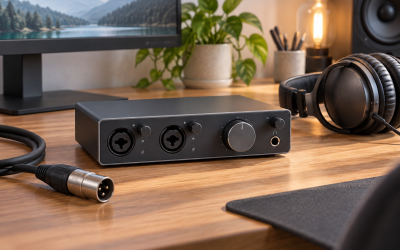
Run the mic cable away from power cables at right angles, never parallel. Route it up and over the back of the desk rather than under it. If it’s an XLR setup, replace long or thin unbranded cables with a quality shielded XLR cable (5–15 feet is the sweet spot) — or use a DI box/balanced line if your interface supports it. For 3.5mm mics, swapping in a shorter, shielded cable often helps. Also check that the cable isn’t strung tight through the arm’s clips — tension on the connector stresses the mic’s internal solder joints and can cause intermittent crackle and hum.
How to undo it
Reconnect the original cable in its original routing. Keep the new cable — it does no harm.
Fix 6: Add Weight and Damping to the Setup
What causes it
Lightweight desks and hollow boom arms resonate. A light desk flexes with every keystroke, and a hollow arm tube can ring sympathetically, adding a metallic resonance on top of the rumble.
How to check
Press down firmly on the desk edge with your palm — if it visibly flexes or bounces, mechanical energy is easy food for your mic. Tap the boom arm tube with a knuckle: if it rings audibly, it can resonate.
What to do
Add mass: a sandbag or mic cable coiled and zip-tied around the arm’s base lowers its resonant frequency and absorbs vibration. For the desk itself, a vibration-damping mat or even a thick desk pad under your keyboard area cuts the energy before it enters the clamp. Fill hollow steel arms with expanding foam only if you’re comfortable the arm is purely mechanical (no internal cable routing).
How to undo it
Unclip the weight and lift the mat. If you foamed the arm, it’s permanent — which is why this step is last among the physical fixes.
Fix 7: Fix the Grounding at the Wall or PC
What causes it
If your wall outlet has an open ground or your PC case isn’t well grounded (painted-over contact points, worn PSU cable, cheap extension cords), the whole system floats at an indeterminate potential — and your mic picks up the difference.
How to check
Use a three-light outlet tester (about $10 at any hardware store): plug it in and read the light pattern. “Open ground” means the outlet is the culprit. Also test whether the hum disappears when running a laptop on battery versus charger — a classic grounding tell.
What to do
Move your rig to an outlet on a different circuit and retest. Replace cheap daisy-chained extension cords with a single grounded surge protector rated at 1000+ joules. If the outlet tester shows open ground, stop and call an electrician — this is a wiring issue, not an audio one, and it can affect every device on that circuit.
How to undo it
Plug everything back into the original outlets. Any electrician work should be left as done.
Fix 8: Isolate Digitally as a Last Resort
What causes it
When physical fixes are exhausted or impractical, software noise suppression can attenuate the constant hum component — though it can’t fully remove transient desk bumps.
How to check
Confirm the residual noise is steady low-frequency hum rather than mechanical thumps. Steady hum responds well to filters; mechanical rumble does not.
What to do
In OBS Studio, add a “Noise Suppression” filter (choose NVIDIA Noise Removal if you have an RTX GPU, otherwise RNNoise) plus a “Noise Gate” with the closed threshold set just above your measured noise floor (watch the meter in silence and set it a few dB above). Add a “High-pass Filter” at 75–100 Hz to strip mains hum’s fundamental from a voice mic — voices rarely carry useful content below that. In Windows 11, check Settings → System → Sound → your mic → Audio enhancements as well.
How to undo it
In OBS, click the gear next to the filter and select Remove. Windows audio enhancements toggle off with a single checkbox.
If Nothing Works
At this point, suspect the microphone hardware itself. Test the mic on a completely different machine — ideally a laptop running on battery — in a different room. If the hum follows the mic, the internal ground connection or capsule has likely failed, and unless it’s a premium XLR model worth a repair, replacement is the sensible path. If the hum stays behind on the original machine, the problem is in that PC’s USB grounding or motherboard audio path; a dedicated USB audio interface or a quality external USB sound card sidesteps the entire internal audio circuit. And if the hum only appears with specific devices plugged in, systematically narrow it down — one culprit device is almost always hiding in the chain, even if it’s something unlikely like a monitor’s USB hub or an always-on printer.
FAQ
Why does my mic only hum when I touch the desk and not when I touch the arm?
Touching the desk couples your body’s electrical charge and mechanical energy into a large, conductive surface that feeds straight into the clamp. The arm alone presents less surface area and less direct contact with the vibration source, so the effect is often milder — but the root cause is the same, and the fixes above apply to both.
Can a cheap boom arm cause the hum by itself?
Yes, indirectly. Budget arms with thin-wall steel tubing, loose spring hinges, and rigid clamps transmit desk vibration nearly losslessly. You don’t need an expensive arm — but adding a shock mount and an isolation pad under the clamp fixes the transmission problem on almost any arm.
Will a USB ground loop isolator hurt my audio quality?
A well-made isolator on a standard USB microphone typically has no audible downside at normal sample rates. On high-end studio interfaces running at 96 kHz/24-bit, some isolators can reduce available bandwidth, so test one before committing if you record at high resolutions.
Should I just use a noise gate instead of fixing the physical problem?
You can, but a gate only masks steady hum while you’re silent. The moment you speak, the gate opens and the hum rides back in under your voice — listeners hear it as a “pumping” noise floor. A gate works far better as a final polish layered on top of real fixes like decoupling and grounding.