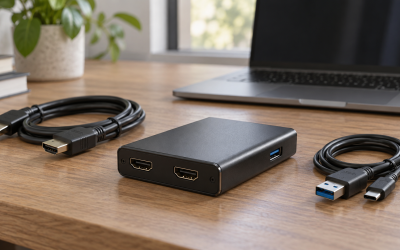
You fire up your streaming rig, OBS shows your gameplay feed perfectly on your main monitor, and then you glance at the preview window fed by your capture card: black. Or worse, both displays work, but the moment you plug the capture card’s HDMI output into your second monitor, the feed drops to “No Signal.” This is one of the most common and frustrating issues in dual-monitor capture setups, and it affects everything from budget HDMI dongles to four-figure internal capture cards. The symptom usually looks like this: your capture software shows a black preview, displays “No Signal” or “Signal not detected,” or flickers intermittently, even though the source console or PC is clearly outputting video.
The good news is that this is rarely a hardware failure. In the vast majority of cases, the problem comes down to HDCP handshakes, EDID confusion, incorrect input selection, or bandwidth limits when two displays are competing for the same GPU output. Most fixes take under five minutes and require nothing more than a settings change or a cable swap. Work through the fixes below in order — they’re arranged from quickest to most involved, and the first two resolve the issue for most people reading this guide.
Likely Causes
| Cause | How to confirm | Fix difficulty |
|---|---|---|
| HDCP handshake failure between source and capture card | Preview shows black or “HDCP error”; signal appears then vanishes; common with consoles like PlayStation 5 and Xbox Series X | Easy |
| Source output resolution/refresh rate not supported by the capture card | Signal drops only at specific resolutions (e.g., 4K120 works on monitor but not in capture software) | Easy |
| Wrong input selected in capture software or on the card itself | Card works in another app (like the manufacturer’s utility) but shows no signal in OBS | Easy |
| GPU has no free output or passthrough conflicts with the second monitor | Signal works when second monitor is unplugged; returns when monitor is reconnected | Moderate |
| Outdated or corrupted capture card drivers | Device shows a yellow warning icon in Device Manager; “No Signal” started after a Windows update | Moderate |
| Damaged or low-bandwidth HDMI/USB cable | Signal drops intermittently or fails only at higher resolutions; cable works at 1080p60 but not 4K60 | Moderate |
Fix 1: Disable HDCP on the Source Device
What causes it
HDCP (High-bandwidth Digital Content Protection) encrypts the video signal to prevent copying. Many capture cards cannot accept HDCP-encrypted signals, so when a console or streaming app insists on encryption, the card reports no signal. Consoles default to HDCP on, and some apps (Netflix, Disney+) force it.
How to check
Check your capture card’s control panel — Elgato’s software, for example, shows an explicit “HDCP error” message. If you only see the problem with a console, or only when a specific streaming app is open, HDCP is the likely culprit.
What to do
On PlayStation 5: Settings > System > HDMI > Enable HDCP, then toggle it off. On Xbox Series X/S: Settings > General > TV & display options > Video modes > uncheck “Allow HDCP.” On a PC source, HDCP is controlled per-app — close any DRM-streaming app and the signal should return. Note that with HDCP off, DRM-protected streaming apps will show a black screen on the console itself; toggle it back on temporarily if you want to watch those.
How to undo it
Return to the same menu paths and re-enable the HDCP toggle.
Fix 2: Set the Source Resolution and Refresh Rate to a Card-Supported Mode
What causes it
Capture cards have a maximum supported input, commonly 4K60 or 1440p120. If your source pushes 4K120 or an unusual resolution, the card can’t lock onto the signal. This is especially common when the same HDMI source is also feeding a high-refresh monitor.
How to check
Open your capture software’s properties for the card (in OBS: right-click the source > Properties) and look at the detected resolution, or check the manufacturer’s utility for an “Input signal” readout. Compare it against the card’s specs — for example, a card that captures at 4K60 cannot accept a 4K120 input.
What to do
On the source, cap the output to the card’s maximum. On Windows: Settings > System > Display > Advanced display > select the display > refresh rate dropdown, choose 60 Hz. On consoles: Xbox — Settings > General > TV & display options > Resolution 1080p or 4K UHD, Refresh rate 60Hz. PS5 — Settings > Screen and Video > Video Output > set 4K HDR to Off and Video Output Information to confirm 60 Hz output. If you want to play at 120 Hz on your monitor while capturing, use the card’s passthrough output to the monitor and set the console to the card’s passthrough-capable mode rather than splitting the HDMI signal to both.
How to undo it
Set the source back to your preferred resolution and refresh rate via the same menus.
Fix 3: Reconfigure the Capture Source in OBS or Your Capture Software
What causes it
The capture source may be pointed at the wrong device, the wrong input, or a stale device entry left over from a driver update or reconnection. OBS in particular caches device entries and can hold onto a dead instance after the card loses power.
How to check
In OBS, right-click your Video Capture Device source > Properties and confirm the correct device is selected in the Device dropdown. If multiple entries share the card’s name, one is likely stale. Also check whether the manufacturer’s own software (Elgato 4K Capture Utility, AVerMedia RECentral) shows a signal — if it does, the card is fine and the configuration is the problem.
What to do
In OBS source properties, set Resolution/FPS Type to “Custom” and explicitly select the card’s native input resolution and frame rate rather than leaving it on “Device Default.” Deactivate and reactivate the source (right-click > Deactivate, then Activate). If the problem persists, delete the source entirely and add a fresh Video Capture Device source. In NVIDIA App or AMD Software, also verify the GPU driver hasn’t disabled the card’s encoder — though this affects encoding, not signal detection.
How to undo it
Set Resolution/FPS Type back to “Device Default” and delete any duplicate test sources you created.
Fix 4: Power-Cycle the Capture Chain in the Right Order
What causes it
HDMI handshakes can fail silently. When the source, capture card, and monitor are all negotiating HDCP and EDID simultaneously, one device can lock into a bad state — especially after a monitor sleeps or the PC resumes from sleep. USB capture cards are particularly prone to this after a USB power-saving event.
How to check
Does the signal return after a full reboot of everything? If yes, it’s a handshake state issue. Also check if the problem appears only after your PC wakes from sleep or your monitor turns back on.
What to do
Shut everything down completely. Unplug the capture card’s power (for external cards), unplug the HDMI cables at both ends, then power on in this order: monitor first, then capture card, then source. Reconnect HDMI last, source-side first. This forces a clean EDID and HDCP renegotiation. On USB cards, also disable USB selective suspend: Control Panel > Power Options > Change plan settings > Change advanced power settings > USB settings > USB selective suspend setting > Disabled.
How to undo it
Re-enable USB selective suspend if you want aggressive power saving back; otherwise no undo is needed — power cycling has no persistent effect.
Fix 5: Reinstall or Update Capture Card Drivers
What causes it
A Windows feature update can replace the card’s driver with a generic one, breaking signal detection. Corrupted driver installs can also cause the card to enumerate but never lock a signal.
How to check
Open Device Manager (Win+X > Device Manager), expand “Sound, video and game controllers” and “Cameras.” Look for a yellow warning triangle or a device named generically (e.g., “USB Video Device” instead of your card’s model name). Also check Event Viewer (Win+X > Event Viewer > Windows Logs > System) for driver errors timestamped when the signal dropped.
What to do
Download the current driver package from the card manufacturer’s support page for your exact model. In Device Manager, right-click the card > Uninstall device > check “Attempt to remove the driver for this device” > OK. Reboot, run the manufacturer installer, and reboot again. For cards that appear as UVC devices, avoid letting Windows Update manage the driver — install the vendor package instead.
How to undo it
Device Manager > right-click the card > Properties > Driver tab > Roll Back Driver, if the option is available, or reinstall the previous driver package you saved.
Fix 6: Resolve the Passthrough and Second Monitor Conflict
What causes it
If your second monitor hangs off the capture card’s passthrough output, the card must mirror the input to the monitor while digitizing it. Some cards only pass through signals that exactly match their capture mode, and some monitors negotiate EDID in ways the card can’t reconcile — the result is no signal on both, or a black preview with a working monitor.
How to check
Temporarily disconnect the second monitor from the card’s passthrough port. If the capture software immediately picks up a signal, the passthrough chain is the problem.
What to do
Route the connection as source > capture card in > capture card out (passthrough) > monitor, never through a splitter feeding both the card and the monitor independently — cheap splitters strip HDCP inconsistently and are the single most common cause of “worked yesterday, dead today.” If your card’s passthrough caps at a lower refresh rate than your monitor supports, connect the second monitor directly to the GPU instead and leave the capture card solely on the input path. On the monitor itself, disable features that interfere with handshaking: in the OSD, turn off “HDMI Deep Sleep,” “Auto Source Switch,” and any “HDMI CEC” options.
How to undo it
Reconnect the monitor to the passthrough port and re-enable the monitor OSD settings you disabled.
Fix 7: Rule Out Cables, Adapters, and HDMI Version Mismatch
What causes it
HDMI cables are version-agnostic by design, but quality and length matter enormously at higher bandwidths. A cable that carries 1080p60 flawlessly can fail at 4K60, especially past about 10 feet. Adapters and gender changers add handshake points that can kill EDID negotiation.
How to check
Swap in a different HDMI cable — ideally a certified Ultra High Speed HDMI cable (48 Gbps rating, “Ultra High Speed” printed on the jacket) under 6 feet. If the signal appears, the old cable was the problem. Test each adapter individually by removing it from the chain.
What to do
Replace long or old cables with a short, certified Ultra High Speed HDMI cable. Remove any HDMI-to-DVI or Mini HDMI adapters from the capture path. If you must run a long distance, use an active HDMI 2.1 optical cable rated for the bandwidth, not a passive cable extended with a coupler.
How to undo it
Keep your old cables and adapters; reconnect them if you revert.
Fix 8: Update Firmware on the Capture Card
What causes it
Capture card firmware handles HDMI handshake logic, EDID emulation, and mode detection. Manufacturers ship firmware updates to fix exactly the “no signal on new display/driver” bugs that plague dual-monitor setups, and 2026-era cards continue to receive these patches.
How to check
Open the manufacturer’s utility (Elgato 4K Capture Utility, AVerMedia RECentral, or the vendor’s updater tool) and look for a firmware version listed under device information or settings. Compare it against the latest version on the manufacturer’s support page for your model.
What to do
Follow the vendor updater’s prompts — the process is typically: connect the card directly to the PC (remove it from any USB hub), close OBS and other capture software, run the updater, and do not disconnect power until it reports success. Reboot afterward and retest the signal before restoring your full dual-monitor cabling.
How to undo it
Most vendors don’t support firmware rollbacks. If the update introduces issues, reinstall the latest driver package and contact the manufacturer’s support channel.
If Nothing Works
At this point you’ve ruled out configuration, drivers, cabling, and firmware. Test the capture card on a second computer if at all possible — if it shows no signal there too, the card’s HDMI input stage has likely failed, and replacement is the realistic path. If it works on another machine, the fault is in your PC: test the card in a different USB controller (a rear-panel port on a different chipset, or a PCIe USB expansion card), disable the iGPU in BIOS if your CPU has one, and check the motherboard vendor’s site for a BIOS update. Finally, file a support ticket with the manufacturer including your card model, source device, monitor model, cable lengths, and the exact symptom sequence — support teams can often confirm a known hardware revision defect and arrange a warranty replacement.
FAQ
Why does my capture card lose signal when my second monitor goes to sleep?
When the monitor sleeps, it drops its EDID from the passthrough chain, and the capture card renegotiates the handshake — sometimes into a bad state. Disable monitor sleep (Settings > System > Power > Screen and sleep) or use a capture card with EDID emulation, which holds the handshake steady regardless of monitor state.
Can I use an HDMI splitter to send my console to both a monitor and a capture card?
You can, but cheap splitters frequently cause no-signal errors because they mishandle HDCP. If your capture card has a passthrough output, always use that instead. If you must split, use a powered splitter explicitly advertised as HDCP-compliant and supporting your resolution and refresh rate.
Does my capture card need its own power for the signal to work?
Internal PCIe cards draw power from the slot, but external USB cards can fail to lock a signal if the port supplies marginal power — a common issue on front-panel or unpowered hub ports. Plug the card into a rear-panel USB port directly on the motherboard, or use the card’s external power input if it has one.
Why do I get signal on my monitor but a black screen in OBS?
The passthrough path and the capture path are separate — a working monitor only proves the input side is alive. A black OBS preview with confirmed signal usually means the card is set to a different output resolution than OBS expects. In OBS source properties, set Resolution/FPS Type to Custom, match the source’s exact output mode, and if it’s still black, check that the card isn’t being held by another application (Elgato’s utility or a browser tab) that has exclusive access.