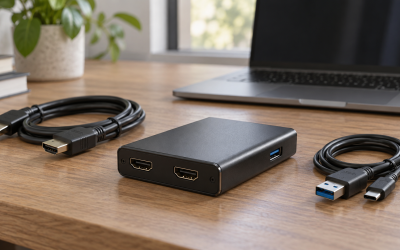
Nothing kills a stream faster than switching to your gameplay source and getting nothing but a black rectangle where the footage should be. The symptom is easy to recognize: OBS (or Streamlabs, XSplit, or your capture software of choice) shows the capture card source with a solid black preview, sometimes with audio still working, sometimes with nothing at all. Often the card’s own viewer app — Elgato 4K Capture Utility, AVerMedia RECentral, or similar — displays the feed perfectly while your streaming software shows black, which is the single most telling clue that this is a software conflict rather than dead hardware. Other variations include a feed that works for a few seconds before cutting to black, a black screen that only appears when a game launches, or footage that looks fine at 1080p but goes dark the moment you set the source to 4K60.
The good news: this is rarely a hardware failure, and in most cases you can be back on air in under fifteen minutes. The urgency depends on your situation — if you have a live stream scheduled in an hour, work through the quick fixes first (HDCP, HDMI input selection, source preview) and defer the driver-level cleanup until after you’re offline. The fixes below are ordered from easiest and most common to more involved troubleshooting, so work top to bottom and stop as soon as your feed returns. Everything here applies to current-generation internal and external cards alike, whether USB 3.x or PCIe, on Windows 10 and Windows 11 builds current as of 2026.
Likely Causes
| Cause | How to confirm | Fix difficulty |
|---|---|---|
| HDCP encryption from the console or source device | Feed works in the card’s own app but goes black the moment a game or Netflix-style app launches; common on PlayStation and Xbox | Easy |
| Wrong HDMI input or EDID mode selected on the card | Card utility shows “No signal” or lets you toggle Input 1/Input 2 with no change | Easy |
| GPU driver conflict — capture card sharing the same GPU as your encode or display output | Black screen appears only when NVENC/AMF hardware encoding is enabled; event log in OBS shows device-in-use errors | Easy to Moderate |
| Camera or capture source locked in OBS while another app holds the device exclusively | Close the card’s utility app and the OBS preview immediately comes back | Easy |
| Outdated, corrupted, or duplicated capture drivers after a Windows update | Device Manager shows a warning icon on the card, or multiple ghost entries under “Sound, video and game controllers” | Moderate |
| Resolution or framerate mismatch between source output and capture source settings | Black screen only at 4K or 1440p High Framerate modes; feed returns when you drop to 1080p60 | Moderate |
| Insufficient USB power or bandwidth on external cards | Works on a rear motherboard port, cuts out on a front-panel or hub port; Windows plays the device connect/disconnect chime | Easy to Moderate |
Fix 1: Disable HDCP on Your Console or Source Device
What causes it
HDCP (High-bandwidth Digital Content Protection) encrypts the HDMI signal to prevent copying. Most capture cards can’t decrypt it, so the video element arrives as an unusable encrypted stream — which renders as black while audio sometimes still passes through.
How to check
If the black screen only appears when a game or streaming app is actually running (menus on consoles sometimes pass through unencrypted), HDCP is almost certainly the culprit. Check the card’s utility app for an “HDCP” status indicator — many Elgato and AVerMedia apps display it directly.
What to do
On PlayStation 5: go to Settings, then System, then HDMI, and turn off “Enable HDCP.” On Xbox Series X|S: open Settings, then General, then TV & display options, then Video modes, and uncheck “Play HDR games” alongside disabling HDCP under the advanced video settings if your dashboard build exposes it. On a PC source, HDCP typically engages through DRM-protected playback apps like Netflix in a browser — close those apps, or disable hardware-accelerated DRM in your browser settings. After changing the setting, power-cycle both the console and the capture card.
How to undo it
Return to the same menu and re-enable HDCP. You’ll need it on if you ever connect the console directly to a modern TV that requires it for certain content.
Fix 2: Verify Input Selection and EDID Settings
What causes it
Multi-input cards default to the wrong HDMI input after a power cycle, and some cards expose EDID modes (how the card advertises its capabilities to the source) that can force a handshake the source can’t complete.
How to check
Open your card’s control utility — Elgato 4K Capture Utility, AVerMedia RECentral, or the manufacturer’s equivalent — and look at the input/source dropdown. Confirm it matches the physical port your HDMI cable is plugged into. Also try a different HDMI cable; a partially damaged cable can carry enough signal for a handshake but not enough for video.
What to do
Select the correct input manually. If the utility offers EDID options (often labeled “EDID mode,” “HDMI EDID,” or “Generic EDID”), switch from “From display” or “Passthrough” to a fixed mode matching your source’s native output — for example, 3840×2160 at 60 Hz. If your card has a passthrough output to a monitor, try unplugging the monitor briefly; some cards renegotiate EDID when the passthrough display changes.
How to undo it
Set the input and EDID back to their previous values in the same utility. There’s no system-level change to revert.
Fix 3: Close Conflicting Applications Holding the Capture Device
What causes it
Most consumer capture cards allow only one application to claim the video device at a time. If the manufacturer’s utility, Discord’s video feature, a webcam overlay app, or a previous crashed instance of OBS is holding the device, your streaming software gets nothing.
How to check
Fully quit the card’s own viewer app (right-click its system tray icon and choose Exit, not just close the window), then look at your OBS preview. If the picture snaps back, you’ve found the conflict. Also check Task Manager (Ctrl+Shift+Esc) for leftover processes like “ElgatoStreamDeck,” “RECentral,” or orphaned “obs64.exe” entries and end them.
What to do
Adopt a single-app workflow: use your streaming software for all previewing and recording, and keep the manufacturer’s utility closed while streaming. If you need the utility for settings changes, close OBS first, make the change, save, then relaunch OBS. In OBS, right-click the capture source, choose Properties, and click “Activate” again if it’s stuck deactivated; on Elgato cards, also make sure “Activate/deactivate” toggling in the source properties isn’t leaving the device claimed by a ghost instance.
How to undo it
Reopen the manufacturer’s utility whenever you want it. No persistent changes are made.
Fix 4: Switch to a Full Game Capture Source Instead of Display Capture
What causes it
If you’re capturing a PC’s own output using a capture card plugged into that same PC (a loopback-style setup), using “Display Capture” or the wrong device mode can produce a black screen due to GPU driver protections and layered rendering.
How to check
Look at the source type in your streaming software. If you’re using “Video Capture Device” pointing at the card but capturing the same PC’s display through it, verify whether the feed appears only when fullscreen-exclusive mode games launch — a classic symptom.
What to do
In OBS, add a “Video Capture Device” source, select your card under Device, then set “Video Capture Format” in the device properties to match the card’s output (for example, “MJPEG” at your target resolution if YUY2 isn’t offered at high resolutions — MJPEG is required for 4K60 on most USB cards). If the card supports it, enable “Hardware” deinterlacing only if your source is interlaced; otherwise leave deinterlacing off. For games running fullscreen-exclusive on the same PC, switch the game to borderless windowed mode, which typically resolves the black output immediately.
How to undo it
Change the source type or the game’s display mode back in their respective settings menus.
Fix 5: Resolve GPU Driver and Encoding Conflicts
What causes it
Capture cards with hardware encoders (or software that offloads encoding to your main GPU) can conflict with your graphics drivers, especially right after a driver update. PCIe bandwidth contention is another factor: a card in a PCIe x1 slot may black out when your GPU ramps up during gameplay.
How to check
In OBS, open the Event Log via Help, then Log Files, then View Current Log, and search for lines mentioning “device,” “failed,” or “in use.” In Device Manager, expand “Sound, video and game controllers” and confirm the card appears without a yellow warning triangle. If blackness only coincides with enabling NVENC, AMF, or Quick Sync encoding, you’ve found the conflict.
What to do
Update your main GPU driver first (NVIDIA App, AMD Adrenalin, or Intel Graphics Software), choosing a clean installation option. Then download the latest driver package for the capture card itself from the manufacturer’s support page, run its installer, and reboot. In Device Manager, right-click the card, choose Properties, then the Details tab, and note any error codes: Code 10 usually means a driver problem (reinstall), Code 45 means the device disconnected (reseat the card or cable). If the card is internal, power down, move it to a PCIe x4 or larger slot directly attached to the CPU if available, and reseat firmly.
How to undo it
Use Device Manager, right-click the card, choose Properties, then Driver, then Roll Back Driver if a recent update caused the problem. Alternatively reinstall the previous driver package version you had working.
Fix 6: Correct Resolution and Framerate Mismatches
What causes it
When the source device outputs a resolution or refresh rate the card isn’t configured to accept — say, a console set to 4K120 while the card tops out at 4K60 — the handshake can complete but the video pipeline produces no frames, resulting in black.
How to check
Check the source device’s video output settings and compare them to the card’s maximum supported resolution and refresh rate, listed on the manufacturer’s spec page. If dropping the source to 1080p60 makes the picture return, you’ve confirmed a mismatch.
What to do
Set the source device’s output to a mode within the card’s supported range — commonly 3840×2160 at 60 Hz or 1920×1080 at 60/120 Hz depending on the card. In the card’s utility or in OBS’s source properties, set the custom resolution/framerate to match exactly rather than leaving it on “default.” Avoid forcing frame rates the card doesn’t advertise. If your card supports HDR passthrough but your workflow doesn’t need it, disable HDR on the source (on consoles: Settings, then Screen and Video, then set HDR to Off) — HDR-to-SDR negotiation failures occasionally present as black output.
How to undo it
Restore the source’s original resolution/HDR settings after verifying the card supports them, or leave them matched to the card permanently for stable streaming.
Fix 7: Address USB Power and Bandwidth Issues on External Cards
What causes it
External capture cards draw significant bandwidth, and front-panel USB ports, unpowered hubs, or shared controllers can’t sustain the throughput needed for high-resolution capture, causing intermittent or fully black feeds.
How to check
Try a rear motherboard USB port (preferably USB 3.2 Gen 2, often marked blue or red, or labeled 10Gbps) instead of a front-panel port or hub. If the feed stabilizes, bandwidth or power was the issue. Watch for the Windows connect/disconnect chime — a repeated chime means the device is dropping off the bus entirely.
What to do
Connect the card directly to a rear motherboard port, never through a hub. Use the cable that shipped with the card — USB-C cables vary wildly in data capability, and a charge-only cable will produce exactly this symptom. If you must use an extension, choose one rated USB 3.2 Gen 2 and under six feet. In Device Manager, expand Universal Serial Bus controllers, right-click each “USB Root Hub,” choose Properties, then Power Management, and uncheck “Allow the computer to turn off this device to save power.”
How to undo it
Re-check any power management boxes you disabled and reconnect to your original port if you prefer the layout — though leaving the card on a rear port is generally more reliable long term.
Fix 8: Reinstall Capture Drivers Cleanly
What causes it
Windows updates sometimes overwrite or corrupt capture card drivers, leaving ghost devices, mismatched driver versions, or broken filter registrations that streaming software can’t initialize properly.
How to check
In Device Manager, use View, then Show hidden devices, and look for greyed-out duplicate entries of your capture card. Multiple entries or a device with a warning icon indicate driver corruption. In OBS, if the device doesn’t appear in the source’s Device dropdown at all, a clean driver reinstall is warranted.
What to do
Download the current driver package from the card manufacturer’s support page. Unplug the card (or shut down for internal cards), then in Device Manager right-click every entry for the card — including hidden ones — and choose Uninstall device, checking “Attempt to remove the driver for this device” when offered. Run the manufacturer’s installer, reconnect the card, reboot, and re-add the source in your streaming software from scratch rather than reusing the old one.
How to undo it
Driver reinstallation is inherently self-reverting — the new driver replaces the old. If you need the prior version, download it from the manufacturer’s archive and repeat the same process.
If Nothing Works
If you’ve worked through every fix above and the preview remains black, test the card on a second computer. A card that behaves identically (black in every app on two machines) with a known-good HDMI cable and a known-good source is likely genuinely faulty — check the manufacturer’s warranty, which typically runs three to five years on mainstream cards. Before concluding hardware failure, also test the HDMI source on a TV or monitor directly to rule out a damaged console or PC output port, and try a different HDMI cable rated for your resolution (Ultra High Speed certified for 4K120 and above). If the card works on another machine, the problem lives in your Windows installation: creating a new local user account or performing a Windows in-place repair (Settings, then System, then Recovery, then “Fix problems using Windows Update”) can resolve deep-seated driver stack corruption without a full reinstall.
FAQ
Why does my capture card show a black screen in OBS but work in its own app?
This almost always means another process is holding the device, or OBS’s source properties are misconfigured (wrong format, wrong input, or a deactivated source). Close the manufacturer’s utility completely and re-add the source in OBS. If it works after that, adopt a workflow where only one app claims the card at a time.
Can a faulty HDMI cable cause a black screen even if audio still works?
Yes. HDMI audio and video travel on separate data lanes, and a partially damaged cable can carry audio while the video signal degrades beyond usability. Always test with a different, known-good cable — preferably one certified for your target resolution.
Does HDCP need to be off for PC game capture too?
Generally no — games themselves aren’t HDCP-protected. But DRM-protected apps (Netflix, Disney+, some browser video players) will trigger HDCP encryption on a PC’s HDMI output, blacking out everything including your game feed while those apps run. Close DRM apps, or route the capture through a setup that doesn’t pass through a protected display chain.
Should I use MJPEG or YUY2 as my capture format?
Use YUY2 for the best quality at 1080p60 if your USB connection sustains the bandwidth. Switch to MJPEG when capturing at 1440p or 4K, or whenever you see dropped frames or blackouts — MJPEG compresses the stream enough that USB 3.0 bandwidth can handle high resolutions reliably. Most card utilities pick the right format automatically, but OBS’s “Video Capture Format” dropdown lets you override it manually.