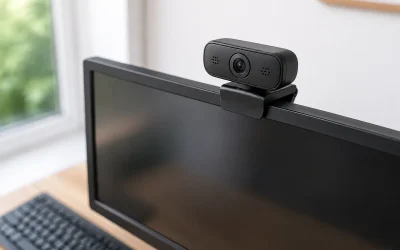
Your stream looks perfect in OBS Studio’s preview, then the moment you hit “Start Streaming,” your webcam feed freezes on a single frame, drops to a black rectangle, or vanishes from your scene entirely. Sometimes OBS itself stays running while the camera dies; other times the whole program crashes to desktop with an “unhandled exception” error, or Windows plays the USB disconnect chime as if the camera physically unplugged itself. The problem often doesn’t appear in recording mode or when the webcam app runs alone — it only shows up under the combined load of encoding, game capture, and the camera stream all at once.
This is worth fixing quickly. A dead webcam mid-broadcast looks unprofessional, forces you to cancel sessions, and can cost you viewers and sponsor commitments if it keeps happening. The good news: in the overwhelming majority of cases, the cause is a settings conflict or a USB bandwidth issue you can resolve in under fifteen minutes. Work through the fixes below in order — they’re arranged easiest-first, and most people stop before the end of the list.
Likely Causes
| Cause | How to confirm | Fix difficulty |
|---|---|---|
| USB bandwidth saturation on a single hub/controller | Unplug other USB devices or move the webcam to a different port — crash stops | Easy |
| Webcam driver conflict or stale driver | Yellow warning icon in Device Manager, or crash logs reference the camera driver | Easy |
| Encoder overload starving the camera pipeline | OBS stats dock (View > Docks > Stats) shows render or encoding lag spikes when the crash happens | Moderate |
| Camera access conflict with another app | Windows Camera app, Discord, or NVIDIA Broadcast is also holding the camera | Easy |
| Hardware acceleration or GPU driver instability | Crashes coincide with other graphical glitches; driver is more than a few months old | Moderate |
| USB power management turning the camera off | Event Viewer shows the USB device “surprised removal” at the crash timestamp | Moderate |
Fix 1: Close Every App That Touches the Camera
What causes it
A webcam can generally only be claimed by one application at a time. If Discord, Zoom, the Windows Camera app, NVIDIA Broadcast, or a browser tab holding the camera is running in the background, OBS may briefly grab the feed and then lose it the instant streaming starts and the app re-polls the device.
How to check
Press Ctrl + Shift + Esc to open Task Manager and look for Discord, Zoom, Teams, Camera, NVIDIA Broadcast, or browser processes. Also check the system tray (click the ^ arrow near the clock) for camera-related utilities still running.
What to do
Right-click each of those processes in Task Manager and choose “End task.” Then start only OBS and test with a short recording or a stream to a private channel. In Windows Settings, go to Bluetooth & devices > Cameras and confirm your webcam appears with a live preview, proving it works outside OBS.
How to undo it
Simply reopen any app you closed. Nothing is changed permanently.
Fix 2: Move the Webcam to a Different USB Port
What causes it
USB controllers share bandwidth, and uncompressed 1080p60 webcam video consumes a large slice of it. If your webcam shares a controller with an external drive, capture card, headset, or RGB hub, starting a stream tips the total over the limit and the camera drops out — Windows treats it like a physical unplug.
How to check
Note which ports the webcam and your other devices use. Ports on the back of a desktop tower are usually split across two or more controllers (often two ports per controller on the rear I/O). Front-panel ports frequently route through a single internal hub, which is a common bottleneck.
What to do
Move the webcam to a rear I/O port on a different physical cluster than your capture card and external drives. If your webcam supports it, prefer a USB 3.0 port (usually blue or marked SS). As a diagnostic, plug it into a port on the opposite side of the rear panel and stream for ten minutes.
How to undo it
Move the cable back. No software changes involved.
Fix 3: Disable USB Selective Suspend and Camera Power Management
What causes it
Windows aggressively powers down USB devices it thinks are idle. Under heavy streaming load, timing hiccups can make the webcam look idle for a moment, and Windows cuts its power — it never properly wakes, and the feed freezes or crashes OBS.
How to check
Open Control Panel > Power Options > Change plan settings > Change advanced power settings > USB settings > USB selective suspend setting. If it reads “Enabled,” this fix applies. Then open Device Manager (right-click Start > Device Manager), expand Universal Serial Bus controllers, double-click each “Generic USB Hub” and “USB Root Hub,” and check the Power Management tab for “Allow the computer to turn off this device to save power.”
What to do
Set USB selective suspend to “Disabled” and apply. In Device Manager, untick “Allow the computer to turn off this device to save power” on every Generic USB Hub and USB Root Hub, plus your webcam’s entry under Cameras if it has a Power Management tab. Reboot afterward.
How to undo it
Return to the same settings and re-enable selective suspend or re-tick the boxes. The defaults are “Enabled” and “ticked,” respectively.
Fix 4: Roll Back or Clean-Reinstall the Webcam Driver
What causes it
A corrupted or recently updated driver can fail under the multi-threaded load streaming creates, even if it behaves in light use. This is especially common with Logitech G HUB or Razer Synapse virtual driver components.
How to check
In Device Manager under Cameras, look for a yellow warning triangle on your webcam. Right-click it > Properties > check the Device status box. If you recently installed or updated G HUB, Synapse, or the webcam’s vendor software and the crashes began right after, that’s your clue.
What to do
In Device Manager, right-click the webcam > Uninstall device > tick “Attempt to remove the driver” > confirm. Unplug the webcam, reboot, then plug it back into a rear USB port and let Windows reinstall a generic driver. If you use vendor software, download the latest version fresh from the vendor and reinstall it. Test with a stream before adding the vendor software back.
How to undo it
Reinstall the previous vendor software package, or use Device Manager > Properties > Driver tab > “Roll Back Driver” if that option is available (greyed out means no previous driver is stored).
Fix 5: Lower the Webcam’s Resolution and Frame Rate in OBS
What causes it
A 1080p60 or 1440p camera feed demands significant USB bandwidth and CPU/GPU time during scaling. When the encoder ramps up at stream start, the camera pipeline can’t keep its deadline and fails, taking the source — or OBS — with it.
How to check
In OBS, right-click your webcam source > Properties > click “Configure Video” (or open the device’s own settings panel). Note the current resolution and frame rate. Values of 1920×1080 at 60 fps are the most demanding.
What to do
Drop the camera to 1280×720 at 30 fps as a test. In OBS Properties, also untick “Buffering” if the option exists for your device, and set the “Deactivate/Activate” behavior conservatively. If crashes stop, step the resolution back up gradually (720p60, then 1080p30) to find the highest stable setting. On many streams, 720p60 with good lighting looks better than an unstable 1080p feed anyway.
How to undo it
Open the same Properties panel and restore your original resolution and frame rate.
Fix 6: Disable Hardware Acceleration in OBS
What causes it
OBS uses your GPU to render sources, decode the webcam feed, and encode the stream. If the GPU driver stumbles, all three can fail together — and the webcam feed is often the first casualty because device decoding is sensitive to driver state.
How to check
In OBS, open View > Docks > Stats while streaming. If “Render missed frames” or “Skipped frames due to encoding lag” climbs toward double digits as the camera dies, the GPU pipeline is the suspect. This also applies if your GPU driver has been crashing in games.
What to do
Go to File > Settings > Advanced > Video section and change “Renderer” from “Direct3D 11” to “Direct3D 9” as a test, or untick hardware-accelerated options under Settings > Advanced. Restart OBS and stream for ten minutes. Also update your GPU driver first — download the latest driver from NVIDIA, AMD, or Intel directly, choose “Custom installation,” and tick “Perform a clean installation” if offered.
How to undo it
Switch the Renderer back to Direct3D 11 in the same Advanced settings panel.
Fix 7: Increase OBS Process Priority and Tune the Encoder
What causes it
If your CPU is saturated (typically with x264 software encoding at a high preset), the thread feeding the webcam doesn’t get scheduled in time, and the source times out. The camera isn’t broken — it’s being starved.
How to check
Check your encoder in File > Settings > Output > Streaming. If you’re using x264 with a preset of “medium” or slower on a 6-core or 8-core CPU while gaming, you’re likely CPU-bound. The Stats dock’s “Encoding lag” percentage confirms it.
What to do
Switch to your GPU’s hardware encoder (NVENC on NVIDIA, AMF/VCE on AMD, QuickSync on Intel) in Settings > Output > Streaming > Encoder. If you must keep x264, move the preset one step faster (e.g., from “medium” to “faster”). Optionally, in Task Manager > Details tab, right-click “obs64.exe” > Set priority > Above normal. Never set it to “Realtime.”
How to undo it
Restore your previous encoder and preset in Output settings, and set the process priority back to Normal.
Fix 8: Test the Webcam Outside OBS to Rule Out Hardware Failure
What causes it
Occasionally the camera itself is failing — a degrading USB cable, a failing internal controller in the camera, or overheating under sustained load. Software fixes won’t help here.
How to check
Open the Windows Camera app (Start > type “Camera”) and leave it recording for twenty to thirty minutes while your PC does something demanding, like playing a game. If the camera drops out there too, the problem is the device or its connection, not OBS.
What to do
Swap in a different USB cable (for cameras with detachable cables), avoid USB hubs and extension cables entirely, and try the camera on a different computer. If it fails on a second PC, the camera needs replacing. If it only fails on your PC, revisit Fixes 2 and 3 — that points back to your motherboard’s USB controller.
How to undo it
Reconnect your original cabling arrangement once testing is done.
If Nothing Works
If you’ve worked through every fix above and the webcam still dies on stream start, gather evidence before spending money. Open Event Viewer (right-click Start > Event Viewer) and check Windows Logs > Application and System for entries timestamped at the crash — search for “obs64,” “USB,” or your camera’s brand name. Crash dumps from OBS live in %APPDATA%\obs-studio\logs, and the last file there records exactly what OBS was doing when it died; you can post that log to the OBS forums for expert diagnosis. As a stopgap, streaming from your phone’s camera via a capture card or using a dedicated hardware webcam encoder sidesteps the software pipeline entirely. And if the camera fails on a second computer too, replacement is the practical answer — a reliable 1080p60 camera costs far less than the hours you’d lose to further troubleshooting.
FAQ
Why does my webcam only crash when streaming and not when recording?
Recording puts far less simultaneous load on your system. When you stream, your CPU and GPU are also encoding, the game is running, and upload bandwidth is in use. That extra pressure exposes USB bandwidth limits, encoder starvation, and driver bugs that recording never triggers.
Can a slow internet upload speed cause my webcam to crash?
Not directly — the webcam crashes before data ever leaves your PC. However, severe upload congestion can stall OBS’s network thread, which contributes to overall instability. Run a speed test and set your bitrate in Settings > Output to roughly 70-75% of your measured stable upload speed.
Should I use a USB hub for my webcam and other devices?
Avoid it for streaming setups. Even a powered hub shares one upstream connection, so a hard drive and a webcam on the same hub compete for bandwidth. Plug the webcam directly into a rear motherboard port, separate from your capture card and storage.
Does updating OBS itself fix webcam crashes?
Sometimes. OBS releases regularly include device-handling and encoder fixes, and running an outdated version alongside a brand-new camera or GPU driver is a known source of instability. Check Help > Check for Updates, and if you’re several versions behind, update before deep troubleshooting — just note your scene layout is preserved automatically.