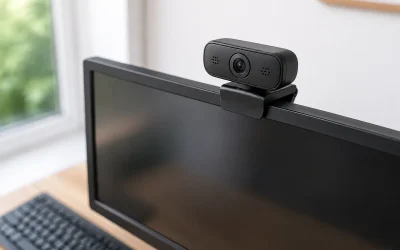
A webcam that freezes during a livestream usually shows one of three patterns: the image locks on a single frame while audio continues, the camera turns black or gray, or the feed stutters and then stops updating in OBS Studio, Streamlabs Desktop, Discord, Twitch Studio, or a browser-based streaming tool. In some cases, the preview freezes only for viewers while the local camera preview still looks normal. That distinction matters because it helps separate a webcam, USB, driver, encoder, or streaming-software problem.
This is usually fixable without replacing hardware, but address it before your next broadcast. A frozen facecam can make a stream look disconnected even when the game and microphone are working perfectly. Start with the simplest checks below, test after every change, and change only one setting at a time so you know which webcam freezes during livestream fix actually solved the issue. These steps apply to common USB webcams and capture-camera setups in 2026.
Likely Causes
| Cause | How to confirm | Fix difficulty |
|---|---|---|
| Loose, overloaded, or low-power USB connection | The camera disconnects, Windows plays a USB reconnect sound, or the freeze happens when another USB device is used. | Easy |
| Another app has control of the camera | The webcam works in one app but freezes, displays black, or reports “device in use” in streaming software. | Easy |
| USB power-saving settings | The freeze occurs after the PC has been idle, after waking from sleep, or randomly during long streams. | Easy |
| Incorrect resolution, frame rate, or video format | The problem begins at 1080p60, HDR, or a specific camera profile but not at a lower setting. | Moderate |
| Outdated or corrupted webcam/GPU driver | The camera freezes in multiple apps, Device Manager shows a warning, or the issue started after a driver update. | Moderate |
| High CPU, GPU, USB-bandwidth, or encoder load | The webcam locks up during gameplay or scene changes while it remains stable in an idle test. | Moderate |
Fix 1: Reconnect the Webcam to a Better USB Port
What causes it
Webcams need a stable USB data connection and enough power. Front-panel PC ports, unpowered hubs, monitor USB hubs, extension cables, and crowded USB controllers can cause temporary dropouts. A camera may appear connected but stop sending fresh video frames.
How to check
Watch the webcam preview while gently moving the cable near the camera and USB port. Also note whether Windows makes the device-disconnect sound when the image freezes. If the camera is connected through a hub or extension, that is the first suspect.
What to do
Unplug the webcam for 15 seconds. Connect it directly to a rear motherboard USB port on a desktop PC, preferably without an adapter or hub. If it is already on USB 3.x, test another rear port; some webcams are more stable on a USB 2.0 port when the USB 3 controller is heavily loaded. Disconnect nonessential high-bandwidth USB devices temporarily, especially external drives, capture cards, VR headsets, and other cameras. Restart the streaming app after reconnecting the webcam.
How to undo it
Reconnect the webcam to its original port or hub. If a powered USB hub was required for your desk setup, reconnect it there after confirming the direct connection was the problem.
Fix 2: Close Other Apps That Can Access the Camera
What causes it
Many webcams can only provide one active video stream reliably. Video-call apps, browser tabs, camera utilities, Windows Camera, NVIDIA Broadcast, Logitech G HUB, Elgato Camera Hub, and virtual-camera software can hold the device or change its video mode while you stream.
How to check
Press Ctrl+Shift+Esc to open Task Manager. Look under the Processes tab for apps such as Discord, Teams, Zoom, Skype, a web browser, Camera, or vendor camera software. In OBS Studio, right-click the webcam source and choose Properties; a black preview, frozen preview, or “device is in use” message points to an app conflict.
What to do
Close every app that could use the webcam, including browser tabs with Google Meet, Discord, or social-media camera permissions. In Task Manager, select a stubborn app and choose End task. Then open your streaming software first. In OBS Studio, open the webcam source properties and set Deactivate when not showing to off if the camera freezes when switching scenes. Avoid adding the same physical webcam as separate sources in multiple scenes; instead, add it once and use a scene containing that source where needed.
How to undo it
Reopen the apps you closed after the stream. If you changed the OBS source option, return to the camera source, open Properties, and restore Deactivate when not showing to its previous setting.
Fix 3: Disable USB Selective Suspend and Device Power Saving
What causes it
Windows can reduce power to USB devices to save energy. This behavior is useful for laptops, but it can interrupt a webcam during a long broadcast, after inactivity, or when the system changes power states.
How to check
If the webcam is stable immediately after launching OBS but freezes after 30 minutes or more, power management is a strong possibility. Check whether the problem appears more often on battery power or after the display turns off.
What to do
Open Control Panel, then go to Hardware and Sound > Power Options > Change plan settings > Change advanced power settings. Expand USB settings, expand USB selective suspend setting, and set it to Disabled. On a laptop, set both On battery and Plugged in to Disabled if you stream on both.
Next, right-click Start and choose Device Manager. Expand Universal Serial Bus controllers. Open each entry named USB Root Hub or Generic USB Hub, select the Power Management tab, and clear Allow the computer to turn off this device to save power where available. Restart Windows after making the changes.
How to undo it
Return to the same Power Options menu and set USB selective suspend back to Enabled. In Device Manager, reopen the affected hub properties and recheck the power-saving box.
Fix 4: Lower the Webcam Resolution and Match Its Frame Rate
What causes it
A webcam may freeze when software requests a mode it cannot sustain over the current USB connection. Common trouble spots include 1080p at 60 fps, 4K modes, HDR, and uncompressed formats. A mismatch between camera frame rate and the streaming project can also create instability.
How to check
In OBS Studio, right-click the webcam source and select Properties. If Resolution/FPS Type is set to Custom, note the selected resolution, FPS, and video format. Test the preview at 1280×720 and 30 fps. If freezing stops, the original mode was likely too demanding or unsupported.
What to do
In the webcam source properties, set Resolution/FPS Type to Custom. Start with 1280×720 and 30 FPS. Set Video Format to MJPEG if available; MJPEG often reduces USB bandwidth compared with uncompressed YUY2. If MJPEG produces poor color or does not appear, test NV12 or YUY2 at 720p30.
Then open Settings > Video in OBS and set Common FPS Values to 30 if your webcam is using 30 FPS. Once stable, increase one setting at a time: try 1080p30 before attempting 1080p60.
How to undo it
Return to the source properties and restore the previous resolution, frame rate, and video format. In Settings > Video, return the common FPS value to its earlier choice.
Fix 5: Update or Reinstall the Webcam Driver
What causes it
A damaged driver, an incomplete Windows update, or a conflicting vendor utility can cause a webcam to freeze across several applications. GPU drivers can also affect camera rendering and hardware-accelerated effects.
How to check
Open Device Manager and expand Cameras, Imaging devices, or Sound, video and game controllers. Right-click the webcam and select Properties. A yellow warning icon, Code 10, Code 43, or repeated device reconnects indicates a driver issue. Test the camera in the built-in Windows Camera app; if it freezes there too, the problem is not limited to OBS.
What to do
In Device Manager, right-click the webcam and choose Update driver > Search automatically for drivers. If that does not help, right-click it again and choose Uninstall device. If Windows offers a checkbox labeled Attempt to remove the driver for this device, leave it unchecked for a standard USB webcam unless you have a manufacturer driver ready to reinstall. Restart the PC, reconnect the webcam, and let Windows detect it again.
Also update your graphics driver through your GPU manufacturer’s installed software or the driver package you normally use. Restart before testing the stream again.
How to undo it
In Device Manager, open the webcam’s Properties > Driver tab and select Roll Back Driver if the option is available and the issue began after an update. If you removed the device, reconnect it and select Action > Scan for hardware changes.
Fix 6: Reduce Streaming Load and Remove Camera Filters
What causes it
Webcam freezes can be secondary symptoms of an overloaded PC. GPU-heavy games, browser sources, animated overlays, AI background removal, noise suppression, color filters, and hardware encoding can compete for resources. The camera may stop updating while the rest of the stream struggles to keep up.
How to check
In OBS Studio, choose View > Stats. Watch for increasing Skipped Frames Due to Rendering Lag or Lagged Frames Due to Rendering Lag while the webcam freezes. Open Task Manager and check CPU, GPU, and Memory usage during the same moment. Test a stream scene with only the webcam and microphone; if it stays stable, the full scene or game load is involved.
What to do
Remove webcam filters temporarily by right-clicking the source and selecting Filters. Disable each filter using the eye icon, especially background removal, LUTs, sharpening, scaling, and third-party effects. In OBS, open Settings > Output and reduce output complexity rather than pushing every component at once. Use a lower canvas or output resolution if your system is overloaded, and cap the game’s frame rate so the GPU has headroom for OBS.
For a quick isolation test, create a new scene containing only Video Capture Device, start a local recording for 10 minutes, and confirm whether the camera remains live.
How to undo it
Re-enable filters one at a time, testing between each one. Restore your prior OBS output settings and game frame-rate cap after identifying the component causing the freeze.
Fix 7: Reset the OBS Webcam Source and Configuration
What causes it
OBS can retain an invalid camera mode after a driver update, USB reconnect, or camera firmware change. A corrupted source configuration may keep requesting a format that the webcam no longer accepts correctly.
How to check
If the webcam works in Windows Camera but freezes only in OBS, create a new temporary scene and add the camera as a fresh Video Capture Device source. If the new source works, the existing source configuration is the problem.
What to do
First, back up your OBS setup. Close OBS, press Windows+R, enter %AppData%\obs-studio, and copy the basic folder to a safe location. Reopen OBS. In the Sources dock, right-click the old webcam source and choose Remove. Click the plus button, choose Video Capture Device, select Create new, and choose the correct camera under Device. Set it to 720p30 first, then rebuild any required filters.
How to undo it
Add the original source back if you did not delete it, or restore the backed-up basic folder with OBS closed. Replace the current folder at %AppData%\obs-studio\basic with your backup, then reopen OBS.
If Nothing Works
Test the webcam on another PC, preferably with a different cable if the camera uses a detachable one. If it freezes on a second computer in the Windows Camera app, the webcam, cable, or its internal firmware is likely faulty. If it works elsewhere, focus on the original PC’s USB controller, motherboard chipset drivers, power plan, and installed camera utilities.
For a laptop webcam, test both the internal camera and an external USB webcam. If only one device fails, that narrows the fault quickly. For an external camera, avoid simultaneous use of multiple high-data USB devices on the same hub. If the issue began after installing virtual-camera, RGB-control, webcam-tuning, or background-removal software, uninstall that software from Settings > Apps > Installed apps, restart, and test again.
FAQ
Why does my webcam freeze in OBS but not in Windows Camera?
OBS may be requesting a different resolution, frame rate, or video format than Windows Camera. Remove and recreate the OBS video capture source, then start with 1280×720 at 30 FPS before increasing quality.
Can a USB hub cause a webcam to freeze during a livestream?
Yes. Unpowered hubs and hubs shared with storage devices, capture cards, or multiple cameras can cause power or bandwidth problems. Test the webcam directly from a rear motherboard USB port.
Should I use MJPEG or YUY2 for a webcam in OBS?
Try MJPEG first when USB bandwidth is limited, especially at 1080p. Try YUY2 if MJPEG is unavailable or produces undesirable image quality, but use a lower resolution or frame rate if YUY2 causes instability.
Why does the webcam freeze only when I launch a game?
The game may be consuming most available GPU, CPU, or USB resources. Cap the game frame rate, disable webcam filters, close background apps, and use OBS View > Stats to check for rendering lag.