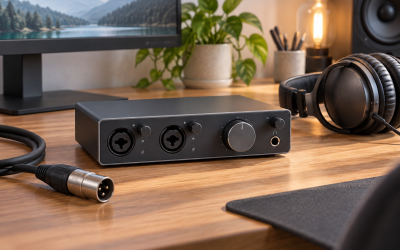
Your XLR interface was working fine yesterday. Today, after installing a driver update, your audio software shows no input device at all — the interface doesn’t appear in Windows Sound settings, your DAW (Reaper, FL Studio, Ableton, Pro Tools) lists no ASIO device, or the device manager shows a yellow warning triangle next to its name. Sometimes the unit powers on and its LEDs light up, but no audio passes through and no meter moves. Other times the interface vanishes entirely from the Device Manager, as if it were never plugged in.
This is urgent if you record for a living or have a session scheduled — but the good news is that a device disappearing after a driver update is almost always software-level, and roughly 90% of these cases are fixed without replacing any hardware. Work through the fixes below in order; each one takes between two and twenty minutes, and most people resolve the problem within the first three.
Likely Causes
| Cause | How to confirm | Fix difficulty |
|---|---|---|
| New driver conflicts with the old driver’s leftover files | Device Manager shows the device with a yellow warning icon or error code 10/28 | Easy |
| Windows assigned the device to a disabled or muted input | Right-click the speaker icon, choose Sound settings, then check input device list | Easy |
| USB port or cable issue after reconnecting | Try a different USB port directly on the motherboard (rear panel on desktops) | Easy |
| Sample rate or buffer mismatch between driver and software | Your DAW reports “device unavailable” or crashes on startup | Medium |
| Windows Security blocked the driver from installing properly | Driver installation finished with a warning, or device shows code 52 | Medium |
| Conflicting audio software (Voicemeeter, ASIO4ALL, Realtek overlays) | ASIO control panel opens but shows no connected devices | Medium |
| Firmware and driver version mismatch | Manufacturer’s control panel reports firmware older than required minimum | Hard |
Fix 1: Restart Your Computer Completely
What causes it
Driver installers often require a full restart to unload the old driver from memory. If you installed the update and skipped the restart prompt, the old and new driver versions can coexist in a broken state, leaving the device without a working kernel-mode driver attached.
How to check
If you can’t remember restarting after the update, this is likely. Also check the Device Manager: right-click Start, select Device Manager, expand “Sound, video and game controllers.” If the interface shows a generic name like “USB Audio Device” instead of its brand name, the new driver never fully loaded.
What to do
Click Start, select the power icon, hold Shift and click Restart to get a clean cold boot. If that doesn’t help, shut down fully (not restart — Windows Fast Startup keeps drivers loaded through a normal restart), unplug the interface’s USB cable, wait 30 seconds, plug it back into a rear-panel USB port, and power on.
How to undo it
No changes are made; nothing to undo.
Fix 2: Show Disabled and Disconnected Devices
What causes it
When a driver updates, Windows sometimes re-enumerates the device with a new internal ID. The old instance gets marked “disabled” or “not present,” and Windows hides both by default. The new instance may also arrive muted or set to zero volume.
How to check
Right-click the speaker icon in the taskbar and select Sound settings. Scroll to Advanced, then click “More sound settings” (or press Windows key + R, type mmsys.cpl, press Enter). On the Playback and Recording tabs, right-click empty white space and choose both “Show Disabled Devices” and “Show Disconnected Devices.”
What to do
If your interface appears greyed out on either tab, right-click it and select Enable. Then right-click it again and choose “Set as Default Device” and “Set as Default Communication Device.” Click the Properties button, go to the Advanced tab, and make sure the sample rate (e.g., “2 channel, 24 bit, 48000 Hz”) matches what your DAW uses. Click Apply.
How to undo it
Right-click the device and select Disable again, or reassign your defaults to another device.
Fix 3: Roll Back or Reinstall the Driver
What causes it
The new driver itself may be buggy, or the update may have installed over the old driver without cleaning up its files, leaving the device with a corrupted driver stack. This is the single most common cause when a device works right up until a driver update.
How to check
Open Device Manager, expand “Sound, video and game controllers,” right-click your interface and select Properties. On the General tab, check the “Device status” box for an error code. Code 10 (“This device cannot start”), code 28 (no driver installed), or code 52 (signature problem) all point here. On the Driver tab, note the Driver Date and Version.
What to do
First try the easy route: on the Driver tab, click “Roll Back Driver” if the button is available. If it’s greyed out, do a clean reinstall instead. Unplug the interface, then in Device Manager right-click the device and choose “Uninstall device,” checking the box that says “Attempt to remove the driver for this device.” Restart Windows. Download the latest driver package from your interface manufacturer’s support page, right-click the installer and choose “Run as administrator,” and follow the prompts. Plug the interface back in only when the installer tells you to.
If you suspect the new driver itself, install the previous version instead — most manufacturers keep an archive of older drivers on their support pages, and rolling back to the last known-good version often solves it immediately.
How to undo it
Install a different driver version using the same clean-install procedure: uninstall with driver removal checked, restart, install the alternate version.
Fix 4: Try a Different USB Port and Cable
What causes it
Driver updates occasionally change USB power management behavior, causing the port to suspend the device and fail to wake it. Front-panel headers, unpowered hubs, and worn cables often can’t renegotiate the connection afterward.
How to check
Swap the interface to a USB port on the rear of a desktop tower (these are soldered directly to the motherboard) or directly to a laptop with no hub in between. Also check Device Manager under “Universal Serial Bus controllers” for any yellow-banged entries, and open the USB controller’s Properties, Power Management tab — if “Allow the computer to turn off this device to save power” is checked, suspend behavior may be the issue.
What to do
Move the interface to a different port, preferably USB 2.0 rather than 3.0 (some interfaces have quirky USB 3 compatibility). Use a known-good, short (under 2 meters) USB cable — avoid hubs, dock stations, and front-panel connectors. Untick the power-management checkbox mentioned above on every USB Root Hub and controller. On laptops, plug into mains power rather than running on battery, since some chipsets throttle USB power on battery.
How to undo it
Move the cable back to the original port and re-enable any power-management checkboxes you cleared.
Fix 5: Resolve Sample Rate and Buffer Conflicts
What causes it
New drivers often reset the device’s default sample rate — for example, from 44.1 kHz to 96 kHz — while your DAW or another app holds the device open at the old rate. The device can only run one rate at a time, so one of them fails, and sometimes the device drops out entirely.
How to check
Open mmsys.cpl (Windows key + R), select your interface on the Playback tab, click Properties, then the Advanced tab, and note the “Default Format” dropdown. Compare it with the sample rate set in your interface’s own control panel (Focusrite Control, MOTU Pro Audio Console, Universal Audio Console, etc.) and your DAW’s audio settings (in Reaper: Options, Preferences, Audio, Device; in Ableton: Options, Preferences, Audio).
What to do
Close your DAW and every other app that could be using audio (browsers, Discord, Spotify). Set the Windows Default Format to “2 channel, 24 bit, 48000 Hz” — 48 kHz is the safest universal choice. Set the same rate in your interface’s control panel and in your DAW. Set the ASIO buffer size in the interface control panel to 256 samples while troubleshooting; tighten it later once audio works.
How to undo it
Restore your preferred sample rate and buffer size in the same three places, one at a time, testing audio after each change so you know which setting caused the conflict.
Fix 6: Uninstall Conflicting Audio Software
What causes it
Generic ASIO wrappers like ASIO4ALL, routing tools like Voicemeeter, and motherboard audio suites like Realtek Audio Console or Sonic Studio can hook the device at the kernel level. After a driver update, their hooks point at the old driver version and block the new one from claiming the device.
How to check
Press Windows key + R, type appwiz.cpl, press Enter, and look for ASIO4ALL, Voicemeeter, Realtek Audio Console, Nahimic, Sonic Studio, or similar. If any are present alongside a dedicated audio interface, they’re suspect — even if you installed them months ago for other purposes.
What to do
Uninstall ASIO4ALL and Voicemeeter first, restart, and test. If the interface returns, reinstall them one at a time only if you genuinely need them. For Realtek/Nahimic/ Sonic Studio, uninstall and let Windows fall back to the generic Microsoft audio driver for onboard sound — your XLR interface uses its own driver and doesn’t need them.
How to undo it
Reinstall the removed software from its original source and restart.
Fix 7: Disable Driver Signature Enforcement Temporarily
What causes it
Some audio interface drivers — particularly older or smaller-manufacturer drivers — aren’t signed with a certificate Windows accepts. If Windows Security or Secure Boot policy blocks them mid-install, the device ends up with a half-loaded driver.
How to check
In Device Manager, right-click the interface, Properties, General tab: error code 52 means “Windows cannot verify the digital signature for the drivers required for this device.”
What to do
Hold Shift and click Restart. Choose Troubleshoot, Advanced options, Startup Settings, Restart. After reboot, press 7 (or F7) to select “Disable driver signature enforcement.” Windows will boot with signature checks relaxed for that session. Uninstall the broken driver (Fix 3 procedure), reinstall it, and restart normally. Note that Secure Boot in the UEFI firmware can also block unsigned drivers — entering your UEFI settings (usually Del or F2 at boot) and temporarily disabling Secure Boot is sometimes needed, but re-enable it afterward.
How to undo it
Simply restart — signature enforcement re-enables automatically. Re-enable Secure Boot in UEFI if you turned it off.
Fix 8: Update the Interface Firmware
What causes it
Major driver releases sometimes require a matching minimum firmware version inside the interface itself. If the driver is newer than the firmware expects, the handshake fails and the device appears dead.
How to check
Open your manufacturer’s control panel or companion app (Focusrite Control 2, MOTU Pro Audio Console, Audient iD, Universal Audio software) and look for a Firmware or About section listing the installed version. Compare it with the minimum firmware version listed in the release notes of the driver you installed.
What to do
Run the manufacturer’s firmware updater with the interface connected directly to a rear USB port, no hub, and the computer on mains power. Do not disconnect the interface mid-update — interrupting a firmware flash can brick the unit. After the update completes, restart and reinstall the driver if prompted.
How to undo it
Most firmware updaters can flash an older version; download the previous firmware package from the manufacturer’s archive. Some units cannot be downgraded — check the documentation before flashing.
If Nothing Works
Test the interface on a completely different computer. If it’s detected there, the problem is specific to your Windows installation — at that point, consider creating a new Windows user profile (Settings, Accounts, Other users) to rule out profile-level corruption, or run an in-place repair install of Windows via the Installation Assistant, which keeps your files and apps. If the interface fails on another machine too, especially with different cables and ports, the unit may have suffered a coincidental hardware failure — the timing with the driver update was bad luck rather than cause. Contact the manufacturer’s support with your serial number; many brands (Focusrite, MOTU, Universal Audio) offer multi-year warranties and will cross-ship replacements. For live or paid work in the meantime, a USB microphone or even your motherboard’s line-in with a cheap external preamp can get you recording the same day.
FAQ
Can a driver update actually damage my interface?
No. Drivers are software running on your computer; they can’t physically harm the unit. The one exception is a firmware update interrupted mid-flash, which is why you should never unplug an interface during a firmware update. A failed driver install just leaves the device undetectable until the driver is fixed.
Should I just disable automatic driver updates in Windows?
It’s a reasonable precaution. Go to Settings, System, About, click “Advanced system settings,” open the Hardware tab, and click “Device Installation Settings,” then choose No. Windows will stop replacing the manufacturer’s driver with its own generic version — a frequent trigger for this exact problem. You’ll then update drivers manually when you choose to.
Why does my interface show up in Device Manager but not in my DAW?
That usually means the Windows driver loaded but the ASIO layer didn’t, or another app is holding exclusive control of the device. Close every other audio app, check the interface’s own ASIO control panel (it’s usually listed in your DAW’s audio device dropdown under the manufacturer’s name), and confirm the sample rates match across Windows, the control panel, and the DAW.
Is it safe to use generic Windows USB audio drivers instead of the manufacturer’s ASIO driver?
It works, but with trade-offs. The generic “USB Audio Device” class driver will get the interface detected and playing, but latency under ASIO applications will be higher and some features (direct monitoring, loopback, channel routing) won’t function. Use it as a stopgap to confirm the hardware is alive, then get the manufacturer driver working properly.