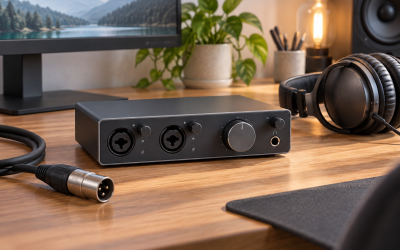
An XLR microphone that works in Windows but shows no movement in OBS usually points to a source-selection, monitoring, permission, sample-rate, or audio-interface problem—not a dead microphone. The common symptom is a flat meter in OBS’s Audio Mixer, a meter that moves without recording sound, or audio that sounds robotic, clipped, delayed, or extremely quiet. Because an XLR mic needs an audio interface, mixer, or USB audio device to reach the PC, there are more links in the chain than with a USB microphone.
Start with the easy checks before reinstalling drivers or resetting OBS. A wrong input device or muted interface channel can be fixed in minutes, while sample-rate conflicts and damaged OBS configuration files take longer. This guide applies to current OBS builds in 2026 on Windows, with notes where interface control software may use different labels.
Likely Causes
| Cause | How to confirm | Fix difficulty |
|---|---|---|
| OBS is listening to the wrong microphone device | The XLR interface works in Windows Sound settings, but OBS’s mixer meter stays flat | Easy |
| The interface channel is muted, turned down, or routed incorrectly | The interface’s gain or input meter does not react when you speak | Easy |
| Windows microphone permissions are blocking OBS | The device appears in OBS but has no input signal; Windows privacy settings disable desktop-app access | Easy |
| OBS and the interface use different sample rates | Audio crackles, drops out, or OBS logs show audio-device initialization errors | Moderate |
| Exclusive mode or another app has claimed the interface | The mic works in Discord, DAW software, or browser recording but not OBS at the same time | Moderate |
| Driver, USB connection, or OBS profile configuration is damaged | The interface disappears, reconnects repeatedly, or fails in multiple OBS scenes and profiles | Moderate |
Fix 1: Select the Correct XLR Interface in OBS
What causes it
OBS does not detect an XLR microphone directly. It receives audio from the interface, mixer, or capture device connected to that microphone. If OBS is set to “Default,” it may use a webcam mic, headset, monitor, or a disconnected device instead of your audio interface.
How to check
In OBS, look at the Audio Mixer while speaking into the mic. If no meter moves, click the three-dot menu beside a source such as Mic/Aux, then choose Properties. Check the Device field. Look for your interface name, such as Focusrite USB Audio, Elgato Wave XLR, GoXLR, Rodecaster, Yamaha, PreSonus, or USB Audio CODEC.
What to do
Go to Settings > Audio. Under Global Audio Devices, set Mic/Auxiliary Audio to your interface’s microphone input. Set unused Mic/Aux slots to Disabled to avoid duplicate audio. Click Apply, then OK.
If you prefer scene-specific audio, leave Mic/Aux disabled. In the Sources box, click +, choose Audio Input Capture, select Create new, click OK, and choose the interface from the Device list. Speak into the mic and confirm that its green meter moves.
How to undo it
Return to Settings > Audio and change Mic/Aux back to Disabled or its previous device. For a scene source, right-click the Audio Input Capture source and choose Remove.
Fix 2: Check the Physical XLR and Interface Signal Chain
What causes it
A loose XLR plug, gain turned all the way down, muted channel, wrong input, or missing phantom power will prevent sound before OBS ever receives it. Condenser microphones usually require 48V phantom power; most dynamic microphones do not.
How to check
Watch the input meter on the interface, mixer, or its companion control app while speaking close to the microphone. If that meter does not move, the problem is upstream from OBS. Confirm the XLR cable clicks into both the microphone and interface. Make sure the microphone is connected to an XLR input, not a line input or output.
What to do
Turn the relevant channel gain up gradually while speaking normally from 4 to 8 inches away. Aim for a healthy interface signal without a red clip indicator. Disable channel mute, raise the channel fader if your mixer has one, and verify that the channel is routed to USB, Main Mix, Stream Mix, or the output feeding the PC.
For a condenser mic, enable the interface’s 48V or Phantom Power switch only after connecting the XLR cable. Wait a few seconds, then test again. Do not enable 48V unless the microphone or its documentation indicates it needs phantom power. If you use an inline preamp or booster, verify it has the power required by its design.
How to undo it
Turn gain back to its prior position, re-enable any intentional mute, and turn off 48V before unplugging or swapping a microphone. Do not rapidly toggle phantom power with monitors turned up.
Fix 3: Allow OBS to Access the Microphone in Windows
What causes it
Windows privacy settings can block microphone access for desktop applications. OBS may still list the audio device, which makes the issue look like an OBS source problem even though the operating system is withholding the input stream.
How to check
Press Windows + I to open Settings, then go to Privacy & security > Microphone. Check whether Microphone access is on and whether Let desktop apps access your microphone is enabled. OBS is a desktop app, so it may not appear as an individually named toggle.
What to do
Turn on Microphone access and Let desktop apps access your microphone. Close OBS completely after making the change: right-click the OBS icon in the notification area and choose Exit, then reopen OBS. Test the Audio Mixer meter again.
Also open Settings > System > Sound > Input, select your interface, and use Start test under Input settings. If Windows cannot detect the mic there, return to the physical interface checks rather than changing OBS filters.
How to undo it
Return to Privacy & security > Microphone and disable desktop-app microphone access if you need to restore a locked-down privacy configuration.
Fix 4: Match the Sample Rate in OBS and Windows
What causes it
OBS, Windows, and the audio interface need compatible sample-rate settings. A mismatch commonly causes popping, distorted audio, periodic dropouts, or an input that fails to initialize. Streaming setups normally use 48 kHz because it matches most video and game-audio workflows.
How to check
In OBS, open Settings > Audio and note the Sample Rate, usually 48 kHz. Then right-click the speaker icon in the Windows taskbar and choose Sound settings > More sound settings. Open the Recording tab, double-click your interface, select Advanced, and inspect Default Format.
What to do
Set OBS to 48 kHz in Settings > Audio. In the interface’s Recording-device Properties, choose a 48,000 Hz format if available, such as 2 channel, 24 bit, 48000 Hz. Repeat the check on the Playback tab if that same interface handles your headphones or speakers. Click Apply, restart OBS, and retest.
If your interface control software has its own sample-rate setting, set that to 48 kHz too. Close DAWs, browser tabs, and voice-chat apps before changing it because they can hold the device open.
How to undo it
Set OBS and the Windows device format back to the previous matching rate, such as 44.1 kHz. Keep all active audio devices on the same rate where possible.
Fix 5: Disable Exclusive Mode and Close Competing Audio Apps
What causes it
Some interfaces and drivers allow one program to take exclusive control of an input. Discord, a DAW, game-capture utility, browser recording page, or manufacturer control software can then prevent OBS from opening the XLR channel correctly.
How to check
Close apps that might use a microphone, including Discord, Steam voice chat, Teams, Zoom, Audacity, Reaper, and browser tabs with microphone permission. Then restart OBS. If the meter starts working, another application was using or altering the device.
What to do
Open Sound settings > More sound settings > Recording. Double-click your interface, select Advanced, and clear both options under Exclusive Mode: Allow applications to take exclusive control of this device and Give exclusive mode applications priority. Click Apply.
In Discord, check User Settings > Voice & Video > Input Device and avoid leaving it on the same interface while troubleshooting. In DAW software, stop recording and close the project before reopening OBS.
How to undo it
Return to the same Advanced tab and re-enable either exclusive-mode option if a specific recording application requires it for low-latency work.
Fix 6: Remove Duplicate Sources and Audio Filters
What causes it
Adding the same interface as both a global Mic/Aux device and an Audio Input Capture source can create doubled audio, phasing, or confusing meter behavior. A noise gate can also make a working microphone appear silent if its close threshold is set too high.
How to check
In OBS, look for more than one microphone meter responding when you speak. Then click the three-dot menu beside the mic source and choose Filters. Review entries such as Noise Gate, Expander, Compressor, and VST filters.
What to do
Use one capture method: global Mic/Aux or one Audio Input Capture source, not both. Remove or mute the duplicate. For a Noise Gate, temporarily click the eye icon beside the filter to disable it. If the mic returns, lower the Close Threshold and Open Threshold. A reasonable starting point is an Open Threshold around -35 dB and a Close Threshold around -45 dB, then adjust for your room noise and speaking level.
Also confirm the mic fader is not at minimum, the speaker icon is not muted, and the source is not assigned to an unintended track only. Open Advanced Audio Properties from the mixer’s three-dot menu and verify the source is checked for the track used by your recording or stream.
How to undo it
Re-enable filters with the eye icon, restore their previous threshold values, and re-add a removed source only if you need it. Avoid reintroducing the same physical input twice.
Fix 7: Reconnect the Interface and Refresh Its Driver
What causes it
USB power-saving behavior, a failing cable, a hub connection, or an outdated interface driver can make the XLR device disappear or expose the wrong number of input channels to OBS.
How to check
Disconnect and reconnect the interface, then watch whether its name disappears and reappears in Settings > System > Sound > Input. Open Device Manager with Windows + X, then inspect Sound, video and game controllers for warning icons or a device that repeatedly refreshes.
What to do
Connect the interface directly to a rear motherboard USB port rather than a monitor hub, keyboard port, or unpowered hub. Try a known-good USB data cable. Restart the PC, then install the current driver and control software supplied by the interface manufacturer if your model requires one. After installation, reopen OBS and reselect the device in Settings > Audio or the Audio Input Capture properties.
For USB Root Hub power saving, open Device Manager > Universal Serial Bus controllers, open each relevant USB Root Hub or Generic USB Hub, choose Power Management, and clear Allow the computer to turn off this device to save power where available.
How to undo it
Reconnect the interface to its old port if necessary, restore the USB power-management checkbox, or use Device Manager’s Roll Back Driver option if a newly installed driver creates a repeatable problem.
If Nothing Works
Test the microphone outside OBS first. In Settings > System > Sound > Input, select the interface and run the input test. If Windows receives no signal, test another XLR cable, another interface input, or another microphone. If Windows receives signal but OBS does not, create a new blank scene collection through Scene Collection > New, add one Audio Input Capture source, and select the interface manually.
For deeper OBS troubleshooting, open Help > Log Files > View Current Log after reproducing the issue. Search for terms including audio, device, failed, and your interface name. Before resetting OBS, back up %AppData%\obs-studio by pasting that path into File Explorer’s address bar. This preserves profiles, scene collections, recordings settings, and plugins.
FAQ
Why does my XLR mic work in Discord but not OBS?
OBS is probably set to a different input device, or Discord is using exclusive control. Select the interface directly in OBS and disable Exclusive Mode in the Windows Recording-device Advanced tab.
Do I need phantom power for an XLR microphone?
Only if the microphone requires it. Most condenser microphones need 48V; most dynamic microphones do not. Check the microphone’s documentation before enabling phantom power.
Why does the OBS meter move but my recording has no microphone audio?
Open Advanced Audio Properties and make sure the mic is assigned to the recording track selected in Settings > Output > Recording. Also verify the source is not muted.
Should I use Mic/Aux or Audio Input Capture?
Use Mic/Aux for a microphone needed across most scenes. Use Audio Input Capture for scene-specific routing. Either works, but do not capture the same interface through both methods unless you intentionally need duplicate audio.