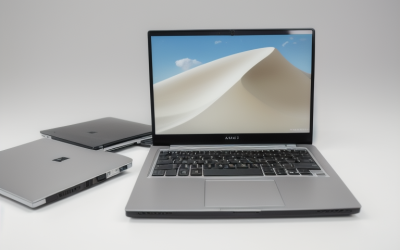
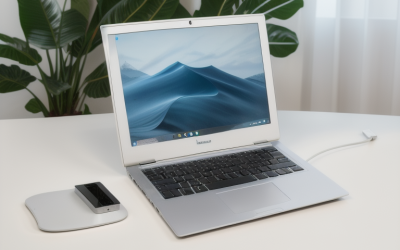
A lawyer’s laptop should be secure, comfortable to type on for hours, and light enough to carry between office, court, and client meetings. The specs that matter most are hardware-level security (a TPM chip, disk encryption support, and a fingerprint or face sign-in), 16 GB of RAM for large document sets, and a battery that lasts a full day of hearings and depositions. Raw graphics power is almost irrelevant.
This guide is for solo practitioners, associates at firms, in-house counsel, and law students who want a machine that will handle briefs, PDFs, video conferences, and confidential client data. Looking ahead through 2026, the typical legal workday involves heavy document review, multiple windows, remote hearings, and strict confidentiality duties, which shifts priorities toward reliability and security rather than performance headlines. Below you will find the threshold specs, a tier table, profiles by practice setting, and the mistakes that cause trouble at the worst moments.
What a Legal Workflow Demands
Most legal software is not demanding. Word processors, PDF editors, e-mail, practice management platforms, research databases, and video conferencing run on modest hardware. The challenge is volume and simultaneity: dozens of tabs, several large PDFs with annotations, a time-tracking tool, and a video call open at once. Memory, a fast drive, and a good screen make that smooth.
The second demand is confidentiality. Lawyers carry privileged information, and a lost or stolen laptop can become an ethical issue. Hardware security features, remote-wipe options through device management, and encryption by default are not luxuries here. Check what your firm’s IT department requires, since some firms mandate specific operating systems, management software, or vendor-approved models, and personal purchases may need approval.
Specs That Matter for Practice
Security Hardware
Look for a TPM 2.0 chip, support for full-disk encryption, and biometric sign-in through a fingerprint reader or infrared camera. Business-class lines often add a physical webcam shutter, a lock slot, and firmware-level protections. A privacy screen filter or built-in privacy display option helps when working on trains or in courthouse hallways.
Memory and Storage
Sixteen gigabytes of RAM is the sensible target for heavy document work with many open windows. Eight gigabytes can work for lighter use but tends to slow down with large PDFs and video calls. A 512 GB solid-state drive covers most needs, with 1 TB useful if you keep case files local. Fast NVMe storage speeds opening of thousands of documents.
Processor and Performance
A mainstream six- or eight-core efficient processor is enough, and an efficient chip often delivers longer battery life. Spending on a high-power chip adds heat and weight without a noticeable benefit for legal tasks. Choose a design with quiet cooling, since noisy fans are distracting in meetings and courtrooms.
Display, Size, and Weight
A 14-inch screen balances portability and workspace, while a 15- or 16-inch screen suits reviewing side-by-side documents. Look for at least 1920 x 1200 resolution, a 16:10 aspect ratio that shows more of a page, and a matte coating for varied lighting. Weight under three and a half pounds makes daily carrying easier.
Battery, Ports, and Connectivity
Aim for ten hours or more of stated battery life, since courthouse outlets are unreliable. Useful ports include USB-C with charging, USB-A for legacy drives, and HDMI for presenting evidence or exhibits. Wi-Fi 6 or newer and an optional cellular modem help when courthouse Wi-Fi is blocked or crowded, and a high-quality webcam and microphone improve remote hearings.
Spec Targets by Budget Tier
| Spec | Budget | Mid-Range | Premium |
|---|---|---|---|
| Processor | Efficient 6-core | Efficient 8-core | High-efficiency, business-class vPro or equivalent |
| RAM | 8 to 16 GB | 16 GB | 16 to 32 GB |
| Storage | 256 to 512 GB | 512 GB | 1 TB |
| Security | TPM, fingerprint reader | TPM, IR camera, shutter | Business security suite, privacy display |
| Display | 1080p, matte | 1200p, 16:10 | High-resolution, bright, privacy option |
| Battery goal | 8 hours | 10 hours | 12+ hours |
Because legal tasks are lightweight, mid-range configurations often match the premium column in everyday speed. The premium column mainly adds security tools, build quality, and support.
Build Quality, Support, and Software Compatibility
Lawyers keep laptops for years, so the chassis matters. Look for a sturdy lid, a hinge that stays tight, and a spill-resistant keyboard. The keyboard is the most-used component of all, so check that it has good key travel, a comfortable layout, and a backlight for dim hearing rooms. A precision touchpad helps when working without a mouse.
Support options can be worth paying for. A warranty with next-business-day on-site service minimizes downtime before a filing deadline. Some vendors offer accidental damage coverage and data-retention options if a drive must be replaced, which is valuable when a drive contains privileged files.
Software compatibility is another practical concern. Many practice management, e-discovery, and document automation tools are built for Windows, while others offer web-based versions that work on any system. If your firm uses a Windows-only plugin for Word or a document management system, confirm that before choosing a Mac or Arm-based laptop. Also consider whether you need a built-in smart card reader for court e-filing or secure government portals, which some business models include.
Remote Hearings and the Mobile Office
Video has become a permanent part of legal practice, so the webcam, microphone, and speakers are part of your professional presentation. A 1080p camera with good low-light handling, a physical shutter, and noise-reducing microphones makes depositions and remote hearings clearer. Many lawyers still add a headset for audio quality and confidentiality, so make sure the laptop has a combined audio jack or enough USB-C ports for a wired or wireless headset dongle.
A two-monitor setup at your desk is common, and one cable from the laptop to a dock keeps the transition between office and travel simple. Check that the laptop supports at least two external displays over USB-C or Thunderbolt and that the dock standard matches what the office provides. For travel, a compact charger that works with USB-C Power Delivery means one adapter can power both the laptop and a phone.
Signature and annotation tasks matter too. Some attorneys mark up PDFs with a stylus, which a touchscreen 2-in-1 design supports, but touch hardware adds weight and cost. If you rarely annotate by hand, a traditional clamshell is lighter and more durable. Finally, remember that connectivity can fail at the worst moment, so a laptop with an optional cellular modem or the ability to tether to a phone offers a backup when courthouse Wi-Fi is restricted.
Which Profile Fits Your Practice
The Solo Practitioner
You manage everything yourself, so prioritize reliability, strong security, and a good warranty. A mid-range laptop with 16 GB of RAM, a 14-inch matte display, and an encrypted drive balances cost and protection.
The Litigator Who Lives in Court
Weight, battery life, and ports for presenting exhibits are your priorities. Look for a lightweight design with HDMI, strong battery claims, and an optional cellular connection.
The Document-Heavy Transactional Attorney
You review contracts and large data rooms. A 15- or 16-inch screen, 16 to 32 GB of RAM, and a numeric keypad help, and an external monitor at the desk completes the setup.
The Law Student
You need a dependable machine for outlines, exams, and research. A budget or mid-range laptop with 16 GB of RAM, a comfortable keyboard, and long battery life covers it, and exam software may impose its own requirements.
Why Longevity Beats Peak Speed
A legal laptop often stays in service for four to six years, long enough for software requirements to creep upward. Buying a bit more memory and a larger drive than you need today is the cheapest insurance against slowdowns later. Check whether the memory is soldered, because a machine with 16 GB soldered may feel limiting in year five, while one with an open slot can be expanded. Also note the manufacturer’s software support window, since security updates and firmware patches protect client data over the long term.
Finally, consider repairability and spare parts. Business-class lines usually provide service manuals and replacement batteries years after launch, which keeps a good machine running when a consumer model would be retired. If your firm refreshes devices on a cycle, ask whether your purchase will qualify for trade-in or managed replacement.
Common Mistakes
- Prioritizing graphics over security. A gaming-class chip does nothing for privileged client data.
- Skipping disk encryption. Confirm it is enabled before storing any client files.
- Choosing a glossy screen. Reflections become tiring in bright courtrooms and offices.
- Buying too little RAM. Large PDFs and video calls slow down on 8 GB.
- Ignoring firm IT policy. An unapproved device may not be allowed on the network.
Before You Buy
- Ask your IT department or bar association guidance about approved devices.
- Confirm TPM, encryption, and biometric sign-in on the spec sheet.
- Check the screen size, aspect ratio, and matte coating.
- Verify the port list, including HDMI and USB-C charging.
- Compare warranty and on-site service options.
- Confirm compatibility with your practice management software.
Related guides
- When I Turn On Record Game In Background On Gamebar. Gamebar Crashes, What Do I Do?
- How To Reduce Background Noise On A Streaming Microphone
- Poly Computer Accessories Company Streaming Evaluation
Frequently Asked Questions
Do lawyers need a powerful laptop?
Generally no, because legal software is lightweight. Spend on memory, security, a good screen, and battery life instead.
Is a MacBook or Windows laptop better for lawyers?
Both work well, but Windows is more common in firms and in legal-specific software. Check your firm’s required tools before choosing.
How important is a privacy screen?
It is useful if you work in public places, because it limits side-angle viewing of confidential documents. You can add a filter or choose a laptop with a built-in privacy display option.
How much storage do I need for case files?
A 512 GB drive suits most users who store files in a cloud or document management system. Choose 1 TB if you keep large local archives or recordings.