In a small room, a green screen fails for three reasons: uneven lighting, color spill onto your subject, and lack of distance between you and the backdrop. When you only have 3 to 6 feet to work with, you cannot fix problems by just buying a more expensive camera. You have to prioritize even illumination on the fabric first, then separation to control spill, then software key settings that are conservative enough to keep hair detail. Get the light even and the distance right, and you can pull a clean key with almost any webcam or mirrorless camera. Do it backwards and no filter setting will save the edge.
Small-room setups also amplify wrinkles, shadows, and bounce. A fabric that looks fine to your eye will show a gradient to your camera, which forces you to crank key tolerance and creates chatter around edges. This guide gives you actionable values for physical placement, lighting, camera exposure, and OBS Studio filters so you can get a broadcast-clean key without moving walls.
As an Amazon Associate we earn from qualifying purchases at no extra cost to you.




Our Top Picks
 Simplebrand Sage Green Room Darkening Curtains for Bedroom40"W x 63"L (Pack of 2)1.6 PoundsCheck on Amazon
 Telescoping Poiner Stick for Classroom Teacher Kids Reading1 Pack10.8 x 4.5 x 0.35 inchesCheck on Amazon
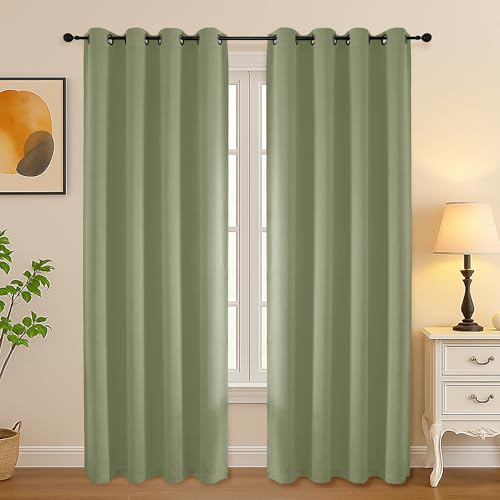 Simplebrand Sage Green Curtains for Bedroom Living Room50"W x 72"L (Pack of 2)2.34 PoundsCheck on Amazon


Top 3 picks at a glance
Quick Recommended Settings
| Setting | Recommended value | Why |
|---|---|---|
| Distance: Subject to Green Screen | 3.5 – 4.5 feet (107 – 137 cm) minimum | Reduces green spill on shoulders and hair while keeping backdrop out of focus |
| Distance: Lights to Green Screen | 2 – 3 feet at 45-degree angle, pair matched | Creates even wash and prevents center hot spot |
| Green Screen Illumination | Two lights at 35-55% power, diffused | Even luminance is more important than brightness for a clean key |
| Key Light on Subject | Softbox at 45 degrees, 65-75% power, 2.5 feet from face | Separates subject exposure from background exposure |
| Camera Exposure Mode | Manual: ISO 200-400, Shutter 1/60, Aperture f/2.8 – f/4 | Locks exposure to prevent auto-exposure hunting during keying |
| White Balance | Manual 5200K – 5600K or Custom WB off green card | Prevents green cast that confuses chroma keyer |
| OBS Chroma Key Filter: Key Color Type | Green | Matches standard green screen hue for accurate calculation |
| OBS Chroma Key Filter: Similarity | 380 – 480 | Controls how wide the green range is; lower preserves detail |
| OBS Chroma Key Filter: Smoothness | 65 – 110 | Feathers edge; too high creates green halo |
| OBS Chroma Key Filter: Key Color Spill Reduction | 35 – 80 | Removes green fringe without desaturating skin |
| OBS Color Correction Filter | Contrast +0.05 to +0.10 after key | Tightens edge without touching similarity |
Setting-by-Setting
1. Physical Distance and Backdrop Tension
Exact value: Keep 3.5 to 4.5 feet between your shoulders and the fabric. Pull the fabric taut with clamps. Use a collapsible backdrop or clamp a muslin to a crossbar and tension the bottom with a second bar or gaff tape to the floor.
Trade-off: More distance equals less spill but requires a tighter camera crop and more depth in the room. Less distance makes framing easier but forces aggressive spill reduction that eats hair detail.
What causes it: Green bounce from the fabric wraps onto your back and hair when you sit too close, especially with glossy walls in a small room.
How to check: In OBS, add your camera source, right-click > Filters, disable all filters. Look at the edge of a white shirt or blonde hair at 200% preview scale (right-click Preview > Scale > 200%). Green fringing means spill.
What to do: Move chair forward 6 inches at a time. Clamp all wrinkles. In a room under 10 x 10 feet, angle your desk diagonally to steal 12-18 inches of depth.
How to undo: Move chair back to original tape mark on floor. Remove clamps. No software change needed.
2. Green Screen Lighting – Even Wash
Exact value: Two identical LED panels (or one panel bounced off two walls) at 35-55% brightness, 5600K, placed 2 to 3 feet from the screen at 45 degrees left and right, 4-5 feet high, aimed to cross-light. Add diffusion: softbox or 1-stop diffusion panel.
Trade-off: Two lights cost more and take space, but a single on-axis light always creates a hot spot that creates key chatter. Cross-lighting gives you flat luminance within 1/3 stop.
What causes it: Uneven brightness forces you to raise Similarity to key both dark corners and bright center, which then keys out parts of your subject.
How to check: Menu path: OBS > Filters on camera > temporarily add Effect Filter > LUT Filter off, then open camera properties > Deactivate Chroma Key. Or use your camera’s histogram. Alternate check: take a phone photo of the empty green screen; use the eye dropper in Paint or Photoshop to sample four corners and center – RGB green values should be within 15 points.
What to do: Dim both lights until center and corners match. Feather edge of softbox so light grazes rather than blasts. If you only own one panel, place it on the floor facing up at the screen and bounce with white foam board on the opposite side. File location for reference: save a snapshot to C:\Users\%USERNAME%\Pictures\greenscreen-test.jpg to compare before/after.
How to undo: Return lights to previous brightness or remove foam board. No permanent change.
3. Subject Key Light and Back Light
Exact value: Key light: 24-inch softbox or 18-inch ring at 65-75% power, 5600K, 2.5 feet from face, 45 degrees off camera axis and 12 inches above eye line. Back light/hair light: small LED at 15-25% behind subject, flagged so it does not hit the green screen, aimed at shoulders.
Trade-off: A strong key light lets you lower camera ISO for less noise, but too strong blows highlights on the forehead. The hair light adds separation but in a small room can spill onto the screen if not flagged with black foil.
What causes it: Subject underexposure makes the keyer confuse shadow on your face with shadow on the screen, creating flicker.
How to check: In OBS, right-click camera source > Properties > Video Settings (for Logitech: Logi Tune > Manual Exposure) and check that skin hits around 65-75 IRE on a waveform if available, or that OBS preview shows no crushed blacks.
What to do: Set key light to desired distance, then adjust camera exposure to match. Add hair light last and use barn doors or a piece of cardboard as a flag between it and the screen. Key combo to toggle preview fullscreen for checking: F11 in OBS preview, or Alt + F to fit to screen.
How to undo: Turn off hair light, move key light back to original mark. Reset OBS filter stack.
4. Camera Exposure, Focus, and Sharpness
Exact value: Switch to Manual. For webcams: Logitech G Hub > Manage Camera > Uncheck Auto Exposure > Exposure 0 to -2, Gain 0-5. For mirrorless via USB capture: ISO 200-400, Shutter 1/60 (for 30fps), Aperture f/2.8 to f/4, Manual Focus, Sharpness -10 to 0 in camera picture profile. Turn off Auto White Balance.
Trade-off: Manual exposure is stable for keying but will not adapt if room light changes. Wide aperture softens the green screen texture, which helps keying, but reduces depth of field.
What causes it: Auto exposure pulses when you move in a green field, changing the green luminance frame to frame and breaking the key.
How to check: Wave your hand across frame. If preview brightness pumps, you are still on auto. Check OBS Stats dock: View > Docks > Stats to see if camera drops frames due to gain noise.
What to do: Path: Windows > Settings > Bluetooth & Devices > Cameras > Select device > turn off Auto White Balance and Auto Exposure if exposed there, otherwise set in your camera app. Set manual focus by holding a high-contrast print at face position, press Manual Focus, then lock. Save settings in G Hub profile or camera custom profile 1.
How to undo: Recheck Auto Exposure and Auto Focus in same menus. For OBS, right-click source > Properties > Deactivate/Activate to reset driver defaults.
5. OBS Studio Chroma Key Filter Values
Exact value: Path: OBS Studio > Sources > Right-click Camera > Filters > + under Effect Filters > Chroma Key. Set Key Color Type: Green, Similarity: 400 (range 380-480), Smoothness: 80 (range 65-110), Key Color Spill Reduction: 50 (range 35-80), Opacity 100. Order matters: Chroma Key must be above Color Correction but below Sharpen if used. Drag to reorder.
Trade-off: Higher Similarity removes more green but erodes hair and translucent edges. Higher Smoothness hides jagged edges but creates a soft green halo. Higher Spill Reduction cleans skin but can make skin look gray.
What causes it: Bad defaults (Similarity 400 + Smoothness 80 can still be too high for small rooms with uneven light) cause transparent chins or green outline.
How to check: In Filters window, use the eye icon to toggle Chroma Key on/off while watching Preview at 100%. Zoom with View > Preview Scaling. Look for gray holes in face (Similarity too high) and green rim on hair (Smoothness too high or Spill Reduction too low).
What to do: Start at Similarity 350, raise by 10 until background just disappears, then stop. Raise Smoothness until edge shimmer stops, then lower by 5. Adjust Spill Reduction until green on neck is gone but skin tone stays warm. Add a second filter if needed: + > Color Correction > Contrast 0.08, Gamma 0.02 to tighten. Config file location: C:\Users\%USERNAME%\AppData\Roaming\obs-studio\basic\scenes\Collection.json stores these values if you need to back up before tweaking.
How to undo: In Filters > select Chroma Key > click Default or – to remove filter. Restore from backup collection file.
6. Resolution, Scaling, and Color Range
Exact value: OBS > Settings > Video > Base Canvas 1920×1080, Output 1920×1080, Downscale Filter Lanczos 36 samples. Settings > Advanced > Video > Color Format NV12, Color Space 709, Color Range Limited. In camera Properties > Video Settings > uncheck Custom Resolution if it forces MJPEG at low light; use 1920×1080 / 30fps.
Trade-off: 1080p30 is easier to key than 4K in a small room because noise and rolling shutter are lower. Limited range matches most webcams and avoids crushed greens that confuse the keyer.
What causes it: Mismatched Full vs Limited range makes green appear either washed or neon, forcing incorrect Similarity.
How to check: If empty green screen looks either almost white-green or very dark green in OBS compared to your camera app, range is mismatched. Toggle Settings > Advanced > Color Range and watch preview.
What to do: Set both camera driver and OBS to Limited. Keep FPS at 30 to allow 1/60 shutter without light loss. Key combo to quickly open Settings: Alt + S in OBS.
How to undo: Revert Settings > Video and Advanced to previous values, click Apply.
By Hardware Tier
Low Tier – Laptop Webcam and One or Two Bulb Lights
Typical gear: 720p/1080p built-in or $30-60 webcam, one or two small LED panels or clamp work lights with daylight bulbs, 5 x 7 foot fabric.
Use tighter cropping to hide uneven corners: OBS > Right-click source > Transform > Edit Transform > Crop Left/Right/Bottom 30-80 px. Set webcam to Manual Exposure Gain 0-3 to reduce noise. Set Chroma Key Similarity low: 360-420, Smoothness 60-80, Spill Reduction 25-45 because webcam color is less accurate. Prioritize fabric tension over brightness. If you only have one light for the screen, place it high and centered at 50% and add a white poster board opposite to bounce fill. As of 2026, even low-tier webcams benefit from OBS 30.x updated chroma key spill reduction, so use that instead of third-party plugins.
Mid Tier – Logitech Brio / Elgato Facecam, Two LED Panels + Softbox
Typical gear: 1080p 60-capable webcam or mirrorless in webcam mode, two 40-60W LED panels for screen, one 60-80W key softbox.
This is the sweet spot for small rooms. Set panels for green screen at 40% with diffusion, key softbox at 70%. Camera: 1080p30, Manual Focus, White Balance 5600K, Exposure -1, Gain 2. OBS Chroma Key Similarity 400-460, Smoothness 75-100, Spill Reduction 40-65. Add OBS filter order: 1) Chroma Key, 2) Color Correction (Saturation -0.05 if skin too green), 3) Sharpen 0.03-0.05. Use Elgato Facecam Center or Logi Tune to save a preset named GreenSmallRoom so you can recall with one click.
High Tier – Mirrorless / DSLR via Capture Card, COB Lights
Typical gear: Sony ZV-E10 / Canon M50 / Lumix G7 via Cam Link, 100W COB with 28-inch softbox, two light bars for screen or 60W panels.
Use shallow depth: f/2.8 to f/3.5 to blur fabric weave, which reduces micro-shadow chatter. Keep ISO 200-320, shutter 1/60. Set picture profile: Contrast -2, Sharpness -3, Saturation -1 to give keyer cleaner edges. OBS Similarity 420-480 can be higher here because sensor color is more accurate. Add a LUT or Color Correction after the key to restore contrast. Record in 1080p30 for streaming even if sensor shoots 4K; downscaling softens green texture. Flag the key light with a grid to keep it off the backdrop – critical when your key is only 2 feet from the screen.
Common Mistakes
Mistake 1: Wrinkled or Loose Fabric
What causes it: Fabric folded from storage creates valleys that read as dark green lines. Keyer sees multiple greens.
How to check: Disable Chroma Key. Look for diagonal shadows. Pinch test: if you can pinch a fold, camera sees it.
What to do: Steam or iron on low (check fabric label). Stretch with A-clamps to tension rod at top and a 3/4-inch PVC pipe hemmed at bottom for weight. If space is tight, switch to pop-up collapsible panel – it stays taut automatically.
How to undo: Remove clamps and pipe, refold fabric if you prefer soft background alternative.
Mistake 2: Subject Wearing Green or Glossy Material
What causes it: Any green, even olive or teal, falls inside Similarity range. Glossy fabric reflects green screen color.
How to check: Put on intended outfit, enable Chroma Key at Similar 400. Spin slowly. If tie, headset, or glasses reflect green edges, you will see flicker.
What to do: Avoid green, neon yellow, and high-gloss satin. Choose matte navy, charcoal, burgundy. For glasses, tilt key light 5 degrees higher to reduce reflection, and lower Spill Reduction to 30-40 so reflection is not amplified.
How to undo: Change shirt, or raise Similarity back and keep glasses off for key segment.
Mistake 3: Auto Settings Left On
What causes it: Auto Exposure, Auto White Balance, and Auto Focus breathe when large green area dominates metering.
How to check: In OBS Filters, watch Similarity preview while you lean forward and back. If edge quality changes without touching settings, an auto is still active in Logi Tune, Camera Hub, or Windows Camera settings.
What to do: Path: Logi Tune > Adjustments > toggle Auto to Off. Elgato Camera Hub > Manual. Windows > Settings > Bluetooth & Devices > Cameras > Off. OBS > Camera Properties > Uncheck Auto Focus. Lock White Balance to 5600K.
How to undo: Re-enable Auto toggles in same apps for non-green-screen use.
Mistake 4: Over-Reliance on Similarity to Fix Lighting
What causes it: Raising Similarity to 600+ hides uneven light but makes skin transparent and hair disappear.
How to check: Pause on a frame, zoom to hair. If individual strands become blocks or skin looks desaturated gray-green, Similarity is too high.
What to do: Reset Chroma Key to Defaults. Fix physical light evenness first (step 2). Then raise Similarity only until green justkeys, add Smoothness 80 and Spill Reduction 50. Use Color Key or Luma Key second filter instead of pushing Similarity if corners remain. Path for second filter: Filters > + > Color Key > set to remove only darkest green remnant with Similarity 250.
How to undo: Delete secondary filter, lower Similarity back to 400 baseline.
FAQ
How close can I sit to a green screen in a 7 x 7 foot room?
About 3 feet minimum from fabric to shoulders, with camera 3.5 to 4 feet in front of you. That leaves roughly 6 inches behind camera to wall. In that footprint, use a 5-foot wide fabric and crop in OBS rather than trying to light a 9-foot width. Clamp the sides to the wall with removable hooks to save floor stands. If you still get spill, lower green screen light by 10% and add a black foam board behind your chair as a spill flag between you and the screen.
Should I use green or blue screen in a small room with warm wall paint?
Stick with green. Green requires less light for an even luminance and most webcams are most sensitive to green, giving a cleaner matte. Blue is useful only if your talent must wear green or you shoot blond hair that retains green spill. If walls are beige or yellow, flag your lights so they do not bounce warm light onto the green screen – that warm bounce pollutes the green and makes keying harder. Set all LEDs to 5600K daylight to overpower wall color.
Why does my key look good in preview but flickers when I move?
Flicker is almost always auto exposure or uneven light combined with a low-frame-rate shutter. What causes it: Auto Gain raises ISO when you lean into shadow. How to check: OBS > View > Stats > look for frame drops; camera Properties > Exposure not locked. What to do: Lock exposure to Manual 1/60, gain low, add a constant fill light at 20% on the shadow side of your face so movement does not change scene brightness. Set OBS Chroma Key Smoothness to 85-95 to dampen single-frame chatter. How to undo: Re-enable auto if you need to shoot without the screen.
Can I get a clean key without buying lights, using only ceiling light and window?
You can get an acceptable key for Discord or casual streaming but not a broadcast key. Window light is uneven and shifts color temperature, ceiling light casts downward shadows on the screen. What causes it: Top-down light makes the lower half of the screen darker. How to check: Photo test with phone metering as described earlier – top vs bottom will differ by 20+ points. What to do: Place desk lamp with daylight bulb low and aimed at bottom of screen as fill, hang white sheet opposite window to bounce. In OBS set Chroma Key Similarity 380-420 max and crop 80-120 px off bottom where shadow sits: Transform > Crop Bottom. How to undo: Remove lamp and crop values, delete filter.