Audio-video sync problems in OBS usually fall into two categories: a fixed offset, where the gap stays the same, or drift, where the gap grows during a recording. The distinction matters because adding a constant delay can correct a fixed offset but cannot repair devices that are slowly losing synchronization.
Our Top Picks
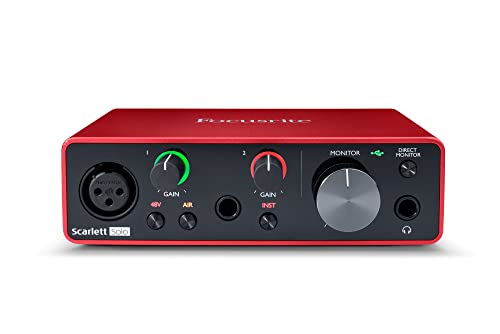 Focusrite Scarlett Solo 3rd Gen USB-C Audio InterfacePack of 11.71 x 5.65 x 3.77 inches0.77 poundsCheck on Amazon
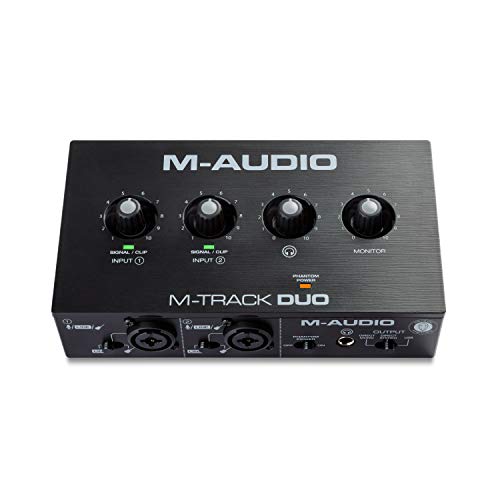


Top 3 picks at a glance


Start with a controlled recording
Do not tune sync from the live preview alone. Record 30 to 60 seconds locally using the same camera, capture card and microphone intended for the stream. Clap once on camera near the beginning and again near the end. Review the file frame by frame in an editor or player with a visible timeline.
If both claps show roughly the same gap, the problem is a fixed offset. If the second gap is larger, investigate sample-rate mismatch, unstable device clocks, dropped frames or USB problems before applying an offset.
Correct a fixed audio lead
When sound arrives before the matching video, add a positive synchronization offset to the early audio source in OBS Advanced Audio Properties. The setting is measured in milliseconds. Begin with the measured difference, make another local recording and adjust in small steps.
Apply the offset only to the source that needs it. Delaying every source can move the problem rather than solve it, particularly when desktop audio, a USB microphone and capture-card audio travel through different paths.
When video arrives first
If video is ahead and audio is already late, adding more audio delay is the wrong direction. Depending on the scene and source, a video render-delay filter may be appropriate. Large delays increase monitoring complexity, so test headphones, stream output and the recorded file separately.
Fix drift before using offsets
- Use the same sample rate across OBS and connected audio devices where possible.
- Avoid overloaded USB hubs for cameras, capture cards and audio interfaces.
- Check the OBS Statistics window for rendering or encoding lag.
- Test without unnecessary filters and monitoring routes.
- Update one device or setting at a time, then record again.
A constant sync offset does not change over time. If a one-hour stream ends farther out of sync than it began, the system has a timing or stability problem that an offset only hides temporarily.
Check the complete signal path
A capture card may buffer video while audio comes directly from a mixer. A camera may add processing delay that a separate microphone does not. Bluetooth monitoring adds another delay that viewers may never hear. Draw a simple source map from capture device to OBS, monitoring and final output before changing settings.
Verification checklist
- Make a fresh local recording after every adjustment.
- Check a clap near both the beginning and end.
- Confirm that stream and recording tracks use the intended sources.
- Inspect OBS statistics for dropped, rendering-lagged or encoding-lagged frames.
- Save the working scene collection and profile before further experimentation.
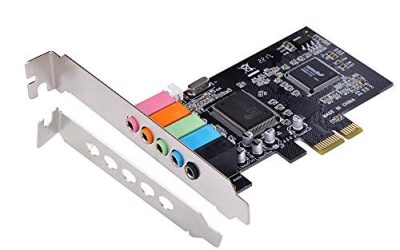
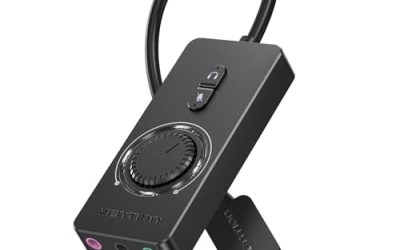
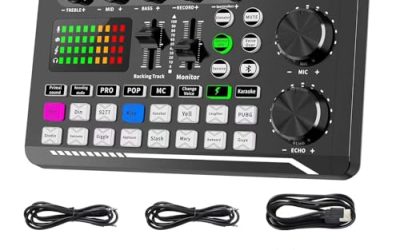
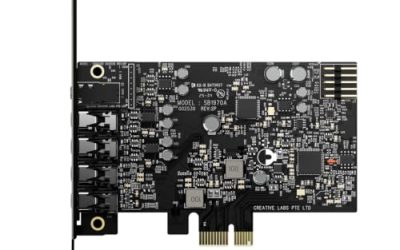
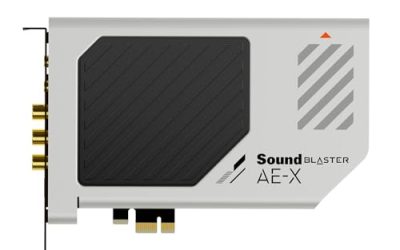
Persistent drift that survives every software fix often comes from the capture or audio hardware itself. These are the devices that avoid the problem.
As an Amazon Associate we earn from qualifying purchases at no extra cost to you.


Source and scope
This guide is research-based and uses the Sync Offset workflow documented in community support material on the official OBS Project forum. Interface labels may move between OBS versions. Test with a local recording before changing a production stream.
Frequently asked questions
Where do I change the audio synchronization offset in OBS?
Change it in OBS Advanced Audio Properties for the audio source that needs correction. Add a positive synchronization offset when that audio arrives before the matching video. Start with the measured difference from a local recording, then record again and adjust in small steps. Applying the offset only to the affected source helps avoid shifting desktop audio, microphone audio or capture-card audio unnecessarily.
How can I tell whether audio is early or late?
Use a local recording with a visible clap near the beginning and another near the end. Review the file frame by frame using an editor or player with a visible timeline. Compare each clap with its corresponding video frame. If audio arrives first, it leads; if video appears first, the audio is late. This also helps distinguish a fixed gap from drift.
Should I use the live OBS preview to adjust sync?
No. Tune synchronization from a local recording rather than the live preview alone. Record using the same camera, capture card and microphone intended for the stream, then review the recording. A controlled recording shows whether the gap remains consistent and lets you compare the beginning and end. After every adjustment, make a fresh local recording before changing production-stream settings.
Why might monitoring sound delayed even when viewers are synchronized?
Bluetooth monitoring can add delay that viewers may never hear. Other parts of the signal path can also contribute, such as a capture card buffering video, a camera adding processing delay or audio traveling directly from a mixer. Test headphones, stream output and the recorded file separately, and map the path from each source through OBS, monitoring and final output.
What should I do if synchronization keeps getting worse during a stream?
Treat worsening synchronization as a timing or stability problem rather than applying a constant offset. Check for sample-rate mismatch, unstable device clocks, dropped frames or USB problems. Use the same sample rate across OBS and connected audio devices where possible, avoid overloaded USB hubs, and inspect OBS Statistics for rendering or encoding lag. Persistent drift may come from capture or audio hardware.