
Capturing PS5 gameplay looks simple until HDR gets involved — then your recordings come out washed-out and gray, or the passthrough to your TV drops to SDR, or the whole thing refuses 4K60 entirely. The PS5, HDR, and capture cards interact in specific ways, and dialing in the right settings gets you a sharp, correctly colored 4K60 feed to your TV while capturing a clean stream at the same time.
As an Amazon Associate we earn from qualifying purchases at no extra cost to you.

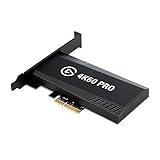

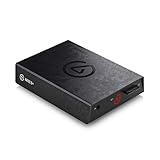
Our Top Picks

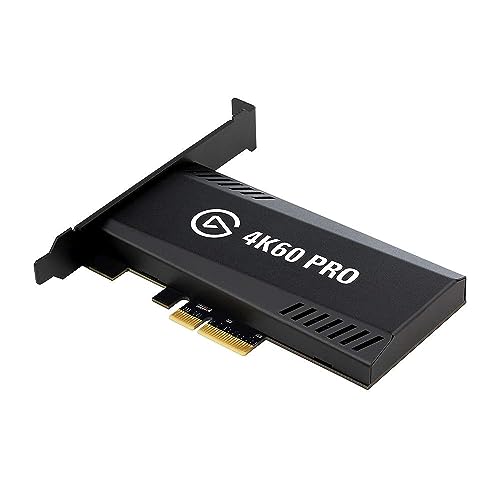

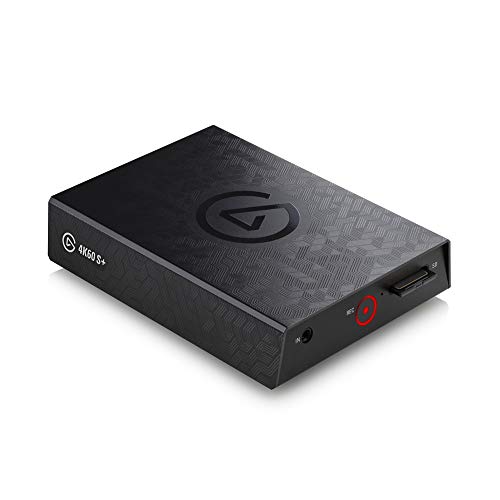
Top 3 picks at a glance
Understand the two paths
A capture card splits the PS5’s HDMI into two paths: passthrough (what your TV sees, ideally full-quality 4K60 HDR with minimal lag) and capture (what your PC records, limited by your card and USB bandwidth). Most affordable cards pass through 4K60 HDR to your TV but capture at a lower spec — commonly 1080p60 or 1440p60, or 4K30. Only higher-end cards capture 4K60 itself. Knowing your card’s capture ceiling prevents disappointment.
The HDR trap
Here is the washed-out-color culprit: if your card captures in HDR but your streaming/recording software or destination cannot tone-map HDR to SDR, viewers see dull, gray footage. Most streaming platforms and OBS setups are happiest with SDR. The clean fix is to let the PS5 output HDR only when it must, and capture in SDR — or apply proper HDR-to-SDR tone mapping. Many streamers simply capture in SDR for correct colors everywhere.
Recommended settings
| Setting | Recommendation | Reason |
|---|---|---|
| TV passthrough | 4K60 HDR (if card + TV support) | Best play experience, low lag |
| Capture resolution | Match card’s max (1080p/1440p/4K60) | Avoid overloading USB |
| Capture color | SDR (unless full HDR pipeline) | Prevents washed-out stream |
| PS5 HDR mode | “When supported” / Off for capture | Cleaner SDR capture path |
| USB | USB 3.0+ dedicated port | Bandwidth for 4K/high fps |
| HDMI cable | Certified Ultra High Speed (48 Gbps) | Required for 4K60 HDR |
Step-by-step to clean capture
Connect PS5 → capture card HDMI in, card HDMI out → TV, and card USB → a dedicated USB 3.0 port on your PC. Use a certified Ultra High Speed HDMI cable for the passthrough leg, since a slow cable silently drops 4K60 HDR to a lower mode. In the PS5’s Screen and Video settings, set HDR to “When Supported” and run the 4K/120 and HDR adjustment wizards so the console negotiates correctly with the card.
In OBS, add the card as a Video Capture Device and match its supported capture resolution and 60fps. If colors look flat and gray, that is HDR reaching an SDR pipeline — either switch the PS5/capture to SDR or add HDR tone mapping. Keep the card on its own USB controller; sharing bandwidth with a webcam or mic is a common cause of dropped frames on 4K feeds. Verify passthrough still shows 4K60 HDR on the TV info panel once everything is running.
Reducing latency and heat on long sessions
Two practical problems show up on marathon PS5 streams: passthrough lag and a hot capture card. Passthrough should feel instant on a decent card, but if the picture on your TV feels slightly delayed, play from the card’s HDMI passthrough output to your TV (never from a preview window on your PC, which always adds latency). Confirm your TV’s own game mode is on, since the display can add more lag than the card.
Managing heat and stability
Capture cards, especially compact external ones, run warm when handling 4K signals for hours. A hot card can start dropping frames or briefly losing signal. Give it airflow — do not bury it under a console or in a closed cubby — and leave a little space around it. If yours runs particularly hot, a small fan nearby or an elevated position helps. On the software side, record locally to a fast drive rather than trying to squeeze both a high-bitrate local recording and a stream through a marginal setup, and keep the card’s firmware and drivers current, since updates frequently fix HDR handshake and stability bugs. Finally, use a certified Ultra High Speed HDMI cable on the console-to-card leg; a marginal cable that “works” can intermittently drop the 4K60 HDR handshake, producing random black screens that look like a failing card but are really just the cable struggling with bandwidth. Solid airflow, a good cable, and current drivers keep long sessions clean.
FAQ
Why is my PS5 capture washed out and gray?
You are capturing an HDR signal into an SDR pipeline without tone mapping. Either set the PS5 and capture to SDR, or apply HDR-to-SDR tone mapping in your software. The TV passthrough can still stay HDR.
Can any capture card record PS5 at 4K60?
No. Many cards only pass through 4K60 to the TV while capturing at 1080p or 1440p, or 4K30. True 4K60 capture requires a higher-end card plus USB 3.0+ bandwidth and a certified HDMI cable.
Bottom line
Pass 4K60 HDR through to your TV with a certified Ultra High Speed cable, but capture at your card’s real ceiling and in SDR (or with tone mapping) to avoid washed-out color. Give the card a dedicated USB 3.0 port, run the PS5’s HDR wizard, and match resolution and 60fps in OBS for a clean, sharp stream.









