
For most PC streamers, a facecam has one job: keep your face sharp and evenly exposed while you move, talk, and look away from the lens. You do not need cinema quality. You need stable autofocus, decent low-light performance, and 1080p that does not fall apart when you add overlay graphics and compression from Twitch, YouTube, or Discord.
The pattern repeats: lighting and placement beat sensor specs almost every time. A $70 webcam with a $30 light looks better than a $200 webcam in a dark room.
Our Top Picks


What actually matters for a PC facecam
Resolution is the least useful number on the box. What affects daily streaming is autofocus behavior, exposure control, frame rate, and field of view. Cheap webcams hunt for focus when you lean in or hold up a controller. That pulsing blur is more distracting than slightly softer detail.
Look for 1080p at 30fps as the minimum, 1080p at 60fps if you move a lot or play VR and turn your head. 60fps looks smoother for hand gestures and head movement, but needs about twice the light to avoid grain. If your room is dim, 30fps will often look cleaner.
Field of view matters if your setup is tight. A 78 to 82-degree field frames just you. Anything over 90 degrees will show your messy shelves, your door, and your second monitor unless you crop in. Cropping a wide shot digitally just throws away the resolution you paid for.
Quick comparison
| Type | Typical image | Strength | Weakness | Best for |
|---|---|---|---|---|
| Budget 1080p webcam | 1080p30, fixed or basic autofocus | Cheap, plug-and-play, low CPU load | Soft in low light, harsh auto-exposure | Talking head streams, Discord, starting out |
| Mid-range 1080p60 webcam | 1080p60, faster autofocus | Smoother motion, better color control | Needs good light for clean 60fps | Daily Twitch / YouTube facecam |
| 4K USB webcam | 4K30 / 1080p60, digital zoom and crop | Crop without losing 1080p detail | More USB bandwidth, heat, inconsistent autofocus | Single-camera setups that need framing flexibility |
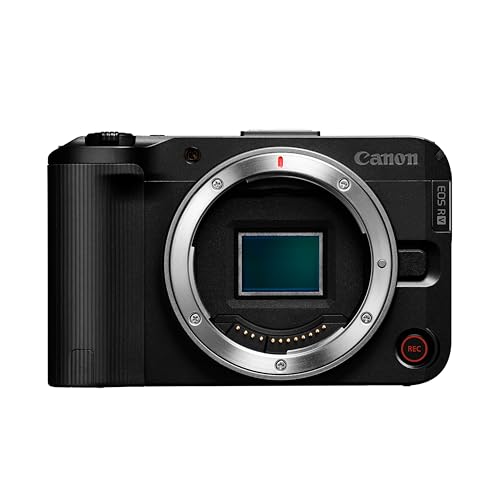
| Mirrorless / compact camera as facecam | 1080p or 4K via USB or HDMI capture | Best background blur and low light | Expensive, complex, can overheat | Full-time creators who want a premium look |
Budget 1080p: fine for most beginners
A basic 1080p webcam for streaming is still the sensible starting point if your facecam is a small corner window and gameplay is the focus. You get acceptable sharpness at arm’s length and drivers that just work in OBS, Streamlabs, and Discord.
Trade-offs are real. Fixed-focus models stay sharp only between about 40cm and 1.5 meters. Move outside that and you go soft. Auto-exposure tends to blow out your face when you wear a white shirt or sit in front of a window. Low light gets noisy fast, with smeary skin tones and laggy motion.
Failure modes to watch: wobbly clip mounts that slowly tilt down during a stream, aggressive noise reduction that makes you look waxy, and built-in mics that pick up keyboard clatter. Plan to use a separate USB or XLR mic anyway. Who it suits: new streamers, podcast guests, and anyone who streams in a well-lit room and wants to spend money on audio and lighting first.
Mid-range 1080p60: the sweet spot for daily streamers
If you stream three or more times a week, this is where I tell most people to land. A good 1080p60 webcam holds focus when you lean toward chat, handles monitor flicker better, and lets you adjust exposure, white balance, shutter speed, and contrast in software instead of living with auto mode.
The important difference is not sharpness on paper. It is consistency. Better lenses and processing keep skin tones stable when game lighting flashes across your face. Manual focus lock is underrated here – set it once for your chair distance and you eliminate focus hunting entirely.
What goes wrong: 60fps in a dim room looks worse than 30fps because each frame gets less light. If you see grain, drop to 30fps and add light instead of cranking gain. USB issues are also common. These cameras want a direct USB 3.0 port, not a cheap hub shared with a capture card and external drive. Freezing or dropping to 720p usually means bandwidth, not a broken camera.
4K webcams: useful for cropping, not for streaming in 4K
No one needs to stream their face in 4K on Twitch. The reason to consider a 4K webcam for PC is digital zoom. You can mount it further back, then crop to a tight head-and-shoulders shot and still output clean 1080p. That helps if you have a deep desk or want one camera to serve as both facecam and wide room cam.
The downsides are heat and hype. Small 4K sensors run hot during 3-hour streams and some models soften detail as they heat up. Autofocus can also be slower because it has more pixels to scan. And 4K over USB adds CPU load if your PC is already encoding gameplay at 6000 Kbps.
Who it suits: solo creators who reframe in software, people who record YouTube talking-head videos from the same camera, and anyone who cannot mount a camera close. Who should skip it: anyone on an older quad-core PC, a laptop with limited USB controllers, or a dim room where a larger-pixel 1080p sensor will actually look cleaner.
Using a mirrorless camera as a facecam
A mirrorless or high-end compact camera connected via USB webcam mode or HDMI capture card is visibly better – creamier background blur, cleaner shadows, no waxy skin. If your facecam is large on screen for Just Chatting, reactions, or coaching, the jump is obvious.
But the failure modes are creator-specific. Many cameras overheat after 60 to 90 minutes of continuous video, especially 4K models in warm rooms. Batteries swell and die; you need continuous USB-C power or a dummy battery. HDMI capture adds cost and another point of failure. Autofocus set to wide-area will sometimes lock onto a bright monitor or poster behind you instead of your eyes.
A practical middle ground is to buy the mid-range webcam now and add a used mirrorless body later only if your channel actually needs it. Browse current options for a mirrorless camera for streaming to see what includes clean HDMI and unlimited video recording – those two features matter more than megapixels. This suits full-time streamers with controlled lighting and a capture card. It is overkill if you are still figuring out schedule and content.
Setup matters more than the camera
Put the camera at eye level, about an arm’s length away. Stack it on a tripod if your monitor mount puts it too high – looking up at a camera creates double chin and ceiling glare. Turn off overhead-only lighting, which carves shadows under your eyes, and put a soft key light in front of you, slightly to one side.
In OBS, lock exposure and white balance after you set lights. Auto white balance will shift orange to blue every time you switch games. Add a very light sharpening filter and slight noise suppression if needed, but do not over-process. Heavy filters plus platform compression make faces look plastic.
FAQ
Is 1080p or 4K better for a Twitch facecam?
1080p is better for most people. Twitch compresses your video heavily, so a stable, well-lit 1080p feed looks cleaner than a noisy 4K feed. Only choose 4K if you need to crop or record local video at higher resolution.
Do I need 60fps for my facecam?
Not required, but nice if you gesture a lot or move in your chair. If your room is dark, 1080p30 with good lighting will look sharper and less grainy than 1080p60. Try both and watch a recording, not just the preview.
Why does my webcam look blurry or laggy on PC?
Most often it is low light, autofocus hunting, or a USB bandwidth issue. Add front light, lock manual focus to your seating distance, plug directly into a USB 3.0 port, and close other apps using the camera. If it still drops frames, lower to 720p60 or 1080p30.
Should I just use a DSLR or mirrorless camera instead?
Only if your face is a major part of the content and you are willing to manage power, heat, and capture settings. For gameplay streams with a small facecam window, a good webcam plus lighting gets you 90 percent of the look for a fraction of the cost and hassle.









