A MacBook changes what a good wireless gaming mouse looks like. There are no USB-A ports, so a mouse whose only connection is a chunky 2.4 GHz receiver forces you into adapters before you even launch a game. Bluetooth support, a USB-C receiver, and companion software that actually runs on macOS matter as much as the sensor. This guide focuses on wireless gaming mice that fit that reality instead of fighting it.
Every pick below connects to a MacBook without drama: over Bluetooth, through a USB-C receiver, or through a standard adapter you probably already own. We compared sensor specs, weights, battery claims and macOS software support taken from each product’s Amazon listing, and favoured mice whose buttons you can remap without borrowing a Windows PC. Whether you play shooters at a desk or strategy games from a sofa, one of these four should match how you use your MacBook.
Our Top Picks
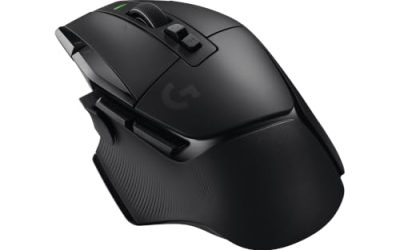
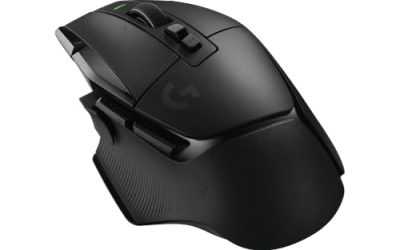
 Logitech G309 Lightspeed Wireless Gaming Mouse1.51 x 2.49 Inch1.51 x 2.49 x 0.1 inches0.2 poundsCheck on Amazon

Top 3 picks at a glance

Quick Picks
As an Amazon Associate we earn from qualifying purchases
| Product | Best for | Key spec from title |
|---|---|---|
| Logitech G PRO X SUPERLIGHT 2 | Competitive FPS with full Mac software | HERO 2 sensor, 44,000 DPI |
| Razer Orochi V2 | Travel and hybrid work-and-play | 18,000 DPI optical sensor |
| Keychron M3 | A USB-C receiver that plugs straight in | PixArt PAW3395, 26,000 DPI |
| Logitech G309 LIGHTSPEED | Bluetooth freedom plus a gaming link | HERO 25K sensor |
How to Choose
Decide between Bluetooth and a 2.4 GHz dongle
Bluetooth is the zero-friction option on a MacBook: nothing occupies a port, pairing survives sleep and wake, and it is fine for strategy games, MOBAs and casual shooters. Its weakness is polling rate and latency, which competitive FPS players can feel in fast flicks. A 2.4 GHz dongle connection reports far more often and feels wired, but it consumes one of your few ports and may need an adapter. Dual-mode mice remove the dilemma entirely: game over the dongle at your desk, then flip to Bluetooth when you move to a café or sofa.
Check the receiver shape against your ports
Modern MacBooks offer USB-C only, while most gaming receivers are still USB-A. Before buying, look at what the listing says is in the box. A mouse that ships with a USB-C receiver, like the Keychron below, plugs straight in. A USB-A receiver needs a USB-C adapter or a hub, which adds a small failure point and a dongle dangling off the side of a slim laptop. Receiver storage inside the mouse also matters if you travel, because a loose nano receiver is remarkably easy to lose between desks.
Confirm the software actually runs on macOS
A gaming mouse is only half configured out of the box. DPI steps, polling rate, button remaps and macros live in the maker’s companion app, and several big gaming brands still treat macOS as an afterthought or offer a cut-down app. Check the Amazon listing’s system requirements for macOS support before ordering. Logitech’s G Hub and Keychron’s Engine both run on macOS, so their mice can be fully set up on the MacBook itself. If the software is Windows-only, decide whether the onboard memory profiles are enough for you.
Match battery style and shape to your routine
Rechargeable mice with USB-C ports share the cable you already carry for the MacBook, and a quick top-up covers an evening of play. Mice running on AA or AAA cells trade that convenience for months of runtime and instant swaps when the battery dies mid-session. Shape matters just as much: small symmetrical shells suit claw and fingertip grips and travel well, while taller ergonomic shapes support a palm grip through long desk sessions. Pick the combination that fits your hand and your charging habits, not just the headline sensor number.
The 4 Best Options
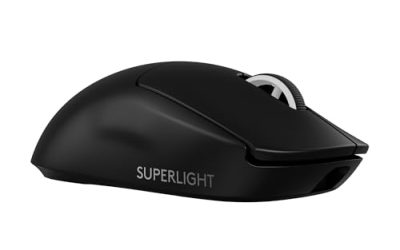
Logitech G PRO X SUPERLIGHT 2

The Logitech G PRO X SUPERLIGHT 2 is the esports option that treats Mac owners fairly. Its Amazon listing names macOS as a supported operating system, and Logitech’s G Hub software runs on Mac, so DPI steps, polling rate and button assignments are all adjustable on the MacBook itself. The HERO 2 sensor and 60-gram shell suit fast, low-sensitivity aiming in shooters, while USB-C charging means the same cable that feeds your laptop tops up the mouse. The catch is the LIGHTSPEED receiver: it is USB-A, so plan on a small adapter or a hub.
Specs
- Sensor: HERO 2, up to 44,000 DPI
- Report rate: up to 8 kHz
- Weight: 60 g
- Switches: LIGHTFORCE hybrid switches
- Buttons: 5 programmable buttons
- Charging: USB-C
- Operating system: Windows and macOS
Best for: Competitive FPS players who want flagship performance they can configure entirely on macOS
Watch out for: The LIGHTSPEED receiver is USB-A, so a USB-C adapter or hub is required on a MacBook
ASIN: B09NBWQDKX
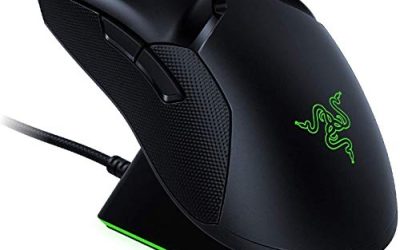
Razer Orochi V2
The Razer Orochi V2 is built for people who carry their MacBook everywhere. It pairs over Bluetooth for everyday work, then switches to Razer’s HyperSpeed wireless when you want lower latency for gaming, and its listing explicitly covers PC and Mac. At under 60 grams without its battery it disappears into a laptop sleeve, and the replaceable AA or AAA cell means a dead mouse is fixed in seconds rather than by hunting for a charging cable. The symmetrical shell favours claw and fingertip grips over a full palm rest.
Specs
- Sensor: Razer 5G Advanced optical sensor, 18,000 DPI
- Connectivity: HyperSpeed Wireless and Bluetooth
- Battery life: up to 950 hours on Bluetooth, up to 425 hours on HyperSpeed Wireless
- Battery: 1 x AA or AAA
- Switches: 2nd-gen Razer mechanical switches, rated for 60 million clicks
- Weight: under 60 g, excluding battery
Best for: Travel, commuting and hybrid work-and-play setups built around one MacBook
Watch out for: Razer’s configuration software offers far less on macOS than on Windows, so deep remapping may need a Windows PC
ASIN: B0916N2LPZ
Keychron M3
The Keychron M3 solves the MacBook port problem more completely than most gaming brands manage. Alongside Bluetooth 5.1, the box includes both a USB-C and a USB-A 2.4 GHz receiver, so the low-latency connection plugs straight into a modern MacBook with no adapter at all. Keychron lists macOS as a supported system for both the mouse and its Engine software, which handles macros and button mapping. The PAW3395 sensor is a genuine flagship-grade unit, and the 79-gram ergonomic shell stays comfortable through long sessions.
Specs
- Sensor: PixArt PAW3395, up to 26,000 DPI
- Connectivity: 2.4 GHz, Bluetooth 5.1 and wired Type-C
- Receivers: Type-C and Type-A 2.4 GHz receivers included
- Weight: 79 g
- Battery life: up to 70 hours
- System support: macOS and Windows, with Keychron Engine support for macOS
Best for: MacBook users who want a native USB-C dongle, Bluetooth backup and full remapping in one mouse
Watch out for: Heavier than ultralight esports mice, and Bluetooth mode suits casual play better than ranked matches
ASIN: B09MYW2ZX5
Logitech G309 LIGHTSPEED
The Logitech G309 LIGHTSPEED gives MacBook players two proper wireless routes in one mouse. Bluetooth handles travel days and café sessions, while the LIGHTSPEED connection delivers the responsive link you want for ranked matches, and Logitech lists the mouse for PC and Mac with G Hub support on macOS. Its HERO 25K sensor and six programmable buttons cover shooters and MOBAs alike, and the single AA battery runs for hundreds of hours, so charging cables rarely enter the picture at all.
Specs
- Sensor: HERO 25K
- Connectivity: LIGHTSPEED wireless and Bluetooth
- Battery life: 300+ hours with an AA battery
- Weight: 86 g with AA battery
- Switches: LIGHTFORCE hybrid switches
- Buttons: 6 programmable buttons
Best for: Players who want Bluetooth freedom for everyday use plus a serious low-latency link for gaming
Watch out for: The LIGHTSPEED receiver is USB-A, and there is no built-in rechargeable battery
ASIN: B0C84ZD7L6
Which One Fits Your Situation
You play competitive shooters at a desk
Choose the Logitech G PRO X SUPERLIGHT 2. Its 60-gram shell, HERO 2 sensor and high report rate reward low-sensitivity arm aiming, and G Hub on macOS lets you tune every setting without leaving your desk setup. Budget desk space for a small USB-C adapter or hub for the receiver, and keep the charging cable nearby for quick top-ups between matches.
You game wherever your MacBook lands
The Razer Orochi V2 was designed for exactly this pattern. Bluetooth pairs instantly with whichever MacBook you open, the shell is small enough for a sleeve pocket, and a spare AA in your bag guarantees the mouse never dies on the road. HyperSpeed mode covers hotel-desk gaming sessions when you plug the receiver into an adapter.
You refuse to carry adapters
Take the Keychron M3. Its included USB-C receiver plugs directly into any modern MacBook, giving you the low-latency 2.4 GHz link with zero extra hardware in your bag. Bluetooth stays available as a backup for a second device, and Keychron Engine on macOS covers remapping and macros, so the whole setup lives on the laptop alone.
You split the day between work and play
The Logitech G309 LIGHTSPEED handles both halves gracefully. Leave it on Bluetooth for documents and calls, then switch to LIGHTSPEED when a game launches. Six programmable buttons hold work shortcuts and in-game actions alike, and the AA battery lasts for months of mixed use, so it simply stays on your desk ready for either role.
Common Mistakes
- Buying a dongle-only mouse and discovering at setup that its USB-A receiver cannot plug into a USB-C-only MacBook.
- Assuming every gaming brand’s software runs on macOS, then finding button remaps and DPI steps locked behind a Windows-only app.
- Gaming over Bluetooth in competitive shooters and blaming the sensor for latency that the connection mode caused.
- Choosing the lightest mouse available when your palm grip and long sessions would suit a taller ergonomic shell better.
- Forgetting that a receiver left in a shared hub or adapter is a receiver that will not be in your bag when you travel.
Frequently Asked Questions
Do gaming mice work properly on macOS?
Yes, the mice here all list Mac support on their Amazon pages and track normally in macOS and in Mac games. The real difference is configuration: brands whose companion apps run on macOS let you remap buttons and set DPI on the MacBook itself, while others may limit you to onboard profiles.
Is Bluetooth good enough for gaming on a MacBook?
For strategy games, RPGs, MOBAs and casual shooters, Bluetooth feels perfectly fine and keeps every port free. For competitive FPS play, a 2.4 GHz dongle connection reports more often and responds faster, which is why dual-mode mice are so practical: Bluetooth for the day, dongle for ranked matches at your desk.
How do I connect a USB-A receiver to a MacBook?
Use a small USB-C to USB-A adapter or plug the receiver into a USB-C hub or dock. Both approaches pass the wireless signal without adding meaningful latency. Alternatively, pick a mouse like the Keychron M3 that includes a USB-C receiver in the box and skip the extra hardware entirely.
Can I remap gaming mouse buttons on a Mac?
Usually, yes, provided the maker’s software supports macOS. Logitech G Hub and Keychron Engine both run on Mac, covering DPI steps, macros and button assignments for the picks above. Where Mac software is limited, settings saved to a mouse’s onboard memory on another computer will still carry over to your MacBook.
Related guides
More from Amazon
Programs that pair well with the guide above. Offers and eligibility are set by Amazon and may change.
Free shipping on eligible items, Prime Video and more. Eligible new members can start with a free trial.
Start a Prime free trialAd-free music streaming. Eligible new subscribers can start with a free trial.
Try Music Unlimited freeA Prime membership for ages 18-24 with a trial period. Eligibility is set by Amazon.
See Prime for Young AdultsAudiobooks and podcasts to listen to on the go. Eligible new members can start with a free trial.
Try Audible freeAs an Amazon Associate we earn from qualifying purchases.