Lag and dropped frames when recording gameplay almost always trace back to one of three causes: software encoding overloading your CPU, a recording drive too slow to keep up with your bitrate, or background processes competing for the same resources your game needs. Fixing recording lag means identifying which of these three is actually happening on your system rather than guessing at settings changes.
This guide covers how encoding type (hardware vs software) affects performance, the bitrate and resolution settings that balance quality against system load, why storage speed matters more than most people expect, and how to diagnose dropped frames specifically rather than confusing them with low in-game FPS, which is a related but distinct problem with a different fix.
As an Amazon Associate we earn from qualifying purchases at no extra cost to you.


Our Top Picks


Top 3 picks at a glance
What Causes Lag and Dropped Frames During Recording
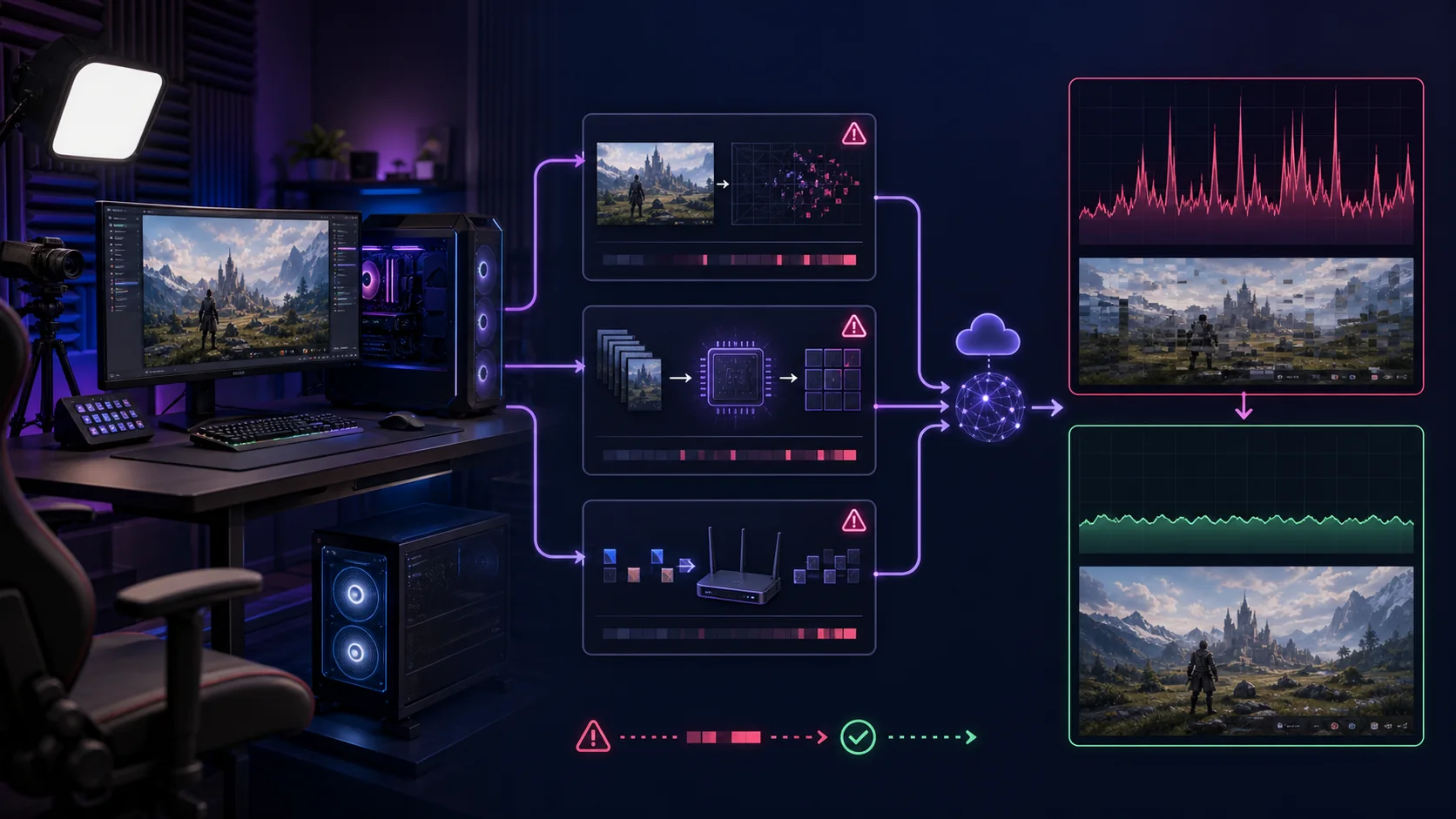
Recording software has to do three things simultaneously: capture frames from your game, encode (compress) them into a video file, and write that file to storage, and a bottleneck at any one of these three stages produces a different visible symptom. A CPU or GPU encoding bottleneck typically shows as reduced in-game FPS while recording. A storage write bottleneck shows as OBS reporting “dropped frames due to encoding lag” or, more specifically, storage-related frame drops even when in-game FPS looks fine. Background process competition can cause either or both symptoms inconsistently.
Encoding is the most CPU or GPU-intensive part of this pipeline, since it involves compressing raw, uncompressed video frames (which are enormous in size, often several hundred megabytes per second at 1080p60) down to a manageable file size in real time. Software encoding (x264) does this compression using general-purpose CPU cores, which directly competes with the CPU resources your game also needs, particularly in CPU-intensive or simulation-heavy titles.
Hardware encoding (NVENC on NVIDIA GPUs, AMF on AMD GPUs, QuickSync on Intel integrated graphics) uses a dedicated, separate chip built into the GPU specifically for video encoding, which runs largely independent of the GPU’s main rendering cores and the CPU entirely. This is why hardware encoding produces dramatically less FPS impact than software encoding on systems with a capable discrete GPU, since the game’s rendering and the recording’s encoding are happening on physically different silicon.
Storage write speed becomes the bottleneck once encoding is no longer the limiting factor, since even efficiently encoded high-bitrate footage still needs to be written to disk continuously in real time; a drive that cannot sustain the required write speed causes the recording software’s buffer to fill up faster than it can empty, producing dropped frames specifically labeled as storage or encoding-lag related in OBS’s stats, distinct from frames dropped due to rendering performance.
Single-PC vs Dual-PC Recording Setups
A single-PC setup, where one computer both runs the game and handles recording or streaming encoding, is entirely sufficient for the majority of recorders and streamers, provided the PC has a discrete GPU with a capable hardware encoder. Modern GeForce RTX and Radeon RX GPUs from recent generations include encoding chips capable of handling 1080p60 or even 1440p60 recording with minimal FPS impact, making a second PC unnecessary for most use cases focused purely on local recording.
A dual-PC setup uses a second, separate computer dedicated entirely to receiving game footage (typically via a capture card connected between the gaming PC’s output and the second PC) and handling all encoding, overlay rendering, chat display, and recording or streaming output. This fully isolates the gaming PC’s resources for the game alone, which matters most for streamers running demanding overlay software, very high bitrate outputs, or extremely CPU-intensive games where even hardware encoding’s modest overhead is unwelcome.
The cost and complexity trade-off is real: a capable second PC for encoding duties, even a modest one, typically costs $500 to $1,000 or more, plus a capture card ($150 to $400 depending on resolution and latency requirements), representing a substantial investment that is rarely justified for recording alone rather than live streaming with heavy production elements.
For anyone recording gameplay for later editing and upload (rather than live streaming with real-time overlays and chat interaction), a single well-configured PC with hardware encoding almost always provides sufficient headroom, and the dual-PC investment is better reserved for streamers whose specific overlay, interaction, or production complexity genuinely exceeds what a single system can handle smoothly.
Hardware Encoding vs Software Encoding
NVENC, NVIDIA’s hardware encoder built into GeForce RTX and most recent GTX GPUs, has improved substantially across generations and now produces visual quality very close to software x264 encoding at equivalent bitrates on current-generation hardware, while using only a small fraction of the CPU and GPU rendering resources that x264 would require for similar output. This makes NVENC the default recommended choice for the vast majority of recorders with an NVIDIA GPU from the last several product generations.
AMD’s equivalent, AMF (Advanced Media Framework), and Intel’s QuickSync (built into most Intel integrated graphics and some discrete Arc GPUs) function similarly, offloading encoding to dedicated hardware separate from the CPU. AMF has historically lagged NVENC slightly in quality-per-bitrate on some GPU generations, though this gap has narrowed considerably on recent hardware.
Software encoding via x264 remains relevant primarily for users without a capable hardware encoder, or for specific use cases prioritizing maximum quality at a given file size over performance, since a well-tuned x264 preset can produce marginally better compression efficiency than hardware encoding at the same bitrate. This advantage rarely justifies the FPS cost for gameplay recording specifically, where the recording PC is simultaneously running the demanding game itself.
In OBS Studio, the encoder is selected in Settings > Output, where NVENC, AMF, or QuickSync will appear as options if your hardware supports them; selecting “NVIDIA NVENC H.264” or the newer “NVIDIA NVENC HEVC” (which offers better compression efficiency on supporting hardware) over “x264” is the single highest-impact setting change for reducing recording-related FPS loss on a system with a capable NVIDIA GPU.
Optimal Recording Settings by Use Case
Recording settings should be chosen based on your priorities: maximum quality for archival or professional editing, balanced quality and file size for regular content creation, or minimal system impact for lower-end hardware. The table below offers realistic starting points across these scenarios at 1080p and 1440p resolutions.
| Use Case | Resolution/FPS | Encoder | Bitrate |
|---|---|---|---|
| Max quality (archival/editing) | 1080p60 | NVENC HEVC or x264 (if CPU allows) | 60,000-80,000 Kbps |
| Balanced (most creators) | 1080p60 | NVENC H.264 | 40,000-50,000 Kbps |
| 1440p recording | 1440p60 | NVENC H.264/HEVC | 60,000-80,000 Kbps |
| Lower-end hardware | 1080p30 | NVENC H.264 | 20,000-25,000 Kbps |
| Storage-constrained | 1080p60 | NVENC HEVC (better compression) | 25,000-35,000 Kbps |
These bitrates apply to local recording, which can use considerably higher values than live streaming since there is no upload bandwidth constraint; streaming platforms typically cap accepted bitrates well below what local recording can comfortably use, so do not apply these same settings directly to your stream output without checking your specific platform’s bitrate limits, covered in more depth in our encoder settings explained for streamers guide.
NVENC HEVC (H.265) offers meaningfully better compression efficiency than NVENC H.264 at the same visual quality, allowing a lower bitrate for equivalent quality or better quality at the same bitrate, though HEVC files are less universally compatible with older editing software and some platforms, so confirm your editing workflow supports HEVC before switching from the more universally compatible H.264.
Storage: Why Drive Speed Matters for Recording
Recording at 50,000 Kbps (50 Mbps) generates roughly 6.25 megabytes of data per second that must be continuously written to disk, which sounds modest but adds up to over 22 gigabytes per hour of footage, and more importantly, needs to be written in a steady, sustained stream without interruption, which is a different demand than simply having enough free space available.
SATA SSDs, with sustained write speeds typically in the 400-550 MB/s range, comfortably handle even high-bitrate recording with substantial headroom, while a traditional spinning hard drive, with sustained write speeds often well under 150 MB/s and prone to speed drops during simultaneous read/write activity, can become a genuine bottleneck at high bitrates, particularly if the drive is also handling Windows’ own background activity simultaneously.
NVMe SSDs offer far more headroom still, with sustained write speeds often exceeding 1,000-3,000 MB/s depending on the drive generation, making storage speed essentially a non-issue for any realistic gameplay recording bitrate. For anyone recording regularly and experiencing storage-related dropped frames, moving the recording output specifically to a dedicated NVMe or SATA SSD, separate from the drive Windows and the game itself are installed on, isolates recording writes from competing disk activity and frequently resolves the issue entirely.
Recording to the same physical drive that Windows is actively using for game asset streaming (texture loading, save data writes) can create write contention even on a fast SSD, since both processes are competing for the same drive’s write queue simultaneously; a dedicated recording drive, even a modest secondary SSD, removes this contention entirely and is one of the more overlooked fixes for intermittent, seemingly random dropped frames.
CPU and GPU Resource Allocation
In-game settings that are heavily GPU-bound (resolution, texture quality, shadow quality, ray tracing) compete with your GPU’s hardware encoder less than you might expect, since NVENC and similar encoders use dedicated silicon separate from the GPU’s rendering cores, but extremely demanding settings can still indirectly affect encoding by driving up overall GPU power draw and thermal load, which in rare cases on laptops or thermally constrained systems can trigger throttling that affects both rendering and, indirectly, encoding consistency.
CPU-bound game settings and CPU-intensive games generally (simulation games, strategy titles with heavy AI calculations, open-world games with complex physics) have a more direct interaction with software encoding specifically, since x264 competes for the same CPU cores the game needs; this is another reason hardware encoding is strongly preferred for CPU-intensive titles, where even a modest software encoding overhead can produce a noticeable FPS hit on top of the game’s own CPU demands.
Setting your recording software’s process priority appropriately (OBS defaults to Normal priority, which is usually correct) and confirming Windows Game Mode is enabled can help ensure the operating system allocates resources sensibly between the game and recording software, though this setting has a smaller effect than encoder choice and storage speed for most systems.
For systems where GPU encoding load genuinely does compete with rendering (uncommon on current hardware but possible on older GPU generations with weaker NVENC chips), reducing recording resolution or frame rate slightly, rather than switching back to CPU-based software encoding, usually preserves more overall system performance than the alternative.
Capture Card Setups for External Sources
Capture cards become necessary when recording video from a source that is not directly rendered by your recording PC, most commonly a console (PlayStation, Xbox, Nintendo Switch) or a second gaming PC in a dual-PC streaming setup. Internal capture cards (installed directly into a PCIe slot) generally offer lower latency and higher maximum resolution/frame rate support than external USB capture cards, though external cards offer easier installation and portability.
Latency is the primary technical consideration for capture card recording, measured as the delay between the source device’s actual output and what appears on your recording PC’s screen; budget capture cards can introduce 60-100+ milliseconds of latency, which is largely irrelevant for passive recording but becomes a real problem if you are simultaneously trying to play the game while watching the capture feed rather than a direct display connection, common in dual-PC streaming setups.
Resolution and frame rate support vary significantly by capture card price tier; budget cards ($100-$150) typically handle 1080p60 capture reliably, while higher-end cards ($200-$400) support 1440p or 4K at higher frame rates, and matching your capture card’s supported specs to your actual source output resolution (rather than your recording PC’s own display capabilities) is essential, since capturing a 4K60 source with a card only rated for 1080p60 will produce a downscaled or dropped-frame result regardless of how capable your recording PC otherwise is.
For most capture card setups, recording within OBS using the capture card as a video source works the same as recording a locally rendered game, meaning the same encoder, bitrate, and storage considerations discussed throughout this guide apply directly, with the added consideration of ensuring your capture card’s own output format (resolution, frame rate, color format) matches what you intend to encode rather than requiring an additional conversion step that could introduce its own performance overhead.
Background Processes and Windows Settings That Cause Lag
Background applications competing for CPU, GPU, or disk resources are a frequent, easily overlooked cause of recording lag that has nothing to do with your recording settings themselves; browser windows with many open tabs, cloud sync clients (OneDrive, Dropbox, Google Drive) actively syncing large files, and Windows Update running in the background can all introduce intermittent resource spikes that coincide with dropped frames during recording.
Windows’ Game Bar and Game DVR background recording feature, enabled by default on many systems, can conflict with third-party recording software by simultaneously attempting to capture the same game window, creating unnecessary resource contention; disabling Game DVR specifically (through Windows Settings > Gaming > Captures) while keeping your dedicated recording software running is a common and effective fix for otherwise unexplained stutter.
GPU driver overlay software (GeForce Experience’s in-game overlay, AMD’s equivalent, or third-party tools like Discord’s game overlay) occasionally introduces its own small but real performance overhead, and temporarily disabling overlays you are not actively using during a recording session is a reasonable troubleshooting step if you are chasing down small, inconsistent frame drops that other fixes have not resolved.
Windows power plan settings matter here too; ensure your system is set to a High Performance or Balanced plan rather than Power Saver mode during recording sessions, particularly on laptops, since power-saving modes can throttle CPU or GPU clock speeds in ways that directly reduce headroom available for simultaneous game rendering and encoding.
Troubleshooting: Dropped Frames and Stutter Diagnosis
Check OBS’s built-in Stats window (View > Stats) during a recording session to see exactly which type of frame drop is occurring: “Frames dropped due to encoding lag” points to an encoder or CPU/GPU bottleneck, while “Frames dropped due to rendering lag” or output-related warnings more often point to a storage or general system performance issue, and correctly identifying which category applies determines which fix is actually relevant.
If encoding lag is the reported issue and you are using x264, switching to NVENC, AMF, or QuickSync (whichever your hardware supports) is the most direct fix; if you are already using hardware encoding and still seeing encoding lag, check GPU utilization in Task Manager or MSI Afterburner during the session, since a GPU already running near 100 percent utilization for game rendering has less headroom for its dedicated encoder chip to work efficiently, even though the encoder itself is separate silicon.
If dropped frames correlate specifically with large file writes or coincide with background sync software activity (checking Task Manager’s Disk tab for spikes from OneDrive, Dropbox, or similar), moving your recording output to a separate, dedicated drive from whatever is causing the write contention typically resolves this category of issue directly.
If stutter appears consistent and low-level throughout an entire session rather than as isolated frame drop events, check for thermal throttling on the CPU or GPU using a monitoring tool, since a system running near its thermal limit during a demanding game plus recording workload can produce steady performance degradation that looks different from, but is sometimes confused with, encoding-specific dropped frames.
According to Elena Marchetti, Streaming and Creator Editor who benchmarks capture pipelines on a dual-PC streaming rig with dedicated capture-card testing tools, the most common misdiagnosis among streamers troubleshooting recording lag is assuming a GPU or CPU upgrade is needed when the actual bottleneck, in the majority of cases she has tested, is a slower secondary drive being asked to sustain a bitrate it was never rated for.
For readers building or upgrading a recording setup from the ground up, our best PC for streaming and best SSD for video editing picks address the hardware side of this guide directly, and our best capture card roundup covers specific tested options for console or dual-PC recording. If you are also live streaming rather than recording exclusively for later upload, see our encoder settings explained for streamers guide for how these same principles apply differently under upload bandwidth constraints.
Frequently Asked Questions
Should I use NVENC or x264 to record gameplay without lag?
Use NVENC (or AMD’s AMF, or Intel’s QuickSync) if you have a discrete GPU with a dedicated encoding chip, since it offloads recording work away from your CPU almost entirely, while x264 (software encoding) uses CPU cores directly and is more likely to cause lag or dropped frames on systems where the CPU is also busy running the game itself.
What bitrate should I record at to avoid dropped frames?
For local recording (not live streaming), 40,000 to 60,000 Kbps at 1080p60 gives strong quality with manageable file sizes on most modern SSDs; going much higher increases storage write demand without a proportional quality gain, and going lower than 25,000 Kbps at 1080p60 starts introducing visible compression artifacts in fast motion.
Does recording gameplay require a separate PC?
No, a single reasonably modern PC with a discrete GPU that includes a hardware encoder (most GeForce RTX and Radeon RX cards from the last several generations) can record smoothly without a second PC; a dual-PC setup is mainly beneficial for streamers who also need to run heavy overlay software or extremely high bitrate output simultaneously.
Why do I get dropped frames when recording even though my FPS looks fine in-game?
Dropped frames during recording are almost always a storage write-speed bottleneck or an encoder resource conflict, not a GPU rendering problem, so check your recording drive’s write speed and confirm you are using hardware encoding (NVENC/AMF) rather than assuming it is the same issue as low in-game FPS.
Does recording gameplay reduce my actual FPS while playing?
With hardware encoding (NVENC/AMF/QuickSync) enabled, the FPS impact is typically small, often just 2 to 8 percent, since the dedicated encoder chip handles most of the work separately from the GPU’s rendering pipeline, while software encoding (x264) can reduce FPS by 15 to 30 percent or more since it competes directly with the game for CPU resources.