
When setting up a high-end home office, studio, or gaming station, every object on your desk contributes to your daily workflow and physical comfort. Too many buyers treat stream deck controllers as simple novelty button boxes. They buy based on raw button count, only to end up with a massive, lightweight plastic monolith that slides across the desk every time they press a key, or a device with software so convoluted it sits unused, gathering dust.
As a home and furniture editor, I look at desktop technology through a lens of ergonomics, build quality, tactile feedback, and spatial design. A stream controller should feel like a natural extension of your workspace—like a premium mechanical keyboard or a high-end audio receiver. To help you avoid buyers remorse, we have compiled the ultimate guide on what to look for in a stream deck controller, focusing on the build quality, physical footprints, and tactile elements that actually impact your day-to-day experience.
As an Amazon Associate we earn from qualifying purchases at no extra cost to you.



Our Top Picks
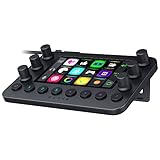
 Razer Stream Controller: All-In-One Keypad for Streaming5.91 x 4.33 x 1.18 inches0.51 poundsCheck on Amazon


Top 3 picks at a glance
Decide These 3 Things First
Before diving into individual specs, you must define how the device will live on your desk and integrate with your hands. Answering these three fundamental questions will instantly eliminate 80% of the options on the market, saving you hours of research.
1. Do You Need Tactile Keys, Analog Dials, or Both?
If your primary goal is launching applications, triggering scene transitions in OBS, or executing complex multi-step macros, a traditional grid of physical LCD keys is your best bet. However, if your work involves adjusting audio tracks, color grading in DaVinci Resolve, zooming in on Photoshop canvases, or managing smart home lighting, you require analog rotary dials. Dials offer granular, continuous control that tapping a button simply cannot replicate.
2. Closed Ecosystem vs. Open-Source Customization
Are you looking for a plug-and-play experience with an established marketplace of pre-made plugins, or do you enjoy deep-dive tinkering? Industry leaders offer massive, curated app stores where you can download profiles for your smart lights, Spotify, and creative suites in seconds. Budget alternatives often rely on open-source software or basic keyboard shortcut mapping. The latter requires you to manually program every single command, which can turn a quick setup into a multi-day chore.
3. Static vs. Dynamic Visual Feedback
Decide whether you need keys that change their icons dynamically based on the software you are using. High-end stream controllers feature miniature LCD screens behind transparent keycaps, allowing the icons to shift automatically when you switch from video editing to gaming. Budget macro pads use static, physical keycaps or paper inserts. If you only use the controller for a few fixed functions, static keys are highly cost-effective; if your workflow changes hourly, dynamic LCD screens are non-negotiable.
1. Size and Desk Footprint: Finding the Right Dimensions
Your desk is premium real estate. A controller that is too large will force your mouse or keyboard into uncomfortable, non-ergonomic positions, while a device that is too small can be difficult to navigate blindly during a live stream or intense work session.
Standard 15-key controllers strike the most popular balance, typically measuring around 4.6 x 3.3 x 1.0 inches (118 x 84 x 25 mm). This footprint is compact enough to sit directly above your keyboard or next to your mouse pad without disrupting your natural arm sweep. If you scale down to a mini 6-key unit, the footprint drops to roughly 3.3 x 2.4 x 1.0 inches, which is ideal for minimalist setups but highly limiting for complex workflows.
On the other end of the spectrum, all-in-one consoles that combine touchscreens, tactile keys, and rotary dials can stretch to 8.7 x 5.9 x 1.2 inches (220 x 150 x 30 mm) or larger. Before purchasing, map out these dimensions on your desk using a piece of paper to ensure you have adequate clearance, particularly if you use a split ergonomic keyboard or a large graphic design tablet.
2. Materials and Build Weight: Preventing Desk Drift
There is nothing more frustrating than a desktop interface that scoots away from your fingers when you try to use it. The stability of a controller is determined by two factors: its physical weight and the quality of its base grip.
A lightweight, all-plastic controller weighing under 150 grams (5.3 ounces) will slide across a wood or laminate desk under normal typing pressure unless it is secured with adhesive. Look for devices that feature a weighted chassis or a heavy-duty mounting stand. A premium desktop controller should weigh between 250 and 450 grams (8.8 to 15.8 ounces) with its stand attached.
Material choice also dictates long-term durability and aesthetic appeal. While ABS plastic is standard, look for controllers that feature anodized aluminum faceplates. Aluminum not only matches the design language of modern laptops and monitor mounts but also resists the structural flexing that can occur when pressing outer-edge buttons over years of use.
3. Construction and Component Quality: Keys, Dials, and Haptics
The tactile feedback of your controller directly influences your speed and comfort. When assessing components, pay close attention to the construction of the keys, the resistance of the dials, and the responsiveness of any touch strips.
- LCD Keys: Standard LCD keys use a scissor-switch or rubber dome mechanism beneath a transparent, curved keycap. Look for keys that offer a distinct, snappy tactile click with a travel distance of roughly 1.5 mm to 2.0 mm. Mushy keys make it easy to double-press commands or fail to actuate them entirely.
- Rotary Encoders (Dials): Dials should offer physical detents—subtle mechanical “clicks” as you turn them. This allows you to adjust volume or brush sizes by precise increments (such as 1% or 5% per click) without looking at the screen. Avoid dials that spin completely freely with zero resistance, as they make micro-adjustments incredibly difficult.
- Haptic Touchscreens: If the controller utilizes a touch strip alongside physical buttons, ensure it features adjustable haptic feedback. A subtle vibration motor helps confirm that your input was registered, eliminating the need to look down from your monitor to verify your setting changes.
4. Ergonomics and Comfort: Tilt Angles and Wrist Positioning
Repetitive strain injuries are a real threat for anyone spending eight to twelve hours a day at a desk. A flat-laying macro pad forces you to bend your wrist backward at an unnatural angle to press the keys, leading to forearm fatigue.
To maintain a neutral wrist posture, your controller should sit at an incline. The ideal viewing and pressing angle for a desktop controller is between 30 and 45 degrees. Some budget models feature fixed, flat profiles that require you to prop them up manually. Look for units that include a detachable, angled stand or an adjustable magnetic base that lets you customize the tilt angle.
Additionally, the buttons should be arranged in a clear grid with enough spacing (typically 3 mm to 5 mm of separation between keycaps) to prevent your fingers from accidentally clipping adjacent keys. If you have larger hands, ultra-compact controllers with tightly packed button grids can cause hand cramping over extended sessions.
5. Price Tiers: What You Actually Get
As we navigate the market, the pricing of desktop controllers falls into three distinct brackets. Knowing what features are locked behind each tier will prevent you from overspending.
- Budget ($40 to $70): In this tier, you will find compact 6-key LCD controllers or larger macro pads with static, non-LCD keys. Construction is almost exclusively lightweight plastic, and the software is often basic, requiring manual keyboard shortcut programming. These are excellent for dedicated, single-app tasks.
- Mid-Range ($100 to $130): This is the sweet spot for most users. It features industry-standard 15-key grids with dynamic LCD screens, robust software integrations, and sturdy, angled stands. The build quality transitions to heavier plastics and occasional metal faceplates, supported by massive community plugin libraries.
- Premium ($150 to $250+): At this level, controllers become complete studio consoles. You get a hybrid layout combining LCD keys, dynamic touch strips, and analog dials with haptic feedback. Materials include premium aluminum, braided detachable cables, and advanced audio routing software that acts as a virtual mixer.
6. Power Delivery and Cable Management
Modern workspaces are already cluttered with cables. A good controller should simplify your cable routing, not complicate it. Look for devices that feature a detachable USB-C to USB-A (or USB-C to USB-C) cable. Fixed, hardwired cables are a major point of failure; if the cable frays or the connector bends, the entire unit becomes e-waste.
Furthermore, consider the power draw of the device. High-end controllers with multiple LCD screens, touch strips, and haptic motors require stable power. They typically draw between 4.5W and 5W (5V, 900mA) over a USB 3.0 port. If you plan to connect your controller to an unpowered USB hub or a pass-through port on your keyboard, you may experience flickering screens or disconnects. For stable performance, ensure you can plug the device directly into your computer’s motherboard or a powered USB hub.
7. Software Longevity and Ecosystem Support
Hardware is only half the battle; a stream controller is entirely dependent on its companion software. As we look ahead to 2026, the gap between premium and budget software ecosystems is wider than ever. A cheap controller with poor software will lag, crash, or fail to update when your operating system patches.
Before buying, research the brand’s software ecosystem. Does it have native integrations with the software you use daily (e.g., OBS Studio, Adobe Premiere, Photoshop, Excel, Zoom)? A strong developer community means you can download third-party plugins for almost any niche application, ensuring your device remains useful and supported for years to come.
Spec Checklist
Use this convenient spec checklist to quickly evaluate where a controller sits on the spectrum of quality and capability.
| Spec / Feature | Budget Tier ($40 – $70) | Mid-Range Tier ($100 – $130) | Premium Tier ($150 – $250+) |
|---|---|---|---|
| Key Type | Static Keycaps or Small LCDs | Dynamic LCD Keys (transparent) | LCD Keys + Touchscreen + Dials |
| Key Count | 6 to 12 Keys | 15 Keys | 12 to 32 Keys (plus Dials) |
| Analog Dials | None | None | 4 to 6 Tactile Rotary Encoders |
| Chassis Material | ABS Plastic (Thin) | Heavy-Duty ABS / Metal Faceplate | Anodized Aluminum / Premium Alloys |
| Device Weight | Under 150 grams | 150 to 270 grams | 270 to 450+ grams |
| Cable Type | Hardwired USB-A or USB-C | Detachable braided USB-C | Detachable USB-C with angle routing |
| Mounting Stand | Flat / No Stand included | Fixed 45-degree angled stand | Adjustable, weighted magnetic stand |
| Software Support | Basic hotkey mapping only | Native plugin store, auto-profiles | Advanced audio routing, multi-actions |
Red Flags to Avoid
When shopping for a stream deck controller, keep an eye out for these critical warning signs that indicate a sub-par product:
- Hardwired USB-A Cables: If a device does not feature a detachable USB-C port, avoid it. If the cable breaks or you want to swap to a shorter, custom-coiled cable to match your desk aesthetic, you are completely out of luck.
- Weight Under 120 Grams (Without Suction): Extremely light controllers will constantly shift out of alignment on your desk. Unless the product specifically includes a heavy, rubberized steel baseplate or vacuum suction cup, it will be incredibly frustrating to use daily.
- Generic “Keyboard-Only” Mapping Software: Many budget brands advertise “infinite customization” but lack a dedicated companion application. This means the device can only send basic keyboard shortcuts (like Ctrl+Alt+F1). If the software cannot interface directly with your target applications, you lose the ability to read real-time data like audio levels or mute statuses on the key faces.
- Mushy Membrane Action: If user reviews complain about keys sticking or failing to register unless pressed dead-center, the internal dome switches are of low quality. A high-quality macro pad should have a crisp, mechanical actuation that you can feel and hear.
FAQ
Can I use a stream deck controller if I do not stream?
Absolutely. In fact, many of the heaviest users of these controllers are video editors, music producers, graphic designers, and office professionals. You can map complex macros in Photoshop, speed up video rendering pipelines in Premiere, launch common templates in Excel, or use the keys to quickly mute and unmute yourself during Zoom and Microsoft Teams meetings.
Do these controllers work with both Windows and macOS?
Most major brands offer dual compatibility, but you should always verify before buying. Some budget brands only write software drivers for Windows, leaving macOS users unable to program the keys or change the LCD icons. Always check the system requirements on the manufacturer’s website.
Can I customize the icons on the LCD keys?
Yes, on controllers that feature active LCD screens beneath the keys, you can upload your own static images (typically PNG or JPEG format) or even animated GIFs. Many brands provide free online icon creators, and there is a massive online community of designers who create custom icon packs tailored to specific software suites.
Do I need a powered USB hub to run a controller with dials and screens?
If you are using a premium controller with multiple LCDs, tactile dials, and haptic motors, it will draw a significant amount of power (up to 900mA). If you plug it into an unpowered USB splitter or an older USB 2.0 port, it may struggle to stay connected. It is highly recommended to plug the device directly into a USB 3.0 (or newer) port on your computer, or use a dedicated, mains-powered USB hub.









