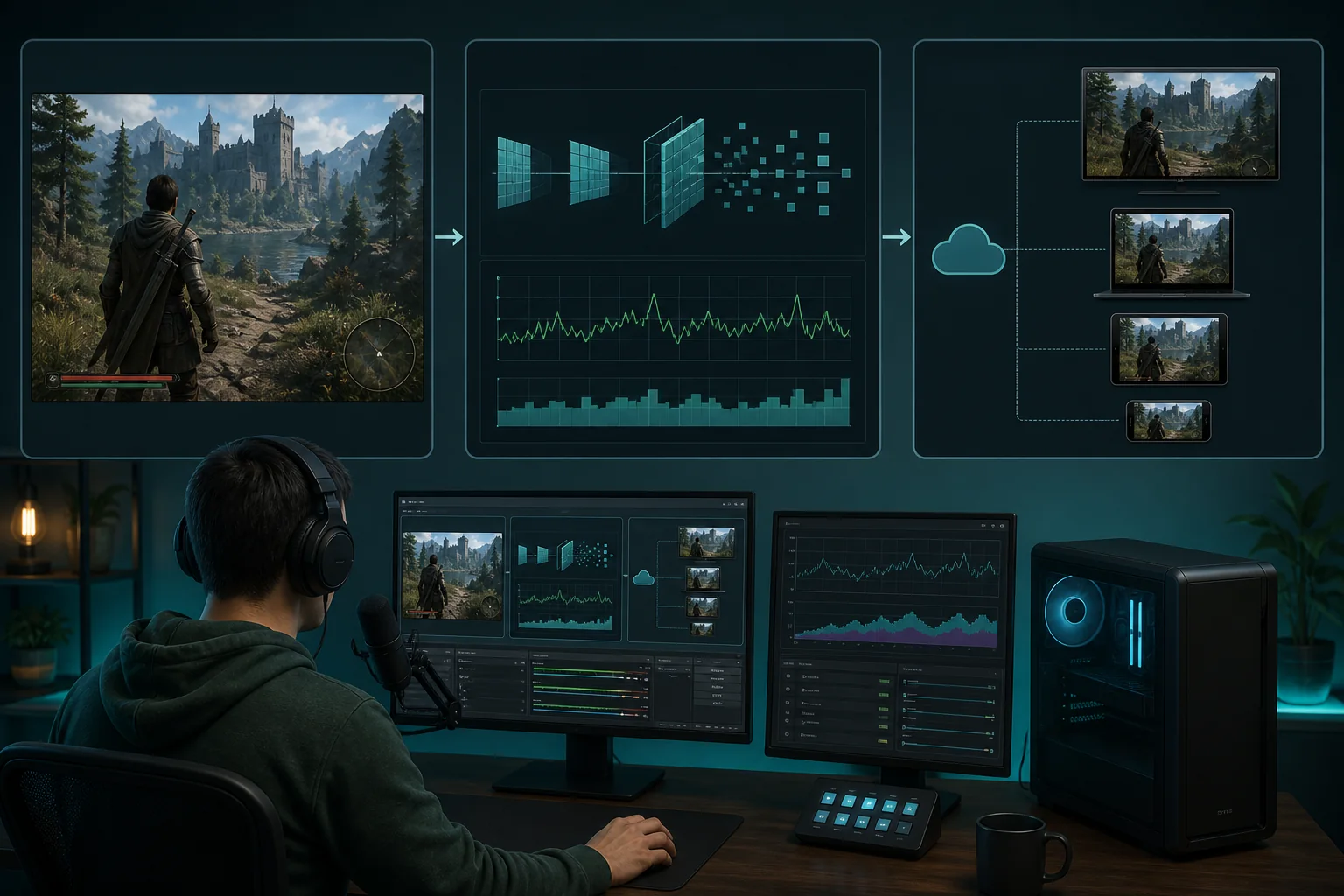
Setting up NVENC in OBS means selecting an NVIDIA hardware encoder in your output settings instead of software-based encoding, then configuring rate control, bitrate, keyframe interval, and preset to match your streaming platform’s requirements and your GPU’s capability. The main benefit is offloading encoding work from your CPU to a dedicated part of your GPU, which matters most on single-PC streaming setups where CPU headroom is shared between your game and your encoder.
Our Top Picks
 自分だけのゲーミングPCを組み立てる 簡単に: 高性能ゲーミングデスクトップの選び方、構築方法、オーバークロック方法、最適化方法8.5 x 0.55 x 11 InchesCheck on Amazon



Top 3 picks at a glance

Quick answer
In OBS’s output settings, switch your streaming encoder from a software option to an NVIDIA NVENC option, set rate control to constant bitrate at a value matching your platform’s recommendation for your resolution and frame rate, set keyframe interval to two seconds, and choose a quality-leaning preset if your GPU has headroom to spare.
As an Amazon Associate we earn from qualifying purchases at no extra cost to you.




| Setting | Typical starting point | Why |
|---|---|---|
| Rate control | Constant bitrate (CBR) | Most streaming platforms expect stable bitrate |
| Keyframe interval | 2 seconds | Matches common platform requirements |
| Preset | Quality-leaning if GPU has headroom | Better image at the same bitrate |
| Bitrate | Per platform’s recommended range | Balances quality against upload capacity |
What NVENC is and why it matters for streaming
NVENC is a dedicated hardware video encoding block built into NVIDIA GPUs, separate from the cores that render your game’s graphics. When OBS uses NVENC instead of software-based encoding, the work of compressing your video for streaming happens on this dedicated hardware rather than competing with your CPU for the same resources your game needs.
This matters most on single-PC streaming setups, where your CPU is simultaneously running your game’s logic, physics, and any background processes, on top of whatever encoding work OBS is doing. The relative benefit scales with how demanding your specific game already is on the CPU; a lightly CPU-bound game shows a smaller practical difference than a heavily CPU-bound one, where every bit of freed-up headroom translates more directly into smoother gameplay during your stream. Software encoding on the CPU can meaningfully reduce your in-game frame rate under this kind of shared load; NVENC largely avoids that by using otherwise mostly idle dedicated hardware instead.
Elena Marchetti, our Streaming & Creator Editor, benchmarks encoder CPU and GPU load side by side on her dual-PC streaming rig, and while a dedicated streaming PC reduces how much this choice matters day to day, the gap between NVENC and CPU encoding on a single shared machine remains large enough to be the deciding factor for most streamers without a second PC.
For streamers still deciding between investing in a second PC versus optimizing a single-machine setup, understanding exactly how much headroom NVENC frees up is a useful data point in that broader decision, since a well-tuned single-PC NVENC setup can close much, though not all, of the gap that a dedicated streaming PC would otherwise provide.
Checking your GPU’s NVENC support
Most NVIDIA GPUs from recent generations include NVENC, but the exact capability, including how many simultaneous encoding sessions are supported and which video codecs are available, varies by GPU generation and model tier. Very old or entry-level cards may have an older, less efficient encoder implementation or lack NVENC support entirely.
Check your specific GPU model against NVIDIA’s published encoder support information if you’re unsure, particularly if you’re on a budget or older card, since assuming support without checking is a common source of confusion when the NVENC option doesn’t appear in OBS at all.
Keep your GPU driver reasonably current, since driver updates occasionally include encoder-related improvements and fixes, and an outdated driver is a real, if less common, cause of NVENC options not appearing or behaving unexpectedly in OBS.
Selecting NVENC as your encoder in OBS
Within OBS’s output settings, streaming and recording each have their own encoder selection, and you’ll want to switch the encoder dropdown from a software-based default to an NVIDIA NVENC option, since these are configured separately and picking one doesn’t automatically apply to the other. If you’re streaming and locally recording simultaneously, decide whether you want NVENC handling both or splitting the load between NVENC and CPU encoding based on your specific hardware headroom.
If you don’t see an NVENC option in the encoder list at all, this most commonly means either your GPU doesn’t support it, your driver needs updating, or OBS isn’t detecting your dedicated GPU correctly, particularly on laptops with both integrated and dedicated graphics.
After selecting NVENC, OBS will expose encoder-specific settings including rate control, bitrate, keyframe interval, and preset options, which is where the actual quality and performance tuning happens.
Configuring rate control and bitrate
Rate control determines how your bitrate is managed during encoding. Constant bitrate, commonly abbreviated CBR, keeps your output bitrate steady throughout the stream, which is what most streaming platforms expect and recommend for stable playback on the viewer’s end. Variable bitrate options exist and can offer better quality-to-file-size ratios for local recording, but are generally not recommended for live streaming to platforms expecting consistent bitrate.
Set your actual bitrate value based on your streaming platform’s published recommendations for your target resolution and frame rate, not a generic number, since requirements differ meaningfully between platforms and between different resolution and frame rate combinations. Our bitrate and resolution explainer covers how these two settings interact in more depth.
Whatever bitrate you choose, confirm it stays comfortably under your actual measured upload speed, not your internet plan’s advertised maximum, since real-world upload speed is often lower than advertised and other household devices competing for bandwidth during your stream will reduce it further.
Run a proper upload speed test at the time of day you typically stream, not just once when setting up, since household internet performance can vary meaningfully between quiet daytime hours and busier evening hours when other household members or neighbors are also active online. A bitrate that worked fine during an afternoon test can still cause dropped frames during a peak-usage evening stream if you didn’t account for that variability upfront.
Setting keyframe interval and preset
Keyframe interval controls how often OBS inserts a full reference frame into the video stream, and most streaming platforms specify a required or recommended value, commonly two seconds, that your streaming service uses for features like instant replay and stream health monitoring. Setting this incorrectly can cause a platform to reject your stream or transcode it poorly, so check your specific platform’s requirement rather than guessing.
NVENC’s preset setting trades encoding quality against GPU load, generally ranging from options that prioritize maximum quality at higher GPU cost to options that prioritize speed and lower GPU load at some quality cost. If your GPU has spare capacity beyond what your game needs, a quality-leaning preset generally produces a visibly better stream at the same bitrate. If you’re pushing your GPU hard with a demanding game already, a more performance-leaning preset avoids adding encoding-related frame drops.
Some OBS versions also expose additional NVENC-specific options like look-ahead and psycho-visual tuning, which can further improve perceived quality at a small additional GPU cost; test these individually if available, since their exact presence and labeling varies between OBS versions and driver versions.
NVENC vs CPU encoding: when to choose which
For the large majority of single-PC streamers with a capable NVIDIA GPU, NVENC is the better default specifically because it preserves CPU resources for your game, and modern NVENC implementations produce streaming-quality output that’s very close to well-tuned software encoding at typical live streaming bitrates. The gap that used to favor CPU encoding has narrowed significantly with recent GPU generations.
CPU-based software encoding can still edge out NVENC in raw quality-per-bitrate at very high bitrates more typical of local recording than live streaming, since it has more processing flexibility to spend on compression efficiency. If you’re recording locally at a high bitrate for later editing rather than streaming live, this tradeoff is worth considering.
On a dual-PC streaming setup, this choice matters less overall, since your dedicated streaming PC’s CPU isn’t competing with your game for resources either way; our single-PC vs dual-PC streaming comparison covers this setup difference in more detail.
Some streamers with a dual-PC setup still choose NVENC on the dedicated streaming machine anyway, simply because it frees that PC’s CPU for other tasks running alongside encoding, like chat bots, alert software, or a secondary recording process. The reasoning for choosing NVENC shifts slightly in this scenario from “protecting game performance” to “protecting headroom for everything else the streaming PC is doing,” but the practical benefit of freeing up CPU resources still applies.
Newer codec options and when they help
Recent NVIDIA GPU generations support newer, more efficient video codecs alongside the traditional codec most platforms have supported for years. A more efficient codec can deliver comparable visual quality at a lower bitrate, or better quality at the same bitrate, which is genuinely useful if your upload bandwidth is a limiting factor.
The catch is that both your streaming platform and, for local recording, your intended playback software need to support whichever newer codec you choose, since not every platform accepts every codec for live ingest. Check your specific streaming platform’s current codec support before switching away from the traditional default, since streaming with an unsupported codec can result in your stream failing to go live or being rejected outright rather than just looking different.
For local recording rather than live streaming, codec compatibility is less restrictive since you control what plays the file back afterward, making newer, more efficient codecs a more straightforward choice for local capture where storage space savings matter and you’re not constrained by a platform’s ingest requirements.
If you’re unsure whether a newer codec is worth the switch for your specific streaming setup, sticking with the traditional, universally supported option remains a safe, reliable default, and the practical quality difference at typical streaming bitrates is often smaller than codec marketing suggests.
Laptop and multi-GPU considerations
Laptops with both an integrated GPU and a dedicated NVIDIA GPU can sometimes cause OBS to default to the wrong device for encoding, resulting in either a missing NVENC option or unexpectedly poor performance. Explicitly selecting your dedicated NVIDIA GPU where OBS exposes a GPU selection option ensures encoding is actually using the correct hardware.
Desktop systems with multiple GPUs installed, less common but not unheard of among enthusiast streamers, should similarly confirm OBS is targeting the correct card for encoding, particularly if one GPU is dedicated to rendering your game and another is intended to handle encoding separately.
When NVENC isn’t the right choice
If your GPU doesn’t support NVENC or has an older, less efficient implementation, software CPU encoding may actually produce better results despite the CPU overhead, particularly if you have a strong CPU with headroom to spare and a weaker or older GPU. Check your specific hardware balance rather than assuming NVENC is always the better option.
If your game is already heavily GPU-bound and leaving little headroom, adding NVENC’s additional GPU load, small as it typically is, can occasionally tip a marginal setup into visible frame drops. In this specific case, testing both encoding options directly in your actual game is worth the time before settling on one.
If you’re recording high-bitrate local footage for professional editing rather than live streaming, software encoding’s quality edge at very high bitrates may be worth the CPU cost, particularly on a system with CPU headroom to spare.
Troubleshooting NVENC issues in OBS
NVENC option doesn’t appear in the encoder list: confirm your GPU supports NVENC, update your GPU driver, and on laptops, confirm OBS is detecting your dedicated GPU rather than only the integrated graphics.
Stream gets rejected or transcoded poorly by the platform: double-check your keyframe interval matches your platform’s required or recommended value, since an incorrect keyframe interval is a common, easy-to-overlook cause of this specific problem.
Game frame rate drops noticeably after enabling NVENC: your GPU may be near its limit already; try a more performance-leaning preset, or lower your streaming resolution or bitrate slightly to reduce encoding load.
Stream quality looks worse than expected at your set bitrate: try a more quality-leaning preset if your GPU has headroom, and confirm rate control is set correctly rather than accidentally left on a mode not suited for live streaming.
OBS shows the wrong GPU being used for encoding: explicitly select your dedicated NVIDIA GPU in OBS’s GPU selection option if available, particularly relevant on laptops and multi-GPU desktop systems.
Encoder settings reset unexpectedly after a driver update: some driver updates can reset encoder-related defaults; recheck your rate control, bitrate, and preset settings after any GPU driver update rather than assuming your previous configuration was preserved automatically.
Frequently asked questions
Do all NVIDIA GPUs support NVENC?
Most NVIDIA GPUs from the last several generations include an NVENC hardware encoder, but very old or budget-tier cards may lack it or include an older, less efficient version. Check your specific GPU model’s encoder support if you’re unsure before assuming it’s available.
Does using NVENC lower my game’s frame rate?
NVENC runs on a dedicated part of the GPU separate from the cores rendering your game, so the performance impact is generally much smaller than software-based CPU encoding. Some impact is still possible on GPU-bound games, but it’s typically far less than the hit from CPU-based encoding.
What bitrate should I use for streaming with NVENC?
Bitrate depends on your resolution, frame rate, and upload bandwidth rather than the encoder itself. Check your specific streaming platform’s recommended bitrate ranges for your target resolution and frame rate, and stay comfortably under your actual measured upload speed.
Is NVENC better than x264 software encoding?
For most streamers with a capable NVIDIA GPU, yes, because it frees up CPU resources for the game itself while still producing solid quality at typical streaming bitrates. At very high bitrates for local recording, software encoding can still produce better quality, but that’s less relevant for live streaming bitrate ranges.
Why does OBS show multiple GPU options if I only have one NVIDIA card?
Laptops and some desktop systems have both an integrated GPU and a dedicated NVIDIA GPU, and OBS may list both as separate options. Selecting the discrete NVIDIA GPU explicitly ensures encoding actually uses the dedicated hardware encoder rather than defaulting to the wrong device. For more on tuning settings around this, see our guide to OBS settings for smooth streaming.