Bitrate and resolution together determine how your stream actually looks to viewers: resolution sets the pixel dimensions, while bitrate sets how much data is available to encode that many pixels every second. Mismatch them (high resolution, low bitrate) and you get a blocky, compressed image regardless of sharpness. Match them correctly (commonly 6,000 kbps for 1080p60 on Twitch) and the stream looks clean within your platform’s constraints.
Our Top Picks




Top 3 picks at a glance



How bitrate and resolution relate to stream quality
Every frame of video contains a certain amount of visual detail, and the encoder needs enough bitrate “budget” to represent that detail without excessive compression; higher resolution and higher frame rate both increase how much detail needs to be encoded each second.
As an Amazon Associate we earn from qualifying purchases at no extra cost to you.


When bitrate is too low for the chosen resolution and frame rate, the encoder is forced to compress more aggressively, producing visible artifacts: blocky patches in fast motion, blurring in detailed areas, and a general soft or “muddy” look even though the resolution setting itself is unchanged.
This is why simply increasing resolution without increasing bitrate doesn’t improve visual quality and often makes it worse; the same bitrate now has to represent more pixels, spreading the available data budget thinner across a larger frame.
Frame rate factors into this equation as well, since 60fps requires encoding twice as many frames per second as 30fps; at the same bitrate, a 60fps stream generally shows more compression artifacts than a 30fps stream of the identical resolution and content.
Content type also affects how much bitrate is actually needed for clean results; fast-paced action games with lots of motion and detail change more between frames than slower-paced or more static content, demanding more bitrate to maintain the same perceived quality.
Understanding this relationship is the foundation for choosing settings correctly, rather than assuming “higher resolution is always better” or “higher bitrate is always better” without considering how the two factors interact with your specific upload bandwidth and platform limits.
Platform bitrate caps and recommendations
Every major streaming platform sets a maximum bitrate its ingest servers will accept, and understanding your target platform’s specific limits prevents wasted upload bandwidth on a setting that gets capped or rejected before reaching viewers at all.
| Platform | Typical max bitrate | Recommended for 1080p60 |
|---|---|---|
| Twitch | 6,000-8,000 kbps | 6,000 kbps |
| YouTube Live | Up to 51,000 kbps | 6,000-9,000 kbps (practical range) |
| Kick | Up to 12,000 kbps | 6,000-8,000 kbps |
| Facebook Gaming | Up to 6,000 kbps | 4,000-6,000 kbps |
Twitch’s ceiling is notably lower than some competing platforms, largely a bandwidth-cost decision on their part, which is why viewers sometimes note that identical content looks marginally cleaner on a platform allowing a higher bitrate ceiling for the same resolution and frame rate.
These figures change periodically as platforms update infrastructure, so checking each platform’s current official streaming documentation before finalizing settings is worth the few minutes it takes, particularly if you multistream to more than one platform simultaneously.
Matching bitrate to resolution and framerate correctly
As a general starting reference, 720p30 works reasonably with 2,500-3,500 kbps, 720p60 with 3,500-4,500 kbps, 1080p30 with 4,500-6,000 kbps, and 1080p60 with 6,000-8,000 kbps, though exact optimal values vary somewhat by game content and encoder efficiency.
These ranges aren’t fixed rules; a slower-paced game with less motion can look clean at the lower end of a given range, while a fast-paced shooter with lots of particle effects and camera movement benefits from the higher end of the same range.
When your available bitrate (based on tested upload speed, covered next) doesn’t comfortably support your desired resolution and frame rate combination, it’s generally better to reduce frame rate or resolution than to push bitrate beyond what your connection or platform reliably supports.
720p60 often looks better than 1080p30 to viewers for fast-paced gameplay specifically, since the higher frame rate preserves motion smoothness that many viewers notice more readily than the resolution difference, particularly on smaller viewing windows or mobile screens.
Test your specific game and content at a candidate bitrate and resolution combination before committing to it long-term, watching for visible artifacts during your most demanding gameplay moments rather than assuming table-based recommendations apply perfectly to every title.
Revisit this matching periodically as your upload bandwidth, platform limits, or typical game content changes, since a combination that worked well for one game or one internet plan may need adjustment after switching either variable.
Upload bandwidth requirements and headroom
The commonly cited rule is that available upload bandwidth should be at least 1.5x your target bitrate, meaning a 6,000 kbps stream needs roughly 9 Mbps of upload capacity to run reliably without frequent network-related dropped frames.
This headroom accounts for normal internet variability (brief speed fluctuations that occur on virtually all connections) and for other bandwidth usage happening simultaneously, whether from other household devices or background applications on your own streaming PC.
Test upload speed under realistic conditions, not just via a quick speed test app run in isolation; running the test while your game and OBS are both active, similar to actual streaming conditions, gives a more representative baseline than an idle-network test.
ISP-advertised upload speeds don’t always match real-world sustained performance, particularly during peak usage hours in your area; testing at the specific time of day you typically stream provides a more accurate picture than testing once during an off-peak period.
If your tested upload speed only narrowly exceeds your target bitrate with little headroom, dropping to a lower bitrate tier (even if technically “supported” by your connection on paper) produces a more stable stream than running right at the edge of your available bandwidth.
For streamers with genuinely limited upload bandwidth (under 5 Mbps), prioritizing 720p at a lower, well-matched bitrate over attempting 1080p at an insufficient bitrate consistently produces a cleaner result for viewers, even though the resolution number itself is lower.
Variable vs constant bitrate
Constant Bitrate (CBR) maintains a steady, unchanging data rate throughout the stream regardless of scene complexity, which is the standard and generally required setting for live streaming to platforms like Twitch, since their ingest and transcoding systems expect predictable, consistent bitrate.
Variable Bitrate (VBR) allows the encoder to use more bitrate during complex scenes and less during simple ones, which can produce better average quality for recorded video or local files, but is poorly suited to live streaming where platforms need a predictable data rate.
Using VBR for live streaming can cause issues beyond just suboptimal quality, including potential playback problems for viewers and rejection or unpredictable capping by some platform ingest servers not designed to handle fluctuating live bitrate smoothly.
OBS defaults to CBR for the Streaming output in most configurations, but it’s worth confirming explicitly under Output settings, Streaming tab, particularly if settings were imported from an older profile or copied from a local-recording-focused configuration.
Recording locally (separate from your live stream, saved to disk) is a different use case where VBR, or a high fixed CBR value, can produce better file quality for later editing or highlight creation, since local storage isn’t constrained by live bandwidth in the same way.
Setting up two separate output profiles in OBS, one CBR for live streaming and one VBR or high-bitrate CBR for local recording, lets you optimize each output for its actual purpose rather than compromising one to serve both simultaneously.
Downscaling 1440p/4K capture to 1080p output
Streaming at your monitor’s native 1440p or 4K resolution isn’t necessary or even advisable for most streamers, since platform bitrate caps (particularly Twitch’s) can’t cleanly support that much resolution at the data rate available, making downscaling to 1080p output the practical standard.
Downscaling from a higher base (canvas) resolution to a 1080p output resolution, using OBS’s Lanczos filter for best results, generally produces a sharper final 1080p image than capturing natively at 1080p, since more source detail is available for the filter to work with.
Set Base (Canvas) Resolution in OBS to match your monitor’s actual native resolution (1440p or 4K) and Output (Scaled) Resolution to 1920×1080, letting OBS handle the downscale automatically rather than changing your desktop or in-game resolution to 1080p directly.
This approach preserves your full native resolution for local gameplay and recording purposes while still producing a properly downscaled, bitrate-appropriate stream, avoiding the need to compromise your own viewing experience to accommodate streaming constraints.
GPU load from downscaling is generally minimal on modern hardware, though it’s worth confirming in OBS’s Stats window that downscaling isn’t introducing meaningful additional rendering lag, particularly on older GPU generations with less spare processing headroom.
For 4K source content specifically, some streamers choose to output at 1440p rather than 1080p if their platform and bandwidth support the higher bitrate that resolution requires, though 1080p remains the safer, more universally compatible default for most viewers and platforms.
How low-bandwidth viewers experience your stream
Viewers on limited connections, particularly mobile data or slower home internet, rely on platform transcoding to select a lower-bitrate quality variant of your stream, meaning your source settings indirectly affect their experience even though they’re not watching the full-quality version.
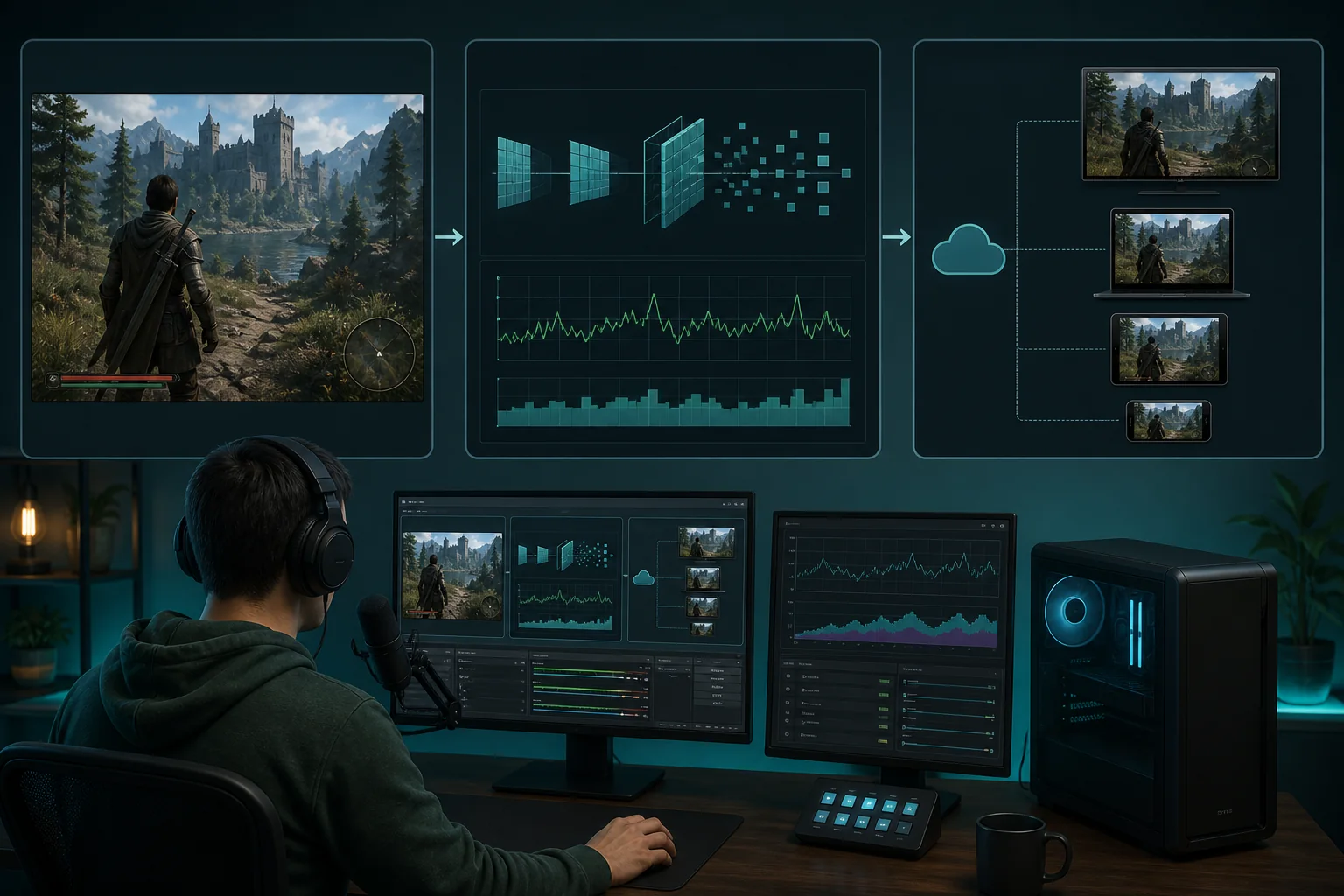
Twitch’s automatic transcoding (available to eligible channels) generates multiple lower-quality versions of your source stream, letting viewers choose 480p or 720p variants that require far less bandwidth than your original 1080p60 6,000 kbps source stream.
Channels without access to transcoding (a Twitch feature not universally available to all channels) mean viewers with insufficient bandwidth for your source bitrate simply experience buffering or reduced playback quality determined by their own player and connection, without a lower-bitrate option to select.
This is a meaningful reason to avoid setting bitrate needlessly high even if your own upload bandwidth technically supports it, since a lower, well-matched source bitrate can actually serve a broader range of viewer connection speeds more reliably, particularly on channels without transcoding access.
Mobile viewers specifically also view your stream on a smaller screen, where extremely fine detail differences from a slightly higher bitrate are far less perceptible than the same difference would be on a large desktop monitor, reducing the practical benefit of pushing bitrate to the maximum.
Testing your stream’s appearance at a lower quality variant, when possible, gives insight into what a meaningful portion of your audience actually experiences, which can be a useful sanity check beyond only reviewing your own full-quality source stream.
Platform transcoding and why it matters
Transcoding is the process of a platform’s servers re-encoding your source stream into multiple additional bitrate and resolution variants after receiving it, distinct from the encoding your own PC performs before sending the stream to the platform in the first place.
This server-side step is what allows a single broadcaster to serve viewers with wildly different bandwidth situations without each viewer needing a connection capable of your full source bitrate, expanding your effective reachable audience beyond just high-bandwidth viewers.
Transcoding availability and quality vary by platform and, on some platforms including Twitch, by channel eligibility criteria that aren’t universally guaranteed to every broadcaster, which is worth checking directly for your specific channel status rather than assuming it’s automatically available.
Because transcoding relies on your keyframe interval being set correctly (2 seconds for Twitch, covered in our OBS settings guide), a misconfigured keyframe interval can degrade or break transcoded variant quality even if your source stream itself looks fine.
Source-quality-only viewing (when a viewer selects “Source” rather than a transcoded variant) delivers your exact configured bitrate and resolution without platform-side alteration, which is why your own settings choices still matter significantly even with transcoding available for other viewers.
Understanding this two-stage pipeline (your local encoding, then platform transcoding) clarifies why “my stream looks fine to me locally but viewers report issues” can stem from either stage, requiring a broader diagnostic approach than checking only your own OBS preview.
Testing your actual bitrate stability
Run a test stream at your intended settings for at least 20-30 minutes, since bitrate stability issues sometimes only appear after sustained load, thermal buildup, or a background process triggering partway through a longer session rather than immediately at stream start.
Monitor OBS’s Stats window throughout the test specifically for network dropped frames and bitrate consistency, cross-referencing any issues against the diagnostic approach covered in our guide to fixing dropped frames while streaming if problems appear.
Check the stream’s actual delivered quality through the platform’s own player, not just OBS’s local preview, since compression and any transcoding step can reveal issues in the final viewer-facing stream that aren’t visible in your local monitoring alone.
Test during your typical streaming hours specifically, not at an unusually quiet time for your internet connection, since ISP congestion patterns and household bandwidth competition both tend to vary meaningfully by time of day in ways that affect real-world stability.
Re-test whenever you change internet plans, routers, or make significant hardware changes to your streaming setup, since a previously stable bitrate and resolution combination can become unstable after a change to any component in the underlying pipeline.
Elena Marchetti, Streaming & Creator Editor, compiles the bitrate-to-resolution recommendations on this site from platform encoding guidelines, published hardware specifications and creator feedback.
Related guides
- How To Fix Dropped Frames While Streaming
- Encoder Settings Explained For Streamers
- Single Pc Vs Dual Pc Streaming Compared
Frequently asked questions
What’s the difference between bitrate and resolution?
Resolution is the pixel dimensions of your video (like 1920×1080), while bitrate is how much data per second is used to encode that video (measured in kbps). Higher resolution generally needs higher bitrate to look sharp; using a high resolution with low bitrate produces a blocky, compressed image despite the larger pixel count.
Is 720p or 1080p better for streaming with limited upload speed?
720p at a given bitrate typically looks cleaner than 1080p at that same bitrate, since there’s less detail to compress into the same data budget. With upload speeds under roughly 6-7 Mbps, 720p60 or 1080p30 usually looks better to viewers than a bitrate-starved 1080p60 stream.
Should I use CBR or VBR for live streaming?
Use CBR (Constant Bitrate) for live streaming to Twitch and most major platforms, since it provides the steady, predictable data rate their transcoding systems expect. VBR (Variable Bitrate) is better suited to local recording or video files where a fluctuating rate doesn’t disrupt a live ingest pipeline.
Why do my viewers on mobile see lower quality than my source stream?
Platforms like Twitch transcode your source stream into multiple lower-bitrate quality variants (source, 720p, 480p, etc.) so viewers with limited bandwidth or smaller screens, including many mobile users, can select a version matched to their own connection instead of straining to load full quality.
Does higher bitrate always mean better stream quality?
Only up to a point. Beyond what’s needed to cleanly encode your specific resolution and frame rate, additional bitrate provides no visible benefit and just wastes upload bandwidth. Exceeding a platform’s bitrate cap can also cause the stream to be rejected or forcibly capped by the ingest server.