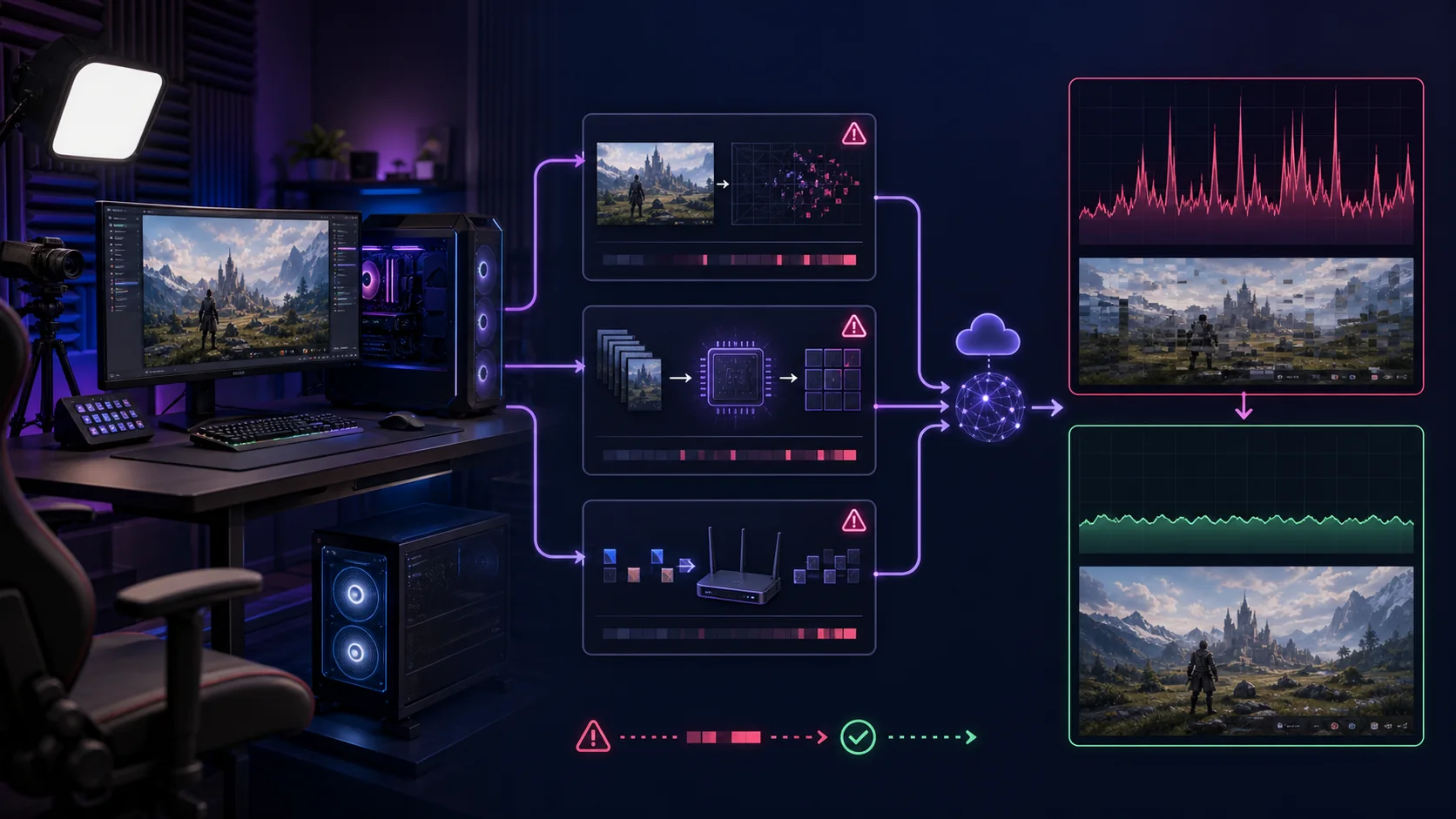
Dropped frames while streaming happen for two distinct reasons: network congestion (your connection can’t sustain the bitrate you’re sending) or encoding overload (your CPU or GPU can’t process frames fast enough). OBS’s Stats window labels these separately, and the fix for one rarely fixes the other. Checking which category is actually occurring, before changing any setting, is the first and most important troubleshooting step.
Our Top Picks
 LUMIX S5IIX Mirrorless Camera Full Frame Hybrid VideoFull-Size5.29 x 5.98 x 4.03 Inches1.6 PoundsCheck on Amazon


Top 3 picks at a glance
Network drops vs encoder drops — telling them apart
Network dropped frames occur when data isn’t reaching the streaming server fast enough, typically because available upload bandwidth is lower than your configured bitrate, or because of packet loss and latency spikes on the connection itself, unrelated to your PC’s processing power.
As an Amazon Associate we earn from qualifying purchases at no extra cost to you.




Encoding (rendering lag) dropped frames occur when your CPU or GPU can’t process and compress frames as fast as they’re being generated, causing OBS to skip frames rather than fall further behind, which is a processing bottleneck rather than a connectivity issue.
These two causes require different fixes entirely: network drops respond to lowering bitrate or improving connection quality, while encoding drops respond to lowering encoder preset demand, resolution, or frame rate, or switching to a more efficient encoder like hardware-based NVENC.
Applying the wrong fix wastes time and can make things worse; lowering bitrate when the actual problem is encoding overload leaves the underlying processing bottleneck untouched, while switching encoder preset when the actual problem is network congestion does nothing to address insufficient upload bandwidth.
Both types of drops can occur simultaneously in some cases, particularly on modest hardware paired with a constrained internet connection, which makes checking OBS’s specific breakdown, covered next, essential rather than guessing based on symptoms alone.
Consistent, low-level drops throughout an entire stream point toward a settings mismatch (bitrate or preset too high for your resources), while intermittent spikes point more toward a transient issue (a brief network hiccup or a background application spiking resource usage momentarily).
Reading OBS stats to diagnose the cause
Open the Stats window from OBS’s View menu, then Stats, which displays real-time figures including CPU usage, dropped frames (broken into network and rendering categories), bitrate, and frame time, all updating live while you’re streaming or previewing.
The “Dropped Frames” line specifically separates network-related drops from rendering (encoding) lag drops, listed with their own percentages; a high percentage in the network category points to a connection issue, while a high percentage in rendering points to a processing bottleneck.
Frame time in the Rendering section tells you how long each frame takes to render on your GPU; consistently high frame time (well above what your target frame rate requires, roughly 16.7ms for 60fps) indicates the GPU itself is a bottleneck, separate from encoding specifically.
Watching CPU usage alongside dropped frames helps confirm encoding overload specifically when using x264; CPU usage consistently pegged near 100% during dropped frame events is a strong indicator that your chosen preset is too demanding for available CPU headroom.
Recording a short clip of your Stats window during a period of noticeable stuttering, then reviewing it afterward, is more reliable than trying to read fast-changing numbers in real time while also managing a live stream and gameplay simultaneously.
Check these stats during your typical stream conditions, not just idle menu screens, since both network and encoding load tend to increase during demanding gameplay moments, meaning stats captured during quiet moments may not reflect your actual worst-case dropped frame rate.
Symptom, likely cause, fix
Matching the specific symptom you’re seeing to its likely cause speeds up troubleshooting considerably compared to changing settings at random. The table below summarizes the most common patterns and their corresponding fixes.
| Symptom | Likely cause | First fix to try |
|---|---|---|
| High network dropped frames % | Bitrate exceeds available upload | Lower bitrate closer to tested upload speed |
| High rendering dropped frames % | CPU/GPU can’t keep up with encoding | Lower x264 preset demand or switch to NVENC |
| Both categories elevated | Combined bandwidth and hardware limits | Lower resolution and bitrate together |
| Intermittent spikes only | Background app or transient network issue | Close background apps, check for WiFi interference |
| Consistent drops from stream start | Settings mismatch from the outset | Re-run OBS Auto-Configuration Wizard |
Working through this table top to bottom against your own Stats window readout, rather than trying every possible fix simultaneously, isolates the actual cause faster and avoids introducing new variables before confirming whether the previous change helped.
For settings-level fixes referenced here, our dedicated guide to OBS settings for smooth streaming covers the specific bitrate, preset, and encoder configuration details in more depth than this troubleshooting-focused overview.
Fixing network-side dropped frames
Start by running a fresh speed test focused specifically on upload speed, not download, ideally while your PC is under similar load to a real stream (game running, other applications open), since idle speed tests can overstate available real-world bandwidth.
Lower your configured bitrate to roughly 70-80% of your tested upload speed, leaving headroom for other network activity and normal internet variability, rather than setting bitrate right at the maximum your speed test reports as available.
Check for other devices or applications consuming upload bandwidth during your stream (cloud backup services, other household devices doing large uploads, video calls running in the background) and pause or close them before going live.
Contact your internet service provider if speed tests consistently show upload speeds well below your plan’s advertised rate, since this can indicate a line issue, outdated equipment, or a plan that doesn’t actually deliver its stated upload bandwidth consistently.
Consider a wired connection directly to your router or modem if currently using WiFi, since wireless connections introduce more variable latency and occasional packet loss that can trigger network dropped frames even when average bandwidth appears sufficient on a speed test.
For persistent network drops despite adequate tested bandwidth, try a different streaming server region in OBS’s settings, since routing to a closer or less congested regional server sometimes resolves drops caused by network path issues beyond your local connection.
Fixing encoding overload dropped frames
Switch to hardware encoding (NVENC, AMF, or QuickSync depending on your GPU) if currently using x264, since hardware encoders offload the compression work to dedicated silicon, immediately relieving CPU-based encoding overload in most cases.
If already using hardware encoding and still seeing rendering drops, lower your output resolution or frame rate, since even hardware encoders have throughput limits, and pushing 1080p60 on an older GPU generation’s encoder can still exceed available processing capacity.
For x264 users specifically, move to a faster preset (from “medium” to “veryfast,” for example), accepting a modest quality tradeoff in exchange for meaningfully reduced CPU demand, which directly addresses rendering-lag dropped frames caused by preset overload.
Check for GPU-intensive game settings that might be competing with encoding resources, particularly ray tracing or other demanding rendering features, since lowering in-game graphical settings slightly can free up encoding headroom on single-PC setups.
Close unnecessary background applications, particularly ones using GPU acceleration (some browsers, video editing software left open), since these compete for the same rendering and encoding resources your stream needs, even when not actively in focus on screen.
If encoding drops persist despite these adjustments on capable, up-to-date hardware, a dual-PC setup, covered in our comparison guide, removes the encoding load from your gaming PC entirely, addressing the root cause rather than continuing to tune around a hardware limit.
Router and ISP factors that matter more than people think
Router quality and configuration affect streaming stability more than many streamers realize; an older router, or one handling many connected devices simultaneously, can introduce latency and packet loss that a speed test alone doesn’t fully capture.
Quality of Service (QoS) settings, available on many modern routers, let you prioritize your streaming PC’s traffic over other household devices, which can meaningfully reduce network dropped frames during a stream when other household members are simultaneously using bandwidth-heavy applications.
ISP-level congestion during peak usage hours (commonly evenings, when streaming activity is also highest) can reduce effective bandwidth below what a speed test shows at a different time of day, which is worth testing specifically during your actual planned streaming hours.
Some ISPs apply upload traffic shaping or throttling during sustained high-upload activity, which can produce dropped frames that appear and worsen the longer a stream runs, distinct from a simple insufficient-bandwidth issue that would show consistent drops from the start.
Router firmware updates occasionally resolve stability issues affecting sustained upload connections, making a firmware check a reasonable low-effort troubleshooting step before assuming the issue is entirely on OBS’s or the PC’s side of the equation.
For streamers with persistent, unresolved network drops despite reasonable tested bandwidth, requesting a technician visit or line quality check from the ISP directly can surface hardware issues (line degradation, outdated modem) that self-diagnosis through speed tests alone can’t fully identify.
Wired vs wireless: real-world drop rate impact
Wired ethernet connections consistently show lower and more stable dropped frame rates than WiFi connections in comparable testing conditions, even when WiFi signal strength appears strong and reported bandwidth looks similar on a basic speed test.
WiFi introduces variable latency from factors invisible to a simple speed test: interference from neighboring networks, physical obstructions, and contention with other wireless devices in the same household, all of which can cause brief packet loss that triggers network dropped frames.
The practical impact varies by environment; a strong, uncongested WiFi connection in a small apartment may perform nearly as well as wired, while a WiFi connection in a crowded apartment building with many competing networks can show meaningfully higher drop rates.
5GHz WiFi bands generally perform better for streaming than 2.4GHz bands due to less interference and congestion, though 5GHz has shorter range and more difficulty penetrating walls, meaning proximity to the router matters more on this band specifically.
For streamers unable to run a physical ethernet cable to their setup, powerline networking adapters (which use household electrical wiring) are a middle-ground option, generally more stable than WiFi though still not matching a direct wired connection’s consistency.
Testing your specific setup with a wired connection temporarily, even just for a single comparison stream, is the most reliable way to confirm how much of your dropped frame issue is attributable to WiFi specifically versus other factors covered elsewhere in this guide.
Testing methodology: isolating the variable
Change one setting at a time when troubleshooting dropped frames, then run a test stream of at least 15-20 minutes before drawing conclusions, since shorter tests can miss intermittent issues that only appear under sustained load or after a period of thermal buildup.
Keep a simple log of each test (setting changed, dropped frame percentage observed, duration tested) rather than relying on memory, since comparing multiple test results side by side makes it much easier to identify which specific change actually improved stability.
Test under conditions matching your real streaming setup as closely as possible, including the same game, same background applications running, and similar time of day if ISP congestion is a suspected factor, rather than testing under artificially quiet conditions.
Isolate network and hardware variables separately when possible; testing encoding settings changes over a wired connection first removes network variability from that specific test, letting you confirm an encoding fix works before reintroducing any WiFi-related variables.
Use a secondary tool, such as a continuous ping test running in the background during your OBS test stream, to independently confirm whether network instability coincides with observed dropped frame events, adding an extra layer of diagnostic confidence beyond OBS’s own stats alone.
Elena Marchetti, Streaming & Creator Editor, uses this same isolate-and-log methodology on a dual-PC streaming rig with capture-card benchmarking and audio measurement tools when diagnosing whether a dropped frame issue traces back to network, encoding, or hardware limitations.
When to lower bitrate vs when to lower resolution
Lower bitrate first when dropped frames are specifically network-related and your upload speed genuinely can’t sustain your current setting, since this directly addresses the actual bottleneck without changing how the stream looks in resolution or detail.
Lower resolution (or frame rate) when dropped frames are rendering-related and your hardware can’t process the current combination fast enough, since this reduces the actual processing workload rather than just asking the same workload to fit into less bandwidth.
A common mistake is lowering bitrate to fix a rendering-lag problem, which doesn’t address the underlying processing bottleneck at all; the stream may show fewer dropped frames from bandwidth constraints while still stuttering from encoding overload, since the causes are unrelated.
When both categories show elevated drops simultaneously, addressing resolution first (which reduces both processing load and, indirectly, required bitrate for equivalent quality) is often more effective than adjusting bitrate alone, since it tackles both potential bottlenecks together.
For a longer-term fix rather than a stream-by-stream workaround, matching your baseline settings to your actual tested upload speed and hardware capability, as covered in our bitrate and resolution guide, prevents needing to troubleshoot dropped frames as a recurring issue.
Reassess these settings periodically, particularly after any change to your internet plan, hardware, or typical background application usage, since a configuration that worked reliably for months can start producing drops if underlying conditions shift without a corresponding settings update.
Related guides
- Streaming Bitrate And Resolution Explained
- Encoder Settings Explained For Streamers
- Single Pc Vs Dual Pc Streaming Compared
Frequently asked questions
How do I know if dropped frames are caused by network or encoding?
Open OBS’s Stats window (View menu, then Stats) while streaming and check the “Dropped Frames” line. It separates frames dropped due to network congestion from those dropped due to encoding overload, listed as two distinct categories with their own percentages, making the cause immediately identifiable.
What’s a normal dropped frame percentage?
Under 0.1-0.5% dropped frames over a full stream session is generally unnoticeable to viewers and considered normal. Sustained drops above 1-2% typically produce visible stuttering or freezing for viewers and indicate a bitrate, network, or encoding setting that needs adjustment.
Should I use wired or wireless internet for streaming?
Wired ethernet is strongly recommended over WiFi for streaming specifically, since WiFi introduces more variable latency and packet loss even on a strong signal. Testing shows wired connections typically cut dropped-frame rates significantly compared to the same setup over WiFi.
Will lowering my bitrate fix dropped frames?
It fixes network-related dropped frames if your upload speed can’t sustain the current bitrate, but it won’t fix encoding-related drops caused by your CPU or GPU being overloaded. Matching the fix to the correct cause, identified through OBS’s Stats window, avoids wasted troubleshooting time.
Can background applications cause dropped frames?
Yes, applications competing for CPU, GPU, or network bandwidth (browsers with many tabs, cloud backup software, other downloads) can trigger both encoding-related and network-related dropped frames. Closing unnecessary background applications before streaming is a simple, often-overlooked first troubleshooting step.