A tablet is one of the friendliest computers an older adult can own, but only if the screen is big enough to read without squinting and the software does not bury the basics under menus. Seniors usually want the same short list of things: video calls with grandchildren, photos, email, a few games, maybe the news. The right tablet makes those jobs obvious. The wrong one hides them behind small icons, tiny text, and a keyboard that fights back. That is why the best tablets for seniors are judged less on processor speed and more on screen size, simplicity and a battery that lasts through a long afternoon.
This 2026 guide is for adult children shopping for a parent, for retirees buying their first tablet, and for caregivers who need something sturdy and easy to explain over the phone. We compare eight listings using only what each title says: screen size, memory, storage, battery capacity, cameras, and whether the product is built around simplicity. A listing that promises many specs is not automatically easy to use, so we point out where a plainer tablet may suit a beginner better, and where extra memory is mostly a number on a box. Wherever a title is cut off, treat the missing details as questions to answer before you order rather than as assumptions.
Our Top Picks
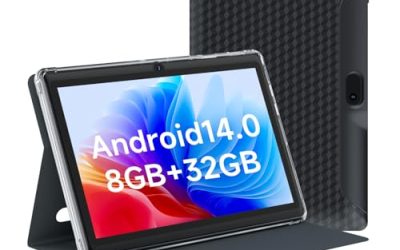
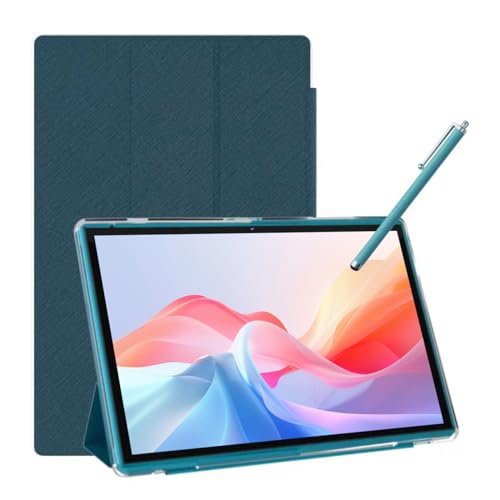 Android Tablet 10 Inch Tablet With Case Stylus8GB+32GB With Case9.6 x 6.7 x 0.3 inchesCheck on Amazon

Top 3 picks at a glance
Quick Picks
As an Amazon Associate we earn from qualifying purchases at no extra cost to you.




| Product | Best for | Key spec taken from the title |
|---|---|---|
| Fire HD 10 | Streaming and reading | 10.1″ Full HD, octa-core, 4 GB RAM, 32 GB |
| The Care Tablet | Offline games | Over 100 offline games, 10″ tablet |
| Android Tablet 10 inch with Stylus | Complete kit | 8GB RAM, 32GB ROM, 6000mah battery, case and stylus |
| COLORROOM 11 inch | Largest screen and battery | 11 inch, 8000mAh, 18W fast charge, WiFi6 |
| COOPERS 10 inch | Simple basics | 1280×800 IPS, 6000mAh, 32GB ROM |
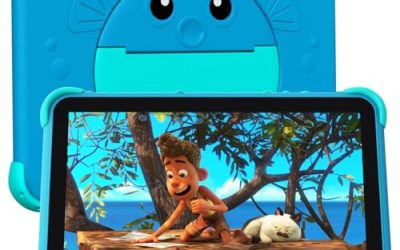
| HOTTABLET 7 inch | Easy to hold | 7 inch IPS, protective case, dual camera |
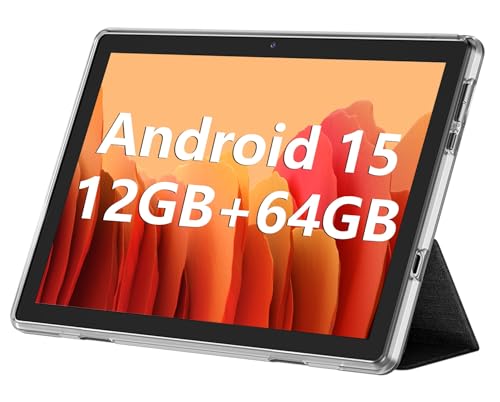
| ECOPAD 10.1 inch | Most storage listed | 12GB (4+8) RAM, 64GB ROM, 6000mAh |
| Pix Star Touch | True beginners | Simple interface for seniors, 2 cameras, 10.1 inches |
How to Choose
Screen size and text legibility
For older eyes, a 10 inch screen is the practical minimum, and 10.1 to 11 inches is better for reading, video calls and photos. A 7 inch tablet is lighter and easier to hold in one hand, but text and buttons are smaller, so it works best for someone who mostly reads or plays simple games. Look for IPS panels, which keep colors and text readable from an angle, and for a resolution around 1280×800 or higher so letters look sharp rather than blocky. Whatever the size, plan to raise the system font size on day one.
Simplicity beats specs
A tablet built for seniors usually trims the home screen to a few large icons. The Pix Star Touch positions itself that way, and The Care pre-loads offline games. General Android tablets offer more freedom but need a caregiver to set up a clean layout, large icons and a few shortcuts. If the user has never used a touch screen, favor a purpose-built interface; if they are comfortable with a smartphone, a standard tablet is fine and gives access to every app they already know.
Memory, storage and battery
Many budget tablets advertise RAM as a sum, such as 4+8GB, which usually means part of the figure is borrowed from storage. Treat the first number as the real RAM. For email, video calls and browsing, 4GB is workable and 32GB of storage is enough if photos are backed up. Battery size matters more: look for 6000mAh or more so the tablet lasts a day of light use. Fast charging, like the 18W figure on the COLORROOM, helps people who forget to plug in at night.
Cameras, case and where budget tablets cut corners
For video calls the front camera matters, and a listing that mentions two cameras at least has one facing you. Budget tablets often cut corners on camera quality, speaker volume and touch response, so read the title for audio or call features if hearing is a concern. A protective case, included in some listings, prevents the most common failure: a dropped tablet. A stylus is optional, but can help with arthritic hands or tiny buttons, and a stand or lap pillow reduces strain during long reading sessions.
The 8 Best Options
Fire HD 10
A 10.1 inch Full HD tablet with an octa-core processor, 4 GB of RAM and 32 GB of storage, marketed for relaxation. It suits seniors who want to read, stream video and browse with a bright, large screen and a processor that should not stutter during everyday tasks.
- The Full HD screen makes text and photos clear at a comfortable size.
- 4 GB of RAM supports smooth browsing and video calls.
- Trade-off: the 32 GB of storage fills up if you keep many photos or downloads.
Skip it if you want a stripped-down interface designed only for complete beginners, or if you expect to store a large photo library without adding a memory card or cloud backup.
The Care Tablet
A 10 inch tablet that comes with over 100 offline games for senior citizens. It targets people who want mental stimulation and puzzles without needing Wi-Fi, such as residents in assisted living or anyone who dislikes online accounts.
- Offline games mean the tablet is usable without an internet connection.
- A 10 inch screen keeps tiles, cards and buttons legible.
- Trade-off: the title says little about memory, battery or cameras, so it is a games device first.
Skip it if you want video calls, email and web browsing as the main uses.
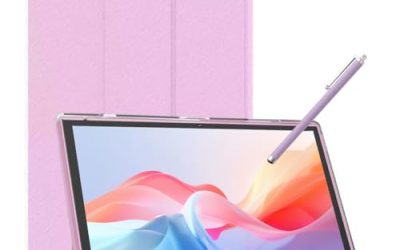
Android Tablet 10 Inch with Case and Stylus
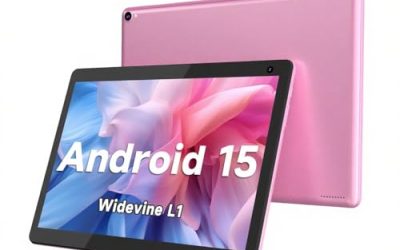
A 10.1 inch IPS HD tablet running Android 15 with 8GB of RAM, 32GB of ROM, support for 1TB expansion, a 6000mAh battery, a case and a stylus. It suits budget-conscious families who want a complete kit in one box.
- The case and stylus are included, which saves extra purchases.
- 1TB expansion support leaves room for years of photos.
- Trade-off: memory figures in this class are often partly virtual, so treat 8GB as a headline number.
Skip it if you want a name-brand ecosystem with simple account setup, or if you would rather avoid the extra step of configuring a generic Android tablet before handing it over.
COLORROOM 11 Inch
An 11 inch Android 16 tablet with face unlock, 18W fast charging, 32GB plus 128GB storage and a 1TB expansion option, an octa-core CPU, an 8000mAh battery and WiFi6. It carries the biggest screen and battery in the group.
- The 8000mAh battery is the largest listed here.
- Face unlock removes the need to remember or type a passcode.
- Trade-off: the 11 inch size is heavier to hold for long reading sessions.
Skip it if you prefer a light tablet for one-handed use in bed or on the couch, or if the owner has weak wrists, since a large screen with a case adds noticeable heft.
COOPERS 10 Inch
A plain Android 15 tablet with a quad-core processor, 32GB of ROM, 1TB expansion, a 6000mAh battery, a 1280×800 IPS screen and 2MP plus 8MP cameras. It fits retirees who want a straightforward device without extras.
- The IPS screen at 1280×800 is readable for web and email.
- The 8MP rear camera helps with documents and family photos.
- Trade-off: a quad-core processor is modest, so heavy apps may lag.
Skip it if you plan to multitask with many apps or play demanding games, because a modest processor shows its limits quickly under load.
HOTTABLET 7 Inch
A small Android 14 tablet with a protective case, 8GB (3+5GB expand) RAM, 32GB ROM, an IPS screen, dual cameras and Bluetooth 5.0. It suits people who want a light tablet for bedside reading, recipes at the kitchen table or simple games.
- The 7 inch size is easy to hold in one hand.
- The included case guards against drops.
- Trade-off: the screen is small for seniors with limited vision.
Skip it if you want comfortable video calls on a big display, since faces and menu text will look small on a seven inch panel.
ECOPAD 10.1 Inch
A 10.1 inch Android 15 tablet with 12GB (4+8) RAM, 64GB of ROM, a 1TB SD card slot, a 1280×800 IPS touchscreen and a 6000mAh battery. It offers the most built-in storage of the 10 inch models.
- 64GB of ROM gives more room for photos than the 32GB models.
- Expandable storage helps with long-term use.
- Trade-off: only 4GB of the 12GB figure is built in, with the rest borrowed from storage.
Skip it if you want a simplified beginner interface, because a standard Android layout with many settings can overwhelm a first-time user.
Pix Star Touch
A 10.1 inch Wi-Fi tablet marketed as easy to use for seniors, with a touch screen, a simple interface, two cameras and a focus on video calls, web search and photos. It is the closest match to the keyword.
- A simplified touch interface shortens the learning curve.
- Two cameras support video calls with family.
- Trade-off: the title lists no memory or battery details, so confirm them.
Skip it if you want full freedom to install any app on day one.
Which One Fits Your Situation
It is a first tablet for a parent who fears technology
Choose the Pix Star Touch. A simple interface, a 10.1 inch screen and two cameras make video calls with family the obvious first task, and nothing hides behind a maze of menus.
You want reading, streaming and a sharp screen
The Fire HD 10 offers a Full HD display, 4 GB of RAM and an octa-core processor, which suits long reading sessions and video. Increase the font size for comfort.
Battery life and screen size matter most
Pick the COLORROOM 11 inch. Its 8000mAh battery, 11 inch display and fast charging cut down on the stress of a dead tablet.
You want something light for the nightstand
The HOTTABLET 7 inch is the compact choice with a protective case. Keep it for short reading sessions rather than long video calls, and pair it with a larger font so text stays comfortable.
Common Mistakes
- Buying a 7 inch screen for someone with limited vision and expecting them to adjust.
- Trusting combined RAM figures like 4+8GB without checking the real number.
- Skipping a protective case, the most common safeguard against drops.
- Leaving the default font and icon sizes unchanged instead of enlarging them at setup.
- Choosing the most feature-heavy listing when a simple, purpose-built interface would be used more.
Related guides
- When I Turn On Record Game In Background On Gamebar. Gamebar Crashes, What Do I Do?
- How To Reduce Background Noise On A Streaming Microphone
- Poly Computer Accessories Company Streaming Evaluation
Frequently Asked Questions
What screen size is best for seniors?
A 10 inch screen or larger is best for reading and video calls. Smaller tablets suit light use but make text and buttons harder to see.
Do seniors need a lot of RAM?
No. Around 4GB of real RAM is enough for browsing, email and video calls. Higher headline figures often include borrowed storage.
Is an offline games tablet a good idea?
It can be, especially for people who do not want internet accounts. The Care lists over 100 offline games, but it is not built for video calls.
How can I make an Android tablet easier to use?
Enlarge the font and icons, remove unused apps from the home screen, and add shortcuts for family video calls. A caregiver can set this up in a few minutes, and doing it before the tablet changes hands makes the first day far less stressful.