
Streamers obsess over video bitrate and then leave their audio at whatever OBS defaulted to. That is backwards. Viewers forgive a slightly soft picture far more readily than muddy, artefacted voice. Audio bitrate is cheap, so this is one of the easiest quality wins on your whole stream, and it takes about thirty seconds to set.
As an Amazon Associate we earn from qualifying purchases at no extra cost to you.




Our Top Picks
 Focusrite Scarlett Solo 4th Gen USB-C Audio Interface1.79 x 5.63 x 3.78 inches0.9 poundsCheck on Amazon
 Focusrite Scarlett 2i2 4th Gen USB-C Audio Interface7.09 x 3.9 x 1.79 Inches1.31 PoundsCheck on Amazon
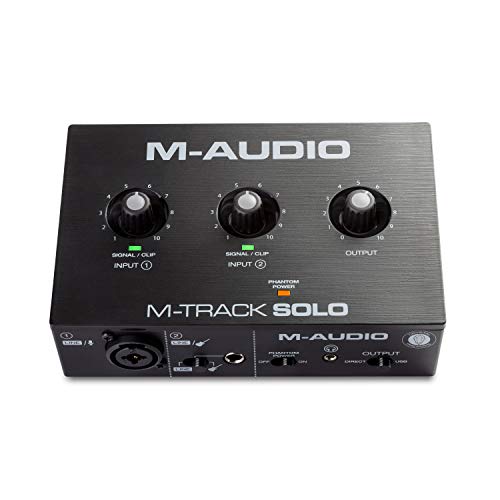 M-AUDIO M-Track Solo USB Audio Interface48kHz / 1 XLR in4.46 x 6.43 x 2.14 Inches0.7 poundsCheck on Amazon
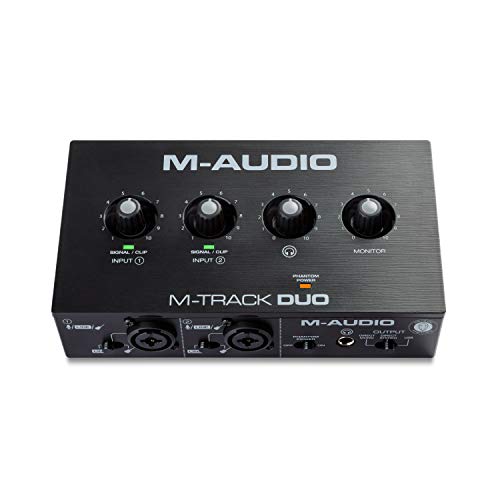
Top 3 picks at a glance
How audio bitrate works
Audio bitrate is measured in kilobits per second (kbps) and controls how much data the AAC encoder uses to store your sound each second. Too low and you hear swirling, hollow artefacts on speech and music. Beyond a certain point extra bitrate is inaudible and just wastes a sliver of your total upload. The goal is to sit comfortably above the “transparent” threshold for your content.
Voice versus music
A single talking voice is easy to compress and sounds clean at surprisingly low bitrates. The moment you add background music, game audio, or a second co-host, the encoder has more going on and benefits from more headroom. Stereo content also needs more than mono.
Recommended audio bitrate
| Content | Bitrate | Channels |
|---|---|---|
| Solo voice only | 128 kbps | Stereo |
| Voice + game audio (typical stream) | 160 kbps | Stereo |
| Music-heavy / DJ / karaoke | 192-256 kbps | Stereo |
| Local recording master | 256-320 kbps | Stereo |
| Bandwidth-constrained mobile | 96-128 kbps | Mono/Stereo |
For a standard Twitch or YouTube gaming stream, 160 kbps stereo is the practical sweet spot. It sounds clean, costs only 0.16 Mbps of your upload, and leaves the rest for video. Some platforms cap audio at 160 kbps for streaming anyway, so pushing higher may be silently ignored on the live feed even if your recording keeps it.
Set it in OBS
Go to Settings, then Output, switch to Advanced mode, and find the Audio tab. Set Track 1 to your chosen bitrate. If you record locally to a separate track, give that one 256-320 kbps for a pristine master you can edit later, while keeping the streamed track at 160.
Sample rate and channels also matter
Bitrate is not the only audio setting that shapes clarity. Sample rate, set in OBS under Settings then Audio, should be 48 kHz for video, which matches what streaming platforms and most interfaces expect. Running a mismatched sample rate can introduce subtle resampling artefacts or drift. Set OBS, your interface, and your operating system all to 48 kHz for a clean, consistent chain.
Channel count interacts with bitrate too. A mono voice packed into a stereo stream wastes half your allotted data, while genuine stereo content such as music needs the stereo width. For a talking stream you can often run the mic in mono and let game music fill the stereo field, which effectively gives your voice more bits per channel. Match the channel layout to the content and your chosen bitrate stretches further.
Frequently asked questions
Can viewers hear the difference between 128 and 160 kbps?
On voice alone, most cannot. Add game music, layered sound effects, or a second speaker and the difference becomes audible: 128 kbps starts to sound slightly hollow while 160 stays clean. Since the cost is only a few hundredths of a megabit, 160 is the safe default for gaming streams.
Should my recording use a higher audio bitrate than my stream?
Yes, if you plan to edit. Record a separate local track at 256-320 kbps so your VOD edits, YouTube uploads, and podcast cuts start from a higher-quality source. The live stream can stay at 160 because platform caps and viewer bandwidth make more largely pointless there.
Bottom line
Audio bitrate is the highest return-on-effort tweak on your stream. Set streaming audio to 160 kbps stereo, bump music-heavy content to 192-256, and record a local master track at 256-320 for editing. It costs almost nothing in upload and instantly makes your voice sound more professional.









