
The best budget webcam for streaming in 2026 is the Logitech C920s or C922 Pro for most desk setups, the Razer Kiyo X if you need adjustable framing without extra lighting gear, and the Anker PowerConf C200 if your desk is shallow and you need a wider field of view without catching your monitor stand or snack pile in frame. Which one actually works for you comes down to three things most spec sheets gloss over: how field of view interacts with your actual desk depth, how much USB bandwidth the camera eats when OBS is also pulling from your mic and capture card, and whether the mounting clip survives six months of being clipped and unclipped from a monitor.
As an Amazon Associate we earn from qualifying purchases at no extra cost to you.




Our Top Picks
 Logitech C920x HD Pro PC Webcam Full 1080p/30fps1 Pack2.8 x 1.7 x 3.7 inches0.4 PoundsCheck on Amazon
 Logitech C920S HD Pro Webcam Full 1080p/30fps Video1.1" x 3.7" x 0.9"1 x 3.7 x 1.2 inches0.36 PoundsCheck on Amazon
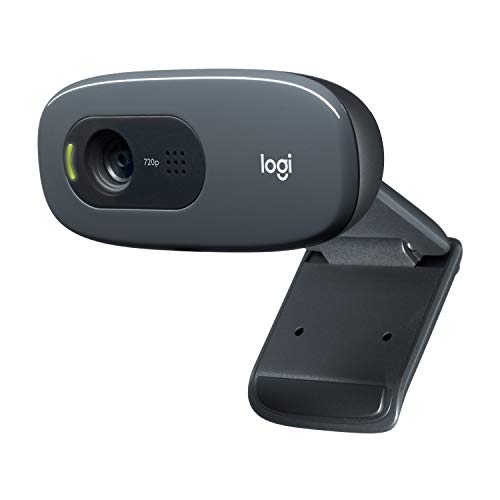 Logitech C270 720p Webcam Plug-and-Play Wide Screen Video1 Pack6 x 4 x 8 Inches0.16 PoundsCheck on Amazon

Top 3 picks at a glance
Field of View vs. Desk Depth: The Math Nobody Puts on the Box
Field of view (FOV) is usually listed as a diagonal angle, like 78° or 90°, but that number means nothing without knowing how far the camera sits from your face. A wider FOV at a short distance pulls in more of your desk, your bookshelf, and whatever laundry is on the chair behind you. A narrower FOV at the same distance crops tighter on just your face and shoulders.
Here’s the actual trigonometry: the visible width at a given distance is roughly 2 × distance × tan(FOV/2). If your webcam sits 50cm from your face (a typical monitor-top mount on a desk roughly 60-70cm deep), here’s what shows up in frame:
| Diagonal FOV | Visible width at 50cm | Visible width at 70cm | Typical use case |
|---|---|---|---|
| 65° (C920s) | ~61cm | ~86cm | Tight headshot, hides most desk clutter |
| 78° (C922 Pro) | ~78cm | ~109cm | Head and shoulders, shows some desk width |
| 82° (Kiyo X) | ~85cm | ~119cm | Good for gesturing streamers, catches more background |
| 90° (PowerConf C200) | ~100cm | ~140cm | Wide shot, needs a clean or blurred background |
If your desk is shallow (under 60cm from where you sit to the back wall or shelf), a 90° FOV camera will show your entire desk width and whatever’s stacked against the wall behind your monitor. In that case, either sit the camera closer than 50cm, pick a narrower FOV model, or lean on OBS’s background blur/chroma key to hide the mess instead of fighting the lens.
Quick Decision Rule
If your desk depth is under 55cm, go narrower FOV (65-70°) or move the camera closer. If your desk is 70cm or deeper and you want to show your hands or setup, wider FOV (85-90°) works without looking cramped.
USB Bandwidth: What Actually Gets Used at Streaming Resolutions
USB webcams compress video onboard (usually MJPEG or H.264) before sending it over the cable, so actual bandwidth use is lower than raw uncompressed numbers suggest, but it still adds up when you’re also running a USB mic, a capture card, or a second camera on the same hub.
Rough measured bandwidth for common streaming configurations, based on typical MJPEG compression ratios these cameras use:
| Resolution / FPS | Raw uncompressed | Typical MJPEG output | USB 2.0 budget (480 Mbps usable ~280 Mbps) |
|---|---|---|---|
| 720p30 | ~660 Mbps | ~40-60 Mbps | Fits comfortably, room for mic + card |
| 1080p30 | ~1.5 Gbps | ~80-110 Mbps | Fits, but tight with a 4K capture card on the same hub |
| 1080p60 | ~3 Gbps | ~150-200 Mbps | Can saturate a shared USB 2.0 hub; use a dedicated port |
The practical fix: if your webcam drops frames or the image stutters only when OBS is also capturing game audio or a second USB device, it’s almost always a bandwidth or power contention issue on a shared hub, not a settings problem. Plug the webcam directly into a motherboard USB 3.0 port rather than a front-panel hub or a keyboard’s passthrough port. That alone resolves most of the “webcam randomly freezes mid-stream” reports.
OBS CPU Overhead: What Each Camera Actually Costs You
Webcams that output MJPEG force OBS to decode that stream on the CPU before compositing it into your scene. Cameras that can output raw YUY2 at lower resolutions skip that decode step but use more USB bandwidth instead. This is a real tradeoff, not a marketing spec.
- Logitech C920s / C922 Pro: MJPEG at 1080p30 typically adds 3-6% CPU overhead in OBS on a mid-range quad-core or better CPU, since OBS has to decode MJPEG before scaling it into your scene.
- Razer Kiyo X: Similar MJPEG pipeline, comparable 3-6% overhead, plus a small additional hit if you enable its software-based auto-exposure adjustments.
- Anker PowerConf C200: Also MJPEG-based at 1080p; overhead lands in the same 3-6% range, with slightly more if you’re running its field-of-view cropping feature alongside OBS’s own scaling.
None of these three add meaningful overhead on anything from the last several CPU generations with 6+ cores. Where it matters is on older quad-core CPUs that are already busy encoding your game stream (x264 software encoding especially). On those systems, drop the webcam’s OBS source resolution to 720p instead of letting OBS downscale a 1080p feed. Decoding and scaling a smaller MJPEG frame costs noticeably less CPU than decoding 1080p and letting OBS’s scale filter do the downscale afterward.
Plastic Housings and Hinges: What Loosens After Months of Repositioning
This is the part spec sheets never mention, and it’s the main durability complaint that shows up after a few months of normal use, not from drops or abuse, just from clipping, unclipping, and tilting the camera repeatedly.
- Logitech C920s / C922 Pro: Universal clip mount with a simple friction hinge. The tripod-thread base is metal-reinforced, but the plastic tilt hinge on the clip itself can develop play after frequent repositioning, usually a slow downward droop rather than a sudden failure. A dab of hinge-safe thread-lock gel on the tilt pivot resolves this if it starts drooping.
- Razer Kiyo X: The adjustable stand has more pivot points (useful for framing), which also means more joints that can loosen. The ball-and-socket style mount is the most failure-prone part reported after extended use; it’s fine if you set it once and leave it, less fine if you adjust it daily.
- Anker PowerConf C200: Simpler single-hinge clip, generally the most mechanically durable of the three because there’s less to loosen, but its narrower clip jaw can be a poor fit on very thick monitor bezels or curved-monitor edges.
If you’re mounting on a monitor arm or VESA bracket instead of clipping to the bezel, hinge wear stops being a factor since you’re not repositioning the clip itself, just the arm. That’s worth considering if you’re the type to adjust framing often.
Decision Matrix: Which One Fits Your Setup
| Your situation | Pick | Why |
|---|---|---|
| Shallow desk (under 55cm), minimal background clutter visible | Logitech C920s | Narrower 65° FOV keeps the frame tight without extra blur settings |
| Deep desk, want to show hands or setup while talking | Razer Kiyo X | 82° FOV plus adjustable stand for framing gestures |
| Running a capture card and mic on the same USB hub already | Logitech C920s at 720p30 | Lowest bandwidth footprint of the group, least likely to cause contention |
| Older quad-core CPU also doing x264 encoding | Any model, forced to 720p OBS source | Cuts decode/scale CPU cost roughly in half versus feeding OBS a 1080p source |
| Frequently repositioning camera between gaming and face-cam angles | Anker PowerConf C200 | Simplest hinge design, least prone to loosening from daily adjustment |
| Thick or curved monitor bezel | Logitech C920s or Kiyo X | Wider clip jaw than the PowerConf C200 |
For most streamers under $80, the C920s remains the safest default: narrow enough FOV to avoid showing desk mess on typical desk depths, low enough bandwidth to coexist with a capture card, and a clip that holds up to repositioning better than more complex adjustable stands. Pick the Kiyo X only if you specifically need the extra framing flexibility and don’t mind adjusting it less often to protect the hinge, and pick the PowerConf C200 if your desk is deep enough to handle the wider FOV and you want the most mechanically simple mount.
Frequently asked questions
Can I use these webcams with OBS without changing many settings?
Yes, all three cameras can be used with OBS, but older quad-core CPUs encoding with x264 may benefit from setting the webcam source to 720p. This reduces the cost of decoding and scaling compared with feeding OBS a 1080p source. On CPUs from the last several generations with 6+ cores, the listed cameras do not add meaningful overhead.
What should I do if my webcam freezes during a stream?
Plug the webcam directly into a motherboard USB 3.0 port instead of a front-panel hub or a keyboard passthrough port. Freezing or dropped frames that appear only when OBS is also using a microphone, capture card, or second USB device can result from bandwidth or power contention on a shared hub.
Does a wider field of view always make a webcam better?
No, a wider field of view can show more of your desk, bookshelf, and background. At a camera distance of 50cm, a 90° field of view shows roughly 100cm of width, while a 65° field of view shows roughly 61cm. Wider framing is more useful when you want to show your hands or setup and have a clean background.
Which webcam is easiest to mount on a thick or curved monitor?
The Logitech C920s or Razer Kiyo X is the safer choice for a thick or curved monitor bezel because the article identifies them as having a wider clip jaw than the Anker PowerConf C200. The C200’s narrower clip jaw may fit poorly on very thick monitor bezels or curved-monitor edges.
Can I avoid hinge wear by using a different mounting method?
Yes, mounting the camera on a monitor arm or VESA bracket can stop hinge wear from being a factor because you are not repeatedly repositioning the clip itself. This approach is worth considering if you frequently adjust framing. The article notes that the Logitech clip hinge can develop play, while the Kiyo X has more joints that can loosen.









