
If you stream from a gaming laptop, buy it for the GPU, CPU, cooling, and screen — not the webcam. In 2026, almost every gaming laptop still ships with a basic 720p or 1080p webcam with a tiny sensor, fixed focus, and no real low-light control. It is fine for Discord, but it will look soft, noisy, and washed out on Twitch or YouTube.
That does not mean you should ignore the webcam. Placement, Windows Hello support, and whether the laptop can handle an external camera without dropping frames matter more than the megapixel number on the spec sheet.
Our Top Picks
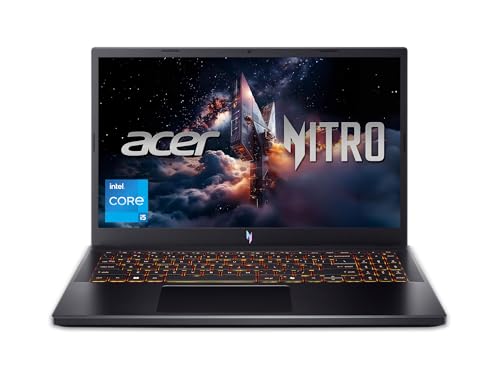


The truth about gaming laptop webcams in 2026
The pattern is consistent: even on $2,000+ machines, the built-in camera is an afterthought. Manufacturers put the budget into the RTX GPU and high-refresh display, then drop in a $5 camera module in the top bezel.
Typical failure modes you will see live:
Heavy noise in a dim bedroom. The sensor boosts gain to compensate, your face turns grainy and your background flickers. Auto-exposure hunting when your monitor flashes during gameplay. One minute you look normal, the next you are blown out. Fixed focus that is soft past arm’s length. If you lean back in a gaming chair, you go slightly blurry and never recover.
Privacy shutters and kill switches are now common, which is good. But image quality has not jumped the way laptop GPUs have. A 1080p laptop webcam still looks worse than a decent $70 external 1080p webcam because the lens and processing are smaller and cheaper.
Bottom line: if facecam quality matters to your channel, plan on using an external camera. Choose a gaming laptop that makes that easy.
What actually matters for streamers
Forget “AI webcam” marketing. Look for these four things instead.
1. Ports and USB bandwidth. You want at least one USB 3.0 Type-A port for a webcam or capture card, plus USB-C with DisplayPort for a second monitor. Some thin laptops now have only USB-C. That means dongles, and dongles fail mid-stream. Two Type-A ports is much safer if you run a mic, camera, and controller.
2. CPU headroom for encoding. NVENC on RTX 4050 and above handles most streaming, but your CPU still runs OBS, browser sources, chat bots, and Discord. A modern 8-core i7 / Ryzen 7 with 16GB RAM minimum is the floor. 32GB is worth it if you stream creative work or VTuber avatars.
3. Cooling and fan noise. This kills more laptop streams than webcams do. Thin gaming laptops spin up under load and your mic picks it up. A slightly thicker chassis with larger fans will run quieter at 1080p60. Check reviews for “fan noise under gaming load,” not just FPS.
4. Camera placement and mic. Avoid laptops with the webcam under the screen or in the keyboard deck — that nose-up angle is unflattering and cannot be fixed in software. Top-bezel centered is what you want. Dual-array mics help for backup audio, but you will still want a USB mic for real streams.
Quick comparison: what to buy based on how you stream
| Type | Typical GPU / RAM | Built-in Webcam | Best External Camera Pairing | Who It Suits |
|---|---|---|---|---|
| Budget 15-in. gaming laptop | RTX 4050 / 16GB | 720p, noisy in low light | 1080p USB webcam | Starting Twitch / TikTok Live, facecam in corner |
| Midrange 15-16 in. gaming laptop | RTX 4060-4070 / 16-32GB | 1080p, better exposure but soft | 1080p60 webcam or mirrorless via USB | Regular Twitch, YouTube, VTubing |
| High-end 16-18 in. workstation replacement | RTX 4070 and up / 32GB | 1080p + IR for Windows Hello | 4K webcam or mirrorless + capture card | Full-time creators, IRL + desk setup |
The cheaper option is fine if your facecam is small. Viewers will not see the difference between a built-in 720p camera and a $150 camera when your face is a 320-pixel box in the corner of a Valorant stream. Spend the savings on lighting and a mic first.
Picks by how you actually stream
Budget starter: RTX 4050 15-inch + external 1080p webcam
This is the sweet spot for most new streamers. An RTX 4050 can game at 1080p high and use NVENC to stream 1080p60 without maxing the CPU. The built-in 720p camera is usable for school calls, but for streaming, add a basic external webcam on a small tripod behind the laptop.
Trade-off: 512GB SSDs fill fast with VODs and games. Budget screens are dimmer, so your auto-exposure will struggle if you stream in a dark room. A $25 key light fixes more than a more expensive laptop will. Look through current budget gaming laptops with RTX 4050 and filter for a top-bezel webcam and two USB-A ports.
Regular streamer: RTX 4060 / 4070 16-inch with 1080p webcam
If you stream 3+ times a week, step up here. You get better cooling, usually a 1080p camera with less aggressive sharpening, and enough headroom to run OBS, Chrome, Spotify, and a VTuber app without stutter. This tier also tends to have better Wi-Fi and Ethernet options, which matters more for dropped frames than any camera spec.
Failure mode to watch: some models share heat pipes between CPU and GPU, so long streams throttle after 90 minutes. Read long-term thermal tests, not just 10-minute benchmarks. Pair it with a proper 1080p60 webcam for streaming clamped to your monitor — you get autofocus, wider aperture, and real exposure controls the built-in cam lacks.
Full-time creator: high-power 17-18 inch + mirrorless or 4K camera
If your face is half the screen for Just Chatting, podcasts, or coaching, do not rely on any laptop webcam. Buy the laptop for processing and ports, then run a mirrorless camera via USB streaming or a capture card. High-end laptops often have the USB bandwidth and CPU to handle 4K camera input plus game capture without USB disconnects.
Trade-off: weight, fan noise, and price. These machines are loud under full load and not fun to carry. They also tend to have better IR cameras for Windows Hello, which is convenient but does not improve stream quality. If you go this route, browse RTX 4070 gaming laptops with 32GB RAM and budget separately for camera, light, and mic.
How to make any laptop webcam look better
Before you replace anything, do this: face a window or put a soft light at 45 degrees in front of you, set OBS to 1080p30 from the webcam instead of 720p, lock exposure if your camera app allows it, and raise the laptop so the lens is at eye level. That alone fixes 70% of “bad webcam” complaints.
If you buy an external camera, mount it separately from the laptop. Laptop vibration from fans and typing travels straight into a laptop-mounted webcam and causes micro-jitter. A $15 mini tripod on the desk is steadier. And always test with your actual game running — many laptops drop USB camera frames only when the GPU is hot.
FAQ
Is any gaming laptop webcam good enough for Twitch?
For a small corner facecam, yes. A recent 1080p top-bezel camera with good lighting is acceptable at 1080p output. For full-screen or premium content, no — an external webcam or mirrorless camera will be noticeably sharper with less noise.
1080p built-in vs. external 1080p — what’s the difference?
Sensor size, lens, and processing. An external streaming webcam has a larger lens, better autofocus, and manual exposure and white balance controls. The built-in module prioritizes thinness and cost, so it over-sharpens and falls apart in low light.
How much RAM and GPU do I need to stream from a laptop?
16GB RAM and an RTX 4050 or better is the practical minimum for 1080p60 streaming with NVENC while gaming. If you run many browser sources, virtual cameras, or avatar software, 32GB RAM prevents stutters that look like network issues but are actually memory pressure.
Do I need Windows Hello IR on a streaming laptop?
No, it does not improve stream quality. IR is only for fast face login. It is nice to have, but do not pay extra for it thinking it means a better camera for viewers.









