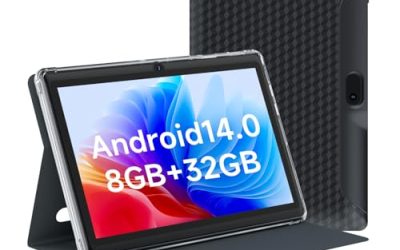
A standalone drawing tablet is the answer to a very specific annoyance: you want to sketch, but you do not want to plug a pen display into a computer, install drivers and tether yourself to a desk. These tablets run Android, include a screen, a processor and a stylus in one slab, and let you draw on the sofa, on a train or at a cafe table. The trade-off is that they behave like tablets, so app choice, memory and screen finish matter more than a driver list ever did.
This guide is for hobbyists, students and working illustrators who want a portable sketchbook, and for parents buying a first creative device. The eight listings fall into two camps. Some are budget-minded tablets with drawing apps and a bundle of extras, while others come from established tablet-pen makers and list higher memory, pressure levels and matte screens. Titles are the only facts used here, so check the software and pen details on each page before you buy in 2026.
Our Top Picks
Top 3 picks at a glance
Quick Picks
As an Amazon Associate we earn from qualifying purchases at no extra cost to you.


| Product | Best for | Key spec from the title |
|---|---|---|
| Frunsi RubensTab T11 Pro | Beginners on a budget | 10.1 inch FHD, octa-core, drawing apps preinstalled |
| PicassoTab 10 inch | Paper-like feel and extras | Laminated screen, 4096 pen levels, 6 bonus items |
| PicassoTab X14 14 inch | Large canvas | 14 inch laminated FHD screen, 4096 levels |
| RubensTab T12 | Mid-size canvas | 12 inch, octa-core, apps and tutorials |
| PicassoTab X11 | Sharper 11 inch display | Laminated 2K screen, pro apps, tutorials |
| Wacom MovinkPad 11 | Pen feel from a pen specialist | Pro Pen 3, 8GB RAM, 128GB, matte screen |
| XPPen Magic Drawing Pad 12.2 | Pressure and tilt detail | 16384 pressure levels, 8GB plus 256GB, tilt |
| HUION KAMVAS Slate 11 | Smooth strokes | 10.95 inch, anti-glare, tilt stylus, 90Hz |
How to Choose
Pick the screen size for your workflow
A 10 to 11 inch screen fits a bag and works for sketching and notes. A 12 inch screen gives more room for hands and tool palettes, and a 14 inch screen starts to feel like a real drawing surface but adds weight. If you draw while traveling, stay near 11 inches. If you work at a desk, larger is better for finer detail.
Memory and storage decide how long the tablet stays useful
Layered illustrations in Procreate-style apps need RAM. Look for at least 6GB for casual drawing and 8GB for large canvases with many layers. Storage of 128GB suits most beginners, while 256GB helps if you keep many projects or video recordings. Budget tablets often cut corners on RAM, so confirm the figure before you order.
Pen sensitivity and screen finish
Pressure levels such as 4096 are common and fine for most drawing, while 8192 or 16384 levels add finer control for shading. More important is stylus quality: tilt support, low latency and a stable tip. A matte or paper-like screen adds friction that feels like pencil on paper, while glossy glass is slippery. Ignore big bonus bundles, since gloves and stands do not improve drawing.
Software, updates and ecosystem
These devices run Android, so the app store gives you drawing programs, but not every professional desktop program is available. Check that the tablet supports the app you want, and whether it receives updates. Preinstalled drawing apps and tutorials help beginners, while established pen brands often provide support and replacement nibs.
The 8 Best Options
Frunsi RubensTab T11 Pro
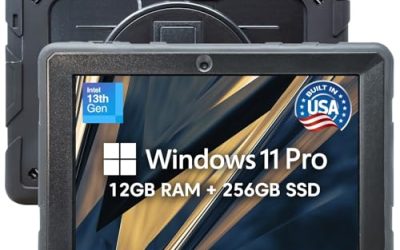
This is aimed at newcomers. The title lists a standalone design, a 10.1 inch FHD display, an octa-core CPU, preinstalled drawing apps and tutorials.
- Strength: preinstalled apps and tutorials reduce setup for beginners.
- Strength: an FHD display on a portable body.
- Trade-off: the title gives no RAM or pressure level, so verify both.
It suits a teen, a hobbyist or a parent shopping for a first creative device, someone who wants to try digital drawing without buying separate software or learning a complicated setup. The built-in lessons give a clear starting point for anyone new to layers and brushes. Skip it if you need verified memory and pen specifications for professional work, or if you plan to run demanding apps with large canvases.
PicassoTab 10 inch Standalone Drawing Tablet
The PicassoTab pitches an affordable, paper-like experience. The title lists a laminated screen, a 4096 level pen, an octa-core processor and six bonus items.
- Strength: a laminated screen is designed to feel closer to paper.
- Strength: 4096 pressure levels cover everyday sketching.
- Trade-off: the bonus items are extras rather than performance features.
It suits students, note-takers and casual artists on a spending cap who like the idea of a paper-like surface and a bundle of starter accessories in the box. It is a sensible tablet for sketching on a bus or in a classroom. Skip it if you want large memory, a stated refresh rate or a high-refresh display for fast strokes and animation work.
PicassoTab X14 14 inch
The X14 is the large-canvas model, described as the largest PicassoTab with pro apps, a laminated FHD screen, a 4096 level pen and bonus items.
- Strength: the large screen gives room for detail and palettes.
- Strength: a laminated FHD display and pro app mention.
- Trade-off: a 14 inch tablet is heavier and less portable.
It suits desk artists, comic creators and anyone who finds small screens cramped when working on page layouts or detailed linework. The extra surface also helps older users who prefer larger tool icons, and anyone who rests the whole palm on the glass while inking. Treat it as a desk companion that can be moved around the house, not a pocket sketchbook. Skip it if you sketch on a commute, work in a small bag, or want to hold the tablet one-handed while standing.
RubensTab T12 Standalone Drawing Tablet
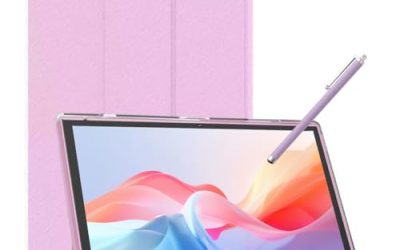
This 12 inch model sits between the small and large options. The title lists an octa-core CPU, preinstalled drawing apps and tutorials, and no computer needed.
- Strength: 12 inches is a comfortable middle size for sketching.
- Strength: apps and tutorials come preloaded.
- Trade-off: memory, resolution and pen details are not stated in the title.
It suits beginners and hobbyists who want a bigger canvas than ten inches without jumping to the largest and heaviest option. It also works for a shared household device that more than one person will sketch on. Skip it if you need a confirmed screen finish or pressure rating, since the title is silent on both and you would have to check the product page.
PicassoTab X11 11 inch
The X11 focuses on a sharper screen. The title lists a laminated 2K display, pro drawing apps, tutorials, a 4096 level pen and bonus items.
- Strength: a 2K resolution gives crisper lines than FHD.
- Strength: portable 11 inch size with a paper-like laminate.
- Trade-off: pressure levels match cheaper models rather than premium ones.
It suits artists who value resolution at a modest size, such as people who zoom in on line art or inking and want edges to look clean. The portable size makes it easy to carry, and the bundled apps mean you can start the first night. Compared with the ten inch sibling, the main change is the sharper panel and the pro software mention. Skip it if you need a confirmed 8GB of RAM, a specialist stylus with tilt support, or a premium brand pen.
Wacom MovinkPad 11
This Android drawing tablet comes from a pen specialist. The title lists the Pro Pen 3, 8GB RAM, 128GB storage, an anti-glare matte screen and an all-in-one portable design.
- Strength: Pro Pen 3 and a matte screen target a natural pen feel.
- Strength: 8GB RAM suits layered work.
- Trade-off: it sits at a higher tier than the budget models.
It suits illustrators, concept artists and students in design programs who want pen quality and a portable device that does not depend on a computer. The matte finish also helps outdoors, where glare ruins many tablets. Skip it if you only sketch occasionally, if you want a bundle of bonus items, or if you have a tight spending limit.
XPPen Magic Drawing Pad 12.2 Inch
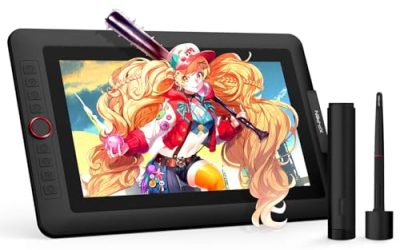
This one targets detail. The title lists 8GB plus 256GB, 16384 pressure levels, an X3 Pro Slim stylus and tilt support in a 12.2 inch standalone tablet.
- Strength: 16384 pressure levels and tilt support for shading.
- Strength: 256GB of storage for large projects.
- Trade-off: a larger, higher-tier device.
It suits serious hobbyists and professionals who shade, blend and paint with soft brushes, and who store many layered files on the device itself. Tilt support helps with digital pencils and markers, and the slim stylus named in the title suggests a pen designed for long sessions without hand fatigue. Skip it if you want a small, inexpensive starter tablet, or if you are only sketching ideas and rarely finish full pieces.
HUION KAMVAS Slate 11
The Slate is a smooth-stroke option. The title lists a 10.95 inch anti-glare screen, a tilt-alignment stylus and a 90Hz Android display.
- Strength: 90Hz refresh can make strokes feel more fluid.
- Strength: an anti-glare screen reduces reflections.
- Trade-off: the title gives no memory figure.
It suits artists who value responsiveness, such as animators and quick sketchers who find lag distracting, and people who draw under bright indoor lights. Pen tilt alignment also helps lines land where the tip points, which reduces the small offset errors that frustrate people on laminated glass. It reads as a tablet built around drawing first and everything else second. Skip it if you must confirm RAM and storage first, or if you want a large canvas, since this one sits close to eleven inches.
Which One Fits Your Situation
You are a beginner who wants to try digital drawing
The Frunsi RubensTab T11 Pro comes with drawing apps and tutorials already installed, which removes the setup barrier.
You draw professionally and need pen precision
The Wacom MovinkPad 11 or the XPPen Magic Drawing Pad 12.2 are the strongest candidates, thanks to named pens, memory and pressure figures.
You want a big canvas at a desk
The PicassoTab X14 offers a 14 inch laminated screen for detailed work.
You want smooth, responsive strokes
The HUION KAMVAS Slate 11 lists a 90Hz display, which suits fast sketching.
Common Mistakes
- Choosing a large screen and then never carrying it.
- Ignoring RAM, then hitting layer limits on big canvases.
- Paying for bonus accessories instead of pen and screen quality.
- Assuming every Android app supports the pen the same way.
- Skipping the screen finish, then fighting a slippery surface.
Related guides
- When I Turn On Record Game In Background On Gamebar. Gamebar Crashes, What Do I Do?
- How To Reduce Background Noise On A Streaming Microphone
- Poly Computer Accessories Company Streaming Evaluation
Frequently Asked Questions
Do standalone tablets need a computer?
No. They run Android apps on their own, so you can draw without a PC or Mac. You can still move files over a cable or cloud storage if you want to finish work on a desktop.
How many pressure levels do I need?
4096 levels suit most sketching. Higher numbers add fine control for shading, but stylus quality matters more.
Is a paper-like screen worth it?
Many artists like the friction, because it reduces slipping and feels closer to pencil on paper. The coating can wear down pen nibs faster, so keep spare nibs in mind when you compare models.
How much RAM is enough?
Six gigabytes handles casual drawing, while eight gigabytes suits layered work. If a listing does not state RAM, look it up on the product page before you commit, because it is the spec most likely to be missing.