VoiceMeeter is the strongest choice for routing and mixing multiple audio sources cleanly, OBS’s built-in audio filters cover noise suppression, gating, and compression well enough for many streamers without extra software, NVIDIA Broadcast adds genuinely effective AI-based noise removal for GPU owners who qualify, and Audacity remains the go-to free tool for editing recorded audio and podcast-style production after the fact.
Our Top Picks
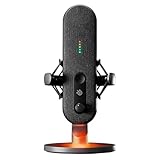
 SteelSeries Alias USB Mic for PC887.16 cubic inches12.2 x 10.3 x 6.8 inches1.7 poundsCheck on Amazon
 RØDE X Streamer X Professional Integrated Audio Interface3.755.6 x 4.8 x 2 inches0.8 poundsCheck on Amazon


Top 3 picks at a glance
Quick answer
Juggling multiple audio sources (game, music, mic, alerts) that need independent control: VoiceMeeter. Want built-in cleanup without extra software: OBS’s own filters. Want strong AI noise removal and have a supported NVIDIA GPU: NVIDIA Broadcast. Editing recorded audio or producing podcast-style content: Audacity.
As an Amazon Associate we earn from qualifying purchases at no extra cost to you.

![SOUND FORGE Audio Studio 16 - The complete solution for recording, audio editing, restoration and mastering in one | Audio Software | Music Program | for Windows 10/11 [PC Online code]](https://m.media-amazon.com/images/I/41IasYLiIkL._SL160_.jpg)


![WavePad Audio Editing Software - Professional Audio and Music Editor for Anyone [Download]](https://m.media-amazon.com/images/I/B1fcLEGCs6S._SL160_.png)
![MixPad Free Multitrack Recording Studio and Music Mixing Software [Download]](https://m.media-amazon.com/images/I/71ltIxIuz1L._SL160_.jpg)
![DeskFX Free Audio Effects & Audio Enhancer Software [PC Download]](https://m.media-amazon.com/images/I/41fXbDohyuS._SL160_.jpg)
| Tool | Main purpose | Best for |
|---|---|---|
| VoiceMeeter | Audio routing and mixing | Multiple independent audio sources |
| OBS audio filters | Noise suppression, gating, compression | Built-in cleanup without extra apps |
| NVIDIA Broadcast | AI-based noise removal | Supported NVIDIA GPU owners |
| Audacity | Offline audio editing | Post-production, podcast editing |
VoiceMeeter for audio routing
VoiceMeeter is a virtual audio mixer that sits between your actual audio devices and the applications using them, letting you route game audio, music, microphone input, and alert sounds into separate, independently controllable channels rather than relying on Windows’s more limited default audio mixing. This matters most once you have more than one or two audio sources you want to balance independently.
Setup involves configuring VoiceMeeter as an intermediary for your audio devices, then pointing your streaming software and other apps to VoiceMeeter’s virtual inputs and outputs instead of your physical devices directly. This adds a genuine setup step compared to just using default Windows audio, but the payoff is much finer control once configured.
Different versions of VoiceMeeter offer different numbers of input and output channels, so pick the version matching your actual complexity needs rather than defaulting to the most feature-rich option if a simpler version covers everything you actually use. A setup with more channels than you need just adds visual clutter to the mixer interface without adding real benefit.
The learning curve is real, particularly the first time you set up routing between physical devices and VoiceMeeter’s virtual channels, since the concept of virtual audio devices sitting between your hardware and your software isn’t immediately intuitive. Budget time for initial setup rather than expecting it to click in a few minutes.
Elena Marchetti, our Streaming & Creator Editor, relies on VoiceMeeter as the routing backbone of her dual-PC streaming rig, feeding cleaned and balanced audio channels into her capture and streaming software rather than trying to manage everything through a single app’s built-in mixer.
She recommends new streamers resist the urge to fully replicate a more advanced multi-tool setup immediately, instead adding one new piece of the chain at a time and confirming each addition actually improves the final sound before layering on the next tool, rather than assembling a complex chain all at once and troubleshooting several new variables simultaneously.
OBS’s built-in audio filters
OBS Studio includes a set of audio filters directly on each audio source, covering noise suppression to reduce steady background noise, a noise gate to mute your mic automatically below a set volume threshold, and compression and limiting to keep your volume more consistent without manual adjustment during a stream. For many streamers, these built-in tools handle audio cleanup adequately without needing separate software.
Noise suppression works best against consistent background noise like fan hum or light room echo, and is less effective against louder, more variable noise sources. Set suppression strength conservatively at first and increase gradually while listening to a recorded sample, since overly aggressive suppression can start removing subtle parts of your own voice along with the background noise, leaving speech sounding thin or processed rather than genuinely clean. A noise gate is useful for eliminating keyboard clicks or background sound during pauses in speech, though setting the threshold too aggressively can clip off the start of your words if you’re not careful with the timing settings.
Compression and limiting help even out your volume between quiet and loud moments of speech, which viewers generally appreciate since it reduces the need for them to constantly adjust their own volume. Start with modest settings and adjust gradually, since heavy-handed compression can make speech sound unnatural or pumping.
Our audio setup guide for streamers covers how these filters fit into a broader audio setup, including hardware considerations that affect how much filtering you actually need.
NVIDIA Broadcast for AI noise removal
NVIDIA Broadcast is a free app from NVIDIA that uses AI-based processing, running on supported NVIDIA GPUs, to remove background noise and echo from your microphone input in real time, generally more effectively than traditional noise suppression algorithms for a wide range of common background noise types. It also includes camera-related effects like virtual background replacement.
Because it relies on GPU-accelerated AI processing, it requires a supported NVIDIA GPU to function, and performance and effectiveness can vary by GPU generation. Check your specific GPU’s compatibility before planning your audio setup around it.
NVIDIA Broadcast can work as a virtual device that other software, including OBS, picks up as an input source, meaning you can layer it into an existing VoiceMeeter or OBS-based setup rather than needing to choose one tool exclusively over the others.
For noise sources that AI-based removal alone won’t solve, like echo from a poorly treated room, addressing the physical space still matters; see our guide to mixers for streaming and general audio setup resources for the hardware side of the equation.
Audacity for editing and post-production
Audacity is a free, open-source offline audio editor, useful for cleaning up recorded audio after the fact rather than processing live streams in real time. For streamers who record podcast-style content, VODs needing audio cleanup, or standalone audio content, it remains a capable and widely used tool.
Its feature set covers noise reduction, equalization, compression, and basic multi-track editing, giving more granular manual control than most real-time processing tools, at the cost of needing to process audio after recording rather than live. This makes it a complement to, not a replacement for, real-time tools like VoiceMeeter or OBS’s filters during an actual live stream.
Learning Audacity’s basic noise reduction and equalization workflow pays off even for streamers who only occasionally need it, since a single bad recording session salvaged through careful post-processing editing can be worth the modest time investment of learning the tool, compared to discarding footage that’s otherwise perfectly usable content.
If you’re producing longer-form audio content, like a podcast-style show recorded alongside your streaming setup, Audacity’s more thorough editing capability is worth learning even if your live streaming audio setup handles day-to-day streaming needs adequately on its own.
Choosing based on your setup complexity
If you’re just starting out with a single microphone and don’t yet have multiple audio sources to balance, OBS’s built-in filters alone are often sufficient, and adding VoiceMeeter or other tools before you actually need the extra routing control adds complexity without proportional benefit yet.
Once you’re managing game audio, music, alerts, and a microphone simultaneously and want independent control over each, VoiceMeeter’s routing capability becomes genuinely valuable rather than optional. This is a natural point to invest the setup time, typically as your streaming setup and audience grow more established.
Consider also how much time you’re willing to spend maintaining a more complex audio chain versus how much control you actually need day to day. A more elaborate setup with several tools chained together gives more flexibility but also has more points where something can break after a driver update or software change, so match the complexity of your setup to how much ongoing maintenance you’re realistically willing to do rather than building the most capable possible chain by default.
If background noise is a persistent, specific problem despite basic filtering, and you have a supported NVIDIA GPU, adding NVIDIA Broadcast to your existing setup is a relatively low-effort addition that layers on top of what you already have rather than requiring you to rebuild your audio chain.
Combining tools without conflicts
When layering multiple audio tools together, be deliberate about which tool handles which type of processing to avoid applying the same effect twice, which can produce over-processed, unnatural-sounding audio. A common effective combination is NVIDIA Broadcast or VoiceMeeter handling noise removal and routing, with OBS’s filters handling final compression and limiting before your stream output.
Test your combined setup by listening to a recorded sample rather than relying on how things sound to you live, since your own perception during active speech differs from how a viewer or recording will actually sound. Recording a short test clip and listening back critically catches issues that live monitoring can miss.
Document your working configuration once you’ve settled on a combination that sounds good, since audio routing setups involving multiple tools can be genuinely difficult to reconstruct from memory if something gets accidentally changed later.
Testing your setup before going live
Whatever combination of tools you settle on, test it thoroughly before relying on it during an actual live stream. Record a short sample covering normal speaking volume, a louder moment, and a quiet pause, then listen back with headphones rather than your speakers, since speakers can mask problems your audience would clearly hear through their own headphones or earbuds.
Ask a friend to join a private test call or watch a short unlisted stream and give honest feedback, since your own ears adjust to your setup’s specific sound over time in a way that can make genuine problems harder for you personally to notice. A second, less familiar set of ears often catches issues you’ve stopped consciously hearing.
Re-test your audio setup after any software update to your operating system, GPU driver, or any of the tools in your audio chain, since updates occasionally reset device selections or change default behavior in ways that can silently break a previously working configuration. Making this a habit after updates avoids discovering a broken setup in the middle of a live stream.
Keep a simple written note of your working configuration, including specific device names and key settings values, so that if something does break or you need to rebuild your setup on a new PC, you’re not trying to reconstruct a multi-tool audio chain entirely from memory.
When software alone isn’t enough
If your microphone itself is low quality or poorly positioned, no combination of software processing will fully compensate, since software can reduce noise and balance levels but can’t add clarity or warmth a weak microphone simply doesn’t capture. Our guide to streaming microphones covers hardware upgrades worth considering if you’ve hit the ceiling of what software fixes can achieve.
Room acoustics matter more than most new streamers expect; a room with hard, reflective surfaces will produce echo that noise removal software can reduce but rarely eliminates completely. Basic acoustic treatment, even simple soft furnishings, often makes a bigger difference than another layer of software processing.
If you’re on integrated laptop audio without a dedicated microphone or interface at all, software processing has much less to work with, and a modest hardware investment will typically outperform aggressively tuned software processing applied to genuinely poor source audio.
Troubleshooting streamer audio software issues
Audio sounds robotic or unnatural after processing: you’re likely applying overlapping processing from multiple tools; check for duplicate noise suppression or compression applied in more than one place in your audio chain.
VoiceMeeter routing isn’t reaching my streaming software: confirm your streaming software’s input is set to VoiceMeeter’s virtual output rather than your physical microphone directly, since this is the most common setup mistake with virtual audio routing.
Noise gate cuts off the beginning of words: adjust the gate’s attack timing to open slightly earlier relative to your speech onset, since an overly tight timing setting is the usual cause of clipped word starts.
NVIDIA Broadcast isn’t available as an input option in other software: confirm the app is running and configured correctly before checking your other software’s device list, since it needs to be active to appear as a selectable virtual device.
Noticeable delay between speaking and hearing yourself in monitoring: check for redundant processing stages adding cumulative latency, and consider whether real-time monitoring is necessary for your specific setup versus relying on visual cues alone.
Settings reset after restarting your PC: check whether your audio tools are set to launch automatically on startup with their saved configuration intact, since a tool that doesn’t launch until manually opened may default to a fresh configuration rather than restoring your previous session’s settings.
Frequently asked questions
Do I need VoiceMeeter if I only have one microphone and no other audio sources?
Probably not right away. VoiceMeeter’s main value is routing and mixing multiple audio sources separately, which matters most once you’re juggling game audio, music, a microphone, and alerts at once. A single-source setup can often get by with OBS’s built-in audio controls alone.
Is NVIDIA Broadcast’s noise removal actually effective?
For common background noise like fan hum, keyboard clicks, and room echo, it performs well for most streamers. It’s less effective against loud, sudden noises or another person talking clearly in the background, which no noise removal software fully solves.
Can I use OBS’s audio filters and VoiceMeeter together?
Yes, many streamers use VoiceMeeter for routing and initial mixing, then apply additional filters like noise suppression or a compressor within OBS on top of that routed signal. Just avoid applying the same type of processing twice in both places, which can cause over-processed, unnatural-sounding audio.
Do I need Audacity if I’m only live streaming, not recording podcasts?
Not typically for live streaming itself, since Audacity is an offline editing tool rather than a real-time processing one. It becomes useful if you’re editing VOD audio, cleaning up recorded segments, or producing podcast-style content afterward.
Does audio processing software add noticeable latency?
Some processing, particularly real-time noise removal, can add a small amount of latency. For most streaming setups this delay is small enough not to be noticeable, but it’s worth testing your specific setup if you’re sensitive to audio delay, particularly during voice chat with others. If sync issues show up specifically between audio and video rather than just latency, see our guide to fixing audio-video sync in OBS.