
The Steam Deck is a genuinely capable little gaming PC, but capturing it for stream has a wrinkle: its single USB-C port has to do a lot, and its screen is 1280×800 at up to 90Hz, not a standard 1080p60 signal. Getting clean footage off a Deck means choosing a capture card that plays nicely with its dock, its resolution, and its power needs. Here is how to pick the right one and set it up.
Our Top Picks




Top 3 picks at a glance
Two ways to capture a Steam Deck
You can capture the Deck like a console — send its video out over HDMI through a dock into a capture card, then into a second PC running OBS — or you can stream directly from the Deck itself in desktop mode. For quality and to keep the Deck’s resources free for the game, the external capture-card route into a second PC is the cleaner choice.
As an Amazon Associate we earn from qualifying purchases at no extra cost to you.






The dock and HDMI requirement
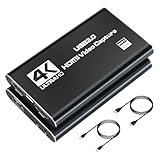
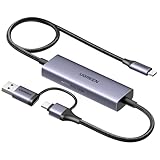
The Deck outputs video over USB-C, so you need the official dock or a quality third-party dock with HDMI out. From the dock’s HDMI, run into a capture card. Because the Deck’s native panel is 800p, set its external output to a standard resolution — 1080p at 60Hz is the safe target — so your capture card and OBS receive a clean, expected signal.
| Capture card tier | Spec | Price range | Best for |
|---|---|---|---|
| Budget USB | 1080p60 capture | $25–60 | Most Deck streaming |
| Mid USB | 1080p60, low latency | $90–160 | Reliable, brand support |
| 4K passthrough | 1080p60 record, 4K passthrough | $150–250 | Future-proofing |
You do not need 4K
Since the Deck tops out well below 4K, a 1080p60 capture card is the right match — spending on a 4K card buys you nothing for Deck footage. A solid, low-latency 1080p60 USB capture card into a second PC gives you crisp, smooth capture with headroom to spare. Set OBS to scale the incoming signal to your stream’s base canvas.
Watch power and the single port
Docking the Deck lets it charge while it outputs video, which matters for long streams. Make sure your dock delivers enough power (the Deck wants around 45W) so a long session does not drain the battery while it drives the display and capture chain.
Direct streaming from the Deck
If you want to travel light, the Deck can run OBS or stream software in desktop mode with no capture card, but this steals CPU and GPU from the game and can hurt frame rates. Reserve this for chatting, emulation, or lighter titles where the performance hit is acceptable; use external capture for demanding games.
OBS settings for a Deck source
Once the capture card feeds your second PC, a couple of OBS tweaks make Deck footage look its best. Add the capture card as a Video Capture Device, set its resolution and FPS to match the 1080p60 output you configured, and scale it to fill your base canvas cleanly. Because the Deck’s games sometimes run at variable frame rates, enable a consistent output and avoid double frame-rate mismatches that cause judder. If the image looks soft, check that both the card and OBS are set to the same color range and format rather than mixing full and limited range, which is a common cause of washed-out or crushed Deck footage.
FAQ
Can I stream from a Steam Deck without a capture card?
Yes, in desktop mode with streaming software, but it competes with the game for the Deck’s limited resources and can cause frame drops. For anything demanding, capturing the Deck’s HDMI output into a second PC with a capture card gives far better results.
What resolution should I set the Steam Deck to output?
Set the external output to 1080p60. The Deck’s built-in screen is 1280×800, but for capture you want a standard resolution your card and OBS expect. 1080p60 through the dock’s HDMI is the reliable target and matches a 1080p60 capture card perfectly.
Bottom line
Capture the Deck like a console: dock it, set HDMI output to 1080p60, and feed a low-latency 1080p60 USB capture card into a second PC. Skip 4K cards — the Deck cannot use them — and make sure your dock supplies enough power for long sessions. That setup keeps the game running full speed while OBS gets a clean, smooth feed.









