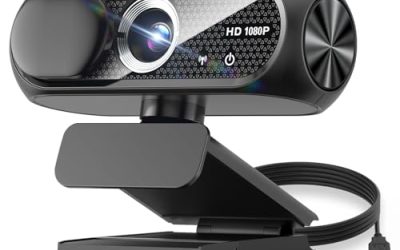
The camera built into a laptop lid is a compromise made by an engineer who needed the screen to stay thin. That is why so many built-in webcams look soft, grainy, and orange in a dim room, and why an external USB webcam is among the cheapest upgrades for video calls. The question this guide answers is narrower than “which webcam is best”: which external camera clips onto a laptop screen, works without drivers, and gives a clear enough picture for meetings, online classes, and light streaming?
It is written for remote workers, students, teachers, and anyone whose laptop camera makes them look like a security feed. Nearly every product listed uses plug-and-play USB, so installation is not the issue; the differences are resolution, field of view, microphone setup, and privacy shutters. Findings come from the listed titles. In 2026, 1080p at 30 frames per second is the practical norm for external webcams, and a 4K model is only worth the extra cost if your meeting software and bandwidth can use it.
Our Top Picks


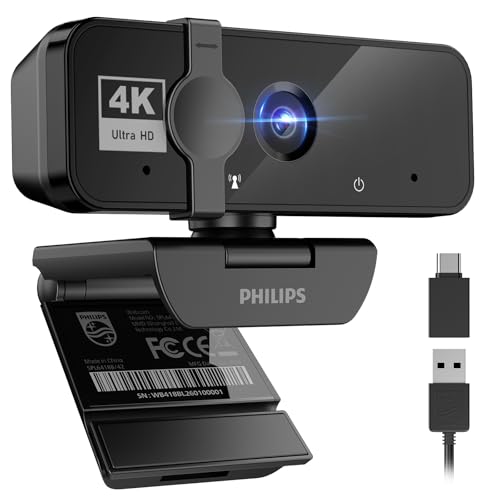
Top 3 picks at a glance
Quick Picks
As an Amazon Associate we earn from qualifying purchases at no extra cost to you.






| Product | Best for | Key spec from the title |
|---|---|---|
| Generic 1080P webcam with privacy cover | Budget everyday calls | 1080P, noise cancellation, privacy cover, wide-angle lens |
| NIVEOLI 1080P webcam | Calls and live streams | 1080P, microphone, privacy cover, auto light correction |
| Gohero Full HD 1080P webcam | Wide shots of a room or group | Full HD 1080P, wide-angle lens, privacy cover |
| Shcngqio 1080P webcam | Simple, low-cost setups | 1080P, microphone, noise cancellation, no cover listed |
| EMEET C960 | Clear audio and a natural view | 1080P, 2 mics, 90-degree field of view |
| Generic 30fps 1080P webcam | Remote work and streaming basics | 1080P, 30fps, auto light correction |
| TRAUSI 1080P webcam | Meetings with a privacy shutter | 1080P, built-in mic, wide angle, privacy cover |
| PHILIPS 4K webcam | Sharper video for presenters | 4K, microphone, privacy cover, plug and play USB |
How to Choose
Resolution and frame rate
For video calls, 1080p at 30 frames per second is a clear step up from the 720p cameras in most laptops. Most meeting apps compress video anyway, so 4K gains show up mainly when you present, record, or crop into the frame. Look for a stated frame rate; a 1080p webcam that only manages 15 frames per second at low light will look choppy. Auto light correction helps in dim rooms but cannot replace a desk lamp or a window. It is also worth confirming the connection: a USB-A plug is fine on most laptops, but ultrathin models with only USB-C ports need a small adapter, and a camera plugged into a crowded hub can lose bandwidth when other devices share the same port.
Field of view
A field of view around 65 to 78 degrees frames one person at a desk without showing too much of the room. A 90-degree view captures more of the background and suits a small group sitting together, but it can make a face look farther away. If a listing says wide-angle without a number, the real angle may be anywhere in that range, so check the full spec page if framing matters.
Microphones, privacy, and mounting
Built-in microphones are convenient but sit far from your mouth, so audio is always a compromise. Dual microphones and noise reduction help, though a headset still wins for clarity. A privacy cover or shutter is a real feature if you share a space or just dislike the idea of an always-on lens. For mounting, look for a clip that grips thin laptop lids and a threaded base if you want to move to a tripod later.
What to ignore, and where cheap webcams cut corners
Ignore claims of cinematic quality and the megapixel counts that appear in listings; the sensor and lens matter more than the figure. Cheap webcams usually cut corners on lens quality, microphone clarity, and software. Several titles in this category read nearly the same, so compare specifics such as field of view, microphone count, and whether a cover is included. Placement affects the result as much as the specs: set the camera at eye level, ideally on top of an external monitor or on a stack of books if you work on the laptop alone, because a lens looking up from a low desk exaggerates the chin and ceiling. Plug and play should mean the camera works on Windows, macOS, and Chromebook without extra installs, but confirm for your system.
The 8 Best Options
Generic 1080P webcam with privacy cover
This unbranded 1080P webcam lists a microphone, noise cancellation, a privacy cover, a wide-angle lens, auto light correction, and plug-and-play USB for laptops and desktops. It packs most of the useful features into a basic package, which suits someone who wants a low-risk upgrade over a built-in camera.
- Strength: a physical privacy cover and a built-in microphone come standard.
- Strength: auto light correction helps in dim rooms.
- Trade-off: an unbranded listing offers less clarity about support and software.
Skip it if you want a recognized brand or a stated field-of-view number.
NIVEOLI 1080P webcam
The NIVEOLI is a 1080P USB webcam with a microphone, a privacy cover, plug-and-play setup, and auto light correction, with a pitch for video calls and live streaming. It sits in the middle of this group in features and is a fit for students and casual streamers.
- Strength: it covers calls and live streaming with one plug-in device.
- Strength: the privacy cover and light correction are both included.
- Trade-off: the title does not state field of view or microphone count.
Skip it if you need two microphones or a specific viewing angle.
Gohero Full HD 1080P webcam
The Gohero advertises Full HD 1080P video, noise cancellation, a privacy cover, a wide-angle lens, auto light correction, and plug-and-play USB for laptops and desktops. The wide-angle lens makes it a reasonable choice for framing a person plus part of the room.
- Strength: a wide-angle lens helps with framing small groups.
- Strength: noise cancellation and a cover come together in one listing.
- Trade-off: wide angles can slightly distort edges of the frame.
Skip it if you want a tight, natural framing on one face.
Shcngqio 1080P webcam
The Shcngqio is a 1080P HD webcam with a microphone, noise cancellation, auto light correction, plug-and-play USB, and a black-and-gray finish. The title does not mention a privacy cover, which separates it from several others. It suits straightforward setups.
- Strength: a simple spec list covers the basics for calls.
- Strength: noise cancellation and light correction are included.
- Trade-off: no privacy cover is listed in the title.
Skip it if a physical lens cover is important to you.
EMEET C960
The EMEET C960 is a 1080P webcam with two microphones, a 90-degree field of view, and plug-and-play USB, marketed for streaming and online calls. The dual microphones and the stated viewing angle make it one of the more clearly specified listings.
- Strength: two microphones are better for voice pickup than a single mic.
- Strength: a stated 90-degree field of view lets you plan framing.
- Trade-off: the title does not mention a privacy cover.
Skip it if you need a physical shutter or a tight framing.
Generic 30fps 1080P webcam
This 1080P webcam lists 30 frames per second, plug-and-play USB, and auto light correction, with a pitch for remote work and online use. The stated frame rate is a plus, because many cheap listings leave it vague.
- Strength: a 30fps figure sets a clear expectation for smooth video.
- Strength: it works with laptops and desktops through USB.
- Trade-off: no brand, microphone details, or privacy cover are in the title.
Skip it if you want a named brand with documented support.
TRAUSI 1080P webcam
The TRAUSI is a 1080P webcam with a built-in microphone, a wide-angle view, a privacy cover, light correction, and plug-and-play USB, aimed at meetings. It is a middle-of-the-road option with a good feature set for office use.
- Strength: a privacy cover and a built-in mic are both listed.
- Strength: wide-angle framing suits meetings with more than one person.
- Trade-off: the title gives no microphone count or field-of-view number.
Skip it if you want dual microphones or 4K resolution.
PHILIPS 4K webcam
The PHILIPS is the only 4K webcam in the group, with a microphone, plug-and-play USB, and a privacy cover, positioned for meetings, Zoom, and Teams. It suits presenters who want sharper video and may crop into the frame.
- Strength: 4K resolution gives the most detail for presenting and recording.
- Strength: a recognizable brand with a privacy cover and plug-and-play USB.
- Trade-off: meeting apps may compress 4K, so the gain can be smaller in calls.
Skip it if your laptop or connection cannot handle 4K video.
Which One Fits Your Situation
You attend a lot of video meetings
The PHILIPS 4K webcam or the TRAUSI 1080P webcam fit best, thanks to the privacy cover and meeting-focused positioning. The PHILIPS is the pick for the sharpest picture.
You care about audio as much as video
The EMEET C960 has two microphones and a stated 90-degree field of view, which makes it the most audio-conscious pick here.
You are on a tight budget and need the basics
The generic 1080P webcam with a privacy cover or the Shcngqio 1080P webcam deliver the essentials. Choose the generic model if the lens cover matters, and the Shcngqio if it does not.
You stream or record content
The NIVEOLI 1080P webcam, with its live-streaming pitch and light correction, is a straightforward option for a first streaming setup. Streamers who plan to add a lighting kit later can upgrade the lamp before the camera, since the NIVEOLI already lists 1080P with microphone and cover in a single package.
Common Mistakes
- Paying for 4K when the meeting software compresses video to 1080p or lower, so the extra pixels never reach the other side of the call.
- Ignoring lighting, then blaming the webcam for a dim, grainy picture that a single lamp aimed at the wall behind the screen would have fixed.
- Choosing an extra-wide lens and ending up with a distant, distorted face.
- Relying on a built-in webcam microphone for important calls instead of a headset.
- Skipping the privacy cover question, then wishing for one later.
Related guides
- When I Turn On Record Game In Background On Gamebar. Gamebar Crashes, What Do I Do?
- How To Reduce Background Noise On A Streaming Microphone
- Poly Computer Accessories Company Streaming Evaluation
Frequently Asked Questions
Do external webcams need drivers?
Most plug-and-play USB webcams work without drivers on Windows, macOS, and Chromebook. Optional software may add controls such as zoom, brightness, and focus, but it is rarely required. If a camera does not appear in your meeting app, check the app’s camera permission in the operating system settings before assuming the hardware is faulty.
Is 4K worth it for video calls?
Usually not. Meeting apps compress video, so a good 1080p webcam looks nearly the same on a call. 4K helps if you record, present, or crop into the frame.
What field of view should I choose?
Around 65 to 78 degrees suits one person at a desk. A 90-degree view fits small groups but can make a single face look distant.
Can an external webcam improve a dark room?
Auto light correction helps a little, but a lamp in front of you does more. Face a window or place a soft light behind the screen for the best result.