
If you are buying a camera for live streaming, “HD” does not tell you much. Almost everything sold now says HD or 4K on the box, but the image you actually get depends more on sensor size, lens, autofocus, and how it handles bad room light.
For most Twitch, YouTube Live, TikTok Live, and Zoom-style creators, a good 1080p signal with clean exposure beats a noisy 4K signal. Buy for your room, your PC, and how long you stream, not for the biggest number on the spec sheet.
Our Top Picks


Quick comparison: what actually works for streaming
These are the four setups that make sense for most people. Skip camcorders marketed as “streaming cameras” unless you have checked they offer clean HDMI with no overlays and no 30-minute record limit.
| Setup | Real output | Strengths | Failure modes | Best for |
|---|---|---|---|---|
| Budget 1080p webcam | 1080p30, often soft in low light | Cheap, plug-and-play USB, good enough with daylight | Noisy image at night, fixed focus or slow AF, washed out colors | New streamers, talking-head streams, Discord |
| Mid-range 1080p60 webcam | 1080p60 or sharp 1080p30 | Better low light, faster autofocus, wider field of view options | Still small sensor, background looks flat, needs USB 3.0 port | Gaming, IRL desk streams, coaches |
| 4K webcam | 4K30 or cropped 1080p60 | Sharper, lets you crop/zoom without losing 1080p, better mics | Needs good light and CPU, many PCs drop to 1080p anyway, runs hot | Podcasts, product demos, single-camera vertical + horizontal |
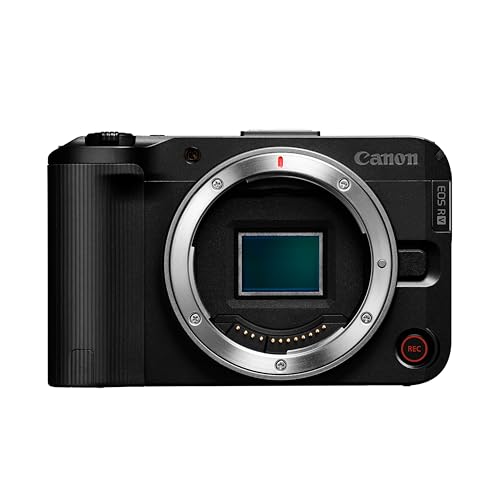
| Mirrorless camera + capture card / USB streaming | 1080p60 clean, some 4K30 | Shallow depth of field, true low-light performance, interchangeable lenses | Overheating on long streams, battery limits, more cables and settings | Full-time creators, interviews, studio look |
When a cheap 1080p webcam is enough
If you stream in a lit room during the day and you are mostly a small window in the corner of gameplay, do not overbuy. A basic 1080p streaming webcam at 30fps will look fine once you add one $30 LED panel in front of you.
What to check: true 1080p30 over USB Video Class (UVC) with no driver required, manual exposure in the app, and a 78-90 degree field of view. Wider than 90 degrees will make your room look messy and your face small.
Failure modes I see constantly: fixed-focus budget models that are sharp at 3 feet but blurry if you lean back in a gaming chair, and auto-exposure that blows out your face when you have a window behind you. Fix the window first. Put your desk facing the window or close the blinds. No camera can fix heavy backlight.
Who it suits: new Twitch/YouTube streamers, office workers who also stream, anyone on a laptop with limited USB bandwidth. If your upload is under 8 Mbps, your viewers will not see the benefit of anything better anyway.
The sweet spot: good 1080p60 with decent low light
This is where most regular streamers should land. You get 60fps motion for hand cams, better autofocus, and usable image at night without cranking ISO until your face looks like sandpaper.
Look for dual microphones with noise reduction you can turn off, tripod thread on the bottom, and a shutter for privacy. Autofocus speed matters more than megapixels. A camera that locks in 0.5 seconds and stays locked is better than one that hunts every time you move your hands.
Trade-off: these still have tiny sensors. You will not get background blur, and colors can look flat next to a mirrorless camera. That is fine for gameplay and Just Chatting. Spend the savings on light. A $60 key light will improve a $80 webcam more than upgrading to a $200 webcam in a dark room.
Common failure: plugging into a USB hub with your mic, keyboard, and external drive. The image stutters or drops to 720p. Plug the camera directly into a USB 3.0 port on the PC, not a cheap hub.
Should you buy a 4K webcam?
Sometimes. A quality 4K webcam for streaming is useful if you want to crop in. You can shoot wide and then digitally zoom to a head-and-shoulders frame in OBS and still output sharp 1080p. That is handy for solo podcasters who want two angles from one camera.
But be honest about your PC. 4K30 over USB takes real CPU for decoding, background blur, and auto-framing. On a 4-year-old laptop, you will often end up running it at 1080p anyway to keep fans quiet. You also need more light for 4K to look clean, because the pixels are smaller.
Other failure modes: overheating during 2-3 hour streams, aggressive noise reduction that makes skin look waxy, and AI framing that slowly drifts or cuts off your hands during demos. Turn off auto-framing if you move a lot.
Who it suits: creators who record and stream from the same camera and want cropping room, Etsy sellers and makers showing detail work, and anyone who wants to future-proof without going to interchangeable lenses.
When a mirrorless camera is worth the hassle
If you want that blurred background and clean night image, nothing with a webcam-size sensor will do it. A used mirrorless body with a f/1.8 prime and USB streaming mode or a $130 capture card is a huge step up. Search for a mirrorless camera for live streaming that explicitly lists clean HDMI and unlimited USB streaming time.
This is not plug-and-play. You need to check three things before you buy: 1) no 30-minute video limit in streaming mode, 2) no overheating shutdown at 1080p60 after 60-90 minutes, 3) powered by USB-C PD or dummy battery so you do not die mid-stream. Sony, Canon, Fujifilm, and Panasonic all have models that do this, but not every model in the lineup does.
Failure modes are specific: autofocus set to wide-area will focus on your background posters instead of your eyes, 4K mode overheats while 1080p would run all day, and full HDMI still shows battery icons unless you enable clean output. Test a 2-hour recording before your first live.
Who it suits: full-time streamers, interview shows, music and fitness creators where image quality is part of the brand. If you stream under 5 hours a week, the extra cables and settings are usually not worth it.
Setup mistakes that make any HD camera look bad
Most “my camera is blurry” complaints are not the camera. Set output in OBS to 1920×1080 at 30fps for talking streams, 60fps only if you have fast motion. Set exposure manually. Auto-exposure will pump up and down when you open a white browser window.
Put a soft light at eye level, 2-3 feet away. Overhead room lights create harsh shadows and force the camera to raise ISO. Keep white balance locked at 5600K if you use daylight LEDs. And clean the lens. It sounds basic, but webcam lenses collect dust and finger oil fast.
For audio, do not judge a camera by its mic. Even good webcam mics sound echoey from 3 feet away. Use a USB mic or headset and disable the camera mic in OBS to avoid doubling.
FAQ
Is 1080p or 4K better for Twitch and YouTube Live?
For live delivery, 1080p. Twitch still largely watches in 1080p60 or lower, and YouTube transcodes everything. Shoot 4K only if you want to crop in post or record a sharper master while streaming in 1080p.
Why does my HD webcam look grainy at night?
Small sensor plus low light forces high gain. Add a key light in front of you, lower exposure manually, and move closer to the camera. Upgrading cameras without adding light usually keeps the same grain.
Do I need a capture card?
Only if you use a mirrorless, DSLR, action cam, or second PC as a source. USB webcams do not need one. If your mirrorless camera has reliable USB UVC streaming without a time limit, you can skip the capture card.
Can I use a GoPro-style action camera for desk streaming?
You can, but it is a compromise. Wide lens distortion makes your face look stretched up close, and many overheat in 60-90 minutes indoors. They are better for overhead or travel IRL streams than as a main face cam.









