
Streaming setups devour USB ports. A webcam, microphone or interface, Stream Deck, capture card, controller, and a couple of RGB accessories can easily exceed what your motherboard offers, and daisy-chaining them through a cheap unpowered hub is the fastest way to get random disconnects mid-stream. A powered USB hub, one with its own wall adapter, is the fix because it delivers stable current to every device instead of splitting whatever your PC can spare.
As an Amazon Associate we earn from qualifying purchases at no extra cost to you.


Our Top Picks


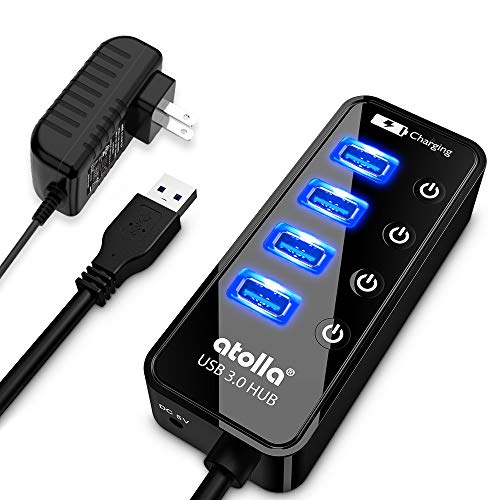

Top 3 picks at a glance
Why “powered” matters
A single USB-A 3.0 port supplies about 4.5W (5V at 900mA). Split that across four hungry devices and voltage sags, which is exactly when a webcam drops out or a mic is “not recognized.” A powered hub with, say, a 36W to 60W adapter gives each port its own budget, so a self-powered capture card and a bus-powered mic can coexist without fighting for electrons.
Ports, speed, and bandwidth
Match the hub’s data standard to your busiest device. A 1080p60 webcam and an external capture card both want USB 3.0 (5Gbps) or better; putting them on a USB 2.0 hub (480Mbps) can force lower resolution or dropped frames. Look for a hub where the high-speed ports are clearly rated, and remember that all ports on one hub share the single uplink bandwidth to your PC, so avoid running two 4K capture devices through the same hub.
What to look for
| Spec | Budget (~$20-35) | Mid (~$40-70) | Premium (~$80-150) |
|---|---|---|---|
| Ports | 4-7 | 7-10 | 10-16 |
| Data speed | USB 3.0 5Gbps | 3.2 Gen 2 10Gbps | 10Gbps + USB-C |
| Power adapter | 24-36W | 48-60W | 60-120W |
| Per-port switches | Sometimes | Often | Usually |
| Chipset quality | Basic | Good | VIA/Genesys premium |
Per-port power switches
Individual on/off switches are underrated for streamers. You can cut power to an idle capture card that runs hot, or reset a frozen device without unplugging cables behind the desk. They also help isolate which port is causing interference if you get audio hum.
Avoiding the common failure modes
Ground-loop hum and EMI
Cheap hubs with thin shielding can inject buzz into an audio interface sharing the same hub. If you hear a hum that changes when the GPU loads, move the interface to a motherboard port and keep the hub for cameras, controllers, and lighting. Quality hubs use better shielding and a cleaner internal power rail.
Mixing charging and data
Some hubs advertise a high-wattage “charging” port. That is convenient for a phone-as-webcam or a wireless mic receiver, but confirm the charging port still passes data if you need it to, since a few vendors make one port charge-only.
Placement and cabling
Mount the hub within reach, not buried behind the tower, so you can hit switches and swap devices. Keep the uplink cable short (under 1m ideally) to preserve signal integrity at 10Gbps. If your PC is far away, use an active/powered extension rather than chaining two passive cables.
FAQ
Do I need USB-C, or is USB-A fine?
Most streaming peripherals are still USB-A, so an A-heavy hub with one or two USB-C ports covers almost everyone. Only prioritize a C-heavy hub if your capture card, dock, or newer webcam is C-native and you want full 10Gbps to it.
Can one powered hub run my whole setup?
For cameras, mics, Stream Deck, and lighting, yes. But keep high-bandwidth capture cards on a direct PC port or a dedicated hub, because a single uplink shared by two 4K devices can bottleneck and drop frames.
Bottom line
Buy a powered hub with its own 48W+ adapter, USB 3.0/3.2 data ports rated for your fastest device, and per-port switches. Keep audio interfaces off the hub if you can, reserve direct ports for 4K capture, and you will trade mid-stream disconnects for a setup that just stays connected.









