
If you are starting streaming, you do not need a cinema camera. You need something that turns on every time, stays in focus, does not overheat, and looks decent in a small Twitch or YouTube window. Most starters overbuy on resolution and underbuy on lighting and mounting.
For most people, a simple 1080p webcam is still the right starter camera. It is cheap, reliable, and good enough until you know whether you will stick with streaming. Move to a mirrorless camera or DSLR only when you want background blur and better low-light performance, and you are willing to deal with extra gear.
Our Top Picks


What a starter actually needs
A starter camera has a different job than a YouTube studio camera. It runs for 2-4 hours straight, sits 2-3 feet from your face, and has to work without fiddling every stream. Autofocus that hunts, overheating shutdowns, or software that crashes OBS will kill a stream faster than slightly soft 1080p video.
Prioritize this order: reliability, clean 1080p30 or 1080p60, decent auto-exposure, standard tripod mount or monitor mount, and UVC plug-and-play support so OBS, Discord, Streamlabs, and Zoom see it without drivers. 4K is not a priority. Most viewers watch facecams at 480 to 720 pixels in the corner. Good lighting will improve your image more than jumping from 1080p to 4K.
Webcam vs. interchangeable-lens camera
A USB webcam connects directly and draws power over USB. You clip it to a monitor, select it in OBS, and go. Downside is a tiny sensor. In a dim bedroom it gets noisy, colors wash out, and you get almost no background separation. The image looks flat but workable.
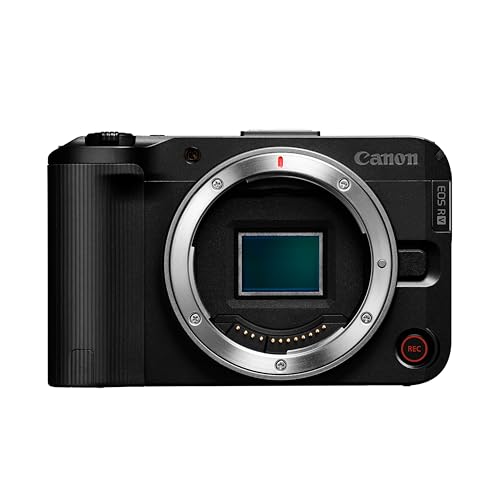
An interchangeable-lens mirrorless camera used as a webcam gives you a much larger sensor, better lenses, and that soft background look. Trade-off is complexity. You usually need a dummy battery or USB power delivery for long sessions, a clean HDMI output or reliable USB streaming mode, plus a capture card or USB cable that does not drop, and a tripod or arm. It also costs 5-10x more once you add lens, power, and mount. If you unplug and move gear often, that friction adds up.
There is a middle path many starters ignore: use the phone you already own as a webcam over USB with a webcam app, or buy a used action camera with clean HDMI. Phones have excellent auto-exposure for the price, but notifications, calls, overheating, and battery wear are real annoyances. Action cameras overheat indoors more often than people expect. For a first dedicated purchase, a webcam is still simpler.
| Option | Typical cost | Best for | Main trade-off |
|---|---|---|---|
| Basic 1080p30 webcam | $30-$70 | First 3-6 months, testing if you like streaming | Soft in low light, little background blur |
| Mid-range 1080p60 webcam | $80-$150 | Facecam gaming, Just Chatting, teaching | Still small sensor, needs good light |
| Phone as USB webcam | $0-$25 for mount/app | Tight budget, good daylight room | Heat, battery wear, interruptions |
| Entry mirrorless with kit lens | $500-$900 plus accessories | Committed creators wanting blur and low light | Power, HDMI/capture, tripod, complexity |
Best starter picks by situation
If you just want to go live this week, get a basic 1080p webcam for streaming. Look for true 1080p30, dual microphones you will probably not use, and a physical privacy shutter. Set it to 1080p30, turn off auto right-light gimmicks that pump exposure up and down, lock exposure if your software allows it, and sit facing a window or a cheap LED panel. This is fine for Discord, Twitch, and job interviews. Be honest with yourself: if you quit in two months, you lost very little.
If you stream fast movement – FPS games, drumming, crafting close-ups – step up to a mid-range 1080p60 webcam with a larger lens and better autofocus. The difference is not sharpness so much as smoother motion and less focus hunting when you lean in and out. Check that it does 1080p60 over USB 2.0 without MJPEG mush or that your PC has a free USB 3.0 port. Many complaints about blurry webcams are actually USB bandwidth or OBS downscaling issues, not the lens.
If you already have a decent recent phone and almost no budget, try your phone first before buying anything. Mount it at eye level, plug it in over USB rather than Wi-Fi to cut latency and dropouts, enable Do Not Disturb, and keep it powered with a quality brick. If the phone gets hot after 45 minutes with the case on, take the case off and point a small fan at it. If you can run three full-length test streams with no disconnects, you just saved $100.
Only consider an entry mirrorless camera for streaming as a starter if you plan to do YouTube talking-head videos as well as live streams, and you have $700+ for body, lens, dummy battery, tripod, and lighting. Use the manufacturer’s USB webcam mode first. Add a capture card only if you need 4K, longer cable runs, or you see USB dropouts. Shoot at f/2.8 to f/4 for a face at a desk; wider than that and your nose will be sharp while ears are soft, which looks worse in motion.
Lighting and mounting matter more than the camera
A $50 webcam with a $35 LED panel at 45 degrees will beat a $600 camera in a dark room with an overhead bulb. You do not need RGB. You need a steady, diffused key light at eye level and no bright window behind you. If your background is blown out, close blinds or move so the window is to your side, not behind.
Mount the camera at or slightly above eye level, about arm’s length away. Monitor clips slip, especially on curved monitors. A small desktop tripod or clamp arm is more stable and lets you frame out clutter. Set manual white balance around 4000-5500K to match your room, then leave it. Constant auto white balance shifts are distracting on stream.
For audio, do not judge a camera by its microphones. Even good webcam mics pick up keyboard and room echo. A cheap wired headset or USB dynamic mic close to your mouth will improve perceived video quality because viewers tolerate soft video but leave for bad audio.
Failure modes to check in the first week
Test for heat and power before your return window closes. Run the camera for a full stream length while recording in OBS. Webcams rarely overheat, but phones and mirrorless cameras do. If a mirrorless camera shuts off at 30-45 minutes, you need USB power delivery that actually charges while streaming, not just a data cable, plus auto power-off and overheating settings set for video.
Watch for autofocus hunting, exposure pumping, and USB disconnects. If focus breathes every time you move your hands, switch to manual focus locked on your chair position. If brightness flickers under LEDs, change your shutter to 1/60 in the US or 1/50 in 50Hz countries to stop flicker. If OBS freezes when you plug in another USB device, move the camera to a different USB controller or powered hub. Buying a more expensive 4K webcam for streaming will not fix those issues.
Also check framing at your actual streaming distance. Many webcams are 78-90 degree field of view and show your whole messy room. A narrower 65-75 degree view or cropping to 1080p in OBS looks more professional without buying anything. Lock the settings and save an OBS profile so you do not re-tune every time.
FAQ
Is 1080p enough for Twitch and YouTube in 2026?
Yes for a facecam. Most facecams are displayed small, and Twitch transcodes most streams to 1080p or lower anyway. Spend the savings on lighting and a stable mount.
Should I buy 4K as future-proofing?
Usually no for a starter. 4K webcams cost more, need more USB bandwidth and light, and can run hotter. Better future-proofing is a camera with manual controls, tripod thread, and clean USB behavior.
Can I just use my DSLR or mirrorless camera I already own?
Yes if it has clean HDMI or USB webcam mode and you can power it continuously. Test a 2-hour run for heat, battery drain, and 30-minute recording limits. Do not buy a capture card until USB mode proves unreliable.
Why does my new webcam look worse than reviews?
Almost always lighting and settings. Add a key light in front of you, turn off backlight, lock exposure and white balance, set OBS to 1080p canvas, and mount the camera at eye level. That fixes 80 percent of bad-looking webcam footage.









