
Our Top Picks


What starting streamers actually need
A starting camera for streaming does not need to be 4K, interchangeable-lens, or expensive. For Twitch, YouTube Live, TikTok Live, and Discord, what matters most is stable 1080p at 30fps, reliable autofocus, decent low-light performance, and a field of view that fits your room. Most viewers watch in a small window or on a phone, often with your gameplay or desktop taking up most of the screen. They will notice if you are blurry, stuttery, or blown out by a window behind you. They will not notice whether you paid $70 or $700.
The other thing beginners underestimate is USB simplicity. A plug-and-play webcam that works every time you open OBS is worth more than a slightly sharper mirrorless camera that needs a capture card, dummy battery, and 15 minutes of troubleshooting before every stream. When you are starting, consistency beats image quality. Pick something you will actually turn on.
Your three real options
Almost every starter setup falls into one of three buckets: a basic 1080p webcam, a higher-end webcam with a larger sensor, or a mirrorless camera you already own repurposed as a webcam. There are also action cameras and camcorders, but they are rarely the best first buy for indoor talking-head streaming because of overheating, recording limits, and awkward power setups.
| Option | Typical cost | Setup | Strengths | Weaknesses |
|---|---|---|---|---|
| Basic 1080p webcam | $40-$80 | Plug in USB, select in OBS | Reliable, tiny, no extra gear | Soft in low light, narrow dynamic range, digital look |
| Mid-range webcam with larger sensor | $120-$200 | USB, optional companion app | Better low light, cleaner background blur, wider view options | Still small-sensor look, needs good lighting to shine |
| Used mirrorless camera as webcam | $350+ plus capture card, lens, power | HDMI to capture card, continuous power, tripod | Shallow depth of field, much better in dim rooms, pro look | Overheating, autofocus hunting, batteries die, more failure points |
If you stream at a desk in a bedroom or office and just need a facecam in the corner, start in row one or two. Row three makes sense only if you already own the camera or you specifically want that blurry-background YouTuber look and are willing to maintain it.
When a basic 1080p webcam is enough
For most new streamers, it is. A standard 1080p webcam for streaming at 30fps is sharp enough for a 720p or 1080p output, and platforms compress your video so heavily that extra sensor detail gets thrown away anyway. What separates a usable cheap webcam from a frustrating one is not resolution on the box. It is autofocus behavior and exposure control.
Failure modes to watch for: hunting autofocus that pulses in and out when you lean forward, auto-exposure that turns your face white when you wear a white shirt, and frame rate drops to 15-20fps in a dim room. You can fix most of this without buying a better camera. Add a $25-35 key light in front of you, turn off overhead lights behind you, close blinds behind your chair, and lock exposure if the companion software allows it. A $60 webcam with a $30 light looks better than a $180 webcam in a dark room. Every time.
This option suits: gameplay streamers, VTubers who need tracking, IRL-chatting beginners, students, and anyone streaming from a laptop. If you are not sure you will stick with streaming for six months, do not spend more.
When it makes sense to step up
Step up to a mid-range webcam when you have already fixed lighting and still hate the image. The jump buys you three things: a larger sensor that stays cleaner at high ISO in evening streams, a wider aperture lens that needs less light, and usually 60fps at 1080p for smoother hand movement and less motion smear. That 60fps mode matters more for Just Chatting, card opening, art streams, and fitness than for static gameplay facecams.
Trade-off: these cameras are more honest. They show skin texture, room clutter, and bad white balance more clearly. You will want to set a custom white balance, zoom in slightly to crop clutter, and use the privacy shutter when you are not live. Many also run warm and need a free USB 3.0 port directly on the PC, not a cheap hub. Through a hub they can stutter or drop to lower frame rates.
A used mirrorless camera is a different decision. The image can be dramatically better, especially background separation with an f/1.8 lens, but the failure modes multiply. Common ones: 30-minute auto shutoff if you use USB webcam mode instead of clean HDMI, overheating after 60-90 minutes, full batteries mid-stream, autofocus that locks onto your bookshelf instead of your eyes, and audio sync drift when using a separate mic. If you go this route, budget for a capture card, continuous USB power or dummy battery, a sturdy tripod, and a lens with quiet autofocus. The camera body is only half the cost.
This suits creators doing YouTube talking-head videos plus streaming, or anyone whose facecam is full-screen half the time. For a small corner facecam, viewers will barely see the difference.
Lighting, mounting, and settings matter more
Before you upgrade cameras, fix these three things. First, put a diffused light in front of you at roughly eye level. A simple LED key light for streaming about 2-3 feet away will do more than any sensor upgrade. Second, kill backlight. If a window or bright lamp is behind you, your camera will expose for that and turn you into a silhouette. Face the window or cover it. Third, mount the camera at eye level and about arm’s length away. Looking up at a laptop camera or down from a monitor top looks amateur no matter the camera.
In OBS, do not run at 4K even if the camera supports it. Stream at 1080p30 or 1080p60, set the webcam to MJPEG or H.264 if YUY2 stutters on your USB controller, and lock focus once you are seated if the image keeps breathing. Turn off auto-framing and digital zoom unless you need it. Digital zoom just crops and softens. If your room echoes, remember the webcam mic is only a backup. Use a headset or USB mic and mute the webcam in OBS to avoid double audio.
What to avoid as a beginner
Avoid buying a 4K webcam just for the number. Most starter PCs cannot handle 4K USB video plus a game plus encoding without dropped frames, and you will end up running it at 1080p anyway. Avoid no-name 4K webcams that claim 60fps but actually do 15fps at full resolution with heavy sharpening. Avoid using a DSLR with a kit lens in a dark room and expecting miracles. Without light, even a big sensor looks noisy.
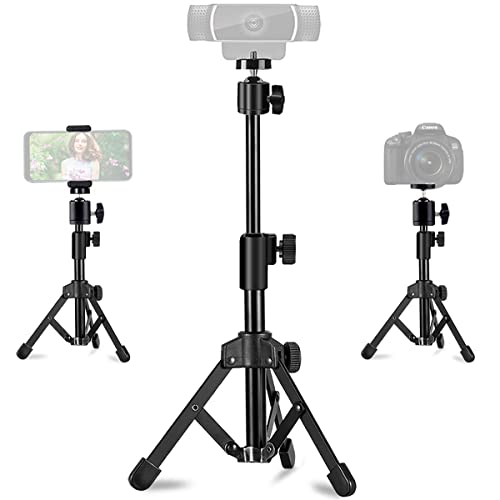
Also avoid over-mounting. A heavy camera on a flimsy monitor clip will slowly tilt during stream. If you buy a mirrorless or heavier webcam, get a small desktop tripod for webcam or clamp mount and check framing after 10 minutes of heat and vibration. And do not buy a capture card before you need one. USB webcams do not use them. Only HDMI cameras do.
Honest rule: if your current stream has fewer than 10 average viewers, spend under $100 on camera and put the rest toward lighting, a mic arm, or games you actually enjoy. No one follows a new channel because the facecam is slightly sharper.
FAQ
Is 1080p30 enough to start streaming?
Yes. Twitch and YouTube transcode and compress heavily, and most facecams are shown small. Stable 1080p30 with good light looks professional. Upgrade to 1080p60 only if you show fast movement full-screen.
Do I need a mirrorless camera to look professional?
No. A mid-range webcam with a key light looks professional for desk streaming. Mirrorless helps mainly for full-screen shots, shallow depth of field, and very dim rooms, but adds cost, heat, and setup time.
Why does my webcam look grainy at night?
Because the room is too dark and the camera is boosting gain to compensate. Add a front light, lower background brightness, and lock exposure. Grain is almost always a lighting problem, not a resolution problem.
Can I use my phone as a starting camera?
Yes for testing, but it is annoying long-term. Phones overheat, get interrupted by calls and notifications, and need a mount and continuous power. A cheap dedicated webcam is more reliable for daily streaming.









