
If you shoot YouTube on a desk or in a small room, a USB camera is still the simplest setup that looks good. No capture card, no HDMI handshake issues, no battery dying mid-take. You plug in, select it in OBS, Streamlabs, Zoom, or the YouTube Live web client, and it works.
The mistake most creators make is buying too much resolution and not enough light control. YouTube compresses everything to 1080p for most viewers anyway. What separates a clean video from a mushy one is autofocus behavior, exposure handling, and how the camera deals with a backlit window or overhead LEDs.
Our Top Picks
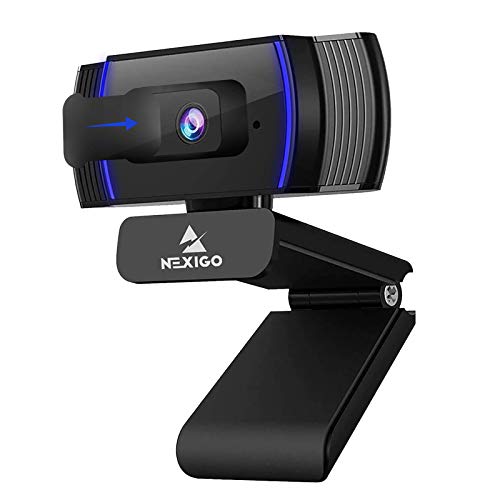 NexiGo N930AF Webcam with Microphone for DesktopSmall3.94 x 2.24 x 2.01 Inches0.4 poundsCheck on Amazon

What YouTube actually demands from a USB camera
YouTube is not live streaming on Twitch. For recorded video, you need consistent focus, natural skin tones, and clean audio sync. For live YouTube Live streams, you need a camera that does not overheat, drop frames, or hunt for focus every time you move your hands.
Look for these three things first: reliable autofocus with face priority, manual exposure or at least exposure lock, and a standard UVC connection so it works without a proprietary driver. UVC means it shows up as a generic USB video device on Windows and Mac. That matters a year from now when the vendor stops updating their app.
The other practical issue is field of view. A 78- to 90-degree lens is right for talking head at arm’s length. Wider than that and your room looks empty and your face gets small. If you film product demos, cooking, or desk builds, you want either a wider lens or a camera you can move close without focus breathing.
The options compared
There are really four categories worth buying right now. They overlap in price but behave very differently day to day.
| Type | Best for | Strengths | Weak spots |
|---|---|---|---|
| 1080p fixed or simple autofocus webcam | Talking head, podcasts, courses | Cheap, reliable, no heat issues | Soft detail, struggles in low light |
| 4K autofocus webcam | Solo creators who crop or punch in | Sharper, better auto-framing, digital zoom headroom | Needs good USB port and light; can look over-sharpened |
| Mirrorless / vlogging camera in USB streaming mode | Product shots, bokeh, higher-end channels | Large sensor, lens choice, best low light | Price, heat on long takes, more setup |
| Action camera as USB webcam | Overhead, travel, tight spaces | Wide lens, tiny body, very flexible mounting | Gets hot, needs power management, audio is weak |
Best cheap workhorse: a basic 1080p webcam
If you film sitting still, two to three feet from the lens, with a window or a $30 LED panel in front of you, a basic 1080p USB webcam with autofocus is fine. Honestly fine. I have seen channels with 200k subscribers still shooting on one because their lighting and audio are dialed.
Trade-offs are real though. Cheap sensors smear detail when your room is dim, and auto white balance will drift if you have RGB lights behind you. Fixed-focus models are actually more reliable for this — nothing to hunt — but you have to sit in their sweet spot. Lean too far forward and you go soft.
Failure mode to watch: USB power. Plug these directly into the computer, not a cheap unpowered hub with a mic, light, and hard drive also attached. That is the number one cause of flicker and random disconnects I see in creator forums.
Who it suits: new channels, course creators, podcast-style shows where the camera never moves. Save the extra $100 for a key light and a used condenser mic. That will improve retention more than 4K.
Best all-rounder: a 4K USB webcam
A modern 4K USB webcam is the sweet spot for most YouTubers who both record and go live. You get two practical benefits: you can crop to 1080p and still look sharp, and auto-framing actually works because it has pixels to spare.
In practice, do not record in 4K for YouTube unless you have a reason to. Record in 1080p cropped from the center. Files are smaller, editing is faster, and YouTube’s compression is kinder to a clean 1080p source than a noisy 4K source from a small sensor.
Downsides: these cameras are pickier about USB bandwidth. Use the USB 3.0 port on the back of a desktop, not a front-panel extender. They also tend to over-sharpen faces by default. Turn sharpness down to 30-40% in the vendor app, lock exposure if you can, and set white balance to 5600K if you use daylight LEDs.
Failure mode to watch: autofocus hunting during hand demos. If you hold products up to the lens, turn on product-priority focus if available or switch to manual focus at your chair distance. Otherwise the camera will pulse in and out twice a second and ruin the take.
Best step up: mirrorless camera over USB
If you want that soft background and crisp product detail, no small-sensor webcam will fake it well. A mirrorless or compact vlogging camera used as a USB webcam — most now have a plug-and-play USB streaming mode — is a visible jump in quality, especially in a dim room.
You do not need a capture card for this anymore for YouTube. USB streaming mode usually tops out at 1080p30 or 1080p60, which is plenty. The advantage is the lens and sensor, not the pixel count. An f/1.8 to f/2.8 lens at 24-35mm equivalent gives you separation that software blur cannot match.
The catch is heat and power. A camera that is fine for 15 minutes of photos will overheat at 45 minutes of continuous 1080p output. Use AC dummy power, flip the screen out for airflow, and disable in-body stabilization if you are on a tripod — it adds heat for no benefit. Also test your exact cable length; many USB video dropouts are just a 10-foot passive cable that should have been an active one.
Who it suits: beauty, tech reviews, cooking, or anyone filming B-roll and A-cam on the same body. If you only sit and talk, it is overkill. A good mirrorless camera with USB streaming costs 4-6x a webcam once you add lens, tripod, power, and light.
Setup matters more than the camera
Every USB camera I have used for YouTube looked twice as good with the same three fixes: face a soft light source, kill backlight, and lock settings. Put a window or LED panel at 45 degrees in front of you, close blinds behind you, and set exposure so your forehead is not blown out. Auto exposure will always expose for the brightest window, not your face.
Mounting is the other hidden cost. A wobbly monitor mount transmits every keystroke. A cheap desk tripod or wall shelf with a ball head is steadier. If you do overhead shots, get a camera with a standard 1/4-inch thread — most webcams still need an adapter — and run the USB cable with slack so arm movement does not tug the connector mid-recording.
For software, record at 1080p30 for talking head, 1080p60 only if you move a lot or plan slow motion. In OBS, add 50-100ms audio delay if your USB mic drifts from the video; USB cameras typically lag 80-150ms behind analog mics.
FAQ
Do I need 4K for YouTube?
No, for most channels. YouTube recompresses to 1080p for the majority of viewers. A clean, well-lit 1080p image with stable focus will outperform a noisy 4K image. Buy 4K only if you want crop flexibility or better digital zoom.
Why does my USB camera look grainy even though it is 1080p?
Almost always low light. Small sensors boost gain when light drops, which creates noise. Add a key light in front of you and lower the camera’s exposure compensation. Do not rely on room ceiling lights behind you.
Can I use two USB cameras at once?
Yes, but put them on separate USB controllers if you can. Two 1080p cameras on one cheap hub will stutter. Label them in OBS by serial, not just “USB Camera,” or Windows will swap them after a reboot.
Webcam or real camera for a new channel?
Start with a webcam and spend on light and audio. Switch to a larger-sensor camera over USB only when you are limited by background blur, low light, or lens choice — not by subscriber count.









