
Run a stream with three or four cameras — an event, a sports broadcast, a multi-angle talk show — and casual streaming software starts to strain. This is where vMix and OBS diverge sharply. OBS is the free workhorse that scales further than most people realize, while vMix is a paid, Windows-only production suite built specifically for serious multi-camera work. For live production, the right pick depends on scale, budget, and how much built-in production power you need.
As an Amazon Associate we earn from qualifying purchases at no extra cost to you.


Our Top Picks


Top 3 picks at a glance
Where they come from
OBS Studio was born for single-creator streaming and grew outward. It handles multiple cameras through capture devices and scenes, and with plugins it can do a lot — but true multi-camera switching, instant replay, and advanced production features are add-ons or workarounds. vMix was designed from the ground up as a software video mixer/switcher. Multi-camera switching, live replay, scoreboards, NDI inputs, virtual sets, and multiple independent outputs are core features, tiered by license.
The production feature gap
For a broadcast producer, vMix’s headline features are instant replay (crucial for sports), a proper multi-view/preview-program workflow (line up the next shot before cutting to it), and robust handling of many simultaneous inputs including NDI network cameras. OBS can approximate some of this with plugins like a preview/program studio mode and NDI support, but it is not as seamless or as deep for high-input-count live production.
Comparison
| Factor | vMix | OBS Studio |
|---|---|---|
| Price | Paid, tiered licenses | Free & open source |
| Platform | Windows only | Windows, macOS, Linux |
| Multi-cam switching | Core, preview/program | Studio mode, more manual |
| Instant replay | Built in (higher tiers) | Not native |
| NDI inputs | Native, many inputs | Via plugin |
| Learning curve | Steeper, pro-oriented | Moderate |
| Best for | Events, sports, broadcast | Solo creators, most streams |
Which fits your production?
Choose vMix if you are producing genuine multi-camera live events: sports with replay, conferences, worship services, or shows where a director cuts between many angles and needs preview/program discipline. Its input limits, replay, and NDI handling are built for exactly that, and the paid tiers scale with your camera count. The cost and Windows-only requirement are easy to justify when production quality is the product.
Choose OBS if you are a solo or small-team creator, even with two or three cameras. It handles that comfortably, costs nothing, runs on any OS, and its plugin ecosystem covers most needs. Unless you specifically need instant replay, heavy NDI, or a true switcher workflow, OBS is the pragmatic choice — and many two-camera talk shows run on it flawlessly. Scale and specific production features, not raw camera count alone, are what push you toward vMix.
Budgeting and hardware for multi-camera work
The software cost is only part of a multi-camera build; the computer and connections behind it matter just as much. vMix, in particular, scales its hardware demands with input count — more cameras, more NDI streams, and instant replay all lean on CPU, RAM, and fast storage. A serious vMix production machine wants a strong multi-core CPU, generous RAM, and an SSD for replay recording, whereas a modest two-camera OBS setup runs happily on a mainstream gaming PC.
Getting cameras into the software
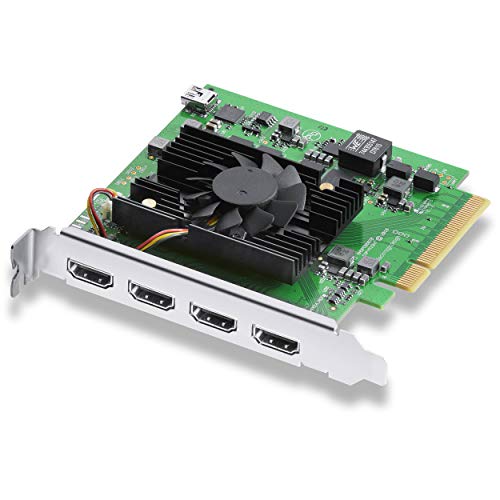
Plan how each camera connects. Capture cards bring in HDMI/SDI cameras and cost per input, so a four-camera card-based rig adds up. NDI, which vMix handles natively, sends camera feeds over your network instead — convenient and tidy, but it demands a solid wired gigabit network and adds a little latency, so budget for good switches and cabling. For OBS, each capture-card camera is another device and USB path to manage; for vMix, NDI can reduce the cable count but shifts the load onto your LAN. Whichever you choose, do not starve the build: a powerful switcher app on an underpowered PC with a congested network will drop frames no matter how good the software is. Cost out the whole chain — software tier, capture or NDI infrastructure, PC horsepower, and storage for replay — before committing. Done right, vMix scales to genuine broadcast; done cheaply, even a great app stutters. For small shows, OBS on solid consumer hardware remains the value champion.
FAQ
Does OBS support a preview/program (switcher) workflow?
Yes, via Studio Mode, which lets you set up the next scene before cutting to it. It works well for modest setups, but it is less specialized than vMix’s dedicated preview/program and multi-view for large multi-camera productions.
Is vMix worth it for just two cameras?
Usually not. Two or three cameras are well within OBS’s free capabilities. vMix earns its cost when you need instant replay, many NDI inputs, or a true broadcast switcher workflow — typically events and sports.
Bottom line
vMix is a paid, Windows-only production suite built for multi-camera events, sports replay, and NDI-heavy broadcasts, with a real preview/program switcher at its core. OBS is free, cross-platform, and more than capable for solo creators and small multi-cam shows. Choose vMix for serious live production features; choose OBS for everything else.









