
Setting up a streaming station requires a delicate balance of physical space, visual ergonomics, and hardware performance. While a single screen might suffice for casual gaming, live streaming demands that you manage a broadcasting software suite (like OBS Studio), monitor a live chat feed, track stream health, and maintain peak in-game performance simultaneously. A dual-monitor configuration is the industry standard for handling this heavy multitasking workflow.
However, simply buying the two largest screens you can find is a recipe for neck strain, desk clutter, and poor camera angles. To build a setup that looks professional and feels comfortable over long broadcasting sessions, you must choose the right monitor sizes based on your physical desk dimensions, mounting options, and room layout.
As an Amazon Associate we earn from qualifying purchases at no extra cost to you.
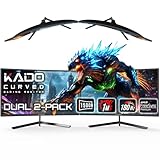


Our Top Picks
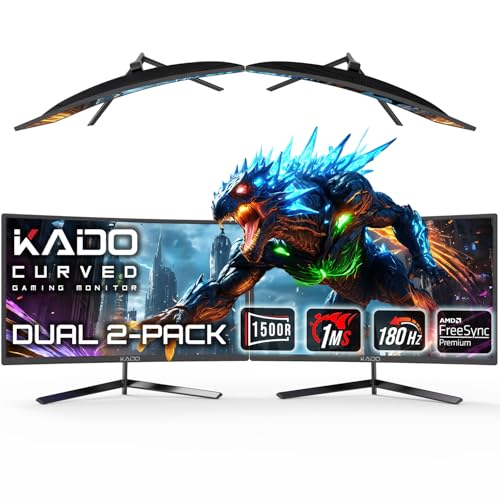 Kado Dual 2-Pack 24" Curved 1500R 180Hz 1ms24" Curved 180Hz2.75 x 21.61 x 12.85 inchesCheck on Amazon
 Kado 2-Pack 34" Curved 1500R 165Hz 1ms Ultrawide34" Curved 2-Pack8.6 x 31.8 x 17.96 InchesCheck on Amazon
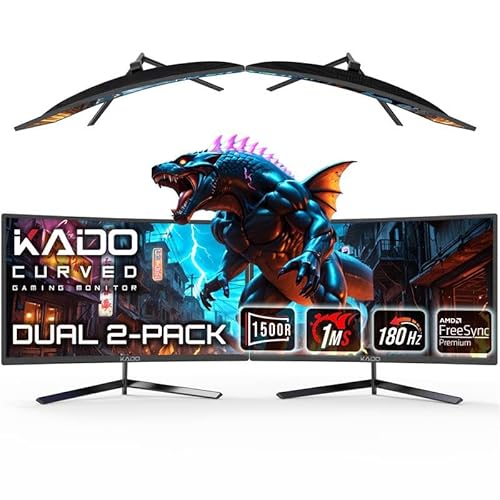 Kado 2-Pack 24" 180Hz 1ms Curved 1500R 1920x108024" Curved 2-Pack2.75 x 21.61 x 12.85 inches26.46 PoundsCheck on Amazon

Top 3 picks at a glance
The Short Answer
For most creators, the absolute best monitor configuration for dual-monitor streaming is dual 24-inch displays or a combination of one 27-inch main display and one 24-inch secondary display.
Dual 24-inch monitors (typically measuring about 21.5 inches in physical width per screen) provide a combined width of approximately 43 inches. This fits comfortably on a standard 48-inch to 55-inch wide desk without overhang. This size allows you to keep your gameplay centered on your primary screen while keeping your chat, alerts, and OBS dashboard within your peripheral vision on the second screen. You can easily view both displays without constantly turning your head, which reduces neck fatigue during long broadcasts.
If you prefer a larger canvas for high-resolution gaming, a 27-inch main monitor (1440p resolution) paired with a 24-inch secondary monitor (1080p resolution) offers the ideal compromise. It gives you an immersive gaming experience while keeping your stream management tools compact and close at hand. This mixed-size setup occupies about 46 inches of horizontal desk space, making it highly manageable for mid-sized home offices.
Standard Sizes
To plan your desk layout and choose the right mounting accessories, you need to know the physical dimensions of standard monitor sizes. The table below outlines the average width, height, weight, and typical power consumption for the most common monitor sizes used in streaming setups today. Note that physical dimensions include average bezel sizes, and depth measurements assume the monitor is mounted on its default desktop stand.
| Screen Size (Diagonal) | Average Width (Inches / cm) | Average Height with Stand (Inches / cm) | Average Weight (lbs / kg) | Typical Power Consumption (Watts) | Min. Desk Width for Dual Setup (Inches / cm) |
|---|---|---|---|---|---|
| 22-Inch | 20.0″ / 50.8 cm | 15.0″ / 38.1 cm | 6.5 lbs / 2.9 kg | 15W – 22W | 40″ / 101.6 cm |
| 24-Inch | 21.5″ / 54.6 cm | 16.5″ / 41.9 cm | 8.0 lbs / 3.6 kg | 20W – 30W | 44″ / 111.8 cm |
| 27-Inch | 24.2″ / 61.5 cm | 18.0″ / 45.7 cm | 11.5 lbs / 5.2 kg | 25W – 40W | 50″ / 127.0 cm |
| 32-Inch | 28.5″ / 72.4 cm | 21.0″ / 53.3 cm | 15.0 lbs / 6.8 kg | 35W – 55W | 58″ / 147.3 cm |
| 34-Inch (Ultrawide 21:9) | 32.5″ / 82.6 cm | 19.0″ / 48.3 cm | 17.5 lbs / 7.9 kg | 45W – 70W | 60″ / 152.4 cm (mixed setup) |
How to Measure Your Space
Before purchasing any displays, you must measure your physical streaming environment. A dual-monitor setup takes up a significant amount of visual and physical real estate. Follow these steps to ensure your new monitors fit your space perfectly:
- Measure Your Desk Width and Depth: Use a standard tape measure to record the total width of your desktop. For safety and stability, your combined monitor width should be at least 4 to 6 inches shorter than your desk width to prevent the edges of the screens from hanging over the sides. Next, measure the depth of your desk. A desk depth of less than 24 inches (61 cm) will bring large monitors too close to your eyes, leading to eye strain and making it difficult to see the entire screen at once.
- Calculate the Combined Curved Width: If you are using curved monitors, they will wrap slightly inward, which reduces their total horizontal footprint. For example, two 24-inch curved monitors with a 1500R curvature will save about 2 to 3 inches of horizontal desk space compared to two flat 24-inch monitors. Keep this in mind if you have a tight space.
- Verify Your Monitor Arm Weight Capacity: If you plan to use an aftermarket dual-monitor arm to clear up desk space, check the weight capacity of both the arm and your desk. A typical dual-arm mount supports between 15 and 26 lbs (6.8 to 11.8 kg) per arm. Ensure the combined weight of your chosen monitors (excluding their stock stands) does not exceed the arm’s weight limit. Additionally, make sure your desk surface is thick and sturdy enough (at least 0.75 inches of solid wood or high-density fiberboard) to support the concentrated clamping pressure of a dual-monitor mount.
- Account for Audio and Camera Gear Clearance: Remember that your monitors are not the only items on your desk. You must leave clear paths for your microphone boom arm, studio monitor speakers, and streaming camera. If you place dual 27-inch monitors side-by-side, they may block your studio speakers or force you to position your camera at an awkward, off-center angle. Measure the width of your speakers and ensure you have enough remaining space on the sides of your desk.
By Room or Use Case
The ideal monitor size depends heavily on the physical constraints of your room and the specific type of content you stream. Here is how to choose the right setup for your specific environment:
The Compact Bedroom Studio (Dual 22-Inch to 24-Inch)
If you are broadcasting from a small bedroom, dorm room, or a dedicated corner of a shared living space, space optimization is your top priority. In these tight environments, desks are typically limited to 40 to 48 inches (101 to 122 cm) in width.
For these compact spaces, a dual 22-inch or dual 24-inch flat setup is ideal. Budget-friendly 22-inch models, which cost between $60 and $90 per panel, offer a space-saving footprint while still delivering a crisp 1080p resolution and high refresh rates up to 144Hz. Alternatively, a matched pair of 24-inch monitors offers a slightly larger viewing area. A dual-pack of 24-inch curved monitors, which typically ranges from $250 to $280, keeps the screens angled toward you, reducing the physical desk space needed and providing a highly immersive experience without overwhelming a small desk.
The Dedicated Streaming Room (Dual 24-Inch or Dual 27-Inch)
As we look at modern workspace design in 2026, the dedicated streaming office remains the benchmark for creators. With a standard 55-inch to 60-inch (140 to 152 cm) desk, you have the physical space to run a highly optimized dual-monitor layout.
In this scenario, a matched pair of 24-inch curved monitors running at 180Hz with a 1ms response time offers professional-grade performance. This setup delivers fast refresh rates for competitive gaming on your primary screen, while the secondary screen easily displays your chat and OBS dashboard. If you prefer a larger canvas for detailed editing or high-resolution 1440p gaming, dual 27-inch monitors are an excellent upgrade. The 27-inch size provides a larger visual field, making it easier to read chat messages from a comfortable distance of 28 to 36 inches away from the screens.
The Ultrawide Command Center (34-Inch Ultrawide + 24-Inch Secondary)
For flight simulators, racing games, or highly atmospheric role-playing games, a 34-inch ultrawide monitor (21:9 aspect ratio) provides an unmatched level of immersion. However, streaming with a single ultrawide monitor can be challenging, as broadcasting software does not always scale well to ultrawide resolutions, and your chat feed can block your view of the game.
To solve this, pair a 34-inch curved ultrawide monitor (which costs between $280 and $350) with a standard 24-inch monitor oriented vertically (portrait mode) on one side. This layout allows you to play your game in its native ultrawide format on the primary screen, while the vertical 24-inch screen acts as a dedicated stream command center. The vertical orientation is perfect for reading long, fast-moving chat streams and monitoring your OBS audio levels without taking up too much horizontal desk space.
Common Sizing Mistakes
When setting up a dual-monitor streaming station, avoid these common pitfalls to ensure a comfortable and professional workspace:
- Buying Monitors That Are Too Large for Your Viewing Distance: Placing dual 32-inch monitors on a shallow, 24-inch deep desk forces you to constantly turn your head from side to side to see the edges of the screens. This leads to neck strain and eye fatigue during long streams. If your desk is shallow, stick to 24-inch or curved displays to keep everything within your natural field of view.
- Mixing Mismatched Resolutions and Scaling: Pairing a 4K 27-inch monitor with a 1080p 24-inch monitor can cause frustrating alignment issues. When you move your mouse cursor from one screen to the other, it will often get stuck or jump in size because of the difference in pixel density. For the smoothest experience, use monitors with matching resolutions (such as dual 1080p or dual 1440p displays).
- Overloading Cheap or Thin Desks: Standard dual-monitor setups with stands can weigh between 18 and 35 lbs (8.1 to 15.9 kg). If you clamp a heavy dual-monitor arm onto a cheap, hollow-core desk, the concentrated pressure can crack or warp the desktop surface. Always ensure your desk is made of solid wood, thick MDF, or reinforced metal before mounting heavy displays.
- Neglecting Bezel Thickness: If you plan to position your monitors side-by-side with your game spanned across both screens, thick bezels will create an annoying gap right in the middle of your field of view. Look for “borderless” or ultra-thin bezel designs to make the transition between your screens as seamless as possible.
FAQ
Is it better to have matching monitor sizes for streaming?
Yes, matching monitor sizes are highly recommended for streaming. Having identical screens ensures that your color calibration, brightness, refresh rates, and resolution remain consistent as you look back and forth. This consistency prevents eye strain and eliminates mouse alignment issues when moving your cursor between your game and your streaming software.
Can a single dual-monitor arm hold a 34-inch ultrawide and a 24-inch monitor?
Yes, but you must check the weight and size limits of your specific monitor arm. Most high-quality dual-monitor arms can support this configuration, provided the individual weight of the 34-inch monitor (typically 15 to 18 lbs) does not exceed the weight limit of a single arm. Additionally, make sure the arm has enough physical articulation to position the 24-inch monitor next to the wider display without them overlapping.
How much desk space do I need for dual 24-inch monitors?
To fit dual 24-inch monitors comfortably, you need a desk that is at least 48 inches (122 cm) wide and 24 inches (61 cm) deep. If your monitors are flat and placed side-by-side, they will take up about 43 inches of horizontal space. Using curved monitors or mounting them on a dual-arm stand will help free up valuable desktop space for your keyboard, mouse, and microphone.
Does running a second monitor lower your in-game FPS while streaming?
Running a secondary monitor has a minimal impact on your in-game frame rates (typically less than 1-2% performance loss), as long as you are only using the second screen to display static windows like chat, Discord, or OBS. However, if you play hardware-intensive video content or run 3D applications on your second screen while gaming, your graphics card will experience a more noticeable performance drop.









