
Our Top Picks


Top 3 picks at a glance


The Short Answer
For most live streamers, the absolute best size for a second monitor dedicated to streaming chat is 9 to 16 inches if you want a compact setup that sits directly beneath your main screen, or 22 to 24 inches if you plan to mount the monitor vertically next to your main display.
If your sole focus is reading Twitch, YouTube, or Discord chat without turning your head away from the camera, an ultra-compact secondary screen (ranging from 5 to 10 inches) is ideal. It fits neatly in your line of sight right below your primary gameplay monitor. However, if you need to manage your broadcast software (like OBS Studio), track system temperatures, and read chat all at the same time, a standard 24-inch monitor rotated into portrait (vertical) mode is the industry-standard choice.
As an Amazon Associate we earn from qualifying purchases at no extra cost to you.

—
Standard Sizes
When shopping for a secondary display, monitor sizes generally fall into four distinct categories. Below is a breakdown of their physical dimensions, average weights, and typical price ranges to help you gauge what will fit your desk and budget.
| Monitor Class (Diagonal) | Approx. Width x Height (Inches) | Approx. Width x Height (cm) | Average Weight | Typical Price Range |
|---|---|---|---|---|
| Ultra-Compact (4.5″ – 5″) | 4.3″ x 2.6″ | 10.9 cm x 6.6 cm | 0.3 lbs to 0.5 lbs | $35 – $50 |
| Mini Desk / Chassis (9″ – 10″) | 8.5″ x 3.2″ (Stretch) / 8.0″ x 5.0″ | 21.6 cm x 8.1 cm / 20.3 cm x 12.7 cm | 0.7 lbs to 1.0 lbs | $60 – $90 |
| Portable Secondary (13.3″ – 15.6″) | 13.5″ x 7.6″ to 14.2″ x 8.0″ | 34.3 cm x 19.3 cm to 36.1 cm x 20.3 cm | 1.5 lbs to 2.2 lbs | $80 – $180 |
| Compact Desktop (21.5″ – 22″) | 19.0″ x 11.0″ | 48.3 cm x 27.9 cm | 5.0 lbs to 7.0 lbs | $75 – $110 |
| Standard Desktop (24″) | 21.3″ x 12.8″ | 54.1 cm x 32.5 cm | 7.5 lbs to 9.5 lbs | $90 – $160 |
—
How to Measure Your Space
Before purchasing a secondary monitor, you must measure your physical desk layout to ensure the screen fits comfortably within your field of view. Follow these steps to measure your space accurately:
- Measure Under-Monitor Clearance: If you want an ultra-compact chat screen that sits directly beneath your main gaming monitor, measure the distance from the top surface of your desk to the bottom bezel of your main screen. A standard monitor stand usually leaves about 4 to 6 inches (10 to 15 cm) of vertical space, making a 4.5-inch or 9-inch mini-monitor the perfect height to tuck underneath.
- Check Lateral Desk Space: If you plan to place a monitor to the left or right of your setup, measure your remaining desk width. A standard 24-inch horizontal monitor requires at least 22 inches of desk width. However, if you rotate that same 24-inch monitor to vertical (portrait) orientation, it only requires about 13 inches of horizontal desk space.
- Calculate Eye-Level Ergonomics: Sit in your standard gaming chair position. Your primary screen should be directly at eye level. Any secondary screen used for chat should be positioned within a 15- to 30-degree downward or sideways viewing angle to prevent neck strain during long broadcast sessions.
- Assess Stand Depth and Footprint: Measure your desk’s depth from front to back. Standard desktop monitors have stands that consume 7 to 9 inches of depth. If you have a shallow desk (less than 24 inches deep), consider a portable monitor with a folding kickstand, or plan to use a clamp-on VESA desk mount to reclaim your workspace.
- Plan Cable Routing and Power Constraints: Check the distance from your PC tower and power strip to the proposed monitor location. Small displays are often powered via a single USB port (drawing 5W to 10W of power), whereas larger 22- to 24-inch monitors require standard AC power cables and dedicated HDMI or DisplayPort connections.
—
By Room or Use Case
The Compact Chat & System Monitor Setup
If you have a crowded desk or want to keep your streaming layout highly streamlined, a mini secondary display is your best option. These compact panels sit flat on your desk right below your gameplay screen or inside your PC chassis. This layout allows you to read incoming viewer messages with a quick downward glance, keeping your face oriented toward your main camera.
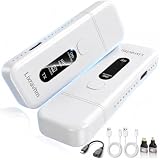
For this specific setup, displays like the yeah magic Crystal 9.16″ PC Secondary Display IPS Monitor (available in white for around $64 or black for around $64) are ideal. With an IPS panel, you get excellent 178-degree viewing angles, meaning the chat text remains crisp and readable even when viewed from a steep downward angle. Alternatively, for strict system telemetry and simple, slow-moving chats, an ultra-mini option like the Raxmolo USB Secondary Screen 4.58 Inch IPS Monitor (priced around $39) provides a highly focused, distraction-free reading zone that takes up virtually zero desk real estate.
The Multi-Tasking Streamer (Chat, OBS, & Discord)
For creators who need to monitor more than just text, a 15.6-inch portable monitor offers the perfect middle ground. These screens are large enough to split-screen your streaming software (like OBS Studio or Streamlabs) on one side and your chat feed on the other. Because they are lightweight (typically under 2 pounds) and powered via USB-C, you can easily pack them away when you aren’t broadcasting, making them perfect for bedroom studios or shared workspaces.
The Professional Vertical Command Center
In 2026, the vertical monitor layout remains the premier choice for professional, full-time broadcasters. By mounting a 22-inch or 24-inch monitor vertically (portrait mode), you can display hundreds of lines of scrolling chat at once. This is incredibly useful for fast-moving, high-traffic streams where messages fly by in seconds. A vertical 24-inch screen also leaves plenty of room to stack your chat feed on top, your stream alerts in the middle, and your audio mixer controls at the bottom.
The Minimalist & Wireless Desk
If you hate cable clutter or want to place your chat monitor on a separate side-table or mounting arm away from your gaming rig, running long display cables can be a major hassle. In this scenario, integrating a wireless video setup is a game-changer. By pairing a compact monitor with a Wireless HDMI Transmitter and Receiver (Premium Full Set) (retailing around $54), you can beam your PC’s secondary display signal up to 50 feet away without latency or messy cords, keeping your streaming desk looking clean and professional on camera.
—
Common Sizing Mistakes
- Buying Too Large: Placing a second 27-inch or 32-inch monitor next to your main screen for chat is a common mistake. These massive screens force you to turn your head completely away from your camera to read messages, making you look disconnected from your audience.
- Ignoring Panel Type and Viewing Angles: Avoid cheap TN (Twisted Nematic) panels for secondary screens. When placed at an angle or rotated vertically, TN panels suffer from severe color shifting and contrast loss. Always choose an IPS (In-Plane Switching) panel to ensure your chat remains legible from any angle.
- Forgetting VESA Compatibility: If you plan to mount your second monitor vertically or on an adjustable arm, make sure the monitor has standard VESA mounting holes (75x75mm or 100x100mm) on the back. Many cheap or portable screens lack these holes entirely.
- Underestimating Stand Depth: Standard monitor stands often have wide, V-shaped or square bases that can collide with your keyboard, mousepad, or primary monitor stand. Always double-check the physical footprint of the stand before purchasing.
—
FAQ
Do I need a high refresh rate (144Hz+) for my streaming chat monitor?
No. A standard 60Hz refresh rate is perfectly adequate for reading text and monitoring broadcast software. Using a high refresh rate monitor as a secondary screen is unnecessary and unnecessarily taxes your graphics card, which can lead to dropped frames during demanding gaming sessions.
Is a vertical or horizontal monitor better for reading streaming chat?
A vertical (portrait) monitor is superior for high-traffic streams because the elongated screen allows you to read a much longer history of scrolling text. However, if your stream has a slower-paced chat, a small horizontal screen placed directly under your main monitor is more ergonomic and keeps your eyes focused closer to your camera.
Can I power a small secondary monitor directly from my PC’s USB ports?
Yes. Most secondary displays under 15 inches, including 9.16-inch and 4.58-inch mini-monitors, draw very little power (typically 5V/2A, or about 10W). They can run directly off a standard USB 3.0 or USB-C port on your computer’s motherboard, eliminating the need for an extra wall outlet.
How do I mount a mini-monitor under my main screen?
Most mini-monitors come with small built-in kickstands or adhesive brackets. For a cleaner look, you can use double-sided mounting tape to attach the mini-monitor directly to the lower bezel of your main monitor, or use a small flexible gooseneck clamp attached to the edge of your desk.









