
Our Top Picks


Top 3 picks at a glance
The Short Answer
For most people storing family videos, phone clips, and occasional 4K projects, start with a two-bay NAS fitted with two 12TB to 16TB NAS drives. In a mirrored RAID 1 setup, two 16TB drives provide about 14.5TB of usable formatted space, which is a comfortable starting point for a growing home video library.
If you edit video professionally, shoot in high-bitrate 4K, or need to keep original camera files for several years, move up to two 20TB drives for roughly 18.2TB usable in RAID 1, or consider a four-bay NAS. A four-bay unit gives more room to expand without replacing every drive at once.
As an Amazon Associate we earn from qualifying purchases at no extra cost to you.


The key distinction is between the drive capacity printed on the box and the storage you can actually use. A 16TB drive formats to roughly 14.5TB before RAID. With RAID 1, half of the installed capacity is reserved for a duplicate copy. That redundancy matters: a NAS is convenient storage, but it is not a substitute for a separate backup.
As a practical guide, plan for at least twice the storage your current footage occupies. That leaves room for new recordings, edited exports, duplicate working files, and the inevitable accumulation of clips you do not want to delete.
Standard Sizes
NAS capacity is measured in terabytes, while the physical space requirement depends on the enclosure and the drives inside it. Most home NAS units use standard 3.5-inch internal hard drives. Compact models may accept 2.5-inch SSDs, but SSD storage is usually much more expensive per terabyte.
| Item | Typical Capacity or Use | Real Physical Dimensions | Planning Notes |
|---|---|---|---|
| 3.5-inch NAS hard drive | 4TB to 24TB per drive | 4.00 x 5.79 x 1.03 in 10.16 x 14.70 x 2.61 cm |
The standard drive size for two-bay and four-bay desktop NAS units. |
| 2.5-inch SATA SSD | 1TB to 8TB per drive | 2.75 x 3.96 x 0.28 in 6.99 x 10.06 x 0.70 cm |
Useful for quiet operation or cache drives; costly for a large video archive. |
| M.2 2280 NVMe SSD | 1TB to 8TB per drive | 0.87 x 3.15 in 2.20 x 8.00 cm |
Often used as a fast editing cache rather than primary long-term storage. |
| Two-bay desktop NAS | Two drives; best for 8TB to 40TB usable storage | Typically 4.0 to 7.5 in W x 6.5 to 9.5 in H x 8.0 to 11.0 in D 10.2 to 19.1 cm W x 16.5 to 24.1 cm H x 20.3 to 27.9 cm D |
Good fit for a desk, media cabinet, or home office shelf. |
| Four-bay desktop NAS | Four drives; best for 24TB to 80TB+ usable storage | Typically 6.5 to 9.5 in W x 6.5 to 10.5 in H x 8.5 to 12.5 in D 16.5 to 24.1 cm W x 16.5 to 26.7 cm H x 21.6 to 31.8 cm D |
Better for serious video collections, shared editing, and future expansion. |
For drive budgeting, a 16TB WD Red Pro drive may cost around $700, while a 20TB WD Red Pro may cost about $879. Two 16TB drives therefore represent roughly a $1,400 drive investment before the NAS enclosure. High-performance systems with NVMe capability, such as a professional all-in-one NAS bundle, can reach approximately $1,400 to $1,500 before adding large hard drives.
How to Measure Your Space
- Measure the shelf width, height, and depth. Use the interior dimensions if the NAS will sit inside a cabinet. Do not rely on the exterior furniture measurements.
- Add ventilation clearance. Leave at least 2 inches (5 cm) on both sides and 3 inches (7.5 cm) behind the unit, especially if its cooling fan exhausts from the rear.
- Allow room for cables. Ethernet, power, USB, and HDMI cables can require another 2 to 3 inches (5 to 7.5 cm) behind the enclosure. A 10-inch-deep NAS may need a shelf that is 13 inches (33 cm) deep in practice.
- Check shelf weight capacity. A 3.5-inch NAS hard drive typically weighs about 1.4 to 1.7 pounds (0.64 to 0.77 kg). A four-drive NAS can easily weigh 10 to 16 pounds (4.5 to 7.3 kg) once loaded.
- Locate a nearby outlet and network connection. Desktop NAS units commonly use external power supplies rated around 60 to 120 watts, depending on the number of bays and installed drives. Avoid packing the power brick tightly behind furniture.
- Choose a stable, low-dust surface. Keep the NAS off carpeted floors, away from radiators, and out of closed media cabinets with no airflow.
By Room or Use Case
Family Room Media Library
For streaming home movies, digitized DVDs, and downloaded media to a television, a two-bay NAS with two 12TB or 16TB drives is usually enough. Use RAID 1 if the footage is irreplaceable. Two 12TB drives yield about 10.9TB usable, while two 16TB drives yield about 14.5TB usable.
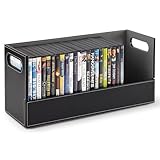
Place the NAS in an open-back media console or on a nearby shelf rather than directly beside a soundbar. Hard drives make a faint spinning and clicking sound during use, so a cabinet 6 to 10 feet (1.8 to 3 m) from the seating area is more comfortable. If you also store physical discs, a compact DVD organizer measuring roughly 15 x 7 x 6 inches (38 x 18 x 15 cm) can hold up to 28 cases, but it will not replace digital storage.
Home Office Video Editing
For editing YouTube videos, wedding footage, or client projects, begin with 24TB to 40TB of usable NAS capacity. A four-bay enclosure is often the more sensible long-term choice because video projects grow quickly. Keep active project files on fast local SSD storage or a NAS with NVMe cache, then move completed projects to the hard-drive array.
As a rough capacity estimate, one hour of compressed 4K footage can occupy anywhere from 20GB to more than 200GB, depending on frame rate, codec, and camera settings. ProRes and other editing-friendly formats can require far more space. Always calculate using your camera’s stated bitrate rather than assuming all 4K files are alike.
Photo, Phone, and Security Camera Backup
A two-bay NAS with 8TB to 12TB drives suits many households backing up phones and computers alongside video clips. Security footage is different: continuous recording consumes capacity rapidly. Four 4K cameras recording around the clock may justify 16TB to 32TB of usable space even when retention is limited to several weeks.
Set clear retention rules. Keep favorite events and family recordings permanently, but configure routine camera footage to overwrite after 14, 30, or 60 days if that fits your needs.
Shared Creative Studio or Small Team
For multiple editors, choose a four-bay or larger NAS and separate working storage from archive storage. Start around 40TB usable if several people handle 4K source footage. Faster networking, such as 2.5GbE or 10GbE, may matter as much as drive capacity when multiple users access large files. A high-speed system can improve workflow, but it does not eliminate the need for backups and off-site copies.
Common Sizing Mistakes
- Buying only enough space for today’s files. A nearly full NAS slows down organization and forces rushed deletion decisions. Aim to keep 15% to 20% free space.
- Forgetting RAID reduces usable capacity. Two 16TB drives in RAID 1 do not provide 32TB of storage; they provide roughly 14.5TB after formatting.
- Confusing RAID with backup. RAID can protect against a drive failure, but not accidental deletion, theft, fire, ransomware, or a failed enclosure.
- Choosing SSDs for an entire archive without pricing the total. SSDs are excellent for active files, but hard drives remain more economical for large video libraries.
- Ignoring cabinet heat. A NAS needs airflow. A tight shelf with a closed rear panel can shorten drive life and increase fan noise.
- Mixing unmatched drive sizes without a plan. In many RAID configurations, the larger drive’s extra capacity is unavailable until matching capacity is added.
FAQ
How many terabytes do I need for 4K video footage?
For casual 4K recording, 8TB to 16TB usable storage can be enough. For frequent shooting, long events, or professional camera formats, plan for 24TB to 40TB usable. One hour of 4K footage may range from roughly 20GB to more than 200GB, so use your camera’s bitrate to refine the estimate.
Is a two-bay NAS enough for video storage?
Yes, for many households. Two bays with two 16TB drives in RAID 1 provide about 14.5TB usable while keeping a duplicate copy on the second drive. Choose four bays if you expect rapid growth, store large editing projects, or want more flexible expansion.
Should I use RAID 1 or RAID 5 for video footage?
RAID 1 is simple and practical for a two-bay NAS: half the capacity is usable, and one drive mirrors the other. RAID 5 requires at least three drives and is more space-efficient, making it useful in a four-bay NAS. Neither option replaces a separate backup.
Where should I put a NAS in my home?
Place it on a stable, hard surface with open airflow, a nearby outlet, and wired network access. Leave 2 inches (5 cm) at the sides and 3 inches (7.5 cm) behind it. Avoid sealed cabinets, direct sun, damp basements, and carpeted floors. In 2026, a wired Ethernet connection remains the most dependable choice for large video transfers.









