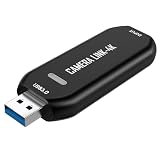
The best capture card for PS5 streaming in this lineup is the Elgato 4K S, because its listing promises 4K60 capture, HDR10 support and passthrough at 1440p120 or 1080p240, which lines up with what the console can output. A capture card sits between the PS5 and your TV or monitor, copies the HDMI signal into your PC over USB, and lets OBS or similar software record and stream it. The other five picks are budget USB 3.0 cards that capture 1080p at 60 frames per second and pass a 4K signal through to the screen, which is plenty for a standard Twitch or YouTube broadcast.
Pick the Elgato if you want the highest headroom, and one of the 1080p60 cards if streaming at 1080p is your goal.
Our Top Picks


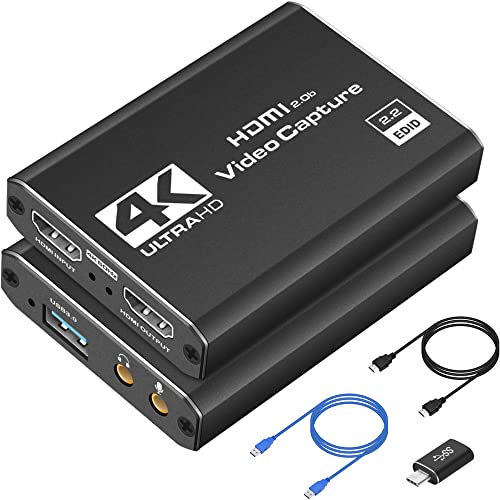


Top 3 picks at a glance
Quick List
- Generic 4K HDMI to USB 3.0 Capture Card – best for a no-frills 1080p60 starter setup
- Elgato 4K S – best for 4K60 capture and high-refresh passthrough
- Generic 4K HDMI Capture Card with Loop-Out – best for a simple pass-through chain to a TV
- Guermok USB 3.0 HDMI Capture Card – best for streamers who want a mic input and audio output on the card
- XIIXMASK USB 3.0 Capture Card – best for mixed USB-A and USB-C computers
- Newhope USB 3.0 Capture Card – best for a compact 1080p60 card with 2K30 as a fallback
Which One Is Right for You?
| If you… | Choose |
|---|---|
| Want 4K60 capture, HDR10 and a high-refresh passthrough for a fast monitor | Elgato 4K S |
| Need a microphone input and an audio output built into the card | Guermok USB 3.0 HDMI Capture Card |
| Use a laptop with only USB-C ports, or switch between laptop and desktop | XIIXMASK USB 3.0 Capture Card |
| Just want the cheapest route to a 1080p60 stream and recording | Generic 4K HDMI to USB 3.0 Capture Card |
| Prefer a card advertised around a loop-out to your display | Generic 4K HDMI Capture Card with Loop-Out |
| Want 2K30 as an alternate capture mode on a small body | Newhope USB 3.0 Capture Card |
Start with your target stream quality. If 1080p at 60 frames per second is where you plan to stay, any of the five budget cards covers it, and the choice comes down to ports and audio inputs. If you want to record at 4K or keep a 120 Hz display feeling smooth while you stream, the Elgato is the only listing here that clearly advertises those modes.
All 6 Picks in Detail
1. Generic 4K HDMI to USB 3.0 Capture Card – Best for a No-Frills Starter Setup
As an Amazon Associate we earn from qualifying purchases at no extra cost to you.

This card is sold under a plain “Capture Card” title with no brand name in the listing, so treat it as a budget, plug-and-play option. It is aimed at someone who wants to record and stream console gameplay at 1080p60 without spending much time on setup, and the listing names the PS5, PS4, Xbox, cameras, PC and OBS as supported sources and software.
- Captures 1080p at 60 frames per second
- HDMI input with 4K passthrough support
- HDMI to USB 3.0 connection
- Integrated audio capture from the HDMI signal
- Works with OBS and similar broadcasting software
- Brand and exact chipset: confirm on listing
In day-to-day use, this style of card is a set-and-forget bridge. You plug the PS5 into the HDMI input, run a second HDMI cable from the output to the display, and connect the USB cable to a blue port on your PC. OBS then sees it as a video device. Because the listing does not name a brand, keep the packaging and order details handy in case you need to ask about drivers or returns. It makes the most sense for someone testing the waters of streaming before committing to a larger setup.
Pros
- Simple concept: one HDMI in, one HDMI out, one USB cable
- Covers the most common streaming resolution
Cons
- No brand identity makes driver and support questions harder to answer
- No 4K or high-refresh capture
Compared with the Guermok card later in this list, this one gives up the dedicated microphone input, so it suits players who already run their voice through a separate mixer or USB mic.
2. Elgato 4K S – Best for 4K60 Capture and High-Refresh Passthrough

The Elgato 4K S is the most capable card here and the one built with the PS5 specifically in mind. The listing names the PS5, Xbox Series X/S and Switch 2, and it advertises 4K60 capture with HDR10 support. For streamers with a 1440p 120 Hz monitor, the passthrough rating means you can keep playing at the smooth refresh rate while the PC captures a lower-bandwidth copy.
- 4K60 capture with HDR10 support
- Passthrough up to 1440p120 or 1080p240, per the listing
- Near-zero latency passthrough for the display you play on
- USB-C connection to the PC; Elgato lists USB 3.0 Type-C and a 3.5 mm line-in
- Bus-powered, so no wall adapter
- HDR capture limits at higher resolutions: confirm on the manufacturer page
The extra headroom shows up in two situations. First, if you want to save 4K clips for editing, the capture mode gives you a cleaner source than a 1080p card can. Second, if you play competitive shooters on a high-refresh monitor, the passthrough rating keeps the picture on your display separate from whatever the PC is doing. The manufacturer also publishes minimum processor and graphics requirements, so check them against your streaming PC before buying. It is the card to buy once, rather than upgrade from later.
Pros
- Clear, manufacturer-backed specifications for PS5 owners
- High-refresh passthrough keeps gameplay responsive
- Small, bus-powered body
Cons
- You need a PC with enough CPU and GPU headroom to encode 4K
- Overkill if you only stream at 1080p
Next to the budget cards, its main advantage is the headroom: where they top out at 1080p60 capture, this one gives you room to grow into 4K recording.
3. Generic 4K HDMI Capture Card with Loop-Out – Best for a Simple Pass-Through Chain

This listing leads with “4K HDMI Loop-Out”, which means the HDMI signal from your console comes straight out to your TV or monitor while a copy goes to your computer. It captures 1080p at 60 frames per second and names the PS5, PS4, Switch and Xbox in the title, which makes it a straightforward fit for a PS5 living-room setup that streams to a PC on the side.
- Captures 1080p at 60 frames per second
- 4K HDMI loop-out (pass-through) to the display
- USB 3.0 connection to the PC
- Audio and video capture in one device
- Works with OBS and common streaming software
- Brand name: not stated in the listing, confirm on the product page
The loop-out label is just a different name for passthrough, and it matters because it keeps your TV or monitor connected to the console without the PC in the signal path. That setup is common in living rooms where the PS5 lives next to a television and the streaming PC sits in another corner. Cable length becomes the practical limit: a long HDMI run to the PC costs nothing in latency but can cause signal problems if the cable is low quality, so use certified high-speed cables.
Pros
- Easy to slot between console and TV
- Clear 1080p60 capture target
Cons
- No brand name to look up for firmware or support
- Passthrough refresh ceiling is not stated, so confirm before pairing with a 120 Hz screen
It sits closest to the first generic card on this list; the loop-out wording is the main difference, so choose by which listing details feel more complete to you.
4. Guermok USB 3.0 HDMI Capture Card – Best for Built-In Mic Input and Audio Out

Guermok is the budget card with the best audio story. The listing calls out a microphone input and an audio output on the card itself, which helps if you want to mix your voice with game audio without a separate interface. It names PS5, Switch 2 and 1, Xbox One, cameras and PC, and it adds a 2K30 capture mode on top of the 1080p60 mode.
- Captures 1080p at 60 frames per second and 2K at 30 frames per second
- 4K HDMI pass-through to the display
- USB 3.0 interface
- Microphone input and audio output on the card
- Works with OBS
- Maximum passthrough refresh rate: confirm on listing
A microphone input directly on the capture card can simplify your signal chain. Instead of routing a mic into the PC and syncing it with game audio, the card can combine voice and console sound before OBS sees them, depending on how the listing implements it. Confirm the exact behavior on the product page, including whether the mic input is a 3.5 mm jack and whether the audio output carries game sound for monitoring. The 2K30 mode is a nice extra for recording, though most streams will use the 1080p60 mode.
Pros
- Mic input simplifies voiceover and commentary setups
- 2K30 gives a sharper recording option
Cons
- 2K capture tops out at 30 frames per second
- Less brand history than established capture makers
Compared with the XIIXMASK, the Guermok focuses on audio connections, while the XIIXMASK focuses on port flexibility on the computer side.
5. XIIXMASK USB 3.0 Capture Card – Best for Mixed USB-A and USB-C Computers

The standout feature in the title is the dual-port design, with both USB-A and USB-C connectors. That makes it handy for someone who streams from a desktop with USB-A ports on some days and a thin laptop with only USB-C on others. The listing names PS4 and PS5, Switch 1 and 2, Xbox, PC, Mac and cameras.
- Captures 1080p at 60 frames per second, with a 2K 30 frames per second mode
- 4K pass-through
- Dual-port USB-A and USB-C connection
- USB 3.0 standard
- Works with PC and Mac
- Audio handling beyond HDMI capture: confirm on listing
For anyone who moves between machines, a card with both USB-A and USB-C is a quiet convenience. A desktop tower often has plenty of USB-A ports, while an ultrabook may only offer USB-C, and a single card that handles both avoids buying adapters. Since the card runs at USB 3.0 speeds, plug it into a port with that rating and avoid unpowered hubs. Mac support in the title is helpful for creators who edit on macOS but still stream from a console.
Pros
- Adapts to different computers without a dongle
- Mac support is named in the title
Cons
- No mic input is mentioned in the listing title
- Still capped at 1080p60 for high frame-rate capture
If you share one capture card across a desktop and a laptop, it is more practical than the Newhope, which lists a single USB 3.0 connection.
6. Newhope USB 3.0 Capture Card – Best for a Compact 1080p60 Card with a 2K30 Fallback

Newhope pitches itself as a low-latency card for a 4K signal that you capture at a lower resolution. Like the Guermok and XIIXMASK, it offers 1080p60 or 2K30 capture, and the listing names the PS4, PS5, Switch 2, Xbox, PC, Mac and cameras. It is a clean fit for a player who wants the basics and nothing else.
- Captures 1080p at 60 frames per second or 2K at 30 frames per second
- 4K pass-through for the display
- USB 3.0 connection
- Audio capture and pass-through
- Works with PC and Mac
- Body size and cable details: confirm on listing
Newhope fills the same niche as other 1080p60 cards, so decide on practical grounds. Look at the cable length, the body size relative to your desk, and how easy the return process looks. Since the listing mentions low-latency 4K monitoring, you should still expect a small preview delay inside OBS, so game on the passthrough display. If the availability is similar to the XIIXMASK or Guermok, the choice usually comes down to the port layout or audio connections you need.
Pros
- Capture modes match the more expensive-looking budget cards
- Works on both Windows and macOS systems
Cons
- No extra audio inputs named
- Few features that set it apart from the Guermok or XIIXMASK
It is nearly a twin of the XIIXMASK on paper, so the deciding factor is whether you need that card’s USB-A and USB-C pairing.
Specs Compared
| Card | Max capture (per listing) | Passthrough | Interface | Audio extras |
|---|---|---|---|---|
| Generic 4K HDMI to USB 3.0 | 1080p60 | 4K passthrough | USB 3.0 | HDMI audio capture |
| Elgato 4K S | 4K60, HDR10 support | Up to 1440p120 or 1080p240 | USB 3.0 Type-C | 3.5 mm line-in (manufacturer page) |
| Generic 4K HDMI with Loop-Out | 1080p60 | 4K HDMI loop-out | USB 3.0 | Audio and video capture |
| Guermok | 1080p60, 2K30 | 4K pass-through | USB 3.0 | Mic input, audio output |
| XIIXMASK | 1080p60, 2K30 | 4K pass-through | USB 3.0 with USB-A and USB-C ports | Confirm on listing |
| Newhope | 1080p60, 2K30 | 4K pass-through | USB 3.0 | Audio capture and pass-through |
How We Chose These
We built this list from the catalog listings and the manufacturer specification pages for the products we could match to a brand. We looked at advertised capture resolution and frame rate, passthrough capability, interface type, console compatibility and the audio connections each card lists. Where a listing did not state a value, we marked it as something to confirm rather than guessing. We favored cards that name the PS5 in their titles, avoided any claims we could not support from published specifications, and kept the focus on features that matter for streaming: capture quality, display passthrough, ease of setup and microphone handling.
What to Look For
Capture resolution versus passthrough resolution
These are two separate numbers, and mixing them up is the most common mistake. Capture resolution is what the card sends to your PC for recording or streaming. Passthrough resolution is what it sends to your TV or monitor so you can play. Most budget cards capture 1080p60 and pass through 4K, which is fine because your stream is usually 1080p anyway. If you play on a high-refresh monitor, the passthrough ceiling matters more than the capture ceiling.
USB bandwidth and why 4K capture is rare on budget cards
USB 3.0 offers 5 Gbps of bandwidth. Raw 4K60 video would blow through that, so cards compress the signal, and the cheapest ones simply stop at 1080p60. A 4K60 listing usually signals more capable hardware. Plug the card into a blue USB 3.0 port directly on the computer, not a hub, and use the short cable that came in the box.
HDCP and what the PS5 will let you capture
The PS5 has an HDCP setting in its HDMI options. HDCP is copy protection, and leaving it on can blank the capture for some content. Turning it off in the console settings usually solves it for gameplay, but protected video apps will stay blocked regardless. Check the console’s HDMI menu before you blame the card.
Audio routing and party chat
Capture cards pull game audio from the HDMI signal, but your voice and party chat often travel a different path. A card with a microphone input, such as the Guermok, can mix your voice in directly. Otherwise, route your microphone into OBS separately and keep the headset on the controller or a mixer. Decide this before you buy, since reworking the audio chain later is annoying.
Worked example: bitrate and storage
Twitch has long recommended around 6,000 kbps for a 1080p60 stream. That is 0.75 megabytes per second, or roughly 2.7 gigabytes per hour for a stream archive. If you record locally at 20 Mbps for better quality, that is 2.5 megabytes per second and about 9 gigabytes per hour. Ten hours of recorded sessions per week is about 90 gigabytes, so budget your drive space before you commit to higher quality.
One more tip: record a short practice clip before you go live. Capture a minute of gameplay and a minute of menu navigation, then play it back to check audio sync, color and frame rate. Menu screens often reveal black bars or washed-out color from HDR settings, while fast gameplay exposes dropped frames caused by a slow USB port or a CPU that is working too hard. Fixing these issues in a practice session is far less stressful than debugging them mid-stream.
Also consider cabling. A PS5 can output a high-bandwidth signal, and a cheap or damaged HDMI cable is a surprisingly common cause of flicker or lost signal. Use the cable that came with the console between the PS5 and the card, and a certified high-speed cable for the output to your display. Keep cable runs short, and keep USB cables away from power bricks to avoid interference.
Questions
Do I need a capture card to stream PS5 gameplay?
Not always. The PS5 can broadcast straight to Twitch or YouTube from the console, but you get limited layout control. A capture card lets you bring the game into OBS on a PC for overlays, alerts, webcam placement and custom audio mixing.
Is 1080p60 capture good enough for streaming?
Yes, for most streamers. Streaming platforms mainly deliver 1080p at 60 frames per second, so a card that captures at that mode matches what your audience watches. Higher capture helps if you also record for editing.
Why is my capture black or showing no signal?
Check HDCP in the PS5 HDMI settings first, then confirm the console is plugged into the card input rather than the output port. Also make sure the card is in a direct USB 3.0 port and that OBS has the correct video device selected.
Will the capture card add lag to my gameplay?
Not if you play on the passthrough display. The delay appears only in the preview window on your PC, which is why streamers keep playing on a TV or monitor connected through the card. Do not play from the preview.
Can I use these cards with other consoles?
Yes. The listings name Xbox, Switch and PC sources as well. Resolution limits and HDCP behavior vary by console, so confirm the specifics on the product page before you plan a dual-console setup.
Do I need a powerful PC?
1080p60 encoding is manageable on a modern mid-range CPU or a GPU with a hardware encoder. The 4K capture on the Elgato asks for more, and its manufacturer page lists minimum processor and graphics requirements to check before buying.
Update History
- October 20, 2026 – Initial publication; product set drawn from current catalog listings.
- Check the product page for current specifications and availability before buying.
Sources
- Manufacturer product and specification pages for Elgato
- Retailer listing titles and specification fields for the generic and budget capture cards
Related guides
- 6 Best Cam Link Devices for Dslr Streaming (October 2026) Complete Guide
- Best Black Friday Elgato Deals: Capture Cards & More (2026)
- Blackmagic Design DeckLink Duo 2 Review: Four SDI Connections for a Desktop Production Workflow
- DigitPro Cam Link 4K USB Capture Card Review: HDMI Workflow and Capture Limits